> ## Documentation Index
> Fetch the complete documentation index at: https://pigeonholeapp.co.uk/docs/llms.txt
> Use this file to discover all available pages before exploring further.
# Updating Profile Images
> How to add and edit profile images for children, staff, and parents/carers.
# How to update profile images for Children, Staff and Parents/Carers
Pigeonhole allows you to store and edit profile images for children, staff members, and parents/carers. Profile images help you quickly identify individuals throughout the system and create a more personal experience.
## Overview
Profile images can be uploaded in two ways:
* **Uploading a file** from your local computer (JPG, PNG, GIF formats supported)
* **Importing from a URL** - paste a link to an image from an external system
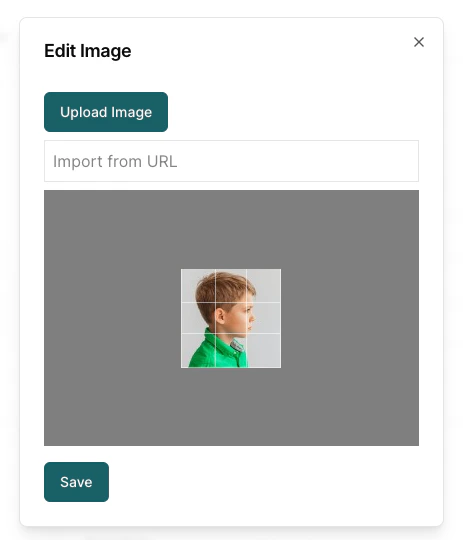 Once uploaded, you can crop and resize the image to ensure it displays perfectly throughout the system.
## Updating from Profile Pages
Profile pages provide the most comprehensive image editing experience with larger preview sizes and full editing capabilities.
### Children Profile Pages
1. Navigate to [Children](/admin/children) and select a child
2. On the child's profile page, click on the profile image (or the placeholder if no image exists)
Once uploaded, you can crop and resize the image to ensure it displays perfectly throughout the system.
## Updating from Profile Pages
Profile pages provide the most comprehensive image editing experience with larger preview sizes and full editing capabilities.
### Children Profile Pages
1. Navigate to [Children](/admin/children) and select a child
2. On the child's profile page, click on the profile image (or the placeholder if no image exists)
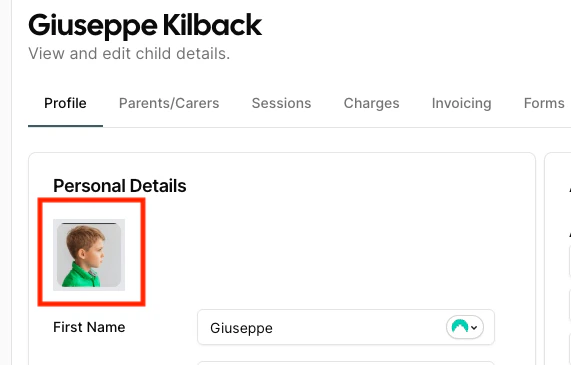 3. The image editor will open where you can:
* Click "Upload Image" to select a file from your computer
* Paste a URL in the "Import from URL" field
* Use the cropping tool to adjust the image positioning and zoom
4. Click "Save" to apply your changes
### Staff Profile Pages
1. Navigate to [Staff](/admin/staff) and select a staff member
2. In the "Personal Details" section, click on the profile image
3. Follow the same upload and editing process as described above
4. The updated image will appear throughout the system wherever this staff member is displayed
### Parents/Carers (Relatives) Profile Pages
1. Navigate to [Relatives](/admin/relatives) and select a parent/carer
2. Click on their profile image in the profile section
3. Upload and edit the image using the same process
4. The image will be updated across all areas where this relative appears
## Updating from List Views
For quick updates, you can edit profile images directly from list views without navigating to individual profile pages.
### Children List View
1. Go to [Children](/admin/children)
3. The image editor will open where you can:
* Click "Upload Image" to select a file from your computer
* Paste a URL in the "Import from URL" field
* Use the cropping tool to adjust the image positioning and zoom
4. Click "Save" to apply your changes
### Staff Profile Pages
1. Navigate to [Staff](/admin/staff) and select a staff member
2. In the "Personal Details" section, click on the profile image
3. Follow the same upload and editing process as described above
4. The updated image will appear throughout the system wherever this staff member is displayed
### Parents/Carers (Relatives) Profile Pages
1. Navigate to [Relatives](/admin/relatives) and select a parent/carer
2. Click on their profile image in the profile section
3. Upload and edit the image using the same process
4. The image will be updated across all areas where this relative appears
## Updating from List Views
For quick updates, you can edit profile images directly from list views without navigating to individual profile pages.
### Children List View
1. Go to [Children](/admin/children)
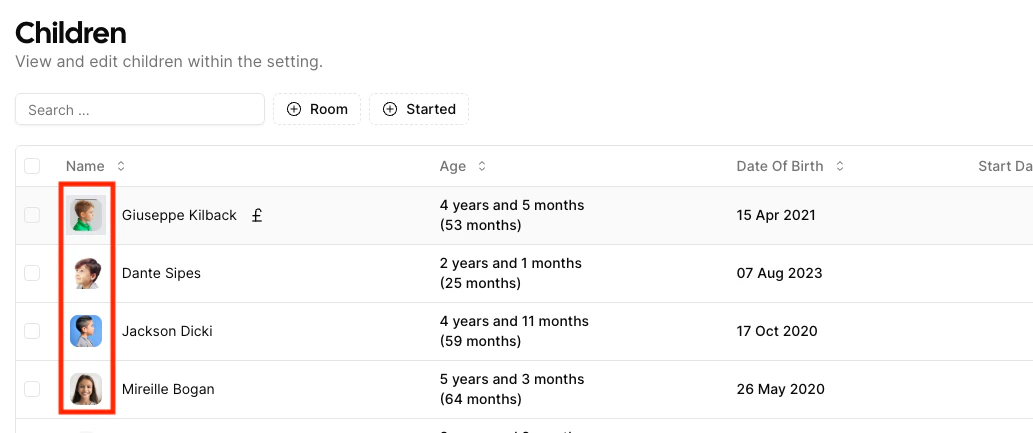 2. In the children list, simply click on any child's profile image (or avatar placeholder)
3. The image editor dialog will open, allowing you to upload and edit images
4. Changes are saved automatically and reflected immediately in the list
### Staff List View
1. Navigate to [Staff](/admin/staff)
2. Click on any staff member's profile image in the list
3. Edit the image using the popup editor
4. The updated image appears instantly in the staff list
### Relatives List View
1. Go to [Relatives](/admin/relatives)
2. Click on any relative's profile image
3. Make your changes in the image editor
4. The list updates automatically with the new image
## Image Editor Features
### Upload Options
* **File Upload**: Supports JPG, PNG, and GIF formats
* **Drag and Drop**: Simply drag image files into the upload area
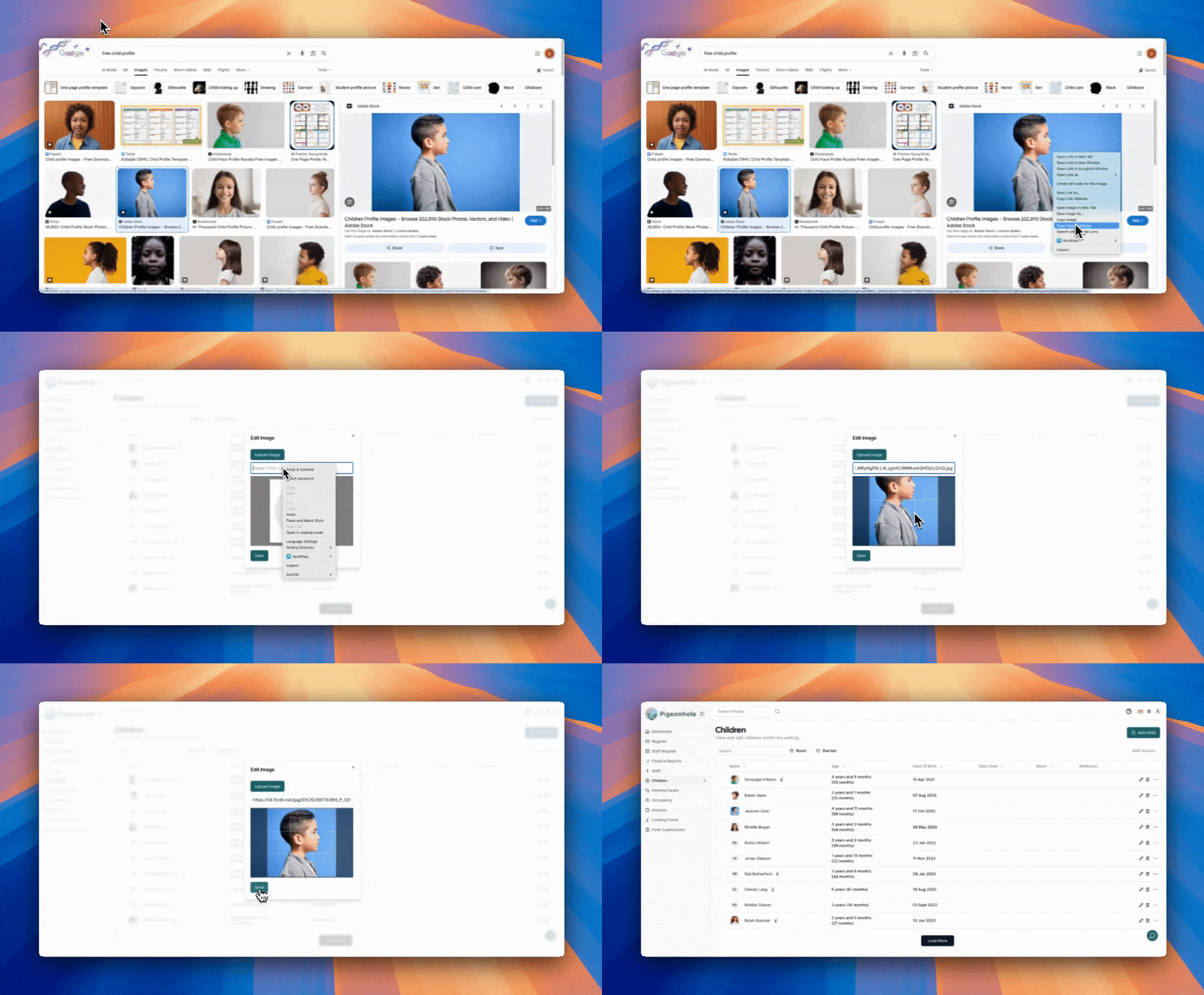
* **URL Import**: Paste any publicly accessible image URL. Simply right click on any image and click 'Copy Image Address'. The right click in the image editor url text box and click 'Paste'
2. In the children list, simply click on any child's profile image (or avatar placeholder)
3. The image editor dialog will open, allowing you to upload and edit images
4. Changes are saved automatically and reflected immediately in the list
### Staff List View
1. Navigate to [Staff](/admin/staff)
2. Click on any staff member's profile image in the list
3. Edit the image using the popup editor
4. The updated image appears instantly in the staff list
### Relatives List View
1. Go to [Relatives](/admin/relatives)
2. Click on any relative's profile image
3. Make your changes in the image editor
4. The list updates automatically with the new image
## Image Editor Features
### Upload Options
* **File Upload**: Supports JPG, PNG, and GIF formats
* **Drag and Drop**: Simply drag image files into the upload area
* **URL Import**: Paste any publicly accessible image URL. Simply right click on any image and click 'Copy Image Address'. The right click in the image editor url text box and click 'Paste'
 ## Troubleshooting
**Image won't upload?**
* Check the file format (JPG, PNG, GIF only)
* Ensure the file size is under 5MB
* Try using a different browser if problems persist
**Image appears blurry?**
* Use a higher resolution source image
* Avoid over-zooming during the crop process
* Ensure the original image is clear and in focus
## Troubleshooting
**Image won't upload?**
* Check the file format (JPG, PNG, GIF only)
* Ensure the file size is under 5MB
* Try using a different browser if problems persist
**Image appears blurry?**
* Use a higher resolution source image
* Avoid over-zooming during the crop process
* Ensure the original image is clear and in focus