> ## Documentation Index
> Fetch the complete documentation index at: https://pigeonholeapp.co.uk/docs/llms.txt
> Use this file to discover all available pages before exploring further.
# Announcements
> Share news and updates with parents, with manager approval, scheduling, and photo or video attachments.
Announcements let your team share news with parents — newsletters, reminders, event photos and more. Staff write announcements, managers approve and send them, and parents receive an email and can read the full announcement in the parent portal.
Open in app: [Announcements](/docs/app/staff/announcements).
## How announcements work
* Any staff member can write an announcement and save it as a draft. Drafts are private — nobody else, including managers, can see them until they are submitted.
* Staff submit finished announcements for approval. Managers receive an email when something is waiting for them.
* Managers review, edit if needed, and either **Send now** or **Schedule** the announcement for a specific date and time. Announcements written by a manager don't need separate approval — managers can send their own directly.
* Only contacts with **parental responsibility** receive announcements. Parents get an email with a short preview and a link, and can read the full announcement in the parent portal.
## Step 1: Write an Announcement
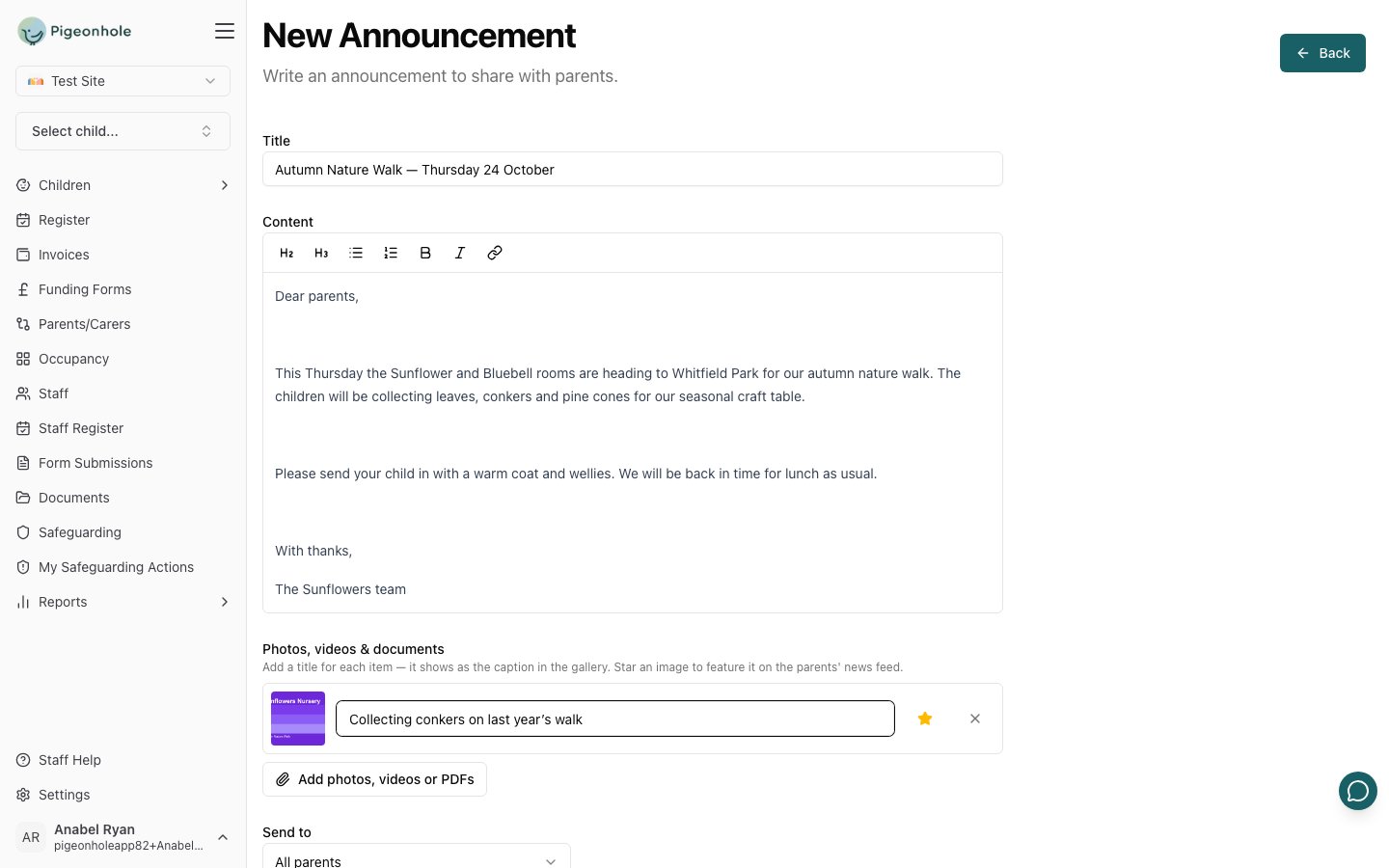
1. Go to **Announcements** in the sidebar and click **New Announcement**.
2. Enter a **Title** and write your announcement in the content editor. You can use headings, lists, bold, italics and links.
3. Click **Add photos, videos or PDFs** to attach files. Photos and videos appear as a gallery below the announcement text.
4. Give each photo or video a short caption if you like — the caption box starts empty, so add one only where it helps.
 Videos up to around 200MB are supported (MP4, MOV or WebM). Photos can be JPG, PNG, GIF, WebP or HEIC.
### Choosing the featured image
If you attach photos, one of them becomes the **featured image** — the thumbnail parents see next to the announcement in their news list. The first photo is used by default. To choose a different one, click the **star** next to that photo so it turns amber.
Videos up to around 200MB are supported (MP4, MOV or WebM). Photos can be JPG, PNG, GIF, WebP or HEIC.
### Choosing the featured image
If you attach photos, one of them becomes the **featured image** — the thumbnail parents see next to the announcement in their news list. The first photo is used by default. To choose a different one, click the **star** next to that photo so it turns amber.
 ## Step 2: Choose the Audience
Select who should receive the announcement under **Send to**:
* **All parents** — every parent with parental responsibility for a child currently at the setting.
* **Parents of children in today** — parents of children booked in on the day the announcement is sent. Turn on **Include absent children** if parents of children who are booked in but marked absent should receive it too.
* **Parents of specific children** — pick individual children; only their parents receive it.
The audience is worked out when the announcement is actually sent — not when it is written. A scheduled announcement to "children in today" uses the register for the day it goes out.
## Step 3: Save, Submit or Send
What you can do depends on your role:
* **Staff** can **Save draft** or **Submit for approval**. Submitting notifies the setting's managers by email. You can withdraw a submitted announcement back to your drafts if you need to make changes.
* **Managers** can **Save draft**, **Send now**, or pick a date and time and **Schedule**. When reviewing a staff submission, managers can edit the content first, then send or schedule it — or delete it if it shouldn't go out.
The **Awaiting approval** tab shows a count of announcements waiting for review.
## After Sending
* The announcement appears in the parent portal under **News**, and each recipient gets an email with a preview and a link to read the full announcement.
* Open a sent announcement to see the **Recipients** list — everyone it was sent to, grouped by child.
* Managers can still **Edit** a sent announcement. Changes update the parent portal copy quietly — no second email is sent.
* Managers can **Delete** a sent announcement to remove it from the parent portal.
Deleting or editing a sent announcement doesn't recall emails that have already been delivered — parents may have already read the original by email.
## Fixing the Recipients After Sending
Sometimes an announcement goes to the wrong group — or you realise a family should have been included. Managers can adjust the recipient list of a **sent** announcement without resending it to everyone. The audience type (all parents, in today, specific children) is fixed once sent; instead, you add and remove recipients **by child**.
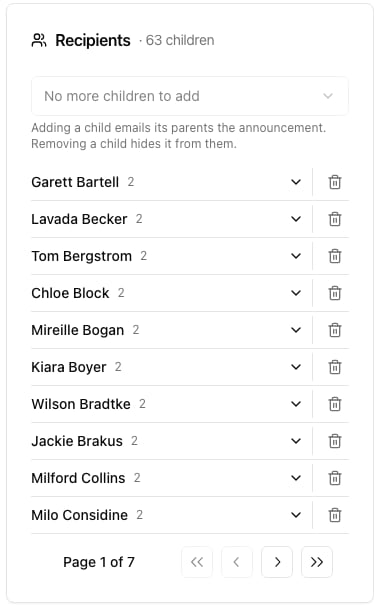
Open the sent announcement and use the **Recipients** panel:
* **Add a child** — pick a child from the **Add a child…** dropdown. All of that child's contacts with parental responsibility are added, gain access in the parent portal, and are emailed the announcement.
* **Remove a child** — click the bin icon next to a child. That child's parents lose access in the parent portal and the announcement disappears from their news list.
## Step 2: Choose the Audience
Select who should receive the announcement under **Send to**:
* **All parents** — every parent with parental responsibility for a child currently at the setting.
* **Parents of children in today** — parents of children booked in on the day the announcement is sent. Turn on **Include absent children** if parents of children who are booked in but marked absent should receive it too.
* **Parents of specific children** — pick individual children; only their parents receive it.
The audience is worked out when the announcement is actually sent — not when it is written. A scheduled announcement to "children in today" uses the register for the day it goes out.
## Step 3: Save, Submit or Send
What you can do depends on your role:
* **Staff** can **Save draft** or **Submit for approval**. Submitting notifies the setting's managers by email. You can withdraw a submitted announcement back to your drafts if you need to make changes.
* **Managers** can **Save draft**, **Send now**, or pick a date and time and **Schedule**. When reviewing a staff submission, managers can edit the content first, then send or schedule it — or delete it if it shouldn't go out.
The **Awaiting approval** tab shows a count of announcements waiting for review.
## After Sending
* The announcement appears in the parent portal under **News**, and each recipient gets an email with a preview and a link to read the full announcement.
* Open a sent announcement to see the **Recipients** list — everyone it was sent to, grouped by child.
* Managers can still **Edit** a sent announcement. Changes update the parent portal copy quietly — no second email is sent.
* Managers can **Delete** a sent announcement to remove it from the parent portal.
Deleting or editing a sent announcement doesn't recall emails that have already been delivered — parents may have already read the original by email.
## Fixing the Recipients After Sending
Sometimes an announcement goes to the wrong group — or you realise a family should have been included. Managers can adjust the recipient list of a **sent** announcement without resending it to everyone. The audience type (all parents, in today, specific children) is fixed once sent; instead, you add and remove recipients **by child**.
Open the sent announcement and use the **Recipients** panel:
* **Add a child** — pick a child from the **Add a child…** dropdown. All of that child's contacts with parental responsibility are added, gain access in the parent portal, and are emailed the announcement.
* **Remove a child** — click the bin icon next to a child. That child's parents lose access in the parent portal and the announcement disappears from their news list.
 A parent linked to more than one recipient child keeps access until **all** of their children are removed.
Removing a child doesn't recall emails already delivered to their parents, and adding a child sends them a fresh email. Removing only hides the announcement from the parent portal from that point on.
## Frequently Asked Questions
### Who counts as a manager for approvals?
Anyone with the Manager role on their staff record (or the site owner). They can send and schedule announcements directly, and approve announcements submitted by other staff.
### Why didn't a parent receive an announcement?
Check that the contact has **parental responsibility** for the child and has an email address recorded. Contacts without parental responsibility (for example, some emergency contacts) don't receive announcements.
### Can I write announcements on the mobile app?
Yes — the staff app has an **Announcements** tab where staff can write and submit announcements and managers can approve and send them. See [Announcements on the app](/docs/staff/using-the-app/announcements).
A parent linked to more than one recipient child keeps access until **all** of their children are removed.
Removing a child doesn't recall emails already delivered to their parents, and adding a child sends them a fresh email. Removing only hides the announcement from the parent portal from that point on.
## Frequently Asked Questions
### Who counts as a manager for approvals?
Anyone with the Manager role on their staff record (or the site owner). They can send and schedule announcements directly, and approve announcements submitted by other staff.
### Why didn't a parent receive an announcement?
Check that the contact has **parental responsibility** for the child and has an email address recorded. Contacts without parental responsibility (for example, some emergency contacts) don't receive announcements.
### Can I write announcements on the mobile app?
Yes — the staff app has an **Announcements** tab where staff can write and submit announcements and managers can approve and send them. See [Announcements on the app](/docs/staff/using-the-app/announcements).