> ## Documentation Index
> Fetch the complete documentation index at: https://pigeonholeapp.co.uk/docs/llms.txt
> Use this file to discover all available pages before exploring further.
# View Attendance Reports
> How to view and analyze attendance reports.
# Attendance Reports
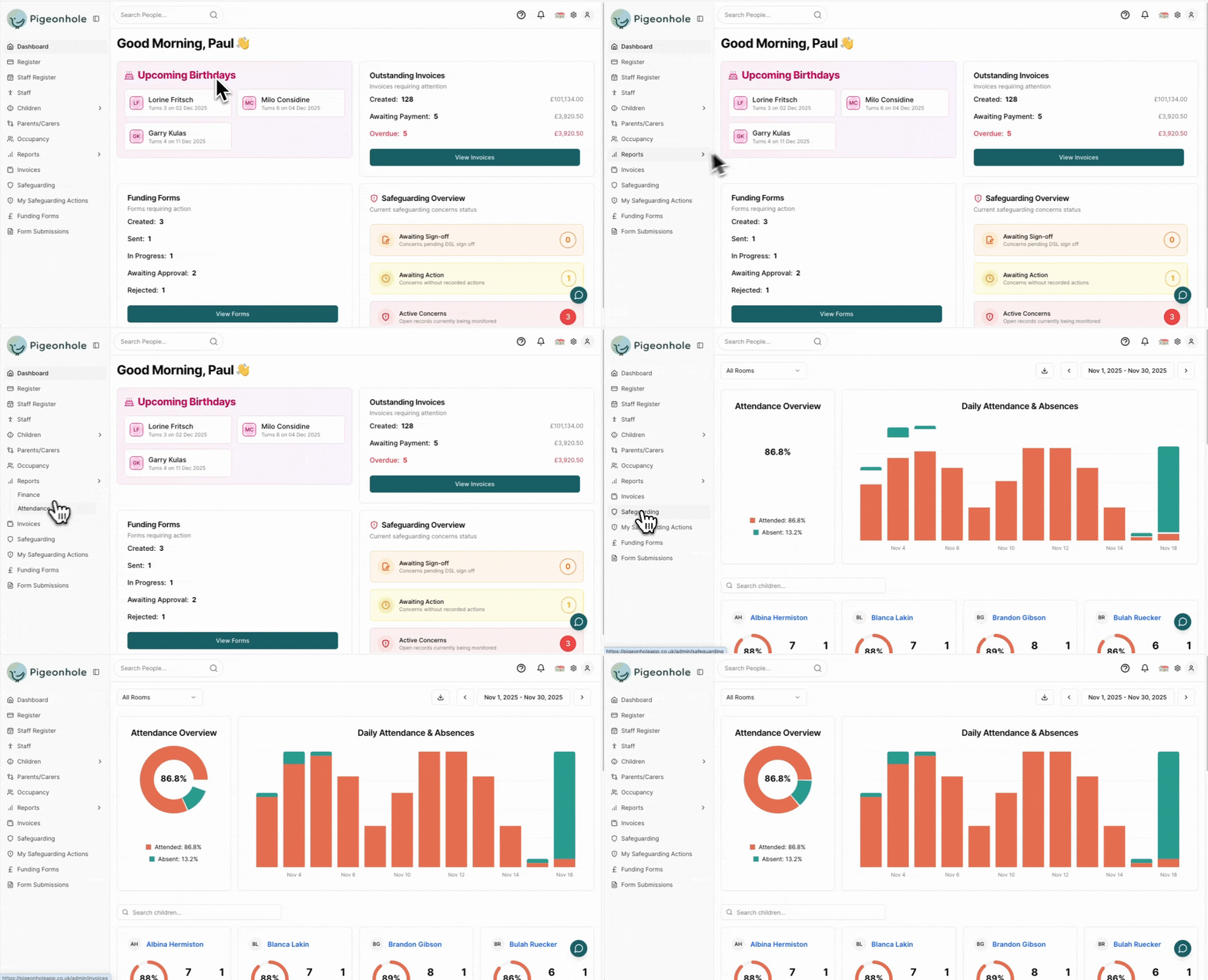
The Attendance Reports page gives you a clear picture of overall attendance, daily patterns, and individual child history across your nursery. Use it to monitor trends, understand absences, and export data for record‑keeping.
 ### Date Range
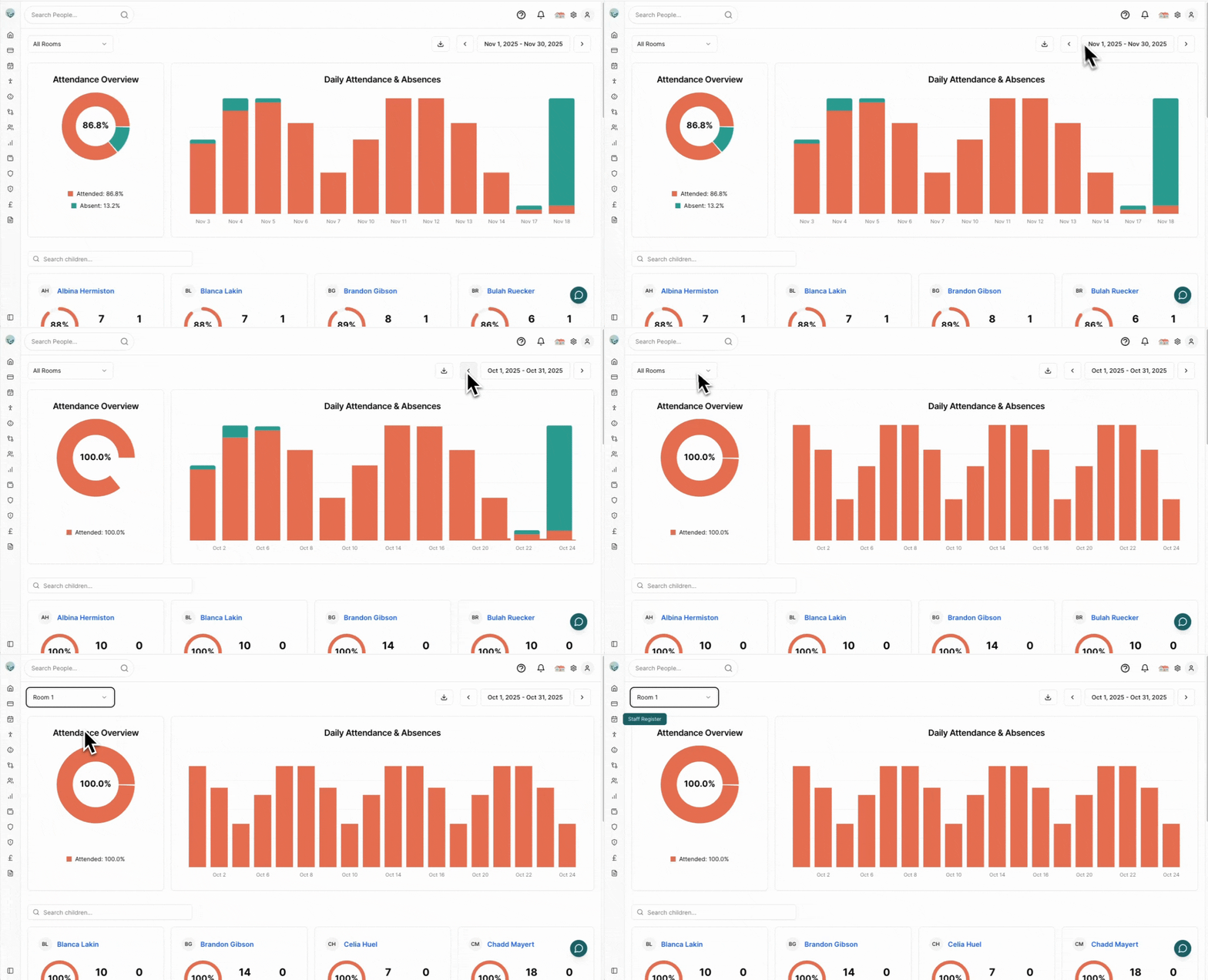
1. Click the date range button (top right).
2. Pick a start date and an end date.
3. Apply – all charts and lists refresh instantly.
Attendance percentages include all expected days in the range (including weekends/holidays if part of a child’s expected pattern).
### Room Filter
Select a specific room or All Rooms. A child who attended multiple rooms appears separately per room; in All Rooms their total attendance is combined.
### Date Range
1. Click the date range button (top right).
2. Pick a start date and an end date.
3. Apply – all charts and lists refresh instantly.
Attendance percentages include all expected days in the range (including weekends/holidays if part of a child’s expected pattern).
### Room Filter
Select a specific room or All Rooms. A child who attended multiple rooms appears separately per room; in All Rooms their total attendance is combined.
 ### Export (CSV)
Click the download icon (top right) to export the selected date range.
Contents include child info, expected vs actual times, absences (type & notes), and attendance notes.
## Daily Analysis
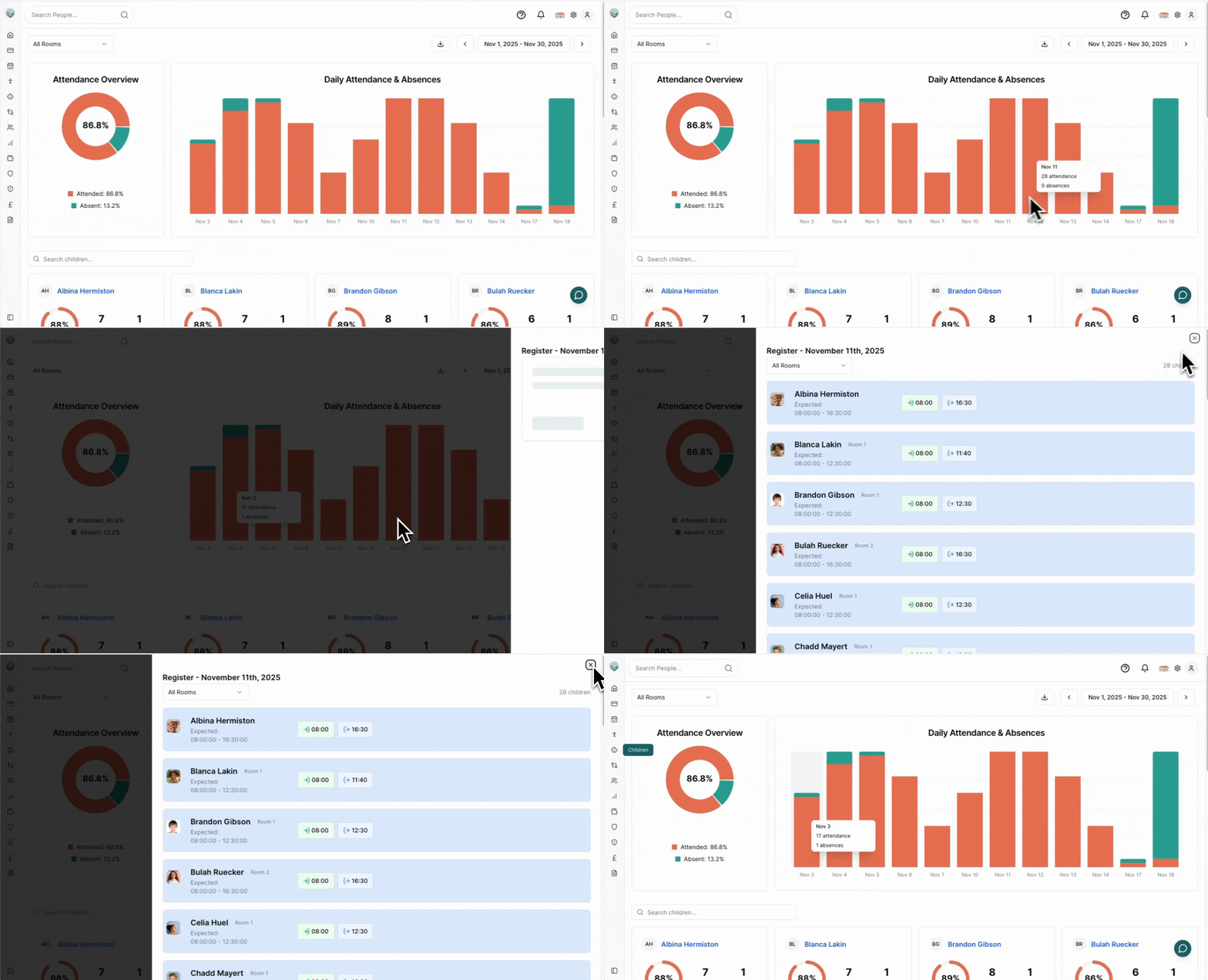
The top charts summarise overall attendance and show daily variation.
### Attendance Overview (Pie)
* Center number: Overall attendance %
* Green: Attended days. Red: Absent days.
* Hover for exact day counts.
### Daily Attendance (Stacked Bars)
* Green segment: Children present that day.
* Red segment: Children absent that day.
* Bar height: Total expected children.
* Hover: See counts. Dates labelled clearly.
Click any bar to open a read‑only register for that date.
### Export (CSV)
Click the download icon (top right) to export the selected date range.
Contents include child info, expected vs actual times, absences (type & notes), and attendance notes.
## Daily Analysis
The top charts summarise overall attendance and show daily variation.
### Attendance Overview (Pie)
* Center number: Overall attendance %
* Green: Attended days. Red: Absent days.
* Hover for exact day counts.
### Daily Attendance (Stacked Bars)
* Green segment: Children present that day.
* Red segment: Children absent that day.
* Bar height: Total expected children.
* Hover: See counts. Dates labelled clearly.
Click any bar to open a read‑only register for that date.
 ## Child Detail
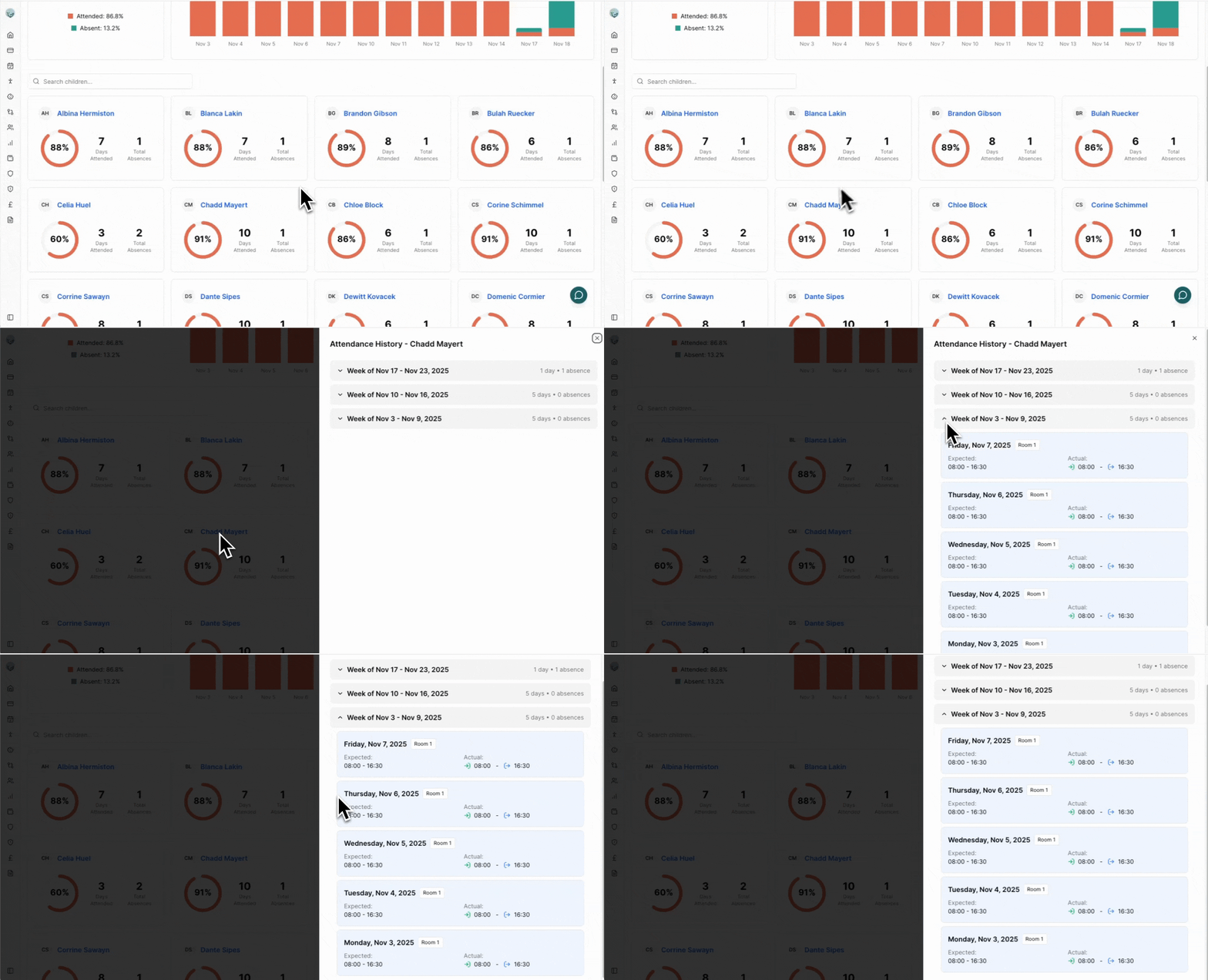
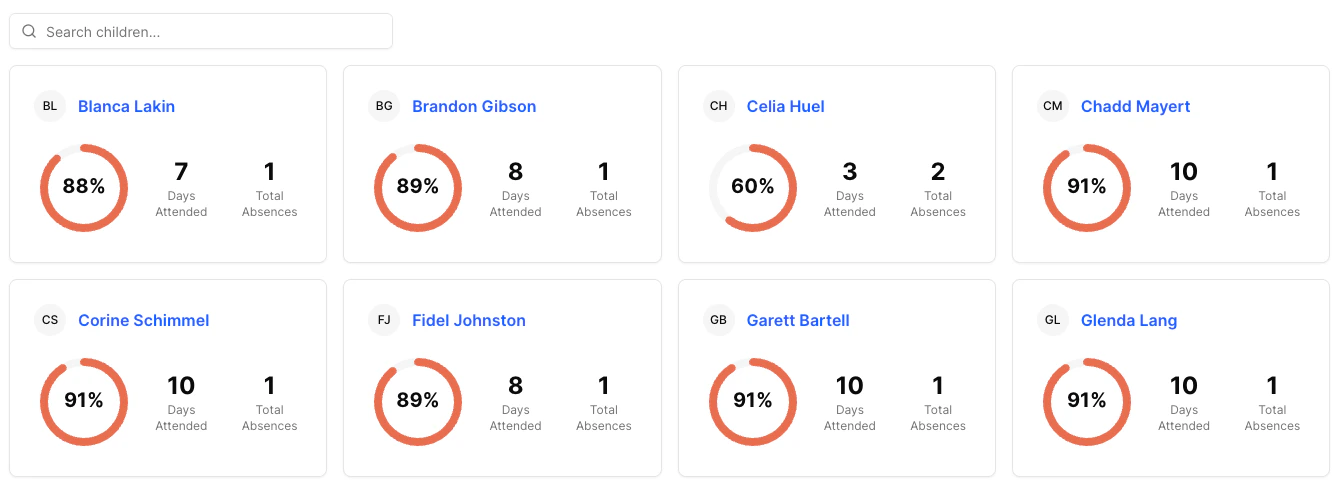
Below the charts each child has a card summarising their attendance in the selected range.
## Child Detail
Below the charts each child has a card summarising their attendance in the selected range.
 ### Child Cards
* Photo & Name (click name for detailed history).
* Circular indicator: Attendance %. Full circle = 100%.
* Metrics: Days Attended, Days Absent, Percentage.
### Search
Use the search box above the list to filter by name.
### Detailed History (Click Name)
Opens a dialog organised by week (collapsible). Each day shows:
* Date & room.
* Expected times vs actual check‑in (green) and check‑out (blue).
* Absence info (type, coloured icon, notes) when applicable.
* Attendance / absence notes.
### Child Cards
* Photo & Name (click name for detailed history).
* Circular indicator: Attendance %. Full circle = 100%.
* Metrics: Days Attended, Days Absent, Percentage.
### Search
Use the search box above the list to filter by name.
### Detailed History (Click Name)
Opens a dialog organised by week (collapsible). Each day shows:
* Date & room.
* Expected times vs actual check‑in (green) and check‑out (blue).
* Absence info (type, coloured icon, notes) when applicable.
* Attendance / absence notes.