> ## Documentation Index
> Fetch the complete documentation index at: https://pigeonholeapp.co.uk/docs/llms.txt
> Use this file to discover all available pages before exploring further.
# Archiving & Restoring Children
> How children are archived when they leave, how to restore them, and how to permanently delete a record.
When a child leaves your setting you do not lose their record. Instead, Pigeonhole archives it — a soft delete that keeps all the child's information safe and out of your day-to-day lists. You can restore an archived child at any time, or permanently delete their record if you no longer need it.
Open in app: [Archived Children](/docs/app/admin/children/archive).
## How Children Get Archived
There are two ways a child ends up in the archive:
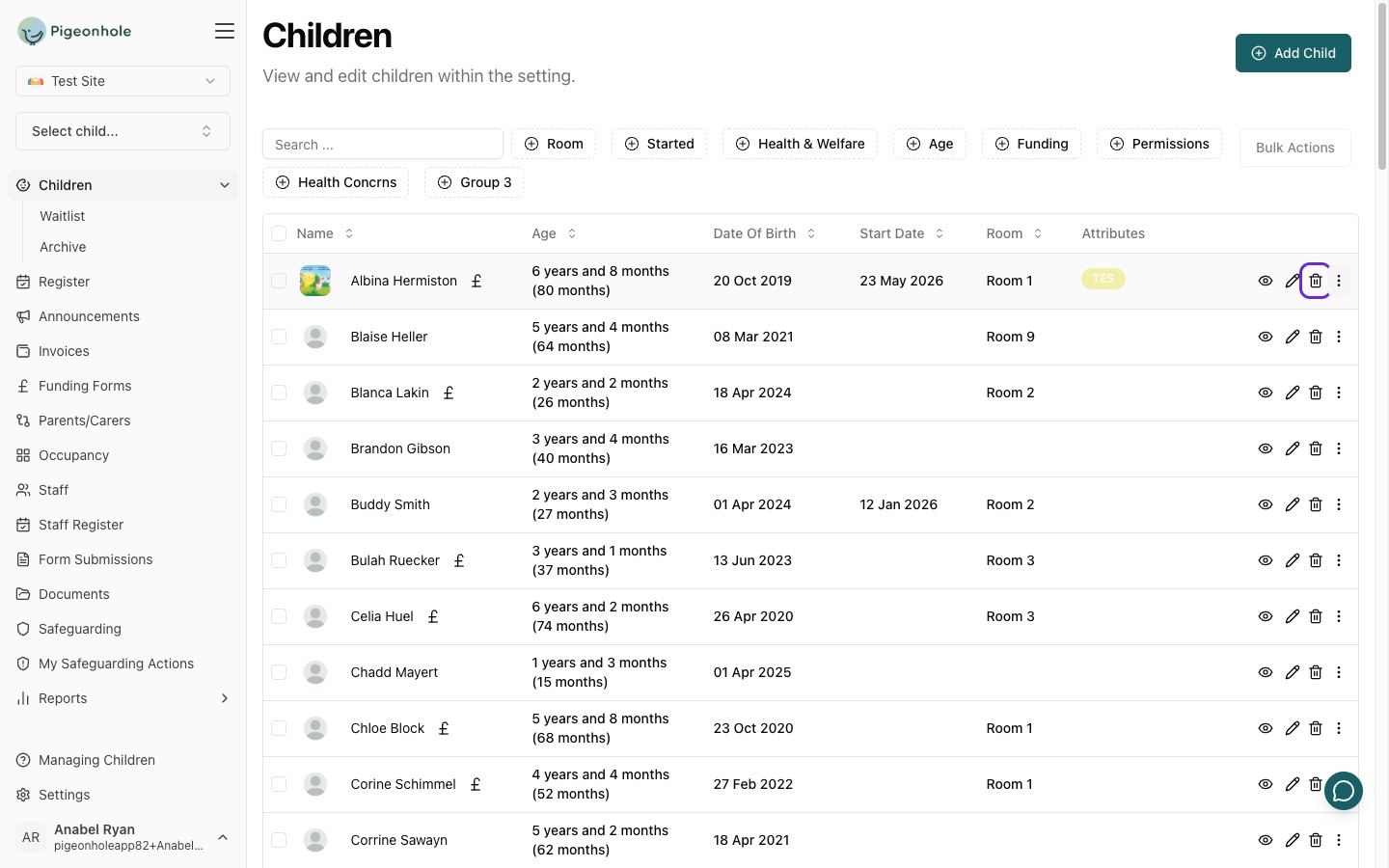
* **Removing a child from the main list.** When you delete a child from your **Children** list, the child is not permanently removed — they are archived. You will see the message "The child has been archived" to confirm.
* **Automatically, from a Leaving Date.** If you set a **Leaving Date** on the child's profile, the child is automatically moved to the archive the day after that date. See the [Leaving Date](/docs/managers/children/attendance-and-health#attendance) field on the Attendance & Health page.
Once archived, a child no longer appears in your main children list, register, occupancy, or billing.
 ## Viewing Archived Children
1. Go to **Children**.
2. Open the **Archive** page.
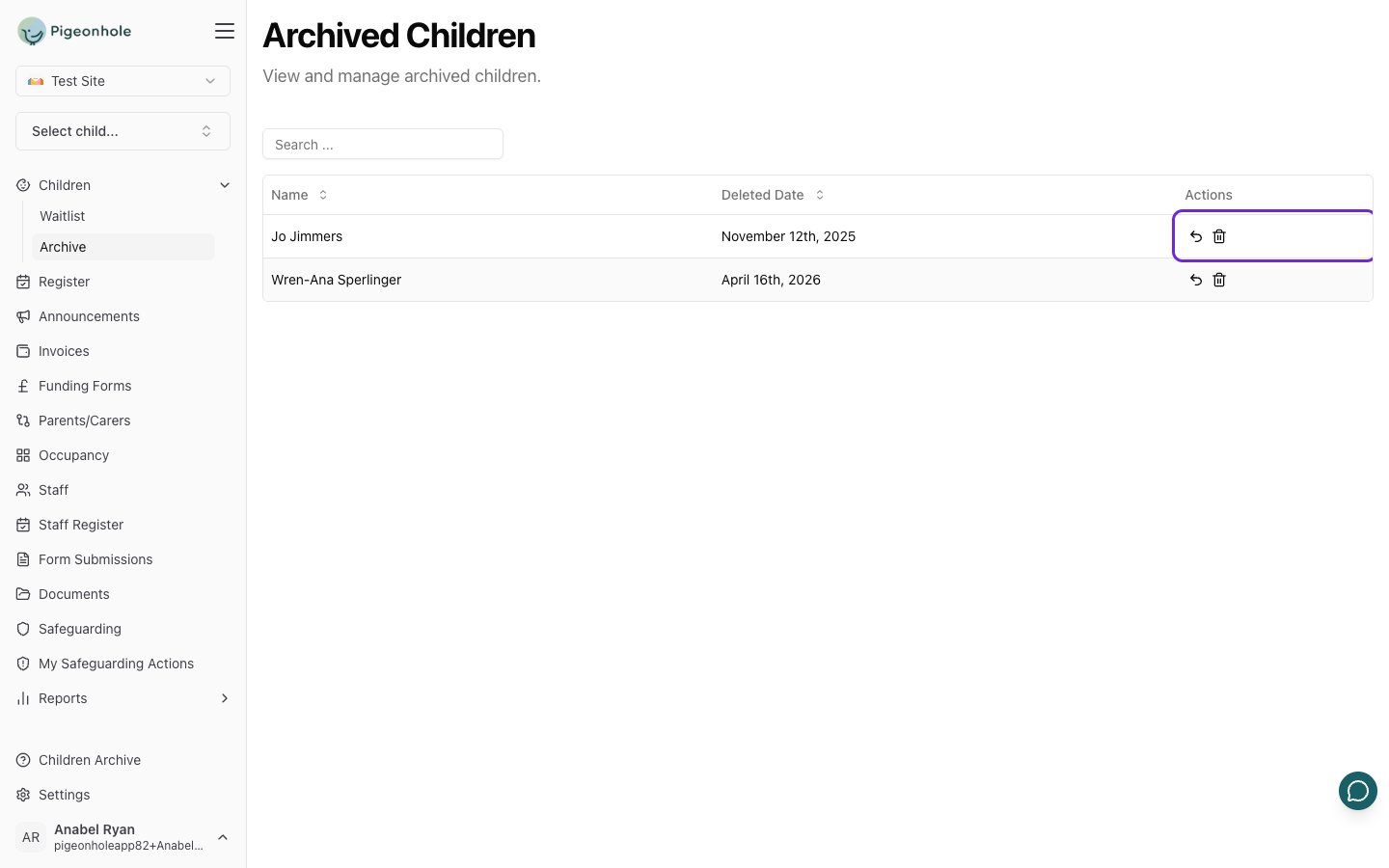
The archive lists every archived child along with a **Deleted Date** showing when they were archived. Each row has two actions.
## Viewing Archived Children
1. Go to **Children**.
2. Open the **Archive** page.
The archive lists every archived child along with a **Deleted Date** showing when they were archived. Each row has two actions.
 ## Restoring a Child
If a child was archived by mistake, or returns to your setting, you can bring their record back.
1. On the **Archive** page, find the child.
2. Click the **Restore** button (the undo icon).
3. Confirm when prompted.
The child is returned to your main children list with their record intact. You will see the message "The child has been restored".
## Permanently Deleting a Child
If you are certain you no longer need a child's record, you can permanently remove it.
1. On the **Archive** page, find the child.
2. Click the **Hard Delete** button (the bin icon).
3. Confirm when prompted.
**Hard Delete** permanently removes the child and all of their data. This cannot be undone and the record cannot be restored afterwards. If there is any chance you will need the record again, leave the child in the archive instead.
## Restoring a Child
If a child was archived by mistake, or returns to your setting, you can bring their record back.
1. On the **Archive** page, find the child.
2. Click the **Restore** button (the undo icon).
3. Confirm when prompted.
The child is returned to your main children list with their record intact. You will see the message "The child has been restored".
## Permanently Deleting a Child
If you are certain you no longer need a child's record, you can permanently remove it.
1. On the **Archive** page, find the child.
2. Click the **Hard Delete** button (the bin icon).
3. Confirm when prompted.
**Hard Delete** permanently removes the child and all of their data. This cannot be undone and the record cannot be restored afterwards. If there is any chance you will need the record again, leave the child in the archive instead.