> ## Documentation Index
> Fetch the complete documentation index at: https://pigeonholeapp.co.uk/docs/llms.txt
> Use this file to discover all available pages before exploring further.
# Child Waitlist
> Track prospective children before they join your setting, and move them onto your main roll when a place is ready.
The waitlist is where you keep prospective children who are not yet on roll — enquiries and offers you are holding until a place is ready. Children on the waitlist have a full child record, so you can start building their profile, add their relatives, and even raise a registration invoice before they officially start.
When you are ready, you move a child off the waitlist and onto your main site with a single click.
Open in app: [Waitlist](/docs/app/admin/children/waitlist).
 ## Adding a Child to the Waitlist
1. Go to **Children** and open the **Waitlist**.
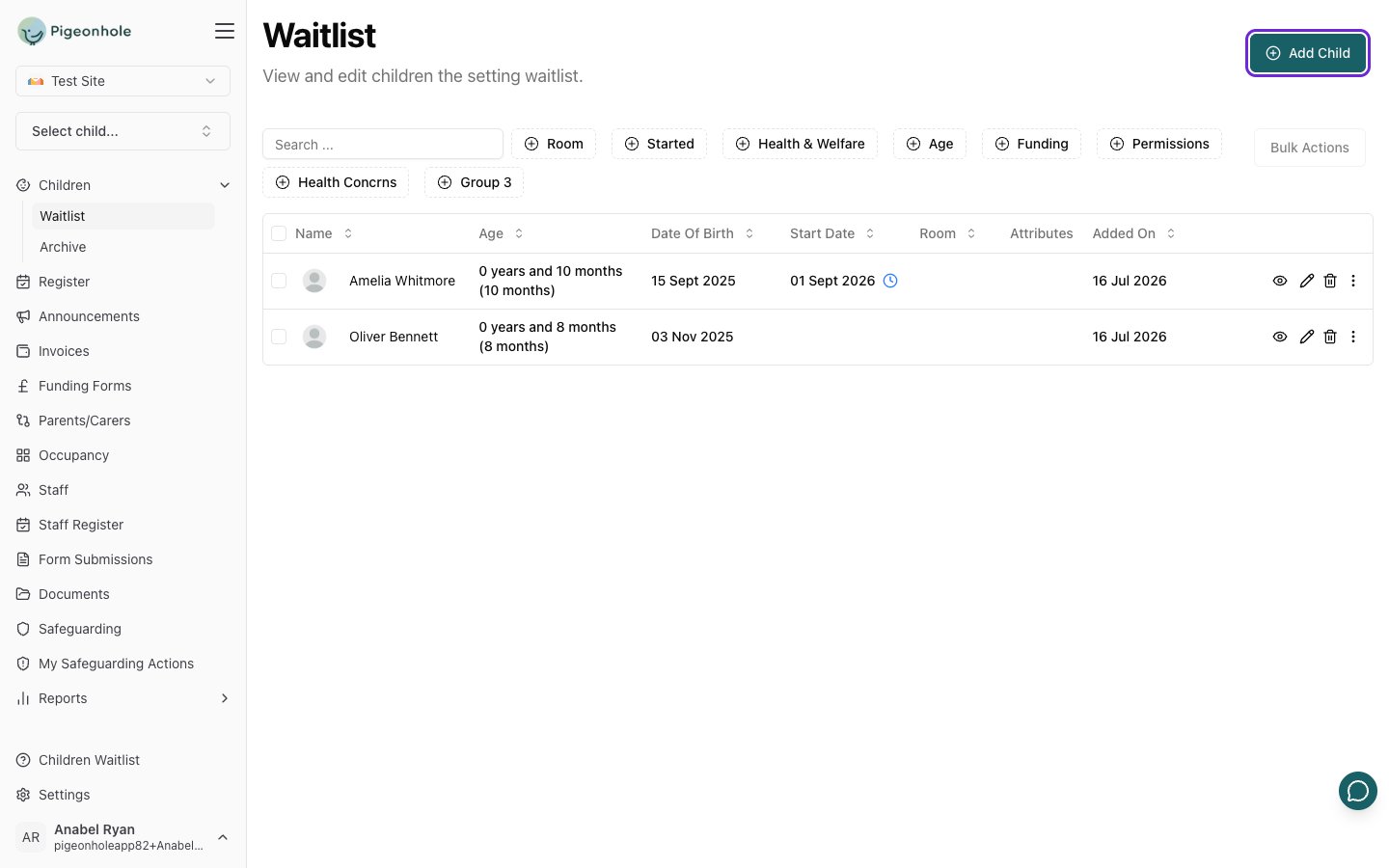
2. Click **Add Child** in the top right. The **Add Child to Waitlist** page opens.
3. Fill in the child's details on the profile form, just as you would for any child.
4. Click **Save**.
The child is added to the waitlist rather than your main roll, and appears in the waitlist table.
## The Waitlist Table
The waitlist shows the same details as your main children list, with one extra column:
* **Added On** — the date the child was added to the waitlist, so you can see how long each child has been waiting.
## Moving a Child Off the Waitlist
When a place becomes available, you can move a child onto your main site.
### For a Single Child
1. Find the child in the waitlist table.
2. Open the row's options menu (the three dots on the right).
3. Click **Move off waitlist** and confirm.
The child moves onto your main roll and disappears from the waitlist. If your setting charges registration fees, you can also use **Create Registration Invoice** from the same menu to raise a registration invoice for the child while they are still on the waitlist. See [Registration Fees](/docs/managers/invoicing/registration-fees).
### For Several Children at Once
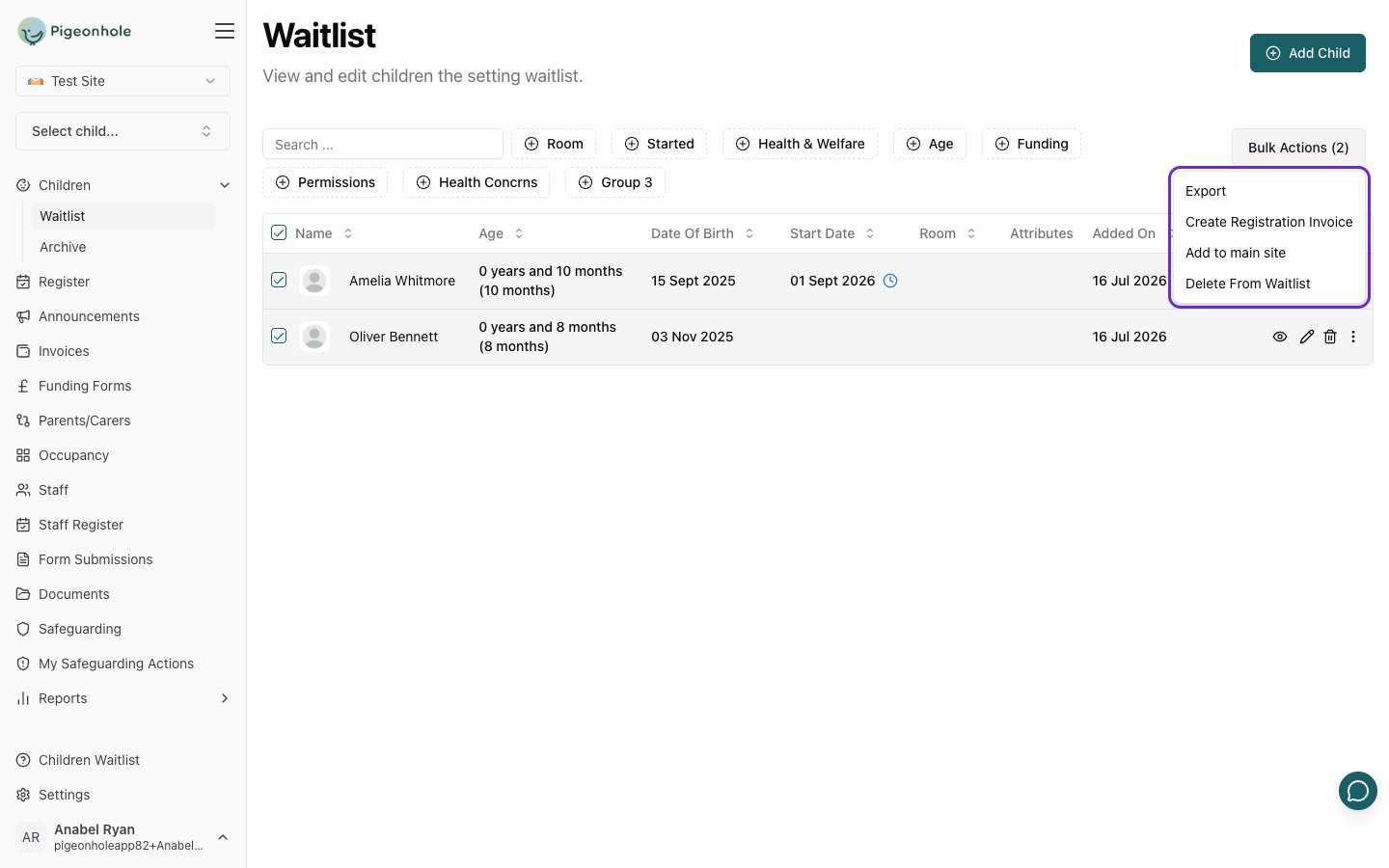
1. Select the children using the checkboxes on the left.
2. Choose a bulk action:
* **Add to main site** — moves all the selected children off the waitlist and onto your main roll.
* **Delete From Waitlist** — permanently removes the selected children from the waitlist.
3. Confirm when prompted.
**Delete From Waitlist** permanently removes the selected children and their data. This cannot be undone, so use it only for enquiries that are not going ahead. To keep a child, use **Add to main site** instead.
## Adding a Child to the Waitlist
1. Go to **Children** and open the **Waitlist**.
2. Click **Add Child** in the top right. The **Add Child to Waitlist** page opens.
3. Fill in the child's details on the profile form, just as you would for any child.
4. Click **Save**.
The child is added to the waitlist rather than your main roll, and appears in the waitlist table.
## The Waitlist Table
The waitlist shows the same details as your main children list, with one extra column:
* **Added On** — the date the child was added to the waitlist, so you can see how long each child has been waiting.
## Moving a Child Off the Waitlist
When a place becomes available, you can move a child onto your main site.
### For a Single Child
1. Find the child in the waitlist table.
2. Open the row's options menu (the three dots on the right).
3. Click **Move off waitlist** and confirm.
The child moves onto your main roll and disappears from the waitlist. If your setting charges registration fees, you can also use **Create Registration Invoice** from the same menu to raise a registration invoice for the child while they are still on the waitlist. See [Registration Fees](/docs/managers/invoicing/registration-fees).
### For Several Children at Once
1. Select the children using the checkboxes on the left.
2. Choose a bulk action:
* **Add to main site** — moves all the selected children off the waitlist and onto your main roll.
* **Delete From Waitlist** — permanently removes the selected children from the waitlist.
3. Confirm when prompted.
**Delete From Waitlist** permanently removes the selected children and their data. This cannot be undone, so use it only for enquiries that are not going ahead. To keep a child, use **Add to main site** instead.