> ## Documentation Index
> Fetch the complete documentation index at: https://pigeonholeapp.co.uk/docs/llms.txt
> Use this file to discover all available pages before exploring further.
# Creating Custom Attributes
> Learn how to create and manage custom attributes for children in your nursery.
# Custom Attributes
Custom attributes allow you to capture additional information about children that isn't covered by the standard fields. This could include specific medial information medical information, special needs, or any other data specific to your nursery's requirements.
## Overview
The custom attributes system provides a flexible way to:
* Create custom fields with different data types
* Make fields filterable in the childrens list view
* Manage predefined lists of values
* Track unique information for each child
* Allow quick access for staff to view specific information directly from the register
## Accessing Custom Attributes
Navigate to [**Settings > Custom Attributes**](/admin/settings/attributes) from the top settings menu to manage your custom attributes.
## Creating a New Attribute Group
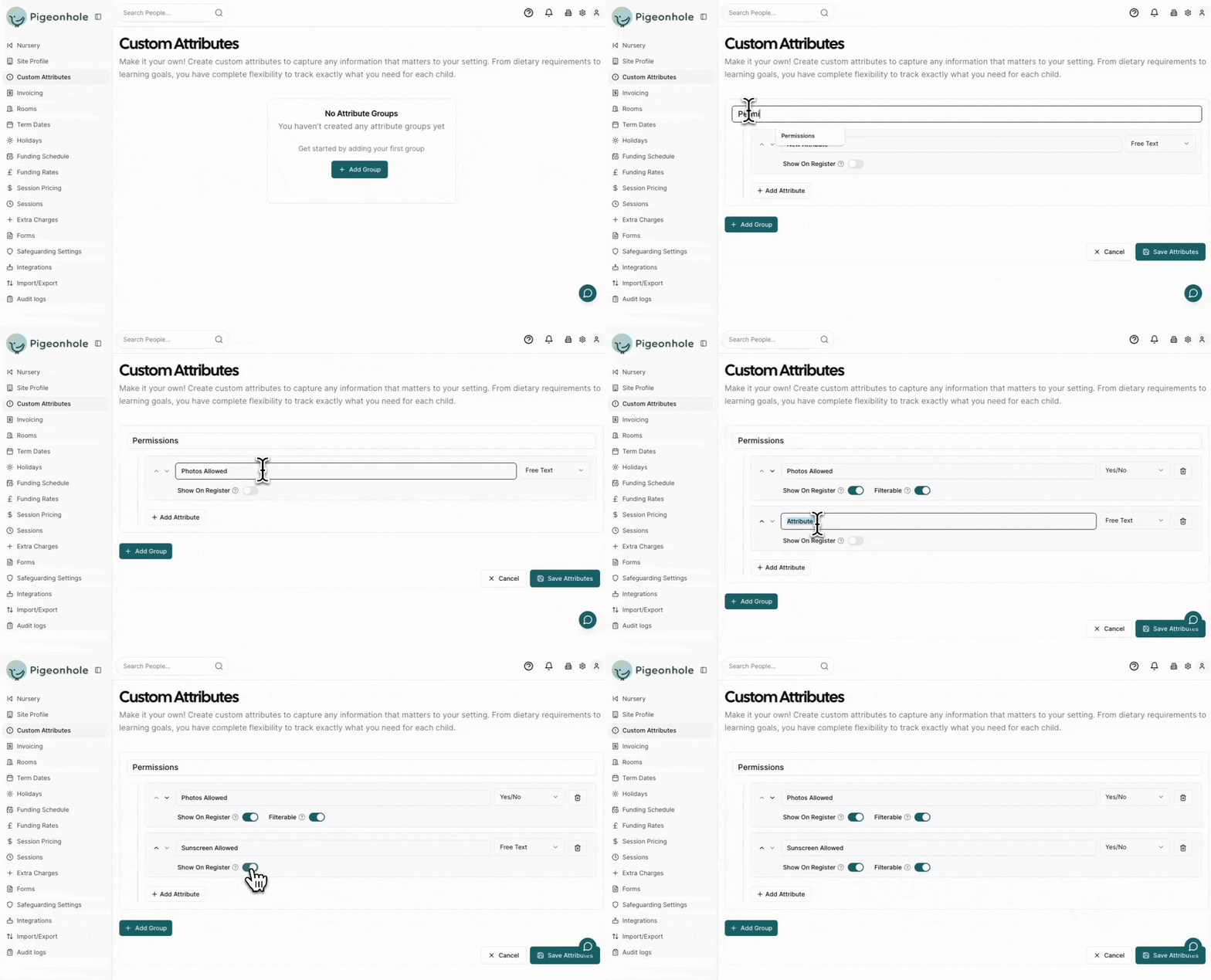
Attribute groups allow you to combine attributes into groupings that can be viewed on the register or child detail page. For example, you could create a Group for 'Permissions' to allow you to specify all the permissions that have been allowed by parents carers.
1. Click the **Add Group** button
2. Enter a name for the attribute group (e.g. Permissions)
3. Click the **Add Attribute** button
4. Enter a descriptive **Name** for the attribute (e.g., "Dietary Requirements", "Emergency Contact", "Medical Notes")
5. Select the **Field Type**:
* **Free Text**: Allows staff to enter any text
* **Yes/No**: Boolean field for simple true/false information
* **List of Values**: Dropdown with predefined options
6. If using "List of Values", add your options in the **List Items** section
7. Toggle **Show on Register** if you want to show this field on the register and make it viewable for all staff.
8. Toggle **Is Filterable** if you want to filter children by this attribute in the children's list view. This is available for List types and Yes/No types.
9. Click **Save Attributes**
 ## Field Types
### Free Text
Best for open-ended information like notes, addresses, or descriptions.
**Example uses:**
* Special instructions
* Emergency contact details
### Yes/No
Simple boolean fields for binary information.
**Example uses:**
* Requires special assistance
* Permissions
### List of Values
Dropdown menus with predefined options to ensure consistency.
**Example uses:**
* Dietary requirements (Vegetarian, Vegan, Gluten-free, No restrictions)
* Transport method (Walk, Car, Bus, Bike)
## Filterable Attributes
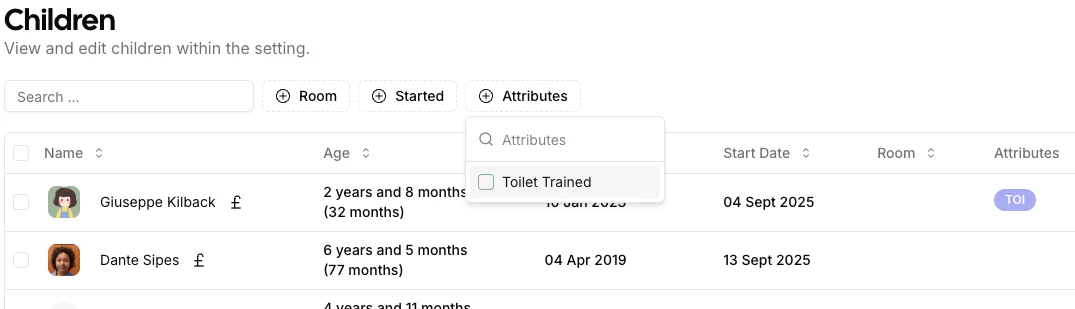
When you mark an attribute as "Filterable":
* It appears in the children list filters
* Staff can quickly find children based on this attribute
* Only applies to "Yes/No" and "List of Values" field types
* Free text fields cannot be made filterable
## Field Types
### Free Text
Best for open-ended information like notes, addresses, or descriptions.
**Example uses:**
* Special instructions
* Emergency contact details
### Yes/No
Simple boolean fields for binary information.
**Example uses:**
* Requires special assistance
* Permissions
### List of Values
Dropdown menus with predefined options to ensure consistency.
**Example uses:**
* Dietary requirements (Vegetarian, Vegan, Gluten-free, No restrictions)
* Transport method (Walk, Car, Bus, Bike)
## Filterable Attributes
When you mark an attribute as "Filterable":
* It appears in the children list filters
* Staff can quickly find children based on this attribute
* Only applies to "Yes/No" and "List of Values" field types
* Free text fields cannot be made filterable
 ## Using Attributes with Children
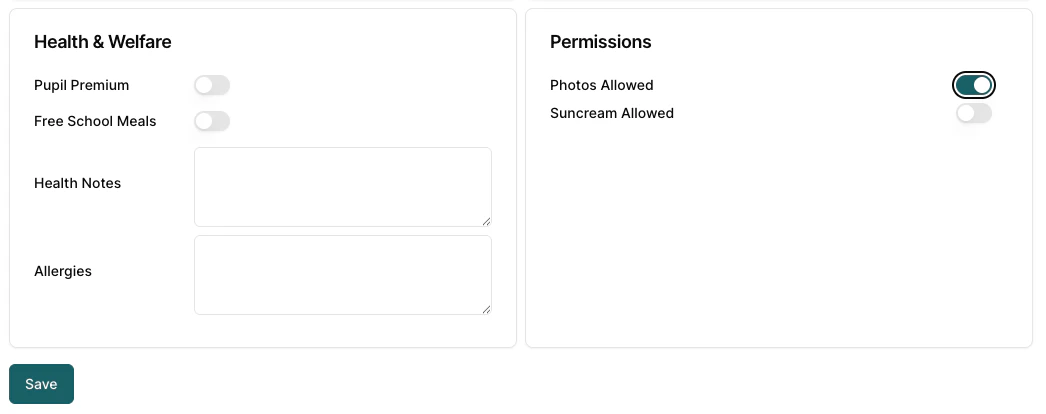
Once created, custom attributes appear on each child's profile page where staff can view them. Admin users can edit custom attributes on the child edit page accessed from the childrens list view.
## Using Attributes with Children
Once created, custom attributes appear on each child's profile page where staff can view them. Admin users can edit custom attributes on the child edit page accessed from the childrens list view.
 ## Using Attributes with the Register
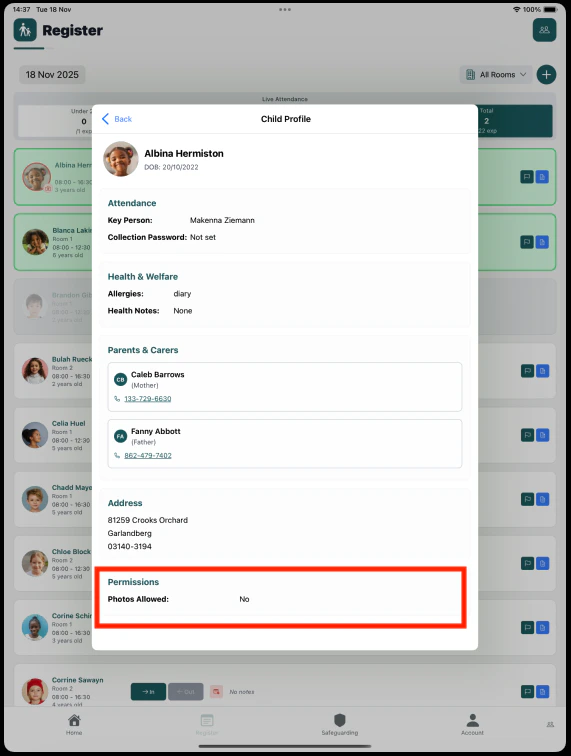
Attributes that have been tagged as 'Show On Register' will appear on the child profile when clicking on the child within the register.
## Using Attributes with the Register
Attributes that have been tagged as 'Show On Register' will appear on the child profile when clicking on the child within the register.