> ## Documentation Index
> Fetch the complete documentation index at: https://pigeonholeapp.co.uk/docs/llms.txt
> Use this file to discover all available pages before exploring further.
# AI Form Processing
> How Pigeonhole reads completed forms and turns them into child records and profile updates, so nobody has to re-type parents' answers.
Onboarding a child has always meant the same grind: a parent fills in a registration form,
and somebody in the office copies every answer into the system by hand. Names, dates of
birth, addresses, allergies, emergency contacts, consent boxes. Then another form comes back
a fortnight later and the copying starts again.
Pigeonhole reads those forms for you. When a completed form arrives, the AI works out which
answers belong on the child's record and proposes a filled-in draft for you to check. You
read it, correct anything you disagree with, and save. The typing is gone; the judgement
stays with you.
Open in app: [Form Submissions](https://pigeonholeapp.co.uk/app/admin/forms).
## Where to find it
The AI actions live **inside a form submission**, not in the row menu on the list. That's
deliberate: you read the parent's answers first, then decide.
1. Go to **Form Submissions** in the sidebar.
2. Pick the tab you need — **Unassigned** for applications from people not yet on your system,
**Children** for forms already linked to a child.
3. Find the completed submission and click the **Eye** icon at the end of its row.
4. The submission opens. At the top is a **Child profile** panel with the action button.
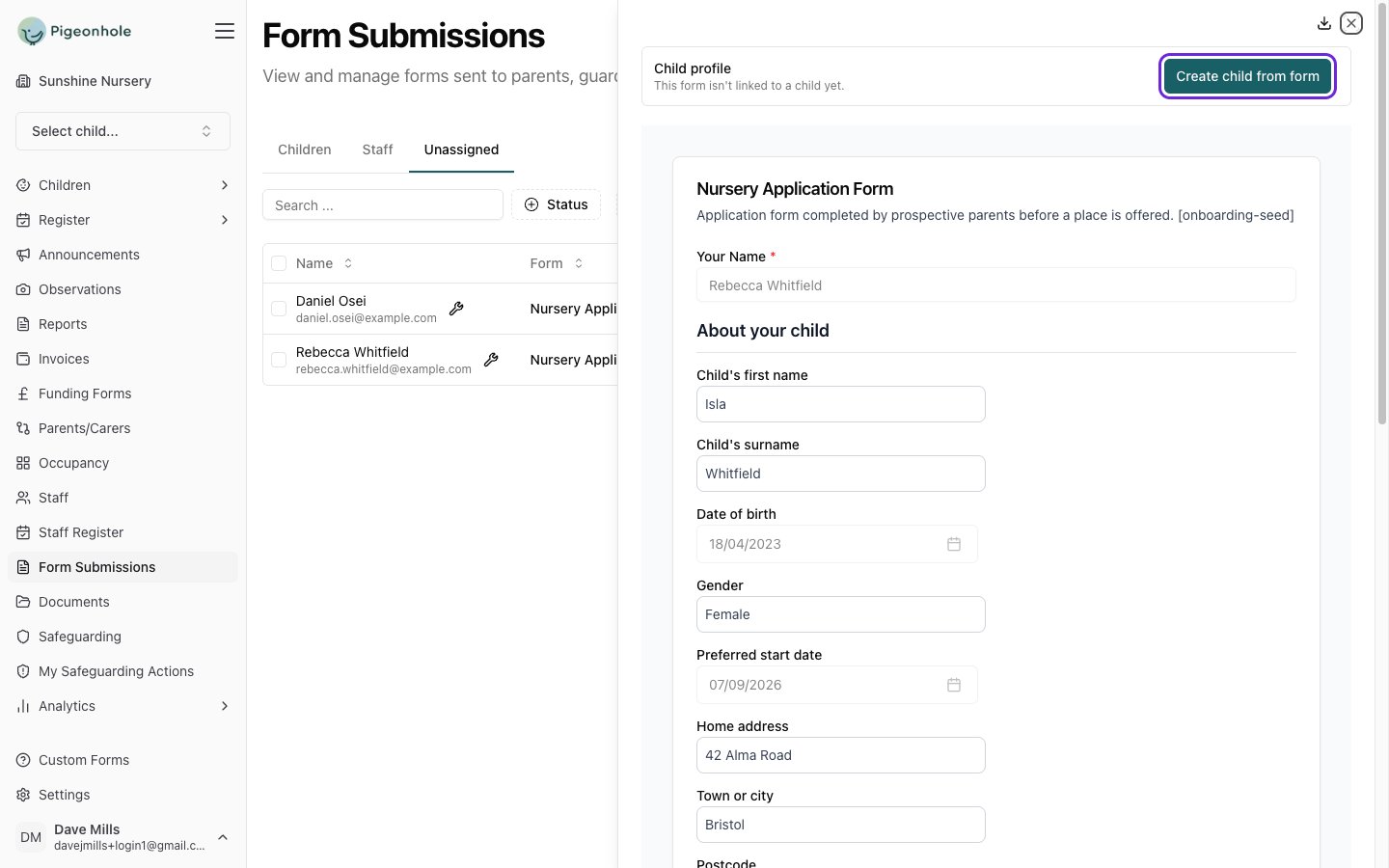 No button in that panel? See [Why the button isn't there](#why-the-button-isnt-there) below —
it's almost always a form setting.
## The two actions
Which button appears depends on whether the submission is already linked to a child.
Shown on the **Unassigned** tab, where the panel reads *"This form isn't linked to a child
yet."* Typically an application or registration form. Builds the child, their parents and
their emergency contacts in one step.
Shown on the **Children** tab, and on the **Forms** tab of a child's profile. For permissions,
medical details, an all-about-me form. Merges the answers into the profile that already
exists, without overwriting what's there.
Both open the same split view: the parent's original answers on the left, the proposed record
on the right. You are always comparing the two side by side before anything is saved.
No button in that panel? See [Why the button isn't there](#why-the-button-isnt-there) below —
it's almost always a form setting.
## The two actions
Which button appears depends on whether the submission is already linked to a child.
Shown on the **Unassigned** tab, where the panel reads *"This form isn't linked to a child
yet."* Typically an application or registration form. Builds the child, their parents and
their emergency contacts in one step.
Shown on the **Children** tab, and on the **Forms** tab of a child's profile. For permissions,
medical details, an all-about-me form. Merges the answers into the profile that already
exists, without overwriting what's there.
Both open the same split view: the parent's original answers on the left, the proposed record
on the right. You are always comparing the two side by side before anything is saved.
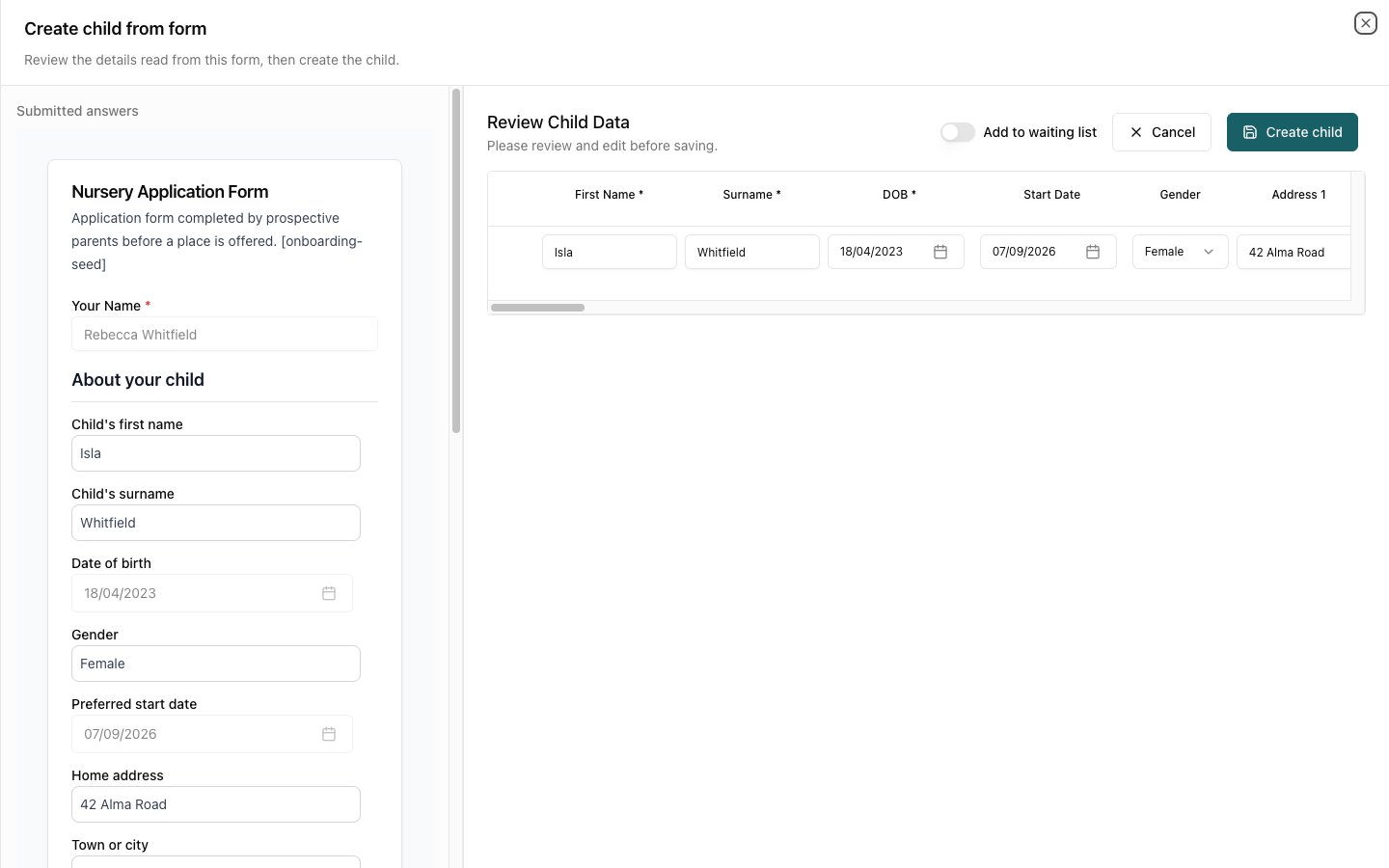 Nothing is ever written automatically. Both actions produce a draft for review, and the
record only changes when you press **Save**. You remain responsible for what ends up on a
child's record — read the proposed values, particularly allergies, medical details and
permissions.
***
## What the AI picks up
You don't have to design your forms around this. Ask questions however you naturally would,
and Pigeonhole matches the answers to the right place.
**Child details** — name, date of birth, gender, address and postcode, start date, languages,
nationality, country of birth, ethnicity, religion, collection password.
**Health and dietary** — allergies, dietary requirements, and health notes.
**Status flags** — term time only, two-year funded, looked after, EHC plan, SEN, EAL, pupil
premium, free school meals, SEN status.
**Parents and carers** — up to two, with name, email, phone, date of birth and relationship.
Matched to existing records by email address, so you never get a duplicate parent.
**Emergency contacts and collectors** — name, phone, relationship, and whether they're an
emergency contact or just authorised to collect.
**Your custom attributes and permission types** — matched by name. If you have a permission
type called "Sun cream" and your form asks "Do you consent to us applying sun cream?", the
answer lands on that toggle.
Answers that don't belong on the profile aren't lost. They stay on the form submission, which
remains attached to the child's record and can be read or downloaded at any time.
***
## How it decides what to write
A few rules are worth knowing, because they explain what you'll see in the review view.
### Long answers are condensed
Parents write in prose. Profile fields need to be readable at a glance by whoever is covering
the room. A three-paragraph answer about an allergy review arrives as a few short, specific
entries — keeping the substance, the severity, the medication and what staff should do, and
dropping the padding.
Nothing is ever written automatically. Both actions produce a draft for review, and the
record only changes when you press **Save**. You remain responsible for what ends up on a
child's record — read the proposed values, particularly allergies, medical details and
permissions.
***
## What the AI picks up
You don't have to design your forms around this. Ask questions however you naturally would,
and Pigeonhole matches the answers to the right place.
**Child details** — name, date of birth, gender, address and postcode, start date, languages,
nationality, country of birth, ethnicity, religion, collection password.
**Health and dietary** — allergies, dietary requirements, and health notes.
**Status flags** — term time only, two-year funded, looked after, EHC plan, SEN, EAL, pupil
premium, free school meals, SEN status.
**Parents and carers** — up to two, with name, email, phone, date of birth and relationship.
Matched to existing records by email address, so you never get a duplicate parent.
**Emergency contacts and collectors** — name, phone, relationship, and whether they're an
emergency contact or just authorised to collect.
**Your custom attributes and permission types** — matched by name. If you have a permission
type called "Sun cream" and your form asks "Do you consent to us applying sun cream?", the
answer lands on that toggle.
Answers that don't belong on the profile aren't lost. They stay on the form submission, which
remains attached to the child's record and can be read or downloaded at any time.
***
## How it decides what to write
A few rules are worth knowing, because they explain what you'll see in the review view.
### Long answers are condensed
Parents write in prose. Profile fields need to be readable at a glance by whoever is covering
the room. A three-paragraph answer about an allergy review arrives as a few short, specific
entries — keeping the substance, the severity, the medication and what staff should do, and
dropping the padding.
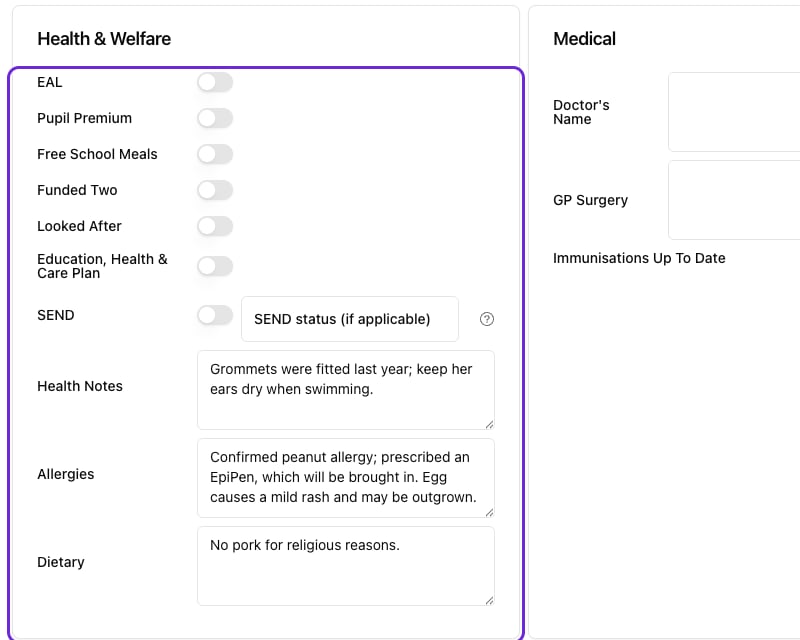 ### "No" and "None" never fill a field in
If a parent answers "None" to the allergies question, the Allergies field is left alone
rather than having the word "None" written into it. The one exception is consent questions —
a clear "No" to a permission is a recorded refusal, so the toggle is set to off.
### Blank answers never overwrite anything
If a parent skips a question, whatever is already on the profile stays exactly as it is.
### Health notes stay clinical
Health Notes is for things staff need to act on. Preferences, temperament and settling-in
notes — "loves dinosaurs", "shy at first" — are deliberately left on the form rather than
written into a clinical field.
### It won't guess
If a parent writes "Bristol" in answer to "Country of birth", the field is left empty rather
than filled with a guess. Start date is never silently set to today or the date the form was
submitted.
***
## Merging into an existing profile
**Apply to child profile** has a harder job than creating a child, because there is already
information on the record. The rule is that it combines, and never quietly removes.
* **New information is added alongside the old.** A form reporting a new fish allergy on a
child already recorded as allergic to peanuts produces both, not a replacement.
* **Nothing is weakened.** A severity isn't downgraded, and a recorded EpiPen isn't dropped.
* **A negative answer never clears an existing value.** A parent answering "None" to the
allergies question cannot delete an allergy you already hold. Only a person editing the
profile directly can remove clinical information.
* **Re-applying the same form is safe.** It produces what's already recorded, so nothing is
duplicated and nothing lights up as a change.
Contacts follow the same principle. They're matched by name — because the commonest reason to
send a follow-up form is that a phone number changed — and a contact the form doesn't mention
is never removed.
Applying a form updates the child, not the parents. Parents and carers carry login accounts
and can be shared across siblings, so they're only created when you create a child. If a
parent's own details change, edit them on the parent's record.
***
## Reviewing the suggestions
In the apply view, every field the AI has filled in is highlighted in amber, with the value
it would replace shown alongside. Fields it hasn't touched look exactly as they normally do.
### "No" and "None" never fill a field in
If a parent answers "None" to the allergies question, the Allergies field is left alone
rather than having the word "None" written into it. The one exception is consent questions —
a clear "No" to a permission is a recorded refusal, so the toggle is set to off.
### Blank answers never overwrite anything
If a parent skips a question, whatever is already on the profile stays exactly as it is.
### Health notes stay clinical
Health Notes is for things staff need to act on. Preferences, temperament and settling-in
notes — "loves dinosaurs", "shy at first" — are deliberately left on the form rather than
written into a clinical field.
### It won't guess
If a parent writes "Bristol" in answer to "Country of birth", the field is left empty rather
than filled with a guess. Start date is never silently set to today or the date the form was
submitted.
***
## Merging into an existing profile
**Apply to child profile** has a harder job than creating a child, because there is already
information on the record. The rule is that it combines, and never quietly removes.
* **New information is added alongside the old.** A form reporting a new fish allergy on a
child already recorded as allergic to peanuts produces both, not a replacement.
* **Nothing is weakened.** A severity isn't downgraded, and a recorded EpiPen isn't dropped.
* **A negative answer never clears an existing value.** A parent answering "None" to the
allergies question cannot delete an allergy you already hold. Only a person editing the
profile directly can remove clinical information.
* **Re-applying the same form is safe.** It produces what's already recorded, so nothing is
duplicated and nothing lights up as a change.
Contacts follow the same principle. They're matched by name — because the commonest reason to
send a follow-up form is that a phone number changed — and a contact the form doesn't mention
is never removed.
Applying a form updates the child, not the parents. Parents and carers carry login accounts
and can be shared across siblings, so they're only created when you create a child. If a
parent's own details change, edit them on the parent's record.
***
## Reviewing the suggestions
In the apply view, every field the AI has filled in is highlighted in amber, with the value
it would replace shown alongside. Fields it hasn't touched look exactly as they normally do.
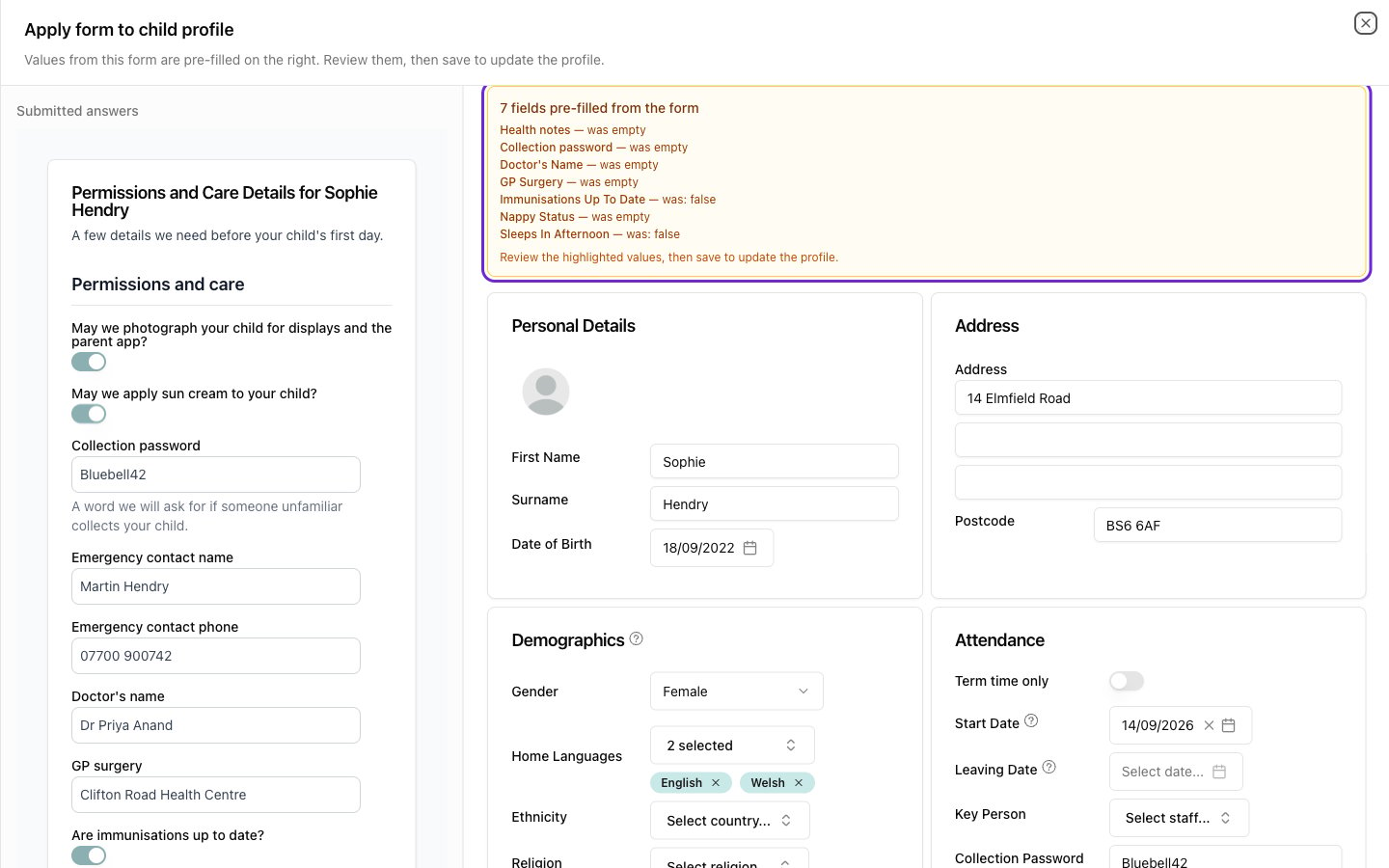 Permissions appear as toggles marked **Suggested from form**, showing whether the child was
previously granted or not granted that permission.
Changed contacts appear in a block above the Save button, each noting whether it's new from
this form or an update to one you already hold.
Everything is editable before you save. Treat the draft as a first pass to check, not a
decision that has already been made.
***
## Who can use it
**Create child from form** and **Apply to child profile** are available to **Admins** and
**Child Admins**. Staff with the register-only permissions can view submissions but not push
them onto a profile.
## Why the button isn't there
If you open a completed submission and the **Child profile** panel is missing, check these
four things in order. All but the last are settings on the form itself.
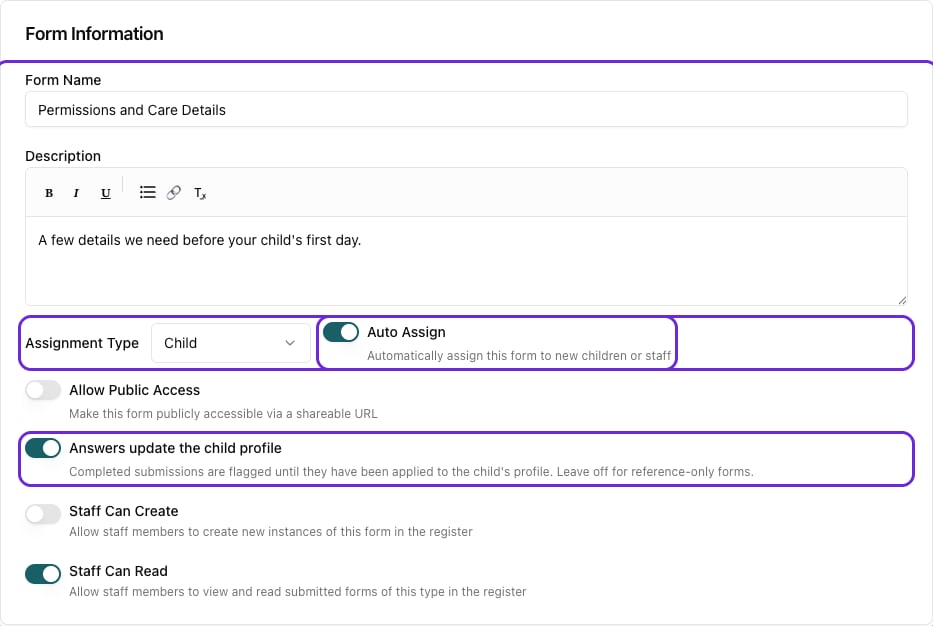
1. **Answers update the child profile is switched on.** This is by far the commonest cause.
Go to **Settings → Forms**, open the form, and turn it on. Without it, the submission shows
the answers but offers no action button at all.
2. **The form's Assignment Type is Child.** Staff forms never offer these actions.
3. **The submission is Completed or Awaiting Signoff.** A form still sitting at Sent or Created
hasn't been filled in yet.
4. **You're signed in as an Admin or Child Admin.**
Open in app: [Settings → Forms](https://pigeonholeapp.co.uk/app/admin/settings/forms).
Permissions appear as toggles marked **Suggested from form**, showing whether the child was
previously granted or not granted that permission.
Changed contacts appear in a block above the Save button, each noting whether it's new from
this form or an update to one you already hold.
Everything is editable before you save. Treat the draft as a first pass to check, not a
decision that has already been made.
***
## Who can use it
**Create child from form** and **Apply to child profile** are available to **Admins** and
**Child Admins**. Staff with the register-only permissions can view submissions but not push
them onto a profile.
## Why the button isn't there
If you open a completed submission and the **Child profile** panel is missing, check these
four things in order. All but the last are settings on the form itself.
1. **Answers update the child profile is switched on.** This is by far the commonest cause.
Go to **Settings → Forms**, open the form, and turn it on. Without it, the submission shows
the answers but offers no action button at all.
2. **The form's Assignment Type is Child.** Staff forms never offer these actions.
3. **The submission is Completed or Awaiting Signoff.** A form still sitting at Sent or Created
hasn't been filled in yet.
4. **You're signed in as an Admin or Child Admin.**
Open in app: [Settings → Forms](https://pigeonholeapp.co.uk/app/admin/settings/forms).
 ***
## Frequently asked questions
No. Both actions produce a draft that opens for review, and nothing is saved to a child's
record until you press **Save** or **Create child**.
Correct it in the review view before saving — every field is editable. If you've already
saved, edit the child's profile as normal.
No. Ask questions in your own words. Matching custom attributes and permissions works
best when the form's wording resembles the name you gave the attribute or permission
type, but it doesn't have to be identical.
Form answers are processed by Pigeonhole's AI provider to produce the draft. The prompt
and the response are never stored in our logs. See our privacy policy for full details of
how data is handled.
If none of the answers map to profile fields you'll see "No child details could be read
from this form" — you can still create the child manually. This is normal for forms that
ask only about things which don't live on the profile, such as an outing consent slip.
No. Creating a child and applying to a profile are available on forms with an
**Assignment Type** of **Child** only.
***
## Next steps
Put it all together — the full cycle from public application form to a complete profile.
Build the forms that feed the cycle, and set the toggles that drive it.
***
## Frequently asked questions
No. Both actions produce a draft that opens for review, and nothing is saved to a child's
record until you press **Save** or **Create child**.
Correct it in the review view before saving — every field is editable. If you've already
saved, edit the child's profile as normal.
No. Ask questions in your own words. Matching custom attributes and permissions works
best when the form's wording resembles the name you gave the attribute or permission
type, but it doesn't have to be identical.
Form answers are processed by Pigeonhole's AI provider to produce the draft. The prompt
and the response are never stored in our logs. See our privacy policy for full details of
how data is handled.
If none of the answers map to profile fields you'll see "No child details could be read
from this form" — you can still create the child manually. This is normal for forms that
ask only about things which don't live on the profile, such as an outing consent slip.
No. Creating a child and applying to a profile are available on forms with an
**Assignment Type** of **Child** only.
***
## Next steps
Put it all together — the full cycle from public application form to a complete profile.
Build the forms that feed the cycle, and set the toggles that drive it.