> ## Documentation Index
> Fetch the complete documentation index at: https://pigeonholeapp.co.uk/docs/llms.txt
> Use this file to discover all available pages before exploring further.
# Assigning Forms
> How to assign forms to children, staff, and anonymous recipients.
# Assigning Forms
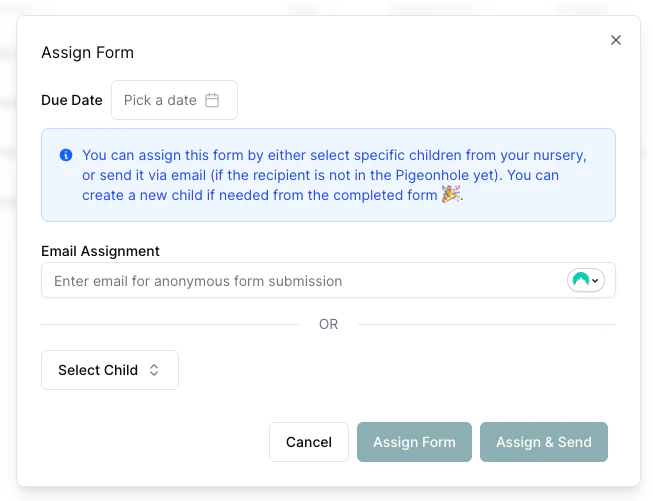
Once you've created a form, you need to assign it to specific children or staff before they can complete it. There are two ways to assign forms, plus a public URL option for forms accessible to anyone.
## From the Forms Settings Page
1. Go to **Settings -> Forms** from the top right dropdown under your nursery
2. Find your form in the list
3. Click **"Assign Form"** under the additional options (...) for that form
 ## From the Form Submissions Page
1. Go to **[Form Submissions](/admin/forms)** page
2. Click the **"Add Assignment"** button
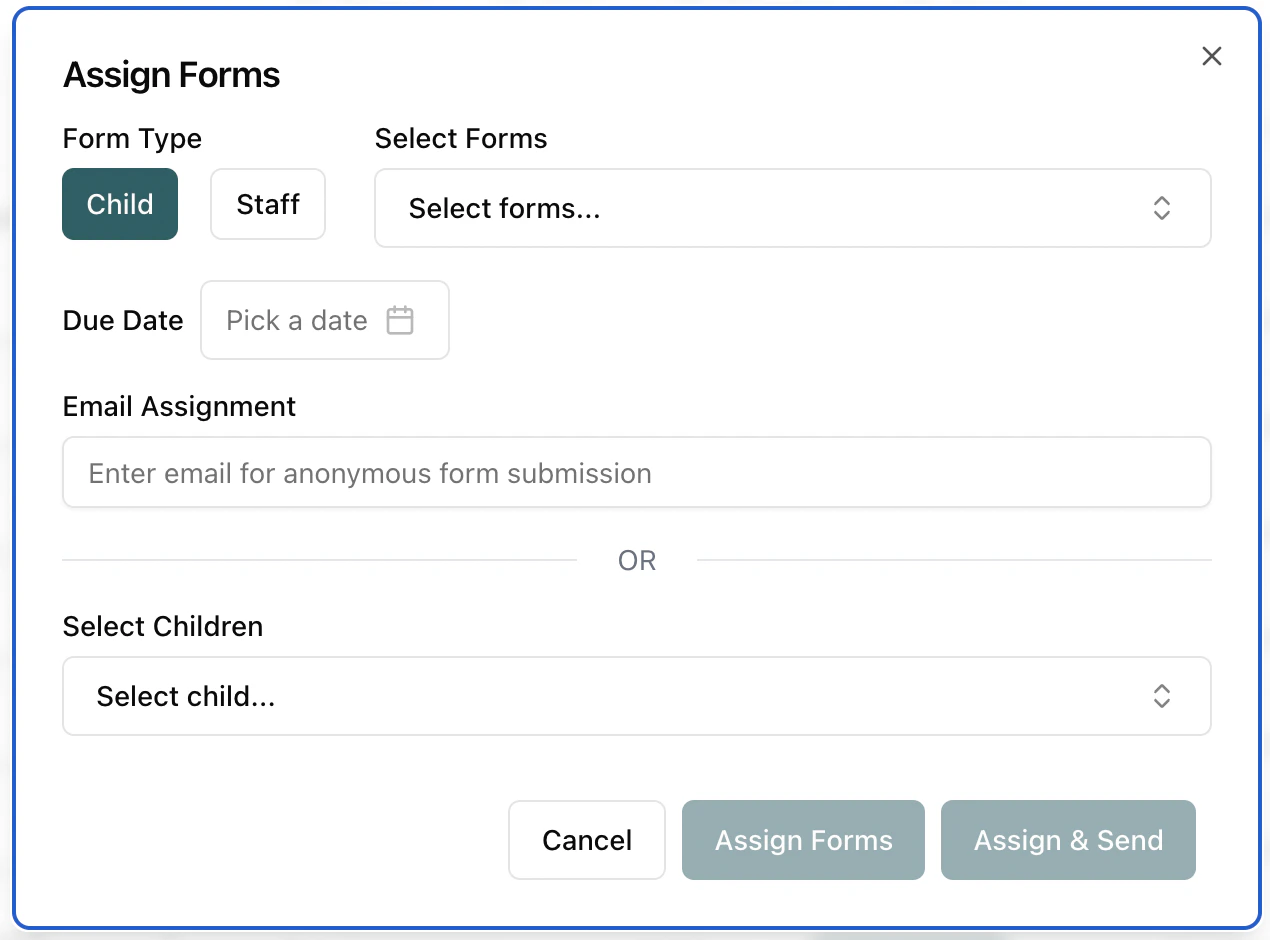
3. The Assign Forms dialog will open
## From the Form Submissions Page
1. Go to **[Form Submissions](/admin/forms)** page
2. Click the **"Add Assignment"** button
3. The Assign Forms dialog will open
 ***
## Assignment Options
From the assign forms dialog you can:
1. **Select the form type** — Child or Staff
2. **Select one or more forms** to assign
3. **Choose recipients:**
* Select specific children or staff members, **or**
* Enter an **email address** to assign anonymously (useful for pre-registration forms when the child hasn't been created in Pigeonhole yet)
4. **Set a due date** (optional) — when selecting a due date you also get the option to enable automatic reminders, which send notifications before the due date and when overdue
5. Click **"Assign Forms"** to create the assignment, or **"Assign & Send"** to create it and immediately email the form link to the recipient
Anonymous email assignments and direct child/staff assignments are mutually exclusive — you can either assign to specific people or to an email address, not both at the same time.
***
## Assigning Completed Anonymous Forms
When an anonymous form has been completed (either via email link or public URL), you can assign it to an existing child or staff member:
1. Go to the **Form Submissions** page
2. Find the completed anonymous submission (shown with the submitter's name and a wrench icon)
3. Click the **More Actions** (...) menu
4. Select **"Assign To Child"** or **"Assign To Staff"**
5. Choose the child or staff member from the dialog
This links the completed form data to the correct person's record, making it visible on their profile.
***
## Public Form URLs
If you want anyone to be able to submit a form without being assigned individually, you can make the form publicly accessible instead. See [Public Forms](/managers/custom-forms/creating-forms#public-forms) for details on enabling and sharing public form URLs.
***
## Assignment Options
From the assign forms dialog you can:
1. **Select the form type** — Child or Staff
2. **Select one or more forms** to assign
3. **Choose recipients:**
* Select specific children or staff members, **or**
* Enter an **email address** to assign anonymously (useful for pre-registration forms when the child hasn't been created in Pigeonhole yet)
4. **Set a due date** (optional) — when selecting a due date you also get the option to enable automatic reminders, which send notifications before the due date and when overdue
5. Click **"Assign Forms"** to create the assignment, or **"Assign & Send"** to create it and immediately email the form link to the recipient
Anonymous email assignments and direct child/staff assignments are mutually exclusive — you can either assign to specific people or to an email address, not both at the same time.
***
## Assigning Completed Anonymous Forms
When an anonymous form has been completed (either via email link or public URL), you can assign it to an existing child or staff member:
1. Go to the **Form Submissions** page
2. Find the completed anonymous submission (shown with the submitter's name and a wrench icon)
3. Click the **More Actions** (...) menu
4. Select **"Assign To Child"** or **"Assign To Staff"**
5. Choose the child or staff member from the dialog
This links the completed form data to the correct person's record, making it visible on their profile.
***
## Public Form URLs
If you want anyone to be able to submit a form without being assigned individually, you can make the form publicly accessible instead. See [Public Forms](/managers/custom-forms/creating-forms#public-forms) for details on enabling and sharing public form URLs.