> ## Documentation Index
> Fetch the complete documentation index at: https://pigeonholeapp.co.uk/docs/llms.txt
> Use this file to discover all available pages before exploring further.
# Managing Form Submissions
> How to review, approve, and manage form submissions.
# Managing Form Submissions
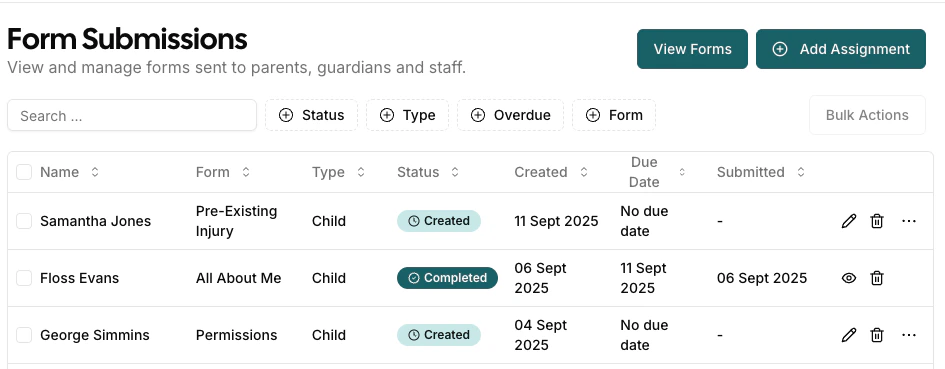
The **[Form Submissions](/admin/forms)** page is your central hub for managing all form assignments and submissions.
 ## Understanding Form Status
| Status | Description | Available Actions |
| -------------------- | ---------------------------------------------------------------------------------------- | -------------------------- |
| **Created** | Form assigned but not sent to parents/staff | Edit, Delete, Send Form |
| **Sent** | Email sent to parents, awaiting completion | Send Reminder, Resend Form |
| **Awaiting Signoff** | Form has been submitted, but has some required empty fields that are not parent editable | Edit, Delete |
| **Completed** | Form submitted by parents/staff | View, Download |
In addition, any **Overdue** items have a red status. You can also filter by 'Overdue' items in the table filters.
***
## Form Submission Actions
### Sending Forms to Parents
**Individual Forms:**
1. Find the form with "Created" status in the form submissions list
2. Click **Send Form** under the **More Actions** (...) icon
3. Confirm sending in the dialog
4. Parents will receive an email with a secure link. They can also log in to Pigeonhole and see all their forms for submission, and submit them directly from the app.
**Bulk Sending:**
1. Select multiple forms using checkboxes
2. Click **"Send/Remind"** bulk action
3. Confirm the action
4. All selected forms will be sent. If they have already been sent a reminder will be sent
### Sending Reminders
For forms with "Sent" status:
1. Click **Send Reminder** under the **More Actions** (...) icon (you can also resend the form if the recipient hasn't received it)
2. Or use bulk actions for multiple reminders
3. Parents receive a reminder email with the same secure link
### How Automatic Reminders Work
**Timing:**
* Reminders are sent **2 days before** the due date
* Overdue notifications are sent after the due date has elapsed
***
## Viewing and Editing Completed Forms
### Viewing Completed Forms
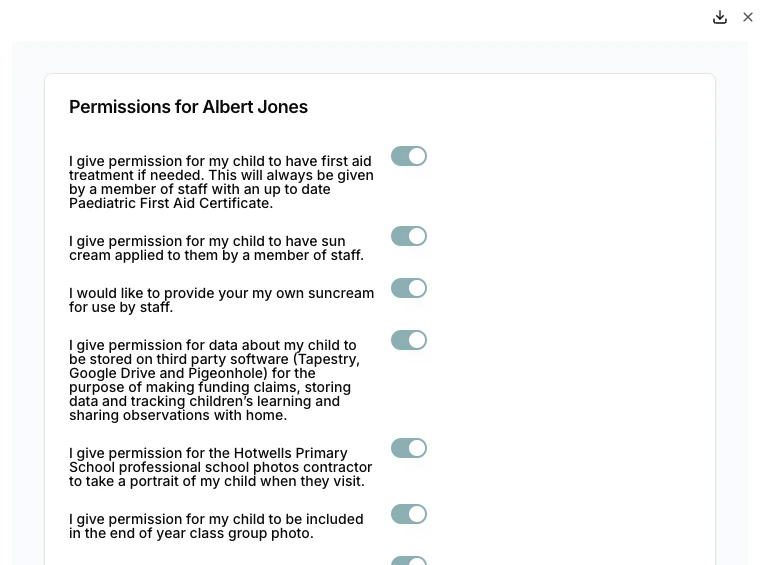
1. Click the **Eye** icon for completed forms
2. View all submitted data in a formatted layout
3. See who submitted the form and when
4. Download the completed form for offline storage or printing
## Understanding Form Status
| Status | Description | Available Actions |
| -------------------- | ---------------------------------------------------------------------------------------- | -------------------------- |
| **Created** | Form assigned but not sent to parents/staff | Edit, Delete, Send Form |
| **Sent** | Email sent to parents, awaiting completion | Send Reminder, Resend Form |
| **Awaiting Signoff** | Form has been submitted, but has some required empty fields that are not parent editable | Edit, Delete |
| **Completed** | Form submitted by parents/staff | View, Download |
In addition, any **Overdue** items have a red status. You can also filter by 'Overdue' items in the table filters.
***
## Form Submission Actions
### Sending Forms to Parents
**Individual Forms:**
1. Find the form with "Created" status in the form submissions list
2. Click **Send Form** under the **More Actions** (...) icon
3. Confirm sending in the dialog
4. Parents will receive an email with a secure link. They can also log in to Pigeonhole and see all their forms for submission, and submit them directly from the app.
**Bulk Sending:**
1. Select multiple forms using checkboxes
2. Click **"Send/Remind"** bulk action
3. Confirm the action
4. All selected forms will be sent. If they have already been sent a reminder will be sent
### Sending Reminders
For forms with "Sent" status:
1. Click **Send Reminder** under the **More Actions** (...) icon (you can also resend the form if the recipient hasn't received it)
2. Or use bulk actions for multiple reminders
3. Parents receive a reminder email with the same secure link
### How Automatic Reminders Work
**Timing:**
* Reminders are sent **2 days before** the due date
* Overdue notifications are sent after the due date has elapsed
***
## Viewing and Editing Completed Forms
### Viewing Completed Forms
1. Click the **Eye** icon for completed forms
2. View all submitted data in a formatted layout
3. See who submitted the form and when
4. Download the completed form for offline storage or printing
 ### Editing Completed Forms
1. Click **Edit** under the **More Actions** (...) icon
2. Edit any fields as required
3. Click **Submit Form** to save any changes
### Editing Completed Forms
1. Click **Edit** under the **More Actions** (...) icon
2. Edit any fields as required
3. Click **Submit Form** to save any changes
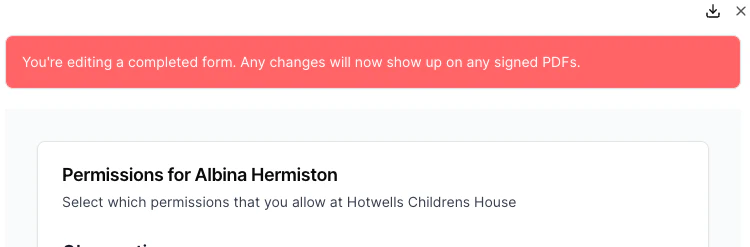 Updates to a completed form do not update the completed PDF for download.
***
## Filtering and Searching
Use the filtering options to find specific forms:
**Available Filters:**
* **Status**: Created, Sent, Completed, Awaiting Signoff
* **Type**: Child or Staff Forms
* **Form**: Filter by specific form names
* **Overdue**: Show only overdue submissions
Updates to a completed form do not update the completed PDF for download.
***
## Filtering and Searching
Use the filtering options to find specific forms:
**Available Filters:**
* **Status**: Created, Sent, Completed, Awaiting Signoff
* **Type**: Child or Staff Forms
* **Form**: Filter by specific form names
* **Overdue**: Show only overdue submissions
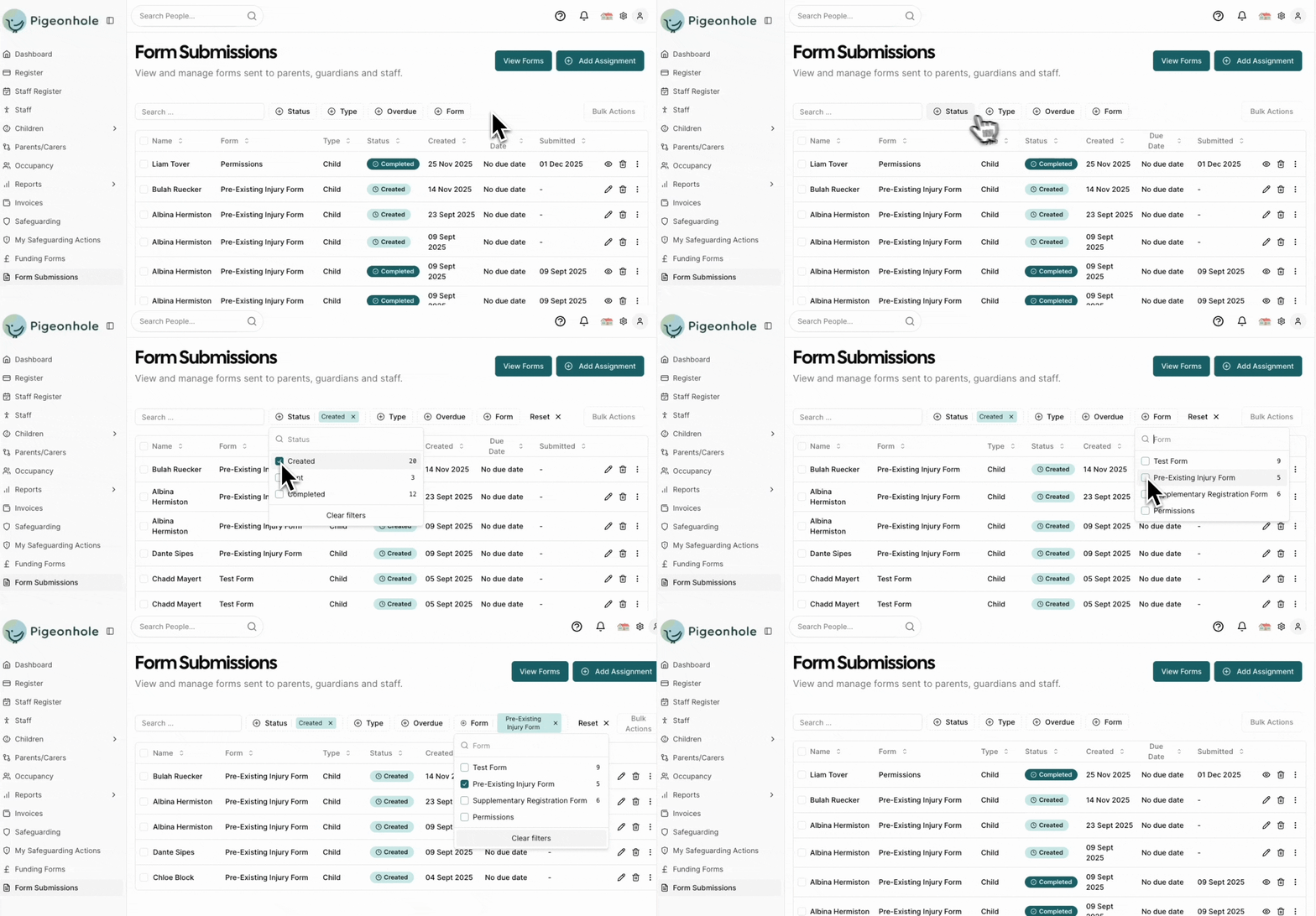 **Search**: Use the search box to find forms by child name, staff name, email address, or form name.
***
## Public and Anonymous Form Submissions
Submissions from [public forms](/managers/custom-forms/creating-forms#public-forms) and anonymous email assignments appear in the submissions list alongside regular child and staff form submissions.
* **Name display**: The submitter's name is shown in the Name column (from the name they entered when submitting)
* **Email display**: The submitter's email address is shown in smaller text underneath their name
* **Unassigned indicator**: A wrench icon indicates the form is not yet linked to a child or staff member
* **Assigning to a record**: You can link a completed anonymous submission to an existing child or staff member via the **More Actions** (...) menu — see [Assigning Completed Anonymous Forms](/managers/custom-forms/assigning-forms#assigning-completed-anonymous-forms)
***
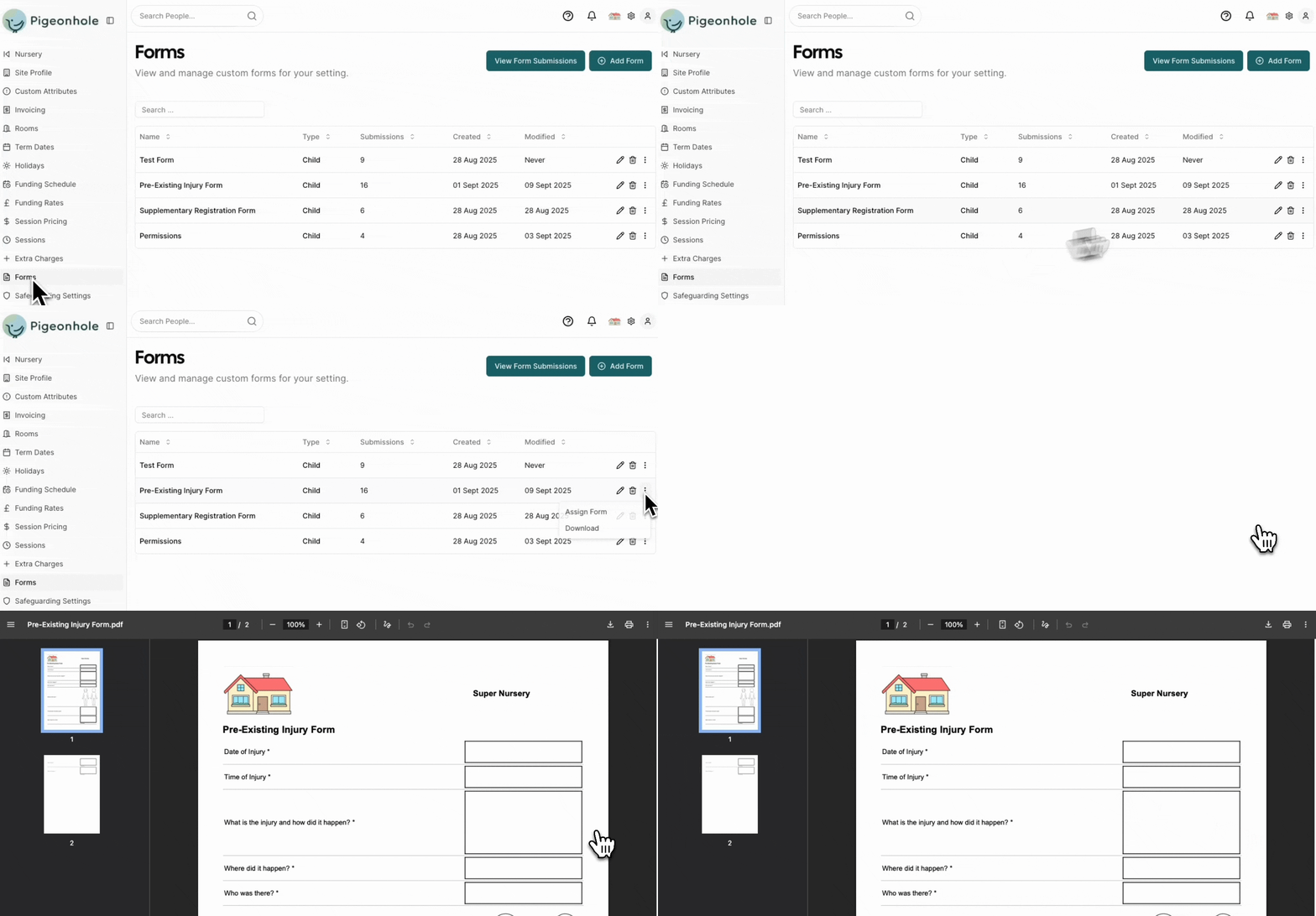
## Manual Form Upload Process
Sometimes parents/staff may complete forms offline (printed copies) or you may need to manually enter form data. The system supports manual form handling.
### Downloading Blank Forms
1. Go to **[Settings -> Forms](/admin/settings/forms)**
2. Find your form in the list
3. Click the **More Actions** (...) menu -> **"Download"**
4. This downloads a blank PDF version of the form
5. Print and distribute to parents as needed
**Search**: Use the search box to find forms by child name, staff name, email address, or form name.
***
## Public and Anonymous Form Submissions
Submissions from [public forms](/managers/custom-forms/creating-forms#public-forms) and anonymous email assignments appear in the submissions list alongside regular child and staff form submissions.
* **Name display**: The submitter's name is shown in the Name column (from the name they entered when submitting)
* **Email display**: The submitter's email address is shown in smaller text underneath their name
* **Unassigned indicator**: A wrench icon indicates the form is not yet linked to a child or staff member
* **Assigning to a record**: You can link a completed anonymous submission to an existing child or staff member via the **More Actions** (...) menu — see [Assigning Completed Anonymous Forms](/managers/custom-forms/assigning-forms#assigning-completed-anonymous-forms)
***
## Manual Form Upload Process
Sometimes parents/staff may complete forms offline (printed copies) or you may need to manually enter form data. The system supports manual form handling.
### Downloading Blank Forms
1. Go to **[Settings -> Forms](/admin/settings/forms)**
2. Find your form in the list
3. Click the **More Actions** (...) menu -> **"Download"**
4. This downloads a blank PDF version of the form
5. Print and distribute to parents as needed
 ### Manual Form Entry Process
When you have a completed paper form or need to enter data manually:
#### Step 1: Access Manual Entry
1. Go to **Form Submissions**
2. Find the form assignment
#### Step 2: Complete the Entry
1. **Enter Form Data**: Optionally fill in all the form fields based on the paper form. This will make the data available for export and use in the AI assistant.
2. Either **Upload PDF**:
* Scan or photograph the completed paper form
* Use the **"Upload PDF"** button to attach the file
* This creates a permanent record of the original submission
Or:
* Fill in the details as necessary. Without uploading a form, all fields will be required.
3. **Save**: Click **"Update Form"** to save all changes
### Manual Form Entry Process
When you have a completed paper form or need to enter data manually:
#### Step 1: Access Manual Entry
1. Go to **Form Submissions**
2. Find the form assignment
#### Step 2: Complete the Entry
1. **Enter Form Data**: Optionally fill in all the form fields based on the paper form. This will make the data available for export and use in the AI assistant.
2. Either **Upload PDF**:
* Scan or photograph the completed paper form
* Use the **"Upload PDF"** button to attach the file
* This creates a permanent record of the original submission
Or:
* Fill in the details as necessary. Without uploading a form, all fields will be required.
3. **Save**: Click **"Update Form"** to save all changes
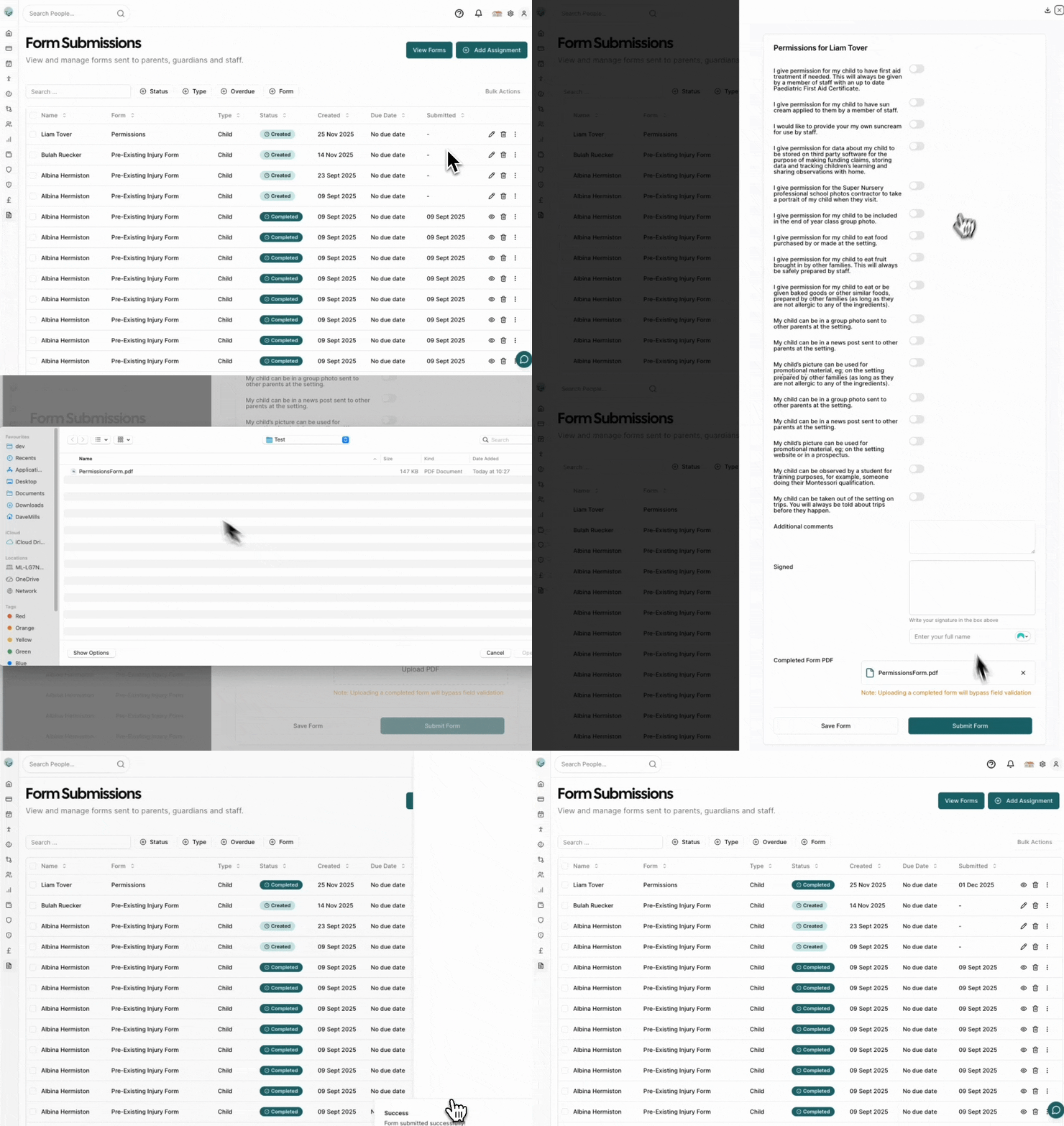 The form now appears in completed submissions with all data and attached PDF.