> ## Documentation Index
> Fetch the complete documentation index at: https://pigeonholeapp.co.uk/docs/llms.txt
> Use this file to discover all available pages before exploring further.
# Creating & Sending Funding Forms
> How to create, verify, and send funding forms to parents.
# Creating & Sending Funding Forms
## Creating a funding form
Funding forms can be created in two ways:
1. From the child's page: Navigate to the [Children](/admin/children) page, select the 'More actions' (...) button next to the child, and click "Create Funding Form".
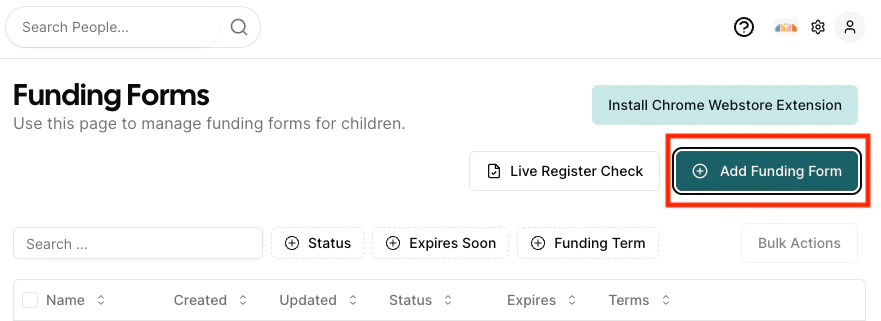
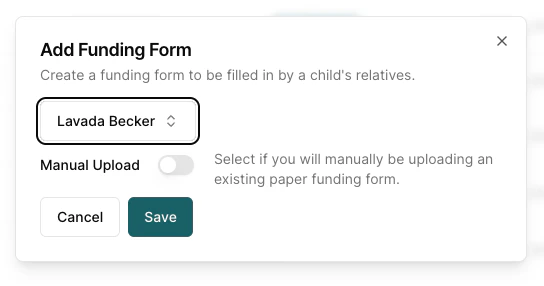
2. From the Funding Forms page: Go to the [Funding Forms](/admin/fundingforms) page and click "Add Funding Form".
 ## Verifying and updating a form
After creation, you will see the funding form details page where you can review and update the following sections:
* **Funding Details**: Are they eligible for 2 year old funding? Have you seen their proof of DOB?
At this stage if you have seen the proof of DOB, input the DOB type and number. You don't need to upload the DOB (although you can). Parents/Guardians won't be asked to supply it when they submit the form for approval.
* **Funded Hours**: Review the funded hours that you are expecting the child to receive. The total hours across universal and extended hours can only be edited by the setting so its important to review these.
* **Chargeable Hours and Costs**: Verify the chargeable costs that have been pulled from the invoicing system are correct. This gives a breakdown of any private (chargeable) hours on top of funded hours and additional costs per day. The summary also gives a breakdown of both the additional costs per week, segregated per chargeable item.
Chargeable hours and costs are prefilled from the child's schedule and extra charges at the start of the term. This may need amending if the child's charges or sessions change part way through the term. If any changes are missing, verify that the child has them set on the extra charges schedule.
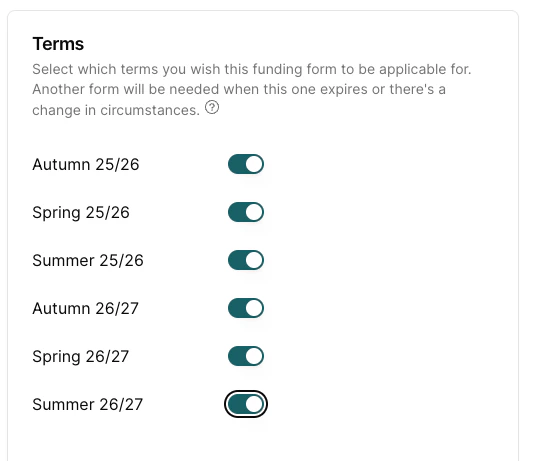
* **Terms**: You can preselect the terms that you expect the child to be attending your nursery.
## Verifying and updating a form
After creation, you will see the funding form details page where you can review and update the following sections:
* **Funding Details**: Are they eligible for 2 year old funding? Have you seen their proof of DOB?
At this stage if you have seen the proof of DOB, input the DOB type and number. You don't need to upload the DOB (although you can). Parents/Guardians won't be asked to supply it when they submit the form for approval.
* **Funded Hours**: Review the funded hours that you are expecting the child to receive. The total hours across universal and extended hours can only be edited by the setting so its important to review these.
* **Chargeable Hours and Costs**: Verify the chargeable costs that have been pulled from the invoicing system are correct. This gives a breakdown of any private (chargeable) hours on top of funded hours and additional costs per day. The summary also gives a breakdown of both the additional costs per week, segregated per chargeable item.
Chargeable hours and costs are prefilled from the child's schedule and extra charges at the start of the term. This may need amending if the child's charges or sessions change part way through the term. If any changes are missing, verify that the child has them set on the extra charges schedule.
* **Terms**: You can preselect the terms that you expect the child to be attending your nursery.
 ## Sending to parents
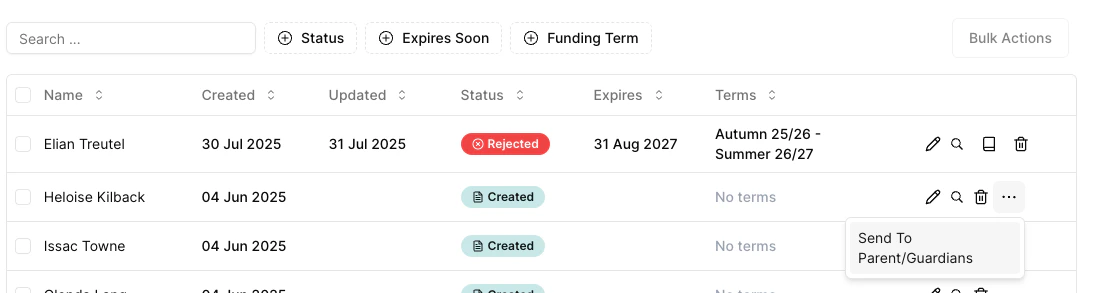
Once verified, send the form to parents by clicking the **Send to Parent/Guardian** button at the bottom of the form, or on the funding form list page select 'Send to Parent/Guardian' in the more actions (...) button against the child's form. Parents will receive an email with a link to complete their portion of the form.
## Sending to parents
Once verified, send the form to parents by clicking the **Send to Parent/Guardian** button at the bottom of the form, or on the funding form list page select 'Send to Parent/Guardian' in the more actions (...) button against the child's form. Parents will receive an email with a link to complete their portion of the form.
 Only one parent/guardian needs to fill out the form, but that parent needs to have been sent an invitation and logged into Pigeonhole. You can check a parent's status in the [parent/carer list](./add-relative#parentcarer-login-status) - make sure to send an invite to any parents who haven't received one yet.
## Editing a form
To edit a form, navigate to the Funding Forms list, locate the form, and click **Edit**. Make your changes and click **Save**.
Only one parent/guardian needs to fill out the form, but that parent needs to have been sent an invitation and logged into Pigeonhole. You can check a parent's status in the [parent/carer list](./add-relative#parentcarer-login-status) - make sure to send an invite to any parents who haven't received one yet.
## Editing a form
To edit a form, navigate to the Funding Forms list, locate the form, and click **Edit**. Make your changes and click **Save**.
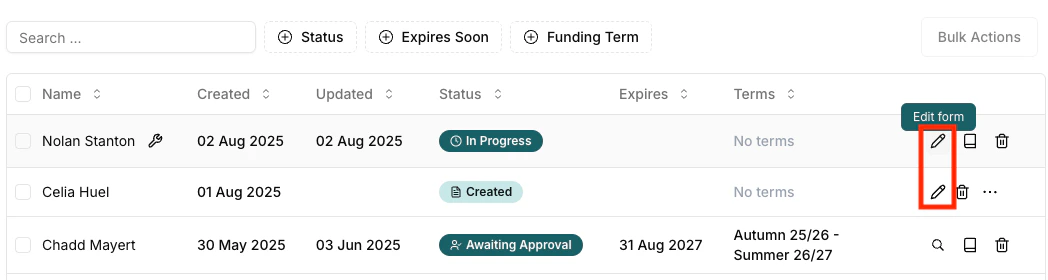 You can edit a form at any stage apart from when the form is in the 'Awaiting Approval' stage. Please note if the form is completed, amendments to the form will not show up in the PDF that has been signed by the parents. This will always show the original signed form.
## Deleting a form
To delete a form, navigate to the Funding Forms list, locate the form, and click the **Delete** icon.
You can edit a form at any stage apart from when the form is in the 'Awaiting Approval' stage. Please note if the form is completed, amendments to the form will not show up in the PDF that has been signed by the parents. This will always show the original signed form.
## Deleting a form
To delete a form, navigate to the Funding Forms list, locate the form, and click the **Delete** icon.
 You can delete a form at any stage apart from when the form is in the 'Approved' stage. Please note this action cannot be undone.