> ## Documentation Index
> Fetch the complete documentation index at: https://pigeonholeapp.co.uk/docs/llms.txt
> Use this file to discover all available pages before exploring further.
# Who Signs Funding Forms
> Choose whether every parent with parental responsibility signs a funding form, or just one of them.
By default, every parent marked **Has Parental Responsibility** on a child's record fills in their details and signs the funding form. Some councils only need one parent's declaration. If yours is one of them, you can switch your setting to **One parent**, and families choose which parent signs.
Open in app: [Settings → Funding](https://pigeonholeapp.co.uk/app/admin/settings/funding).
This setting is only available when your **council** is selected on the [Site Profile](/docs/onboarding/site-profile) settings page and your council supports funding forms in Pigeonhole.
## Choosing who signs
1. Go to **Settings** > **Funding**.
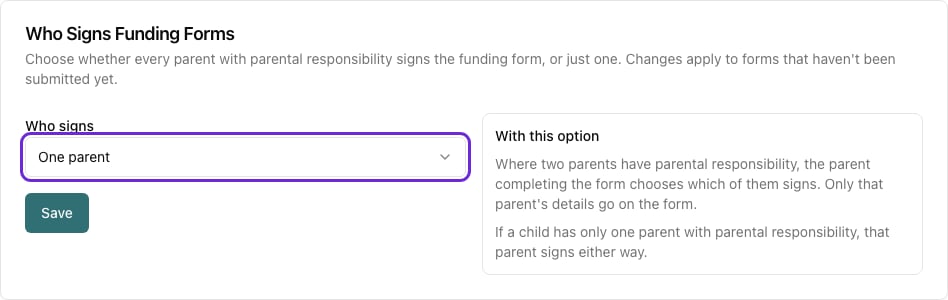
2. In the **Who Signs Funding Forms** card, choose an option from the **Who signs** dropdown:
| Option | What happens |
| - | - |
| **All parents with parental responsibility** | Every parent with parental responsibility fills in their details and signs. This is the default. |
| **One parent** | Where two parents have parental responsibility, the parent completing the form chooses which of them signs. Only that parent's details go on the form. |
3. Click **Save**.
The panel beside the dropdown explains what the selected option means for families.
 If a child has only one parent with parental responsibility, that parent signs whichever option you choose. Nobody is asked to choose.
## What changes with One parent
### On the form
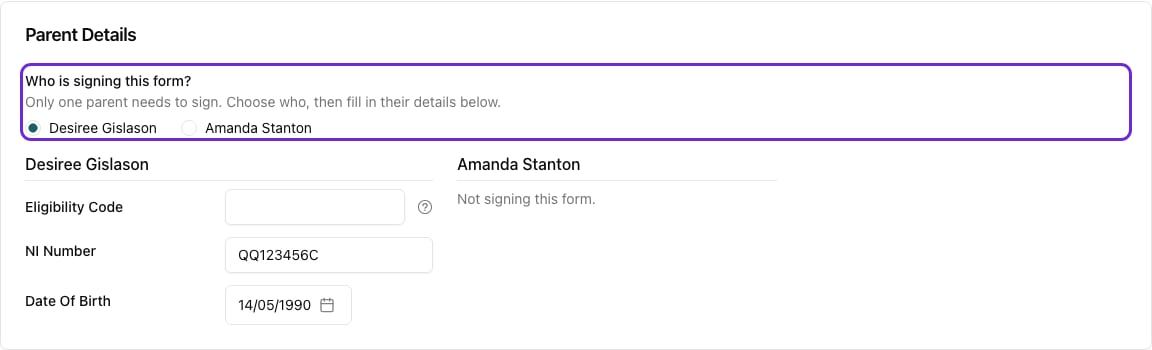
When a child has two or more parents with parental responsibility, the **Parent Details** section of the form starts with **Who is signing this form?** and a choice of parents.
* **A parent completing the form online** has themselves selected to start with. They can pick the other parent instead, for example if that parent is the one with the eligibility code.
* **Staff completing the form** pick the signing parent themselves. Nothing is selected for you, so saving a form never chooses a signer the family didn't pick.
* Only the chosen parent's **Eligibility Code**, **NI Number**, **Date of Birth** and signature are needed. The other parent's section shows **Not signing this form.**
* If the family is claiming extended hours, the eligibility code has to be the **signing parent's**. The council checks the code against that parent's NI number and date of birth, so a code entered for the other parent is not used.
If a child has only one parent with parental responsibility, that parent signs whichever option you choose. Nobody is asked to choose.
## What changes with One parent
### On the form
When a child has two or more parents with parental responsibility, the **Parent Details** section of the form starts with **Who is signing this form?** and a choice of parents.
* **A parent completing the form online** has themselves selected to start with. They can pick the other parent instead, for example if that parent is the one with the eligibility code.
* **Staff completing the form** pick the signing parent themselves. Nothing is selected for you, so saving a form never chooses a signer the family didn't pick.
* Only the chosen parent's **Eligibility Code**, **NI Number**, **Date of Birth** and signature are needed. The other parent's section shows **Not signing this form.**
* If the family is claiming extended hours, the eligibility code has to be the **signing parent's**. The council checks the code against that parent's NI number and date of birth, so a code entered for the other parent is not used.
 The choice can be changed at any time until the form is submitted. Once it's **Awaiting Approval** or **Approved**, it is locked.
### When the form is submitted
Pigeonhole checks that the chosen parent has signed before the form can be submitted. If no parent has been chosen, or the chosen parent hasn't signed, the form can't be submitted and a message says what's missing.
### On the PDF and council export
* The signing parent appears as **parent 1** on the PDF, and is the only parent on the declaration.
* The other parent is left off the PDF entirely, and off the council portal export.
* When you approve the form, only the signing parent's NI number, date of birth, eligibility code and signature are saved back to their contact record. The other parent's details are left as they were.
### When you view the form
When you view a form, the signing parent appears under **Signed By** with their full details. Any other parents with parental responsibility are listed by name under **Other Parents**.
The choice can be changed at any time until the form is submitted. Once it's **Awaiting Approval** or **Approved**, it is locked.
### When the form is submitted
Pigeonhole checks that the chosen parent has signed before the form can be submitted. If no parent has been chosen, or the chosen parent hasn't signed, the form can't be submitted and a message says what's missing.
### On the PDF and council export
* The signing parent appears as **parent 1** on the PDF, and is the only parent on the declaration.
* The other parent is left off the PDF entirely, and off the council portal export.
* When you approve the form, only the signing parent's NI number, date of birth, eligibility code and signature are saved back to their contact record. The other parent's details are left as they were.
### When you view the form
When you view a form, the signing parent appears under **Signed By** with their full details. Any other parents with parental responsibility are listed by name under **Other Parents**.
 ## Changing the setting
You can change the setting at any time. It applies straight away to every form that hasn't been submitted yet, including forms that are already with families:
* **Switching to One parent**: on forms already sent, families now see the choice of who signs. Any signature already added for the chosen parent is kept.
* **Switching back to All parents**: every parent with parental responsibility has to sign again before the form can be submitted.
Change this setting between rounds of forms rather than while forms are **Awaiting Approval**. A form already submitted under one option and approved under the other can end up with the wrong parents on its PDF.
## Frequently Asked Questions
### Should I use One parent?
Only if your council accepts a declaration from one parent. Check your council's funding guidance or the parental declaration on their form. If you're not sure, leave it on **All parents with parental responsibility**.
### A parent picked the wrong person to sign. Can I change it?
Yes, as long as the form hasn't been submitted. Open the form, change the choice under **Who is signing this form?** and save. If it has already been submitted, [reject the form](/docs/managers/funding-forms/approving-and-managing) with a note so the family can correct it and resubmit.
### Does this apply to paper forms?
Yes. On a manual form you choose who signs. If you upload a completed paper form instead of capturing signatures on screen, no signer needs to be chosen. See [Ways to Complete a Form](/docs/managers/funding-forms/ways-to-complete).
### The wrong parents are listed on the form.
The parents offered are the ones marked **Has Parental Responsibility** on the child's contacts. Check that flag on each contact.
This documentation is built and hosted on [Mintlify](https://mintlify.com), a developer documentation platform.
## Changing the setting
You can change the setting at any time. It applies straight away to every form that hasn't been submitted yet, including forms that are already with families:
* **Switching to One parent**: on forms already sent, families now see the choice of who signs. Any signature already added for the chosen parent is kept.
* **Switching back to All parents**: every parent with parental responsibility has to sign again before the form can be submitted.
Change this setting between rounds of forms rather than while forms are **Awaiting Approval**. A form already submitted under one option and approved under the other can end up with the wrong parents on its PDF.
## Frequently Asked Questions
### Should I use One parent?
Only if your council accepts a declaration from one parent. Check your council's funding guidance or the parental declaration on their form. If you're not sure, leave it on **All parents with parental responsibility**.
### A parent picked the wrong person to sign. Can I change it?
Yes, as long as the form hasn't been submitted. Open the form, change the choice under **Who is signing this form?** and save. If it has already been submitted, [reject the form](/docs/managers/funding-forms/approving-and-managing) with a note so the family can correct it and resubmit.
### Does this apply to paper forms?
Yes. On a manual form you choose who signs. If you upload a completed paper form instead of capturing signatures on screen, no signer needs to be chosen. See [Ways to Complete a Form](/docs/managers/funding-forms/ways-to-complete).
### The wrong parents are listed on the form.
The parents offered are the ones marked **Has Parental Responsibility** on the child's contacts. Check that flag on each contact.
This documentation is built and hosted on [Mintlify](https://mintlify.com), a developer documentation platform.