> ## Documentation Index
> Fetch the complete documentation index at: https://pigeonholeapp.co.uk/docs/llms.txt
> Use this file to discover all available pages before exploring further.
# Creating Invoices
> How to create and send invoices individually or in bulk.
Before sending invoices make sure you have configured your [invoice settings](/managers/invoicing/settings).
If you have automated invoicing configured invoices will be created for you.
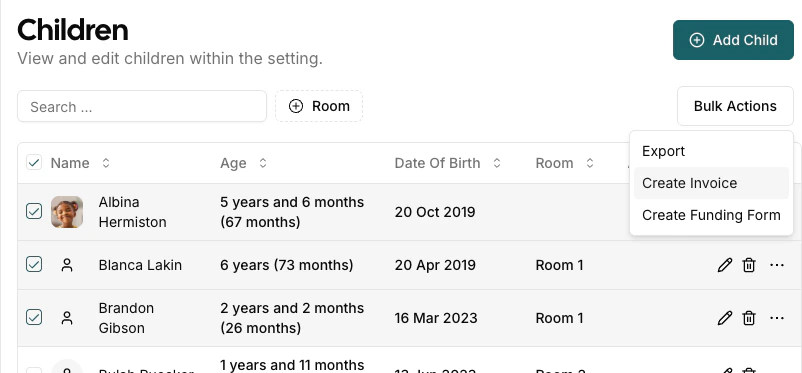
Invoices can be created by using the bulk actions functionality on the children's page. This allows you to create and review many invoices at the same time.
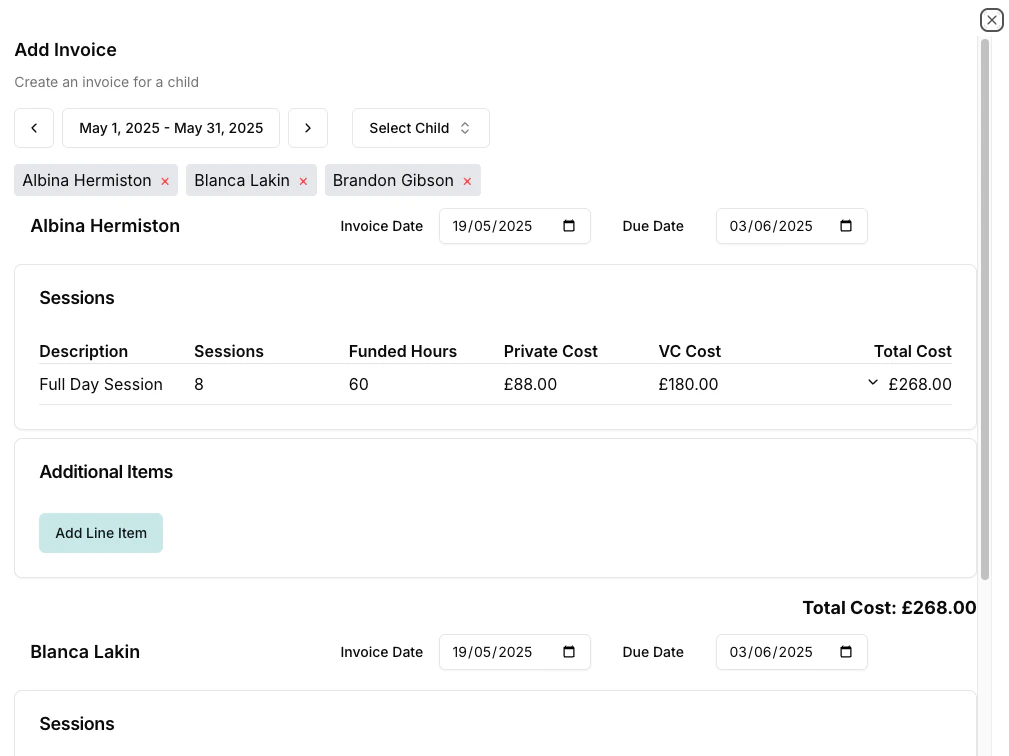
 From the Add Invoice dialog you can select the period dates, and then for each child select the invoice date and due date. Any additional items can also be added to the invoice.
 ## Bulk Invoice Batching
When creating invoices for more than 20 children at once, the system automatically splits them into batches of 20. This ensures reliable processing and gives you a chance to review each group.
* The dialog header shows your progress (e.g. **Showing 1–20 of 45**).
* After each batch is created successfully, the next batch of children loads automatically.
* The period dates, invoice date, and due date are locked after the first batch completes to keep all invoices consistent.
* You can remove individual children from the current batch if needed before creating.
If you select fewer than 20 children, invoices are created in a single step with no batching.
## Editing Invoices After Creation
After an invoice is created, you can edit additional items before sending. Click **Edit** from the actions menu on any invoice with a **Created** status. Once an invoice has been sent, it can no longer be edited directly — see [Regenerating Invoices](/managers/invoicing/regenerating-invoices) if you need to rebuild line items.
## Bulk Invoice Batching
When creating invoices for more than 20 children at once, the system automatically splits them into batches of 20. This ensures reliable processing and gives you a chance to review each group.
* The dialog header shows your progress (e.g. **Showing 1–20 of 45**).
* After each batch is created successfully, the next batch of children loads automatically.
* The period dates, invoice date, and due date are locked after the first batch completes to keep all invoices consistent.
* You can remove individual children from the current batch if needed before creating.
If you select fewer than 20 children, invoices are created in a single step with no batching.
## Editing Invoices After Creation
After an invoice is created, you can edit additional items before sending. Click **Edit** from the actions menu on any invoice with a **Created** status. Once an invoice has been sent, it can no longer be edited directly — see [Regenerating Invoices](/managers/invoicing/regenerating-invoices) if you need to rebuild line items.