> ## Documentation Index
> Fetch the complete documentation index at: https://pigeonholeapp.co.uk/docs/llms.txt
> Use this file to discover all available pages before exploring further.
# Running Billing Manually
> Switch automated billing to a manual trigger so you choose exactly when each period's invoices are raised.
Automated billing normally raises invoices on a fixed schedule — on a set day of the month, or a set number of days before each term starts. If your invoicing depends on something you can't pin to a date, such as reconciling payments first, you can switch the trigger to **Manual** and press a button when you're ready instead.
Everything else stays the same. Your cadence still decides what period each invoice covers; only the timing of the run changes.
Open in app: [Settings → Invoicing](https://pigeonholeapp.co.uk/app/admin/settings/invoicing) to switch the trigger, then [Invoices](https://pigeonholeapp.co.uk/app/admin/invoices) to run billing.
## When to Use Manual Billing
Manual billing suits you if:
* You reconcile payments or check session changes before invoicing, and can't guarantee that's finished by a particular date.
* Your invoicing day moves around month to month.
If your billing day is predictable, leave the trigger on **Automatic** — it needs no attention at all.
With **Manual** selected, invoices are only ever raised when someone presses **Run Billing**. If nobody runs it, no invoices are created for that period and nothing will remind you. Make sure someone owns this task each period.
## Step 1: Switch the Trigger to Manual
1. Go to [**Settings → Invoicing**](https://pigeonholeapp.co.uk/app/admin/settings/invoicing).
2. In the **Invoice Automation** card, make sure **Automated Billing Enabled** is switched on.
3. Choose your **Invoice Cadence** as normal — **Monthly**, **Half Termly**, or **Termly**.
4. Set **Invoice Trigger** to **Manual**.
5. Click **Save**.
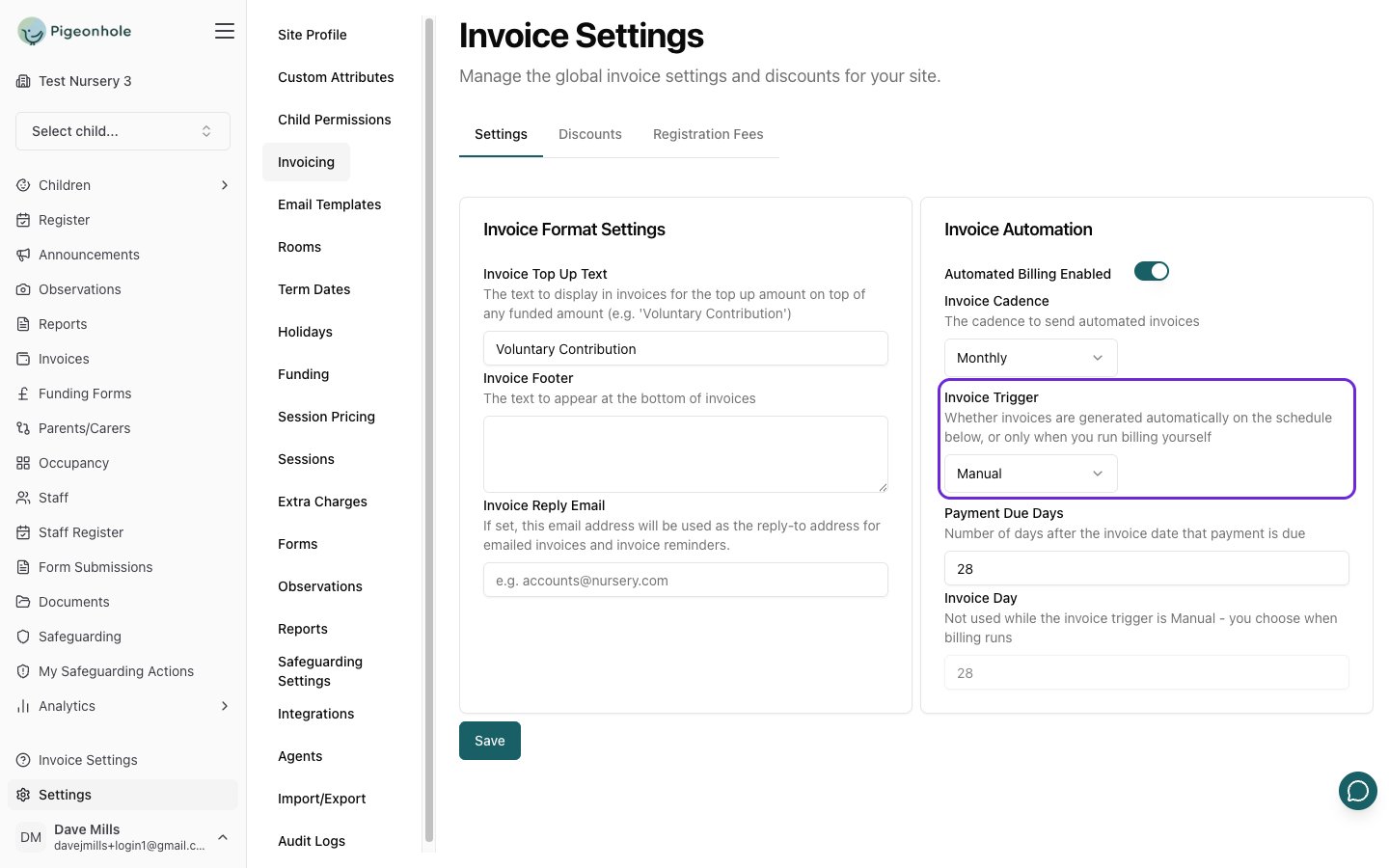 Once you choose **Manual**, the **Invoice Day** field is greyed out — the day of the month no longer decides anything, because you choose when billing runs. Your existing value is kept, so switching back to **Automatic** restores your original schedule.
**Invoice Trigger** is a site-wide setting. It doesn't appear on an individual child's invoicing settings, and children with their own billing overrides follow the site's trigger.
## Step 2: Run Billing
1. Go to [**Invoices**](https://pigeonholeapp.co.uk/app/admin/invoices).
2. Click **Run Billing**.
Once you choose **Manual**, the **Invoice Day** field is greyed out — the day of the month no longer decides anything, because you choose when billing runs. Your existing value is kept, so switching back to **Automatic** restores your original schedule.
**Invoice Trigger** is a site-wide setting. It doesn't appear on an individual child's invoicing settings, and children with their own billing overrides follow the site's trigger.
## Step 2: Run Billing
1. Go to [**Invoices**](https://pigeonholeapp.co.uk/app/admin/invoices).
2. Click **Run Billing**.
 The **Run Billing** button only appears when your site's trigger is set to **Manual**. If you can't see it, check your invoice settings.
## Step 3: Check the Period and Confirm
The **Run Billing** window asks for a single date, then tells you exactly what it will produce.
The **Run Billing** button only appears when your site's trigger is set to **Manual**. If you can't see it, check your invoice settings.
## Step 3: Check the Period and Confirm
The **Run Billing** window asks for a single date, then tells you exactly what it will produce.
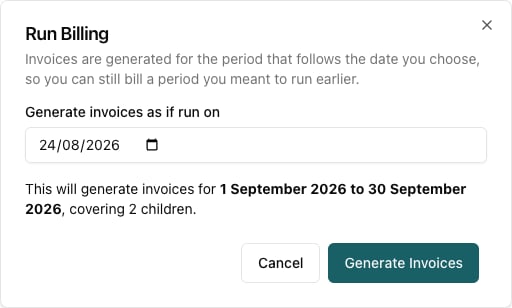 1. Check the date in **Generate invoices as if run on**. It defaults to today.
2. Read the sentence underneath. It names the period that will be invoiced and how many children are included.
3. Click **Generate Invoices**.
You'll see a message confirming billing is in progress. The run happens in the background, and an email is sent to your site address when it finishes.
## Choosing the Run Date
The date you enter isn't the period being billed — it's the date the run is *treated* as happening on. Pigeonhole then works out the period exactly as the automatic schedule would have.
For a monthly cadence, that means the following calendar month:
| Run date you enter | Period invoiced |
| ------------------ | ------------------- |
| 24 August 2026 | 1–30 September 2026 |
| 15 August 2026 | 1–30 September 2026 |
| 31 July 2026 | 1–31 August 2026 |
This is what makes catching up straightforward. If it's 3 September and you meant to run August's billing in July, set the run date back to **31 July** and you'll get August's invoices rather than October's.
Because the period follows from the date you enter, entering the wrong date bills the wrong month. Always read the bold period in the confirmation window before clicking **Generate Invoices**.
For **Termly** and **Half Termly** cadences, the run date must fall inside the invoicing window for that term — that is, within **Invoice Days Before Term Starts** of the term's start date. Running outside that window won't raise term invoices, which prevents you accidentally billing the next term weeks early.
## What Gets Invoiced
A manual run does exactly what the automatic schedule would have done on that date:
* Every child at your site who is due to be billed for the period.
* Children with their own billing settings are included, using their own cadence.
* Children with nothing to bill for the period are skipped, and no empty invoice is created for them.
Invoices are created in **Created** status. They are not sent to parents automatically — review them and send when you're ready, exactly as with automated billing.
## Running Billing More Than Once
Running billing twice for the same period is safe. Pigeonhole tracks which days have already been invoiced for each child, so a second run skips anything already covered and only picks up what's genuinely outstanding.
That means if you run billing and then a session is added part-way through the period, you can run it again to pick up just the new days.
## Frequently Asked Questions
### Nothing was created when I ran billing. Why?
The most common cause is that there's nothing chargeable in the period:
* **Your term dates don't cover the period.** If your site is set to term-time only and your term dates stop before the period you're billing, every day is skipped and no invoices are raised. Check [Term Dates](https://pigeonholeapp.co.uk/app/admin/settings/terms) and add the coming year if needed.
* **The period is already invoiced.** If those days are already on an invoice, there's nothing left to bill.
* **Children have no sessions in the period.** Children without sessions have nothing to charge for.
### Can different children have different triggers?
No. **Invoice Trigger** applies to the whole site. Children can still have their own cadence and other billing overrides, but the trigger is shared.
### Does manual billing stop the overnight run?
Yes. While the trigger is **Manual**, your site is skipped by the automatic overnight billing run entirely, so invoices are only ever raised when you press **Run Billing**.
### Can I bill ahead of time?
Yes. Enter a future run date and the period moves forward accordingly — useful if you want to raise invoices before a holiday closure.
### How do I go back to automatic billing?
Set **Invoice Trigger** back to **Automatic** in [Settings → Invoicing](https://pigeonholeapp.co.uk/app/admin/settings/invoicing) and check the **Invoice Day** (or **Invoice Days Before Term Starts**) is what you want. Your previous value is preserved when you switch.
1. Check the date in **Generate invoices as if run on**. It defaults to today.
2. Read the sentence underneath. It names the period that will be invoiced and how many children are included.
3. Click **Generate Invoices**.
You'll see a message confirming billing is in progress. The run happens in the background, and an email is sent to your site address when it finishes.
## Choosing the Run Date
The date you enter isn't the period being billed — it's the date the run is *treated* as happening on. Pigeonhole then works out the period exactly as the automatic schedule would have.
For a monthly cadence, that means the following calendar month:
| Run date you enter | Period invoiced |
| ------------------ | ------------------- |
| 24 August 2026 | 1–30 September 2026 |
| 15 August 2026 | 1–30 September 2026 |
| 31 July 2026 | 1–31 August 2026 |
This is what makes catching up straightforward. If it's 3 September and you meant to run August's billing in July, set the run date back to **31 July** and you'll get August's invoices rather than October's.
Because the period follows from the date you enter, entering the wrong date bills the wrong month. Always read the bold period in the confirmation window before clicking **Generate Invoices**.
For **Termly** and **Half Termly** cadences, the run date must fall inside the invoicing window for that term — that is, within **Invoice Days Before Term Starts** of the term's start date. Running outside that window won't raise term invoices, which prevents you accidentally billing the next term weeks early.
## What Gets Invoiced
A manual run does exactly what the automatic schedule would have done on that date:
* Every child at your site who is due to be billed for the period.
* Children with their own billing settings are included, using their own cadence.
* Children with nothing to bill for the period are skipped, and no empty invoice is created for them.
Invoices are created in **Created** status. They are not sent to parents automatically — review them and send when you're ready, exactly as with automated billing.
## Running Billing More Than Once
Running billing twice for the same period is safe. Pigeonhole tracks which days have already been invoiced for each child, so a second run skips anything already covered and only picks up what's genuinely outstanding.
That means if you run billing and then a session is added part-way through the period, you can run it again to pick up just the new days.
## Frequently Asked Questions
### Nothing was created when I ran billing. Why?
The most common cause is that there's nothing chargeable in the period:
* **Your term dates don't cover the period.** If your site is set to term-time only and your term dates stop before the period you're billing, every day is skipped and no invoices are raised. Check [Term Dates](https://pigeonholeapp.co.uk/app/admin/settings/terms) and add the coming year if needed.
* **The period is already invoiced.** If those days are already on an invoice, there's nothing left to bill.
* **Children have no sessions in the period.** Children without sessions have nothing to charge for.
### Can different children have different triggers?
No. **Invoice Trigger** applies to the whole site. Children can still have their own cadence and other billing overrides, but the trigger is shared.
### Does manual billing stop the overnight run?
Yes. While the trigger is **Manual**, your site is skipped by the automatic overnight billing run entirely, so invoices are only ever raised when you press **Run Billing**.
### Can I bill ahead of time?
Yes. Enter a future run date and the period moves forward accordingly — useful if you want to raise invoices before a holiday closure.
### How do I go back to automatic billing?
Set **Invoice Trigger** back to **Automatic** in [Settings → Invoicing](https://pigeonholeapp.co.uk/app/admin/settings/invoicing) and check the **Invoice Day** (or **Invoice Days Before Term Starts**) is what you want. Your previous value is preserved when you switch.