> ## Documentation Index
> Fetch the complete documentation index at: https://pigeonholeapp.co.uk/docs/llms.txt
> Use this file to discover all available pages before exploring further.
# Payment Management
> Record payments, view payment history, and manage accounting integration.
Pigeonhole uses a detailed payment tracking system where individual payments are recorded against invoices rather than simply marking invoices as "paid" or "unpaid". This provides better visibility into payment history and allows for partial payments.
## Adding Payments to Invoices
If your nursery uses accountancy integration (such as Xero, QuickBooks, or Sage), payments will be automatically created in Pigeonhole when they are recorded in your accounting system. This ensures payment records stay synchronized across both platforms and reduces manual data entry.
To add a payment to an invoice:
1. Navigate to the **Invoices** page
2. Find the invoice you want to add a payment to
3. Click **"Edit Payments"** in the actions menu (three dots) next to the invoice.
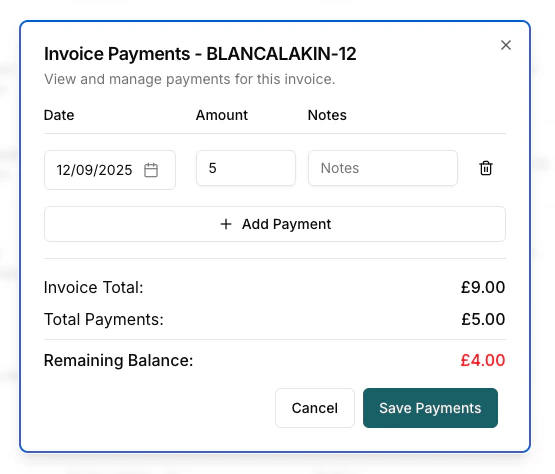
4. In the payments dialog:
* Click **"Add Payment"** to create a new payment record
* Enter the payment date, amount, and optional notes
* Click **"Save Payments"** to record the payment
 ## Viewing Payment History
To view payment records for an invoice:
1. Click **"View Payments"** in the actions menu next to any invoice
2. This opens a read-only dialog showing all payments made against the invoice
3. The dialog displays:
* Payment date, amount, and notes for each payment
* Invoice total and running balance calculations
* Total payments made and remaining balance
## Payment Integration with Accounting Software
When accounting integration is enabled:
* Payments recorded in your accounting software automatically sync to Pigeonhole
* You cannot manually edit payments for integrated invoices (they show as read-only)
* Payment statuses and balances update automatically when changes are made in your accounting system
* This eliminates double-entry and ensures data consistency
## Sending a Payment Confirmation Email
Once an invoice has been fully paid, you can send a confirmation email to the bill payers to thank them and provide a record of the payment.
To send a payment confirmation:
1. Navigate to the **Invoices** page
2. Find a **Paid** invoice
3. Click **"Send Payment Confirmation"** in the actions menu (three dots)
The email is sent to all bill payers on the child's record and includes two attachments:
* **`invoice.pdf`** — the original invoice
* **`receipt.pdf`** — a freshly-generated payment receipt
The wording of the email can be customised — see [Customising Email Templates](/managers/email-templates) and edit the **Invoice Paid Confirmation** template.
The confirmation is sent manually from the invoice actions menu. It is not triggered automatically when an invoice becomes paid, so you can choose when (or whether) to send it.
## Payment Receipt PDF
The payment receipt PDF includes the following summary information:
* **Invoice Total** — the original invoice amount
* **Total Paid** — the sum of all payments recorded against the invoice
* **Remaining Balance** — the amount still outstanding. If the invoice has been overpaid, this is shown as **Overpayment (Credit)** in green, so you can easily see when a credit should be applied to the parent's next invoice.
You can download a payment receipt at any time from the **View Payments** dialog on any invoice that has payments recorded.
## Viewing Payment History
To view payment records for an invoice:
1. Click **"View Payments"** in the actions menu next to any invoice
2. This opens a read-only dialog showing all payments made against the invoice
3. The dialog displays:
* Payment date, amount, and notes for each payment
* Invoice total and running balance calculations
* Total payments made and remaining balance
## Payment Integration with Accounting Software
When accounting integration is enabled:
* Payments recorded in your accounting software automatically sync to Pigeonhole
* You cannot manually edit payments for integrated invoices (they show as read-only)
* Payment statuses and balances update automatically when changes are made in your accounting system
* This eliminates double-entry and ensures data consistency
## Sending a Payment Confirmation Email
Once an invoice has been fully paid, you can send a confirmation email to the bill payers to thank them and provide a record of the payment.
To send a payment confirmation:
1. Navigate to the **Invoices** page
2. Find a **Paid** invoice
3. Click **"Send Payment Confirmation"** in the actions menu (three dots)
The email is sent to all bill payers on the child's record and includes two attachments:
* **`invoice.pdf`** — the original invoice
* **`receipt.pdf`** — a freshly-generated payment receipt
The wording of the email can be customised — see [Customising Email Templates](/managers/email-templates) and edit the **Invoice Paid Confirmation** template.
The confirmation is sent manually from the invoice actions menu. It is not triggered automatically when an invoice becomes paid, so you can choose when (or whether) to send it.
## Payment Receipt PDF
The payment receipt PDF includes the following summary information:
* **Invoice Total** — the original invoice amount
* **Total Paid** — the sum of all payments recorded against the invoice
* **Remaining Balance** — the amount still outstanding. If the invoice has been overpaid, this is shown as **Overpayment (Credit)** in green, so you can easily see when a credit should be applied to the parent's next invoice.
You can download a payment receipt at any time from the **View Payments** dialog on any invoice that has payments recorded.