> ## Documentation Index
> Fetch the complete documentation index at: https://pigeonholeapp.co.uk/docs/llms.txt
> Use this file to discover all available pages before exploring further.
# Understanding Error Panels
> Learn about the three types of error panels in the Live Register Check.
# Understanding Error Panels
The Live Register Check displays results in three categorised tabs with helpful tooltips.
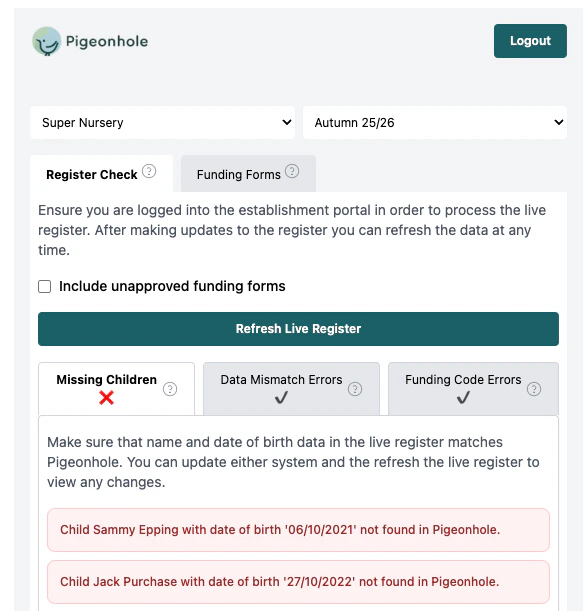 If there are no errors under each tab, you are good to go. You can submit your headcount in the portal, knowing that the data matches the data in Pigeonhole exactly.
## Missing Children
**What it shows**: Children who appear in one system but not the other.
* **Red items**: Children in Pigeonhole but missing from the live register
* **Orange items**: Children in the live register but not in Pigeonhole funding data
**What to do**:
* Check if children should be added to or removed from either system
* Click on items with an eye icon to view full child details and copy them into the portal
## Data Mismatch Errors
**What it shows**: Children who exist in both systems but with different information.
**Common mismatches**:
* Different funded hours between systems
* Mismatched funding days (Mon-Fri allocations)
* Discrepancies in funding codes or eligibility
**What to do**:
* Review the specific mismatch details
* Update the incorrect system to match
## Funding Code Errors
**What it shows**: Issues with extended hours codes and funding eligibility.
**Common issues**:
* Expired or invalid codes
* Parents who need to reapply for extended hours
**What to do**:
* Use the **Send Reminder** button to notify parents about code issues
* Update codes against the funding form in Pigeonhole once received
## Settings
### Include Unapproved Funding Forms
This checkbox includes funding forms that have not been approved yet in the comparison with the live register.
**When to use**:
* **Check this** if you want to see all funding forms in your comparison. This can be useful as an early indication of any issues with forms, even before a parent has signed them.
* **Uncheck this** if you only want to compare approved, active funding.
### Manual Upload Fallback
If auto-fetch fails, you can manually upload a CSV:
1. **Download CSV** manually from the establishment portal (usually under the "Reports" section)
2. **Upload file** using the file input that appears after auto-fetch failure
3. **Process comparison** as normal
## Tips for Success
1. **Regular Checks**: Run live register checks on a regular basis or before headcount submissions
2. **Parent Communication**: Use reminder buttons for funding code issues
If there are no errors under each tab, you are good to go. You can submit your headcount in the portal, knowing that the data matches the data in Pigeonhole exactly.
## Missing Children
**What it shows**: Children who appear in one system but not the other.
* **Red items**: Children in Pigeonhole but missing from the live register
* **Orange items**: Children in the live register but not in Pigeonhole funding data
**What to do**:
* Check if children should be added to or removed from either system
* Click on items with an eye icon to view full child details and copy them into the portal
## Data Mismatch Errors
**What it shows**: Children who exist in both systems but with different information.
**Common mismatches**:
* Different funded hours between systems
* Mismatched funding days (Mon-Fri allocations)
* Discrepancies in funding codes or eligibility
**What to do**:
* Review the specific mismatch details
* Update the incorrect system to match
## Funding Code Errors
**What it shows**: Issues with extended hours codes and funding eligibility.
**Common issues**:
* Expired or invalid codes
* Parents who need to reapply for extended hours
**What to do**:
* Use the **Send Reminder** button to notify parents about code issues
* Update codes against the funding form in Pigeonhole once received
## Settings
### Include Unapproved Funding Forms
This checkbox includes funding forms that have not been approved yet in the comparison with the live register.
**When to use**:
* **Check this** if you want to see all funding forms in your comparison. This can be useful as an early indication of any issues with forms, even before a parent has signed them.
* **Uncheck this** if you only want to compare approved, active funding.
### Manual Upload Fallback
If auto-fetch fails, you can manually upload a CSV:
1. **Download CSV** manually from the establishment portal (usually under the "Reports" section)
2. **Upload file** using the file input that appears after auto-fetch failure
3. **Process comparison** as normal
## Tips for Success
1. **Regular Checks**: Run live register checks on a regular basis or before headcount submissions
2. **Parent Communication**: Use reminder buttons for funding code issues