> ## Documentation Index
> Fetch the complete documentation index at: https://pigeonholeapp.co.uk/docs/llms.txt
> Use this file to discover all available pages before exploring further.
# Observations
> Set up the learning journal — the approval workflow, learning frameworks, AI writing rules, digest emails and journal exports.
Observations are Pigeonhole's learning journal. Staff capture photos, videos and short stories about what children have been doing, and once approved those moments appear in the family's own journal. This page covers the manager-side setup and the controls you have over what gets shared.
Open in app: [Settings → Observations](/docs/app/admin/settings/observations). Observations can be switched off entirely from the **Features** card on [Site Profile](/docs/onboarding/site-profile).
## The approval workflow
Every observation and report moves through the same four states:
| Status | What it means |
| --------------------- | -------------------------------------------------------------------------------- |
| **Draft** | Being written. Private to its author — managers can't see other people's drafts. |
| **Pending approval** | Submitted and waiting for a publisher or manager to review it. |
| **Changes requested** | Sent back to the author with a comment explaining what needs changing. |
| **Published** | Shared with the tagged children's families. |
How a member of staff moves through those states depends on their role:
* **Regular staff** write an observation, then **Submit for approval**. Everyone who can approve gets an email. They can withdraw it back to a draft while it's waiting.
* **Publishers and managers** skip the queue — they see a **Publish** button instead of **Submit for approval**, and publish their own work directly.
* An approver either **publishes** the observation, or returns it with **Return with comment**. A comment is required, so the author always knows what to fix. They're emailed, edit, and resubmit.
The **Publisher** role is granted per staff member on their profile, under additional roles. It also lets them publish announcements directly. See [Staff Permissions](/docs/managers/staff/permissions).
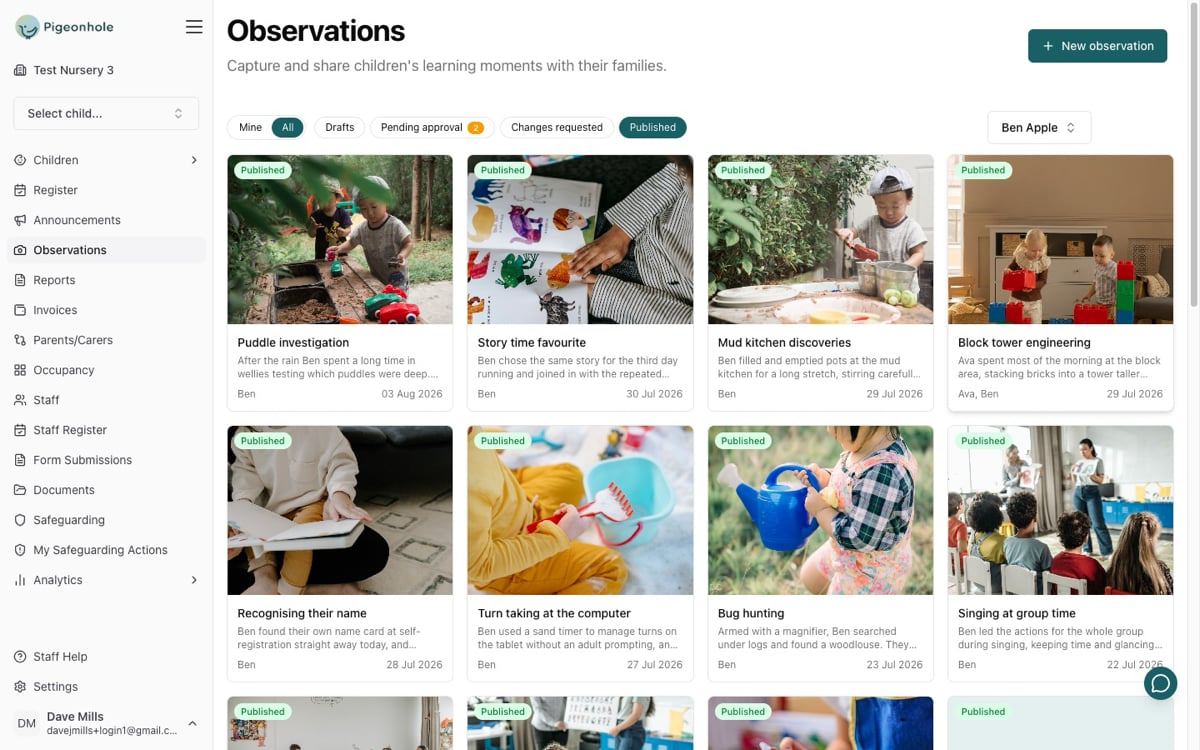 The list has **Mine** and **All** scope pills, status filter chips, and room and child pickers. If you can approve, the **All** tab and the **Pending approval** chip both carry an amber badge with the number of items waiting for you.
### Who can see and edit what
| | Regular staff | Publisher | Manager |
| ------------------------------------------ | ------------- | --------- | ------- |
| See the approval queue | — | ✅ | ✅ |
| Publish and return | — | ✅ | ✅ |
| Edit someone else's item awaiting approval | — | ✅ | ✅ |
| Edit an item after it's published | — | — | ✅ |
| Change these settings | — | — | ✅ |
Drafts are private to whoever wrote them. That's deliberate — half-finished notes about a child shouldn't be readable until their author chooses to submit them. It also means you can't pick up a colleague's unfinished draft for them.
## Journal emails and AI rules
The list has **Mine** and **All** scope pills, status filter chips, and room and child pickers. If you can approve, the **All** tab and the **Pending approval** chip both carry an amber badge with the number of items waiting for you.
### Who can see and edit what
| | Regular staff | Publisher | Manager |
| ------------------------------------------ | ------------- | --------- | ------- |
| See the approval queue | — | ✅ | ✅ |
| Publish and return | — | ✅ | ✅ |
| Edit someone else's item awaiting approval | — | ✅ | ✅ |
| Edit an item after it's published | — | — | ✅ |
| Change these settings | — | — | ✅ |
Drafts are private to whoever wrote them. That's deliberate — half-finished notes about a child shouldn't be readable until their author chooses to submit them. It also means you can't pick up a colleague's unfinished draft for them.
## Journal emails and AI rules
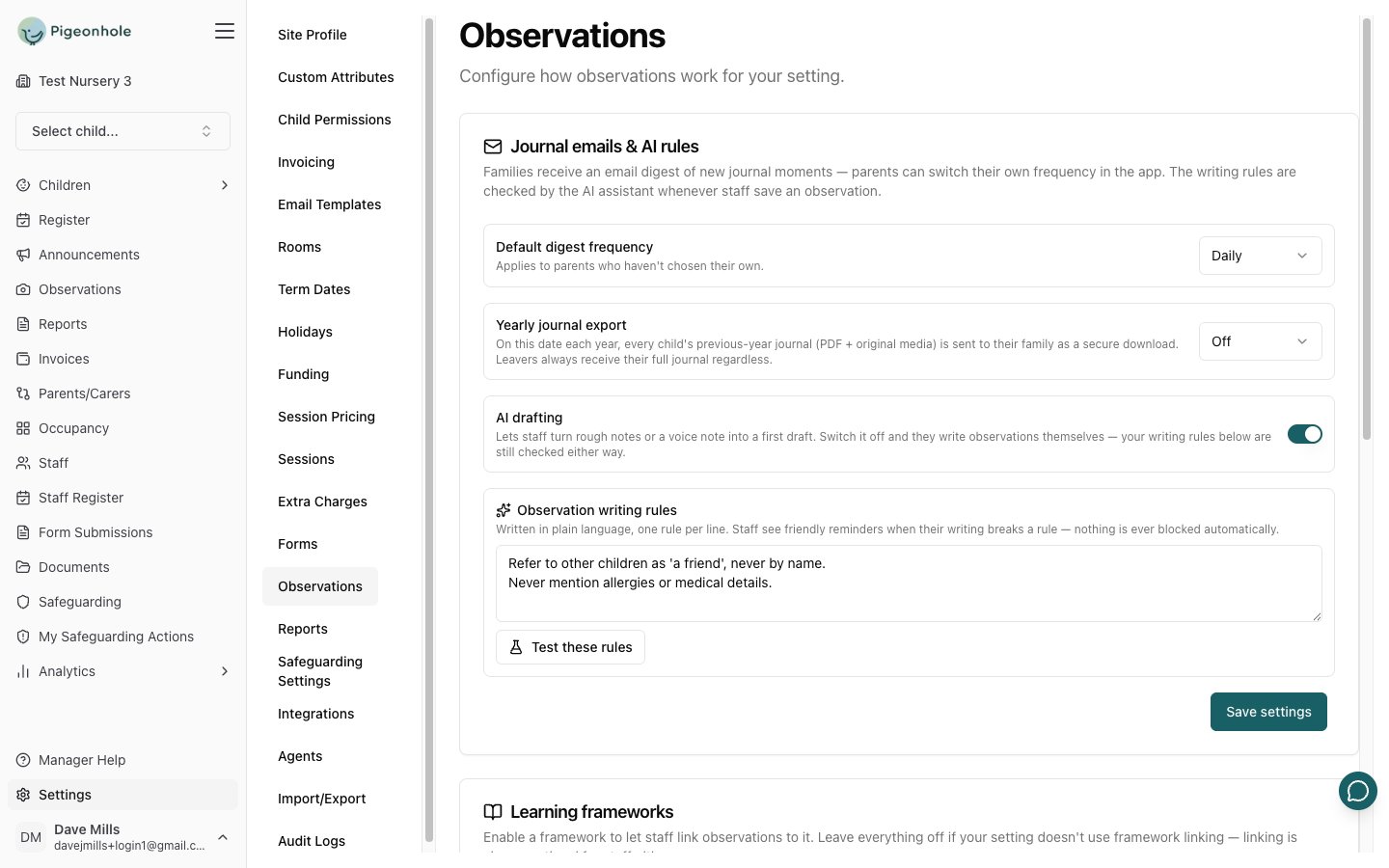 * **Default digest frequency** — families get an email summary of new journal moments. Choose **Daily** (the default) or **Weekly**. This applies to parents who haven't picked their own preference; each parent can override it in their own account.
* **Yearly journal export** — pick a month and day (for example 31 August) and every child's previous-year journal is sent to their family on that date. **Off** by default.
* **AI drafting** — lets staff turn rough notes or a voice note into a first draft. On by default. Switching it off doesn't disable the writing-rules check below.
* **Observation writing rules** — see below.
Click **Save settings** to apply.
## AI writing rules
Writing rules are the most useful control on this page. Write them in plain language, one per line, and the AI checks staff writing against them whenever an observation is submitted or published:
> Refer to other children as 'a friend', never by name.
>
> Never mention allergies or medical details.
Staff see a friendly reminder with a suggested rewrite, plus a **Fix all** option and a **Proceed anyway** button. **Nothing is ever blocked** — the rules nudge, they don't gate. Human approval is unchanged.
Leave the box empty and no check runs at all.
### Testing your rules
Click **Test these rules** to see exactly what staff would be shown, without saving first and without storing anything. Type something a member of staff might realistically write and click **Check it**.
* **Default digest frequency** — families get an email summary of new journal moments. Choose **Daily** (the default) or **Weekly**. This applies to parents who haven't picked their own preference; each parent can override it in their own account.
* **Yearly journal export** — pick a month and day (for example 31 August) and every child's previous-year journal is sent to their family on that date. **Off** by default.
* **AI drafting** — lets staff turn rough notes or a voice note into a first draft. On by default. Switching it off doesn't disable the writing-rules check below.
* **Observation writing rules** — see below.
Click **Save settings** to apply.
## AI writing rules
Writing rules are the most useful control on this page. Write them in plain language, one per line, and the AI checks staff writing against them whenever an observation is submitted or published:
> Refer to other children as 'a friend', never by name.
>
> Never mention allergies or medical details.
Staff see a friendly reminder with a suggested rewrite, plus a **Fix all** option and a **Proceed anyway** button. **Nothing is ever blocked** — the rules nudge, they don't gate. Human approval is unchanged.
Leave the box empty and no check runs at all.
### Testing your rules
Click **Test these rules** to see exactly what staff would be shown, without saving first and without storing anything. Type something a member of staff might realistically write and click **Check it**.
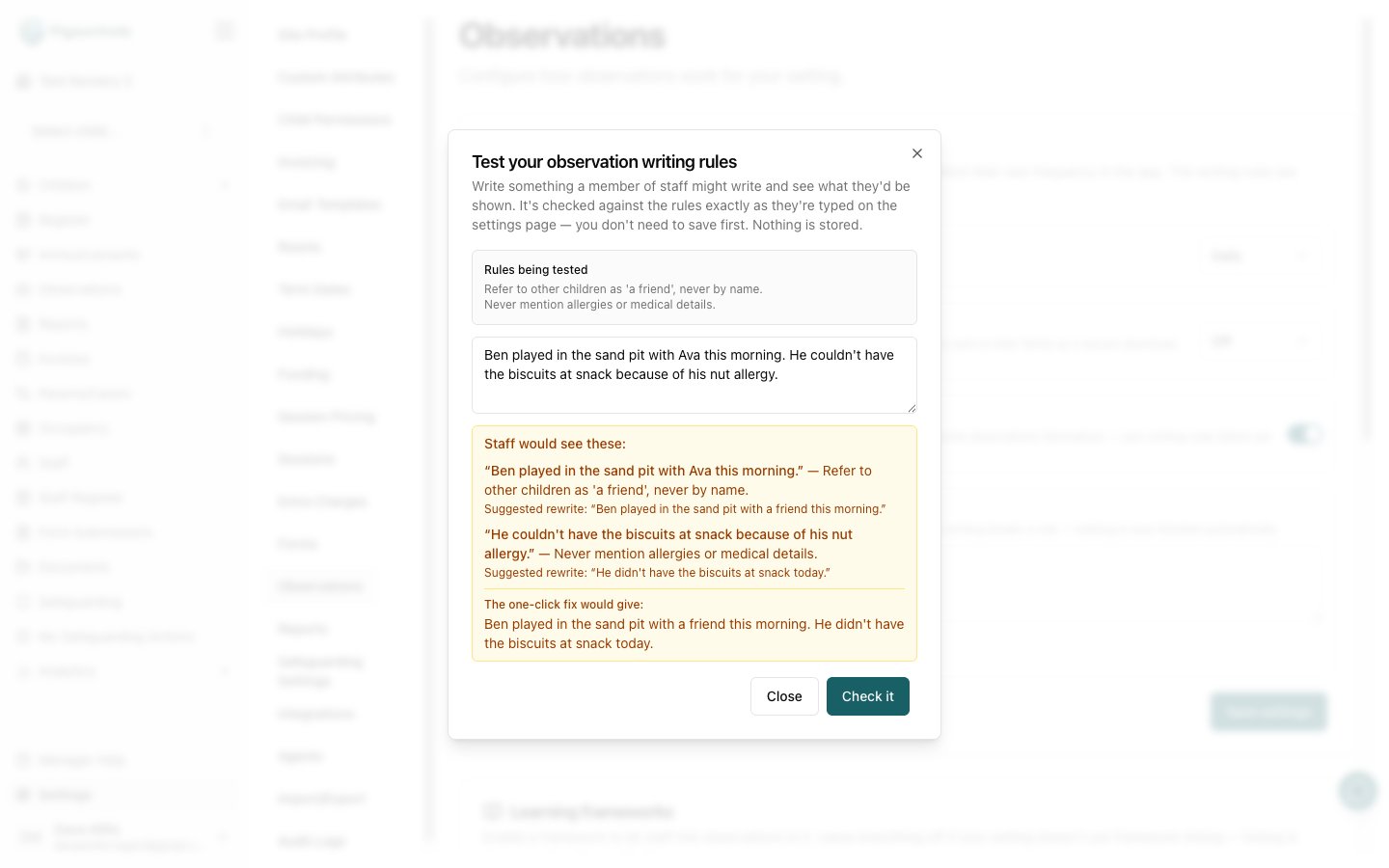 For example, with the two rules above, this sample:
> Ben played in the sand pit with Ava this morning. He couldn't have the biscuits at snack because of his nut allergy.
is flagged twice — once for naming another child, once for the medical detail. The one-click fix gives:
> Ben played in the sand pit with a friend this morning. He didn't have the biscuits at snack today.
Notice that Ben's own name is left alone. The check allows the names of the children the observation is actually about — only *other* children are flagged.
## Learning frameworks
Frameworks let staff link an observation to areas of learning. They are **all off by default** — leave them off if your setting doesn't use framework linking, and tagging stays optional for staff either way.
For example, with the two rules above, this sample:
> Ben played in the sand pit with Ava this morning. He couldn't have the biscuits at snack because of his nut allergy.
is flagged twice — once for naming another child, once for the medical detail. The one-click fix gives:
> Ben played in the sand pit with a friend this morning. He didn't have the biscuits at snack today.
Notice that Ben's own name is left alone. The check allows the names of the children the observation is actually about — only *other* children are flagged.
## Learning frameworks
Frameworks let staff link an observation to areas of learning. They are **all off by default** — leave them off if your setting doesn't use framework linking, and tagging stays optional for staff either way.
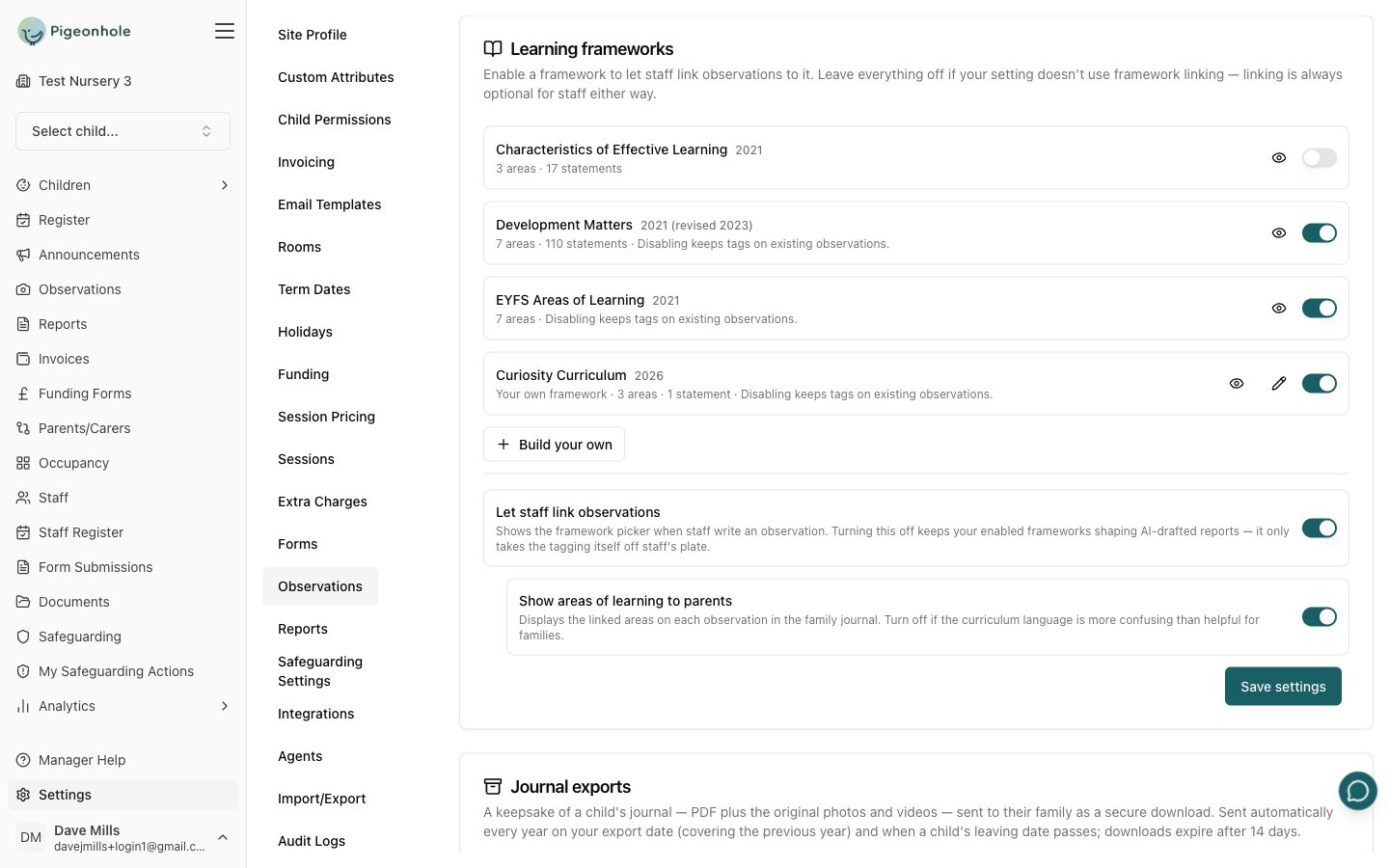 Three frameworks are built in and maintained for you:
| Framework | Contents |
| ------------------------------------------------ | ------------------------------------------------------------------------------------------------------------------ |
| **EYFS Areas of Learning** (2021) | The 7 areas. Staff tag the area on its own. |
| **Development Matters** (2021, revised 2023) | The same 7 areas plus 110 statements, banded into *Birth to three*, *3 & 4-year-olds* and *Children in reception*. |
| **Characteristics of Effective Learning** (2021) | 3 areas and 17 statements. |
Use the eye icon on any framework to preview exactly what's inside it — every area and every statement, grouped by band — before you switch it on.
Whichever frameworks you enable also shape AI-drafted **reports**: the draft is structured around your areas of learning, using your area names. See [Reports](/docs/managers/reports).
### Tagging and what parents see
Two switches at the bottom of the card control how frameworks show up day to day. Unlike the framework switches above them, these are saved with the **Save** button on the card.
* **Let staff link observations** — shows the framework picker when staff write an observation. On by default. Turn it off if tagging every moment is more work than it's worth for your team.
* **Show areas of learning to parents** — displays the linked areas on each observation in the family journal. On by default, and only shown while the switch above is on. Turn it off if the curriculum language is more confusing than helpful for families.
Turning **Let staff link observations** off does **not** stop your frameworks shaping AI-drafted reports. It only takes the tagging itself off staff's plate — the report drafter still works from your enabled frameworks and infers the area from what each observation describes.
### Building your own framework
If your setting follows a curriculum that isn't one of the built-ins, click **Build your own**. Give it a name and an optional version, then add the **areas** staff will tag — these become the chips on the compose screen. Statements are optional detail within an area; add them only if your setting works that way, and use the band field to group them.
Your framework switches on as soon as you create it and sits alongside the built-ins with an edit pencil. The built-in frameworks can't be edited.
You can reword an area or statement at any time and observations already linked to it follow the change. That's also why anything already tagged can't be *removed* — the builder shows a padlock instead of a bin and tells you why. If you've stopped using a framework, switch it off rather than deleting it; that keeps historical tags readable.
## Journal exports
Journal exports are keepsakes for families: a PDF of the journal plus the original photos and videos, emailed as a secure download link. The link needs a one-time code sent to the family's email and expires after 14 days.
They happen three ways:
* **Yearly** — on the export date you set above, each child's *previous year's* journal is sent automatically.
* **When a child leaves** — once their leaving date passes, their *complete* journal is sent automatically.
* **Manually** — pick a child on the settings page and click **Generate export** at any time.
The card keeps a history showing who requested each export (or **Automatic (yearly)** / **Automatic (leaver)**), its status, and when the download expires.
## Frequently Asked Questions
### Can staff share photos of a child whose family hasn't given permission?
Nothing is blocked. If a tagged child's family hasn't agreed to a permission flagged for media, staff see an amber reminder listing that child while they're composing — they then judge whether the child actually appears in the photo. See [Child Permissions](/docs/managers/child-permissions).
### Are children's photos sent to the AI?
No. Only text is ever sent — the notes staff type, and for reports the text of the observations being summarised. Photos and videos are never sent to the AI.
### What happens to tags if I switch a framework off?
Nothing. Observations keep the tags they already have and they stay readable. Switching a framework off only stops staff adding *new* tags from it.
### Can I edit an observation after families have seen it?
Managers can. It's recorded in the audit log as having been changed after it was shared with families.
Three frameworks are built in and maintained for you:
| Framework | Contents |
| ------------------------------------------------ | ------------------------------------------------------------------------------------------------------------------ |
| **EYFS Areas of Learning** (2021) | The 7 areas. Staff tag the area on its own. |
| **Development Matters** (2021, revised 2023) | The same 7 areas plus 110 statements, banded into *Birth to three*, *3 & 4-year-olds* and *Children in reception*. |
| **Characteristics of Effective Learning** (2021) | 3 areas and 17 statements. |
Use the eye icon on any framework to preview exactly what's inside it — every area and every statement, grouped by band — before you switch it on.
Whichever frameworks you enable also shape AI-drafted **reports**: the draft is structured around your areas of learning, using your area names. See [Reports](/docs/managers/reports).
### Tagging and what parents see
Two switches at the bottom of the card control how frameworks show up day to day. Unlike the framework switches above them, these are saved with the **Save** button on the card.
* **Let staff link observations** — shows the framework picker when staff write an observation. On by default. Turn it off if tagging every moment is more work than it's worth for your team.
* **Show areas of learning to parents** — displays the linked areas on each observation in the family journal. On by default, and only shown while the switch above is on. Turn it off if the curriculum language is more confusing than helpful for families.
Turning **Let staff link observations** off does **not** stop your frameworks shaping AI-drafted reports. It only takes the tagging itself off staff's plate — the report drafter still works from your enabled frameworks and infers the area from what each observation describes.
### Building your own framework
If your setting follows a curriculum that isn't one of the built-ins, click **Build your own**. Give it a name and an optional version, then add the **areas** staff will tag — these become the chips on the compose screen. Statements are optional detail within an area; add them only if your setting works that way, and use the band field to group them.
Your framework switches on as soon as you create it and sits alongside the built-ins with an edit pencil. The built-in frameworks can't be edited.
You can reword an area or statement at any time and observations already linked to it follow the change. That's also why anything already tagged can't be *removed* — the builder shows a padlock instead of a bin and tells you why. If you've stopped using a framework, switch it off rather than deleting it; that keeps historical tags readable.
## Journal exports
Journal exports are keepsakes for families: a PDF of the journal plus the original photos and videos, emailed as a secure download link. The link needs a one-time code sent to the family's email and expires after 14 days.
They happen three ways:
* **Yearly** — on the export date you set above, each child's *previous year's* journal is sent automatically.
* **When a child leaves** — once their leaving date passes, their *complete* journal is sent automatically.
* **Manually** — pick a child on the settings page and click **Generate export** at any time.
The card keeps a history showing who requested each export (or **Automatic (yearly)** / **Automatic (leaver)**), its status, and when the download expires.
## Frequently Asked Questions
### Can staff share photos of a child whose family hasn't given permission?
Nothing is blocked. If a tagged child's family hasn't agreed to a permission flagged for media, staff see an amber reminder listing that child while they're composing — they then judge whether the child actually appears in the photo. See [Child Permissions](/docs/managers/child-permissions).
### Are children's photos sent to the AI?
No. Only text is ever sent — the notes staff type, and for reports the text of the observations being summarised. Photos and videos are never sent to the AI.
### What happens to tags if I switch a framework off?
Nothing. Observations keep the tags they already have and they stay readable. Switching a framework off only stops staff adding *new* tags from it.
### Can I edit an observation after families have seen it?
Managers can. It's recorded in the audit log as having been changed after it was shared with families.