> ## Documentation Index
> Fetch the complete documentation index at: https://pigeonholeapp.co.uk/docs/llms.txt
> Use this file to discover all available pages before exploring further.
# Children Schedules
> Viewing and managing children's schedules from the occupancy planner.
The children tab provides a detailed view of all children's schedules and allows you to modify attendance patterns directly.
 ## Children Schedule Overview
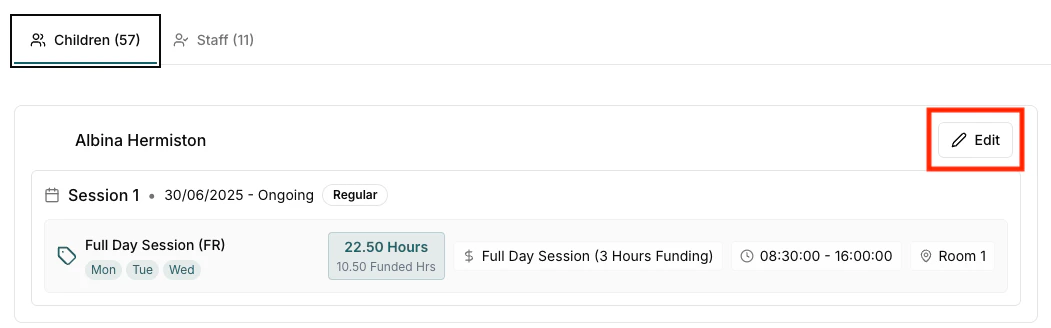
The children list shows all available sessions for the specific weeks. If a session ends and a new one starts on that week, both will be shown:
* **Child Name**: Full name and age
* **Session Pattern**: Visual representation of their weekly schedule
* **Daily Hours**: Total hours per day
* **Room Assignment**: Current room allocation
* **Session Status**: Active, upcoming, or ended sessions
## Updating a Child's Schedule
To modify a child's attendance schedule:
1. **Locate the Child**: Use the search function or scroll through the list
2. **Click Edit**: Click the edit button next to the child's name
3. **Modify Schedule**: The session edit dialog will open
## Children Schedule Overview
The children list shows all available sessions for the specific weeks. If a session ends and a new one starts on that week, both will be shown:
* **Child Name**: Full name and age
* **Session Pattern**: Visual representation of their weekly schedule
* **Daily Hours**: Total hours per day
* **Room Assignment**: Current room allocation
* **Session Status**: Active, upcoming, or ended sessions
## Updating a Child's Schedule
To modify a child's attendance schedule:
1. **Locate the Child**: Use the search function or scroll through the list
2. **Click Edit**: Click the edit button next to the child's name
3. **Modify Schedule**: The session edit dialog will open
 ### Session Edit Dialog Options
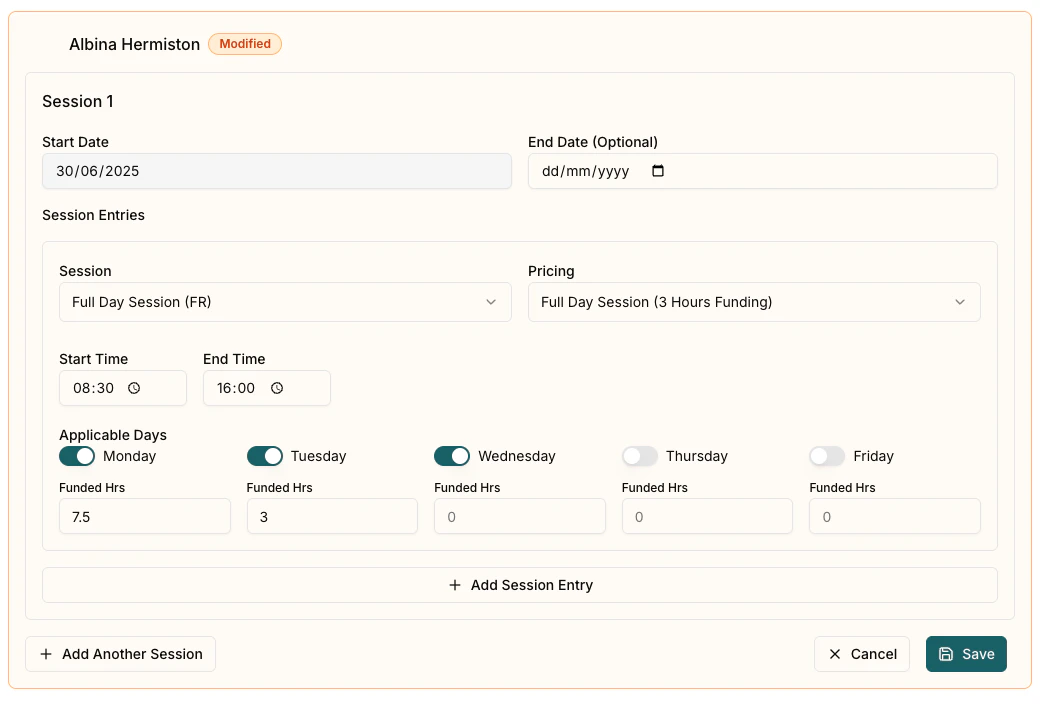
The session edit dialog provides comprehensive control over attendance:
* **Session Type**: Choose from pre-configured session types
* **Start/End Dates**: Set the active period for the session
* **Daily Schedule**: Configure start and end times for each day
* **Room Assignment**: Select which room the child will be in
* **Days of Week**: Toggle which days the session applies to
* **Funded Hours**: Specify funded hours for each day if applicable
### Making Changes
When editing a session:
1. **Adjust Times**: Use the time pickers to set attendance hours
2. **Select Days**: Toggle the days of the week the session applies to
3. **Change Room**: Select a different room if needed
4. **Set Dates**: Ensure the session dates cover the required period
## Saving Child Schedule Changes
Pigeonhole allows you to make multiple child schedule changes before saving each one. This allows you to easily find the optimum occupancy for your setting:
1. **Edit Multiple Children**: Make changes to several children
2. **Track Changes**: The system tracks all modified schedules
3. **Save**: Click **Save** to save each child change
4. **Cancel**: Click **Cancel** to revert all updates on a child
Changes to children's schedules are immediately reflected in the occupancy heatmap, allowing you to see the impact of your adjustments in real-time.
### Session Edit Dialog Options
The session edit dialog provides comprehensive control over attendance:
* **Session Type**: Choose from pre-configured session types
* **Start/End Dates**: Set the active period for the session
* **Daily Schedule**: Configure start and end times for each day
* **Room Assignment**: Select which room the child will be in
* **Days of Week**: Toggle which days the session applies to
* **Funded Hours**: Specify funded hours for each day if applicable
### Making Changes
When editing a session:
1. **Adjust Times**: Use the time pickers to set attendance hours
2. **Select Days**: Toggle the days of the week the session applies to
3. **Change Room**: Select a different room if needed
4. **Set Dates**: Ensure the session dates cover the required period
## Saving Child Schedule Changes
Pigeonhole allows you to make multiple child schedule changes before saving each one. This allows you to easily find the optimum occupancy for your setting:
1. **Edit Multiple Children**: Make changes to several children
2. **Track Changes**: The system tracks all modified schedules
3. **Save**: Click **Save** to save each child change
4. **Cancel**: Click **Cancel** to revert all updates on a child
Changes to children's schedules are immediately reflected in the occupancy heatmap, allowing you to see the impact of your adjustments in real-time.