> ## Documentation Index
> Fetch the complete documentation index at: https://pigeonholeapp.co.uk/docs/llms.txt
> Use this file to discover all available pages before exploring further.
# Adding Parents & Carers
> How to add new parents and carers to your nursery setting.
# Adding Parents & Carers
There are two ways to add a parent or carer: directly from the Parents & Carers list, or from a child's profile. Both workflows allow you to configure personal details, relationship types, and billing settings.
## Adding from the Parents & Carers List
To add a new parent or carer, click the **Add Parent/Carer** button in the top right corner of the parent/carer list.
### Personal Details
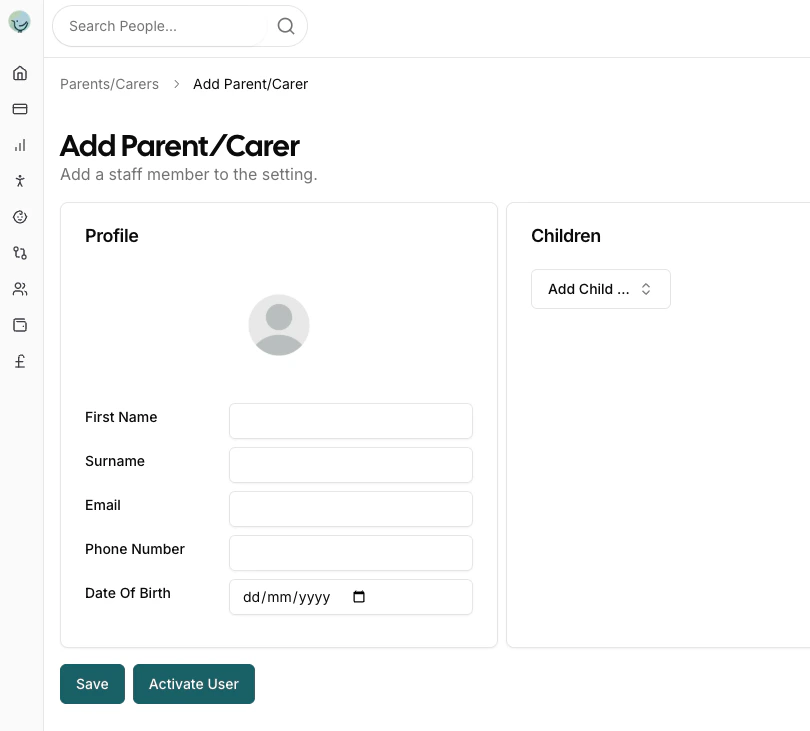
The profile creation form collects the following information:
* **Profile Picture**: Upload a photo for easy identification
* **First Name**: The parent/carer's first name
* **Surname**: The parent/carer's last name
* **Email**: Contact email address for communications and system access
* **Phone Number**: Primary contact number
* **Date of Birth**: Optional field for the parent/carer's date of birth
 ### Children Relationships
The Children section allows you to establish relationships between the parent/carer and specific children. For each relationship you can configure:
* **Child Selection**: Choose which child this parent/carer is associated with
* **Relationship Type**: Select the relationship:
* **Mother**: Biological or adoptive mother
* **Father**: Biological or adoptive father
* **Grandmother**: The child's grandmother
* **Grandfather**: The child's grandfather
* **Other**: Any other caring relationship (e.g., guardian, step-parent)
* **Bill Payer**: Toggle to indicate if this person is responsible for paying bills for this child. Bill payers will be sent invoices.
* **Parental Responsibility**: Toggle to indicate if this person has legal parental responsibility for this child
You can add multiple children relationships for a single parent/carer by using the **Add Child** dropdown.
A parent/carer can have different relationship types, billing responsibilities, and parental responsibility settings for different children.
## Adding from a Child's Profile
You can also add parent/carer relationships directly from a child's profile:
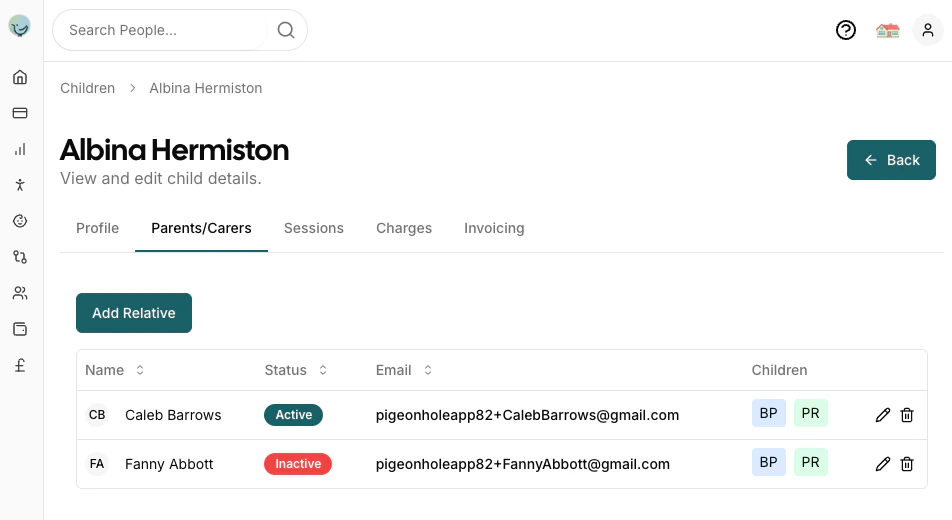
1. Navigate to a child's profile in the Admin Portal
2. Click on the **Parents** tab
3. Click **Add Relative** to create a new parent/carer relationship
### Children Relationships
The Children section allows you to establish relationships between the parent/carer and specific children. For each relationship you can configure:
* **Child Selection**: Choose which child this parent/carer is associated with
* **Relationship Type**: Select the relationship:
* **Mother**: Biological or adoptive mother
* **Father**: Biological or adoptive father
* **Grandmother**: The child's grandmother
* **Grandfather**: The child's grandfather
* **Other**: Any other caring relationship (e.g., guardian, step-parent)
* **Bill Payer**: Toggle to indicate if this person is responsible for paying bills for this child. Bill payers will be sent invoices.
* **Parental Responsibility**: Toggle to indicate if this person has legal parental responsibility for this child
You can add multiple children relationships for a single parent/carer by using the **Add Child** dropdown.
A parent/carer can have different relationship types, billing responsibilities, and parental responsibility settings for different children.
## Adding from a Child's Profile
You can also add parent/carer relationships directly from a child's profile:
1. Navigate to a child's profile in the Admin Portal
2. Click on the **Parents** tab
3. Click **Add Relative** to create a new parent/carer relationship
 ### Two Workflows
When adding a parent/carer from the child's profile, you have two options:
#### Option 1: Select an Existing Parent/Carer
If the parent/carer already exists in the system:
1. Use the **Select Existing Relative** dropdown
2. Choose the parent/carer from the list
3. Configure the relationship details (relationship type, bill payer, parental responsibility)
4. Click **Save**
#### Option 2: Create a New Parent/Carer
If the parent/carer does not exist in the system yet:
1. Leave the **Select Existing Relative** field empty
2. Fill in the new parent/carer details:
* First Name
* Surname
* Email
3. Configure the relationship details
4. Click **Save**
### Two Workflows
When adding a parent/carer from the child's profile, you have two options:
#### Option 1: Select an Existing Parent/Carer
If the parent/carer already exists in the system:
1. Use the **Select Existing Relative** dropdown
2. Choose the parent/carer from the list
3. Configure the relationship details (relationship type, bill payer, parental responsibility)
4. Click **Save**
#### Option 2: Create a New Parent/Carer
If the parent/carer does not exist in the system yet:
1. Leave the **Select Existing Relative** field empty
2. Fill in the new parent/carer details:
* First Name
* Surname
* Email
3. Configure the relationship details
4. Click **Save**
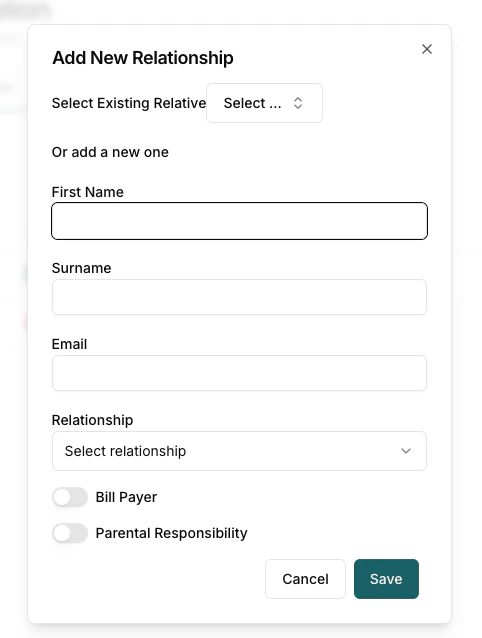 This creates both the new parent/carer profile and establishes the relationship with the child in one step.
## Login Status and Invitations
After adding a parent or carer, you can invite them to access the parent portal.
### Status Indicators
The parent/carer list shows the current login status for each person:
* **Last Login Date**: Shows the date and time when the parent/carer last logged in (e.g., "10 Feb 2026 14:30")
* **Invite Sent**: A blue mail icon indicates an invitation email has been sent but the parent/carer has not logged in yet
* **Dash (-)**: No invitation has been sent yet
### Sending Invitations
To grant a parent/carer access to the parent portal:
1. Click the **More Actions** (...) button on the parent/carer row
2. Select **Send Invite**
3. The parent/carer will receive an email with a login link
Once the parent/carer logs in using the link, they will automatically be connected to their profile and gain access to view their children's information, invoices, and funding forms.
This creates both the new parent/carer profile and establishes the relationship with the child in one step.
## Login Status and Invitations
After adding a parent or carer, you can invite them to access the parent portal.
### Status Indicators
The parent/carer list shows the current login status for each person:
* **Last Login Date**: Shows the date and time when the parent/carer last logged in (e.g., "10 Feb 2026 14:30")
* **Invite Sent**: A blue mail icon indicates an invitation email has been sent but the parent/carer has not logged in yet
* **Dash (-)**: No invitation has been sent yet
### Sending Invitations
To grant a parent/carer access to the parent portal:
1. Click the **More Actions** (...) button on the parent/carer row
2. Select **Send Invite**
3. The parent/carer will receive an email with a login link
Once the parent/carer logs in using the link, they will automatically be connected to their profile and gain access to view their children's information, invoices, and funding forms.