> ## Documentation Index
> Fetch the complete documentation index at: https://pigeonholeapp.co.uk/docs/llms.txt
> Use this file to discover all available pages before exploring further.
# Create a Room Move
> How to create a room move for children and staff members in the Admin Portal.
# Creating Room Moves
Room moves are essential when you need to transition children or staff members from one room to another. Pigeonhole handles room moves by creating a new session with the updated room assignment while properly managing the timing and expiration of existing sessions.
## Understanding Room Moves
A room move involves:
* **Copying an existing session** to create a new schedule
* **Updating the room assignment** in the new session
## Room Moves for Children
### Step 1: Access the Child's Sessions
1. Navigate to the **Children** section in the Admin Portal
2. Find and select the child who needs to move rooms
3. Go to the **Sessions** tab to view their current schedule
### Step 2: Copy the Existing Session
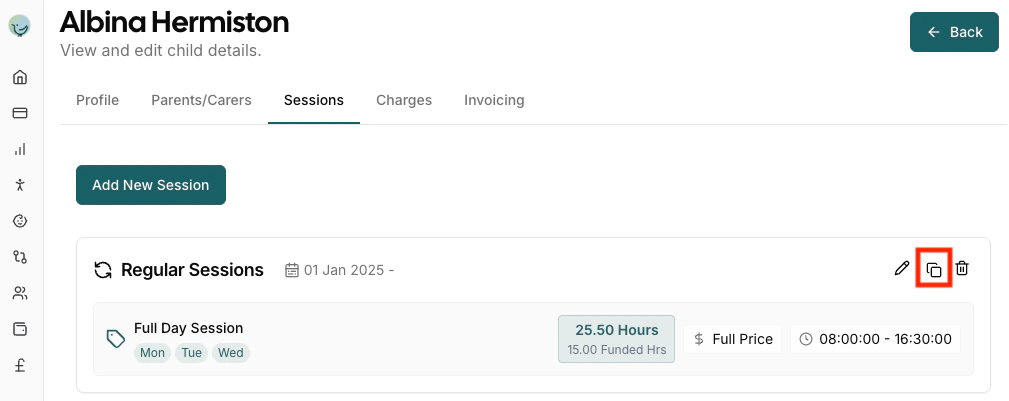
1. Locate the session you want to move to a different room
2. Click the **Copy** button next to the session
* This creates a duplicate of the entire session with all its details
* The copied session will appear in the session list immediately
 ### Step 3: Edit the New Session
1. Click **Edit** on the newly copied session
2. In the session editor, you'll see:
* **Start Date**: Set this to when the room move should take effect
* **End Date**: Leave blank for ongoing sessions or set an end date
* **Session Entries**: These contain the room assignments
### Step 4: Update Room Assignment
1. In the session entry section, find the **Room** dropdown
### Step 3: Edit the New Session
1. Click **Edit** on the newly copied session
2. In the session editor, you'll see:
* **Start Date**: Set this to when the room move should take effect
* **End Date**: Leave blank for ongoing sessions or set an end date
* **Session Entries**: These contain the room assignments
### Step 4: Update Room Assignment
1. In the session entry section, find the **Room** dropdown
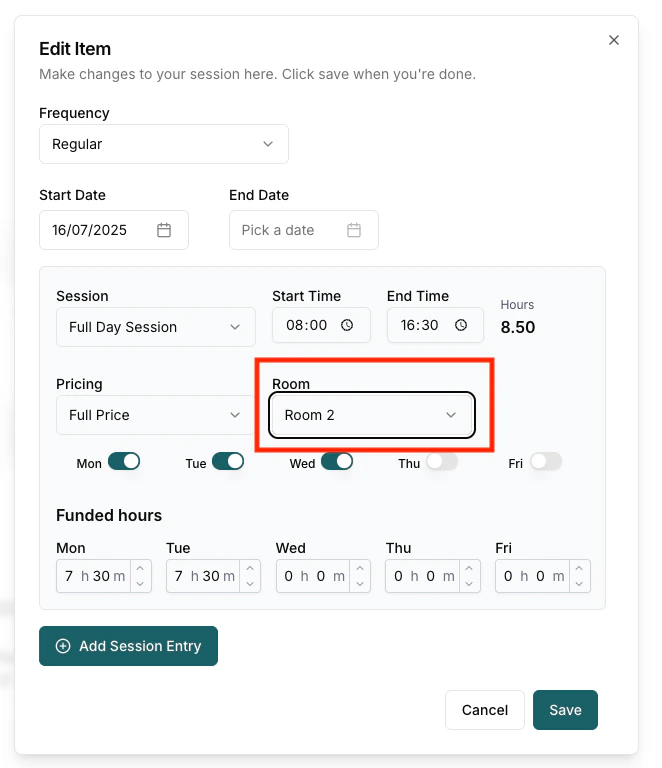 2. Select the new room from the available options
3. Keep all other settings the same (session type, pricing, days, times)
### Step 5: Manage Date Transitions
**For the NEW session:**
* Set the **Start Date** to when the room move takes effect
* Leave **End Date** blank if this is permanent, or set an end date if temporary
**For the ORIGINAL session:**
* Edit the original session
* Set the **End Date** to the day before the room move takes effect
* This ensures the old room assignment expires at the right time
### Example Timeline
If moving a child from Room A to Room B on March 15th:
**Original Session (Room A):**
* Start Date: January 1st
* End Date: **March 14th** (expires day before move)
* Room: Room A
**New Session (Room B):**
* Start Date: **March 15th** (starts on move date)
* End Date: (blank for ongoing)
* Room: Room B
## Room Moves for Staff
### Step 1: Access Staff Sessions
1. Navigate to the **Staff** section in the Admin Portal
2. Find and select the staff member who needs to move rooms
3. Go to the **Sessions** tab to view their current schedule
### Step 2: Copy the Existing Session
1. Locate the session you want to move to a different room
2. Click the **Copy** button next to the session
* This creates a duplicate of the staff session
* The copied session appears in the session list
### Step 3: Edit the New Session
1. Click **Edit** on the newly copied session
2. Update the session details:
* **Start Date**: When the room move takes effect
* **End Date**: Leave blank for ongoing assignments
### Step 4: Update Room Assignment
1. In the **Work Schedule** section, find each session entry
2. Update the **Room** dropdown to the new room
3. Keep the same:
* Start and end times
* Days of the week
* All other scheduling details
### Step 5: Manage Date Transitions
Follow the same process as for children:
* End the original session the day before the move
* Start the new session on the move date
2. Select the new room from the available options
3. Keep all other settings the same (session type, pricing, days, times)
### Step 5: Manage Date Transitions
**For the NEW session:**
* Set the **Start Date** to when the room move takes effect
* Leave **End Date** blank if this is permanent, or set an end date if temporary
**For the ORIGINAL session:**
* Edit the original session
* Set the **End Date** to the day before the room move takes effect
* This ensures the old room assignment expires at the right time
### Example Timeline
If moving a child from Room A to Room B on March 15th:
**Original Session (Room A):**
* Start Date: January 1st
* End Date: **March 14th** (expires day before move)
* Room: Room A
**New Session (Room B):**
* Start Date: **March 15th** (starts on move date)
* End Date: (blank for ongoing)
* Room: Room B
## Room Moves for Staff
### Step 1: Access Staff Sessions
1. Navigate to the **Staff** section in the Admin Portal
2. Find and select the staff member who needs to move rooms
3. Go to the **Sessions** tab to view their current schedule
### Step 2: Copy the Existing Session
1. Locate the session you want to move to a different room
2. Click the **Copy** button next to the session
* This creates a duplicate of the staff session
* The copied session appears in the session list
### Step 3: Edit the New Session
1. Click **Edit** on the newly copied session
2. Update the session details:
* **Start Date**: When the room move takes effect
* **End Date**: Leave blank for ongoing assignments
### Step 4: Update Room Assignment
1. In the **Work Schedule** section, find each session entry
2. Update the **Room** dropdown to the new room
3. Keep the same:
* Start and end times
* Days of the week
* All other scheduling details
### Step 5: Manage Date Transitions
Follow the same process as for children:
* End the original session the day before the move
* Start the new session on the move date