> ## Documentation Index
> Fetch the complete documentation index at: https://pigeonholeapp.co.uk/docs/llms.txt
> Use this file to discover all available pages before exploring further.
# Staff Register (Web)
> View and manage staff attendance, clock staff in and out, and record staff absences from the web app.
# Staff Register
The **Staff Register** lets you view and manage your team's attendance for any day from the web app — clocking staff in and out, adjusting their times, adding notes, and recording absences. It's the desk-based companion to the [mobile staff register](/docs/staff/using-the-app/using-the-staff-register) your team uses on a shared device.
Open in app: [Staff Register](/docs/app/admin/staff-register).
 ## Viewing the Register
1. Open **Staff Register** from the main menu.
2. Use the date shown under the page title to move between days — use the arrows to step to the previous or next day, or pick a date directly.
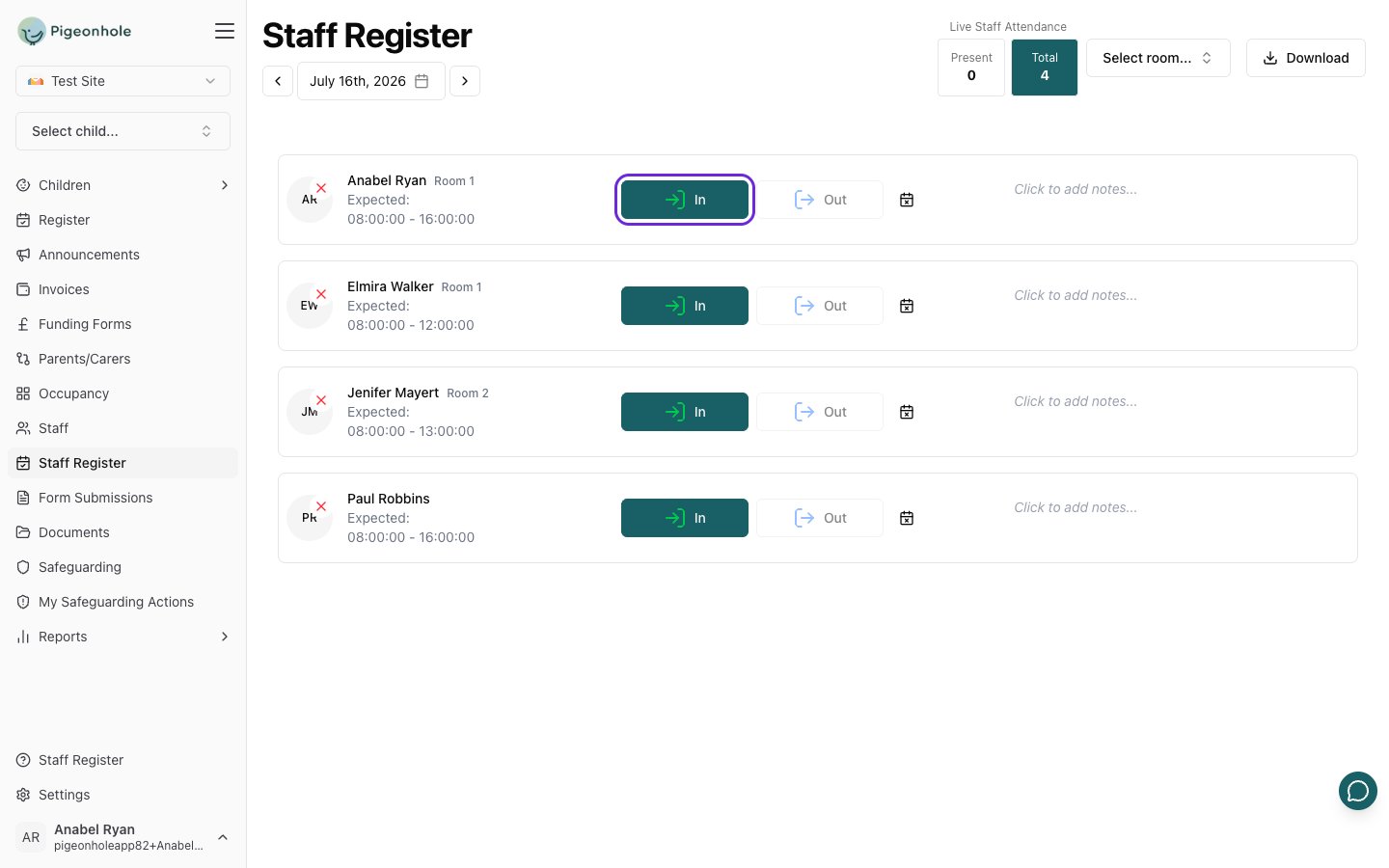
3. Each member of staff scheduled for that day appears as a row showing their photo, name, room, and their **Expected** hours.
4. The row colour tells you their status at a glance: green once they've clocked in, blue once they've clocked out, and grey when they're marked absent.
Use the **room** filter at the top of the page to show only the staff in a particular room. A running attendance count sits alongside it so you can see how many staff are in.
## Recording Staff Attendance
### Clocking staff in and out
1. Find the member of staff in the list.
2. Click **In** to record their arrival at the current time.
3. When they leave, click **Out** to record their departure. (You can only clock someone out once they've been clocked in.)
### Correcting a time
1. Click the recorded sign-in or sign-out time.
2. Type the correct time.
3. Press **Enter** (or click away) to save. Press **Escape** to cancel.
### Adding notes
1. Click the notes area on a staff row.
2. Type your note.
3. Click away to save it.
## Recording a Staff Absence
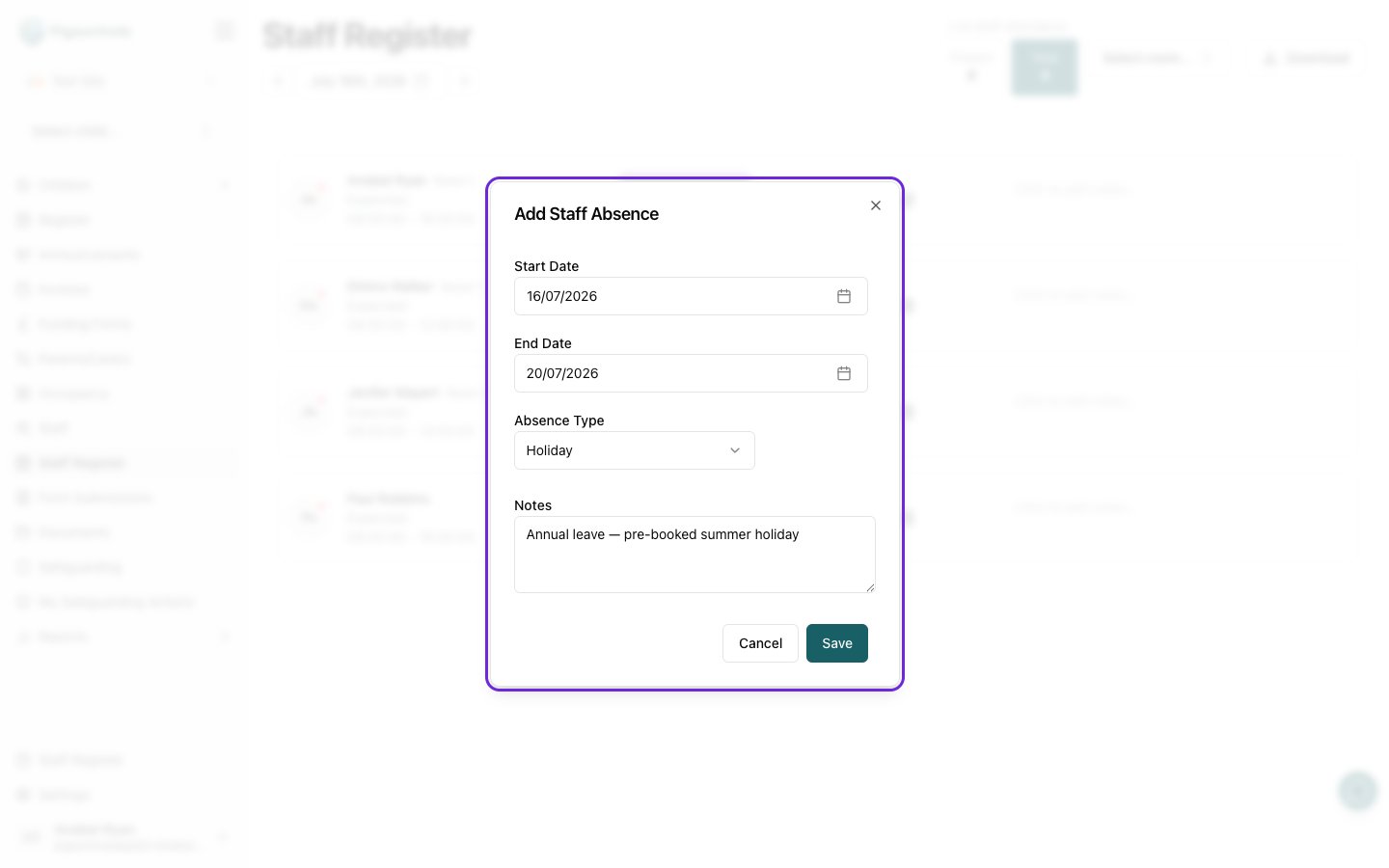
1. Click the **calendar** icon on the staff member's row to open the **Add Staff Absence** window.
2. Fill in the absence:
* **Start Date** and **End Date** for the absence.
* **Absence Type** — **Holiday**, **Illness**, or **Other**.
* **Notes** — any extra detail (optional).
3. Click **Save**.
The staff member's row turns grey and shows the absence type. Their clock-in and clock-out buttons are disabled for the days they're absent.
## Viewing the Register
1. Open **Staff Register** from the main menu.
2. Use the date shown under the page title to move between days — use the arrows to step to the previous or next day, or pick a date directly.
3. Each member of staff scheduled for that day appears as a row showing their photo, name, room, and their **Expected** hours.
4. The row colour tells you their status at a glance: green once they've clocked in, blue once they've clocked out, and grey when they're marked absent.
Use the **room** filter at the top of the page to show only the staff in a particular room. A running attendance count sits alongside it so you can see how many staff are in.
## Recording Staff Attendance
### Clocking staff in and out
1. Find the member of staff in the list.
2. Click **In** to record their arrival at the current time.
3. When they leave, click **Out** to record their departure. (You can only clock someone out once they've been clocked in.)
### Correcting a time
1. Click the recorded sign-in or sign-out time.
2. Type the correct time.
3. Press **Enter** (or click away) to save. Press **Escape** to cancel.
### Adding notes
1. Click the notes area on a staff row.
2. Type your note.
3. Click away to save it.
## Recording a Staff Absence
1. Click the **calendar** icon on the staff member's row to open the **Add Staff Absence** window.
2. Fill in the absence:
* **Start Date** and **End Date** for the absence.
* **Absence Type** — **Holiday**, **Illness**, or **Other**.
* **Notes** — any extra detail (optional).
3. Click **Save**.
The staff member's row turns grey and shows the absence type. Their clock-in and clock-out buttons are disabled for the days they're absent.
 ### Editing or removing an absence
1. Click the **calendar** icon on a staff member who is already marked absent — it opens the **Edit Staff Absence** window.
2. Change the details and click **Save**, or click **Delete** to remove the absence.
## Downloading the Register
Click **Download** at the top of the page to export the staff register — useful for record-keeping or sharing attendance figures.
Staff can also clock themselves in and out on the shared mobile device. See [Using the staff register](/docs/staff/using-the-app/using-the-staff-register) for the mobile app workflow.
### Editing or removing an absence
1. Click the **calendar** icon on a staff member who is already marked absent — it opens the **Edit Staff Absence** window.
2. Change the details and click **Save**, or click **Delete** to remove the absence.
## Downloading the Register
Click **Download** at the top of the page to export the staff register — useful for record-keeping or sharing attendance figures.
Staff can also clock themselves in and out on the shared mobile device. See [Using the staff register](/docs/staff/using-the-app/using-the-staff-register) for the mobile app workflow.