> ## Documentation Index
> Fetch the complete documentation index at: https://pigeonholeapp.co.uk/docs/llms.txt
> Use this file to discover all available pages before exploring further.
# Funding Exclusion Schedules
> Set up custom date ranges where funding is not applied and private hours are charged instead.
A funding exclusion schedule is a set of date ranges during which funded hours should not be applied to a child. On the dates in a schedule, Pigeonhole charges the child's private hours instead of using their funding. You create schedules here and then apply them to individual children.
Open in app: [Settings → Funding Schedule](/docs/app/admin/settings/fundingschedule).
## When to Use a Funding Exclusion Schedule
Use a schedule when a child's funded hours should pause for certain periods, but their place still runs and should be charged privately. For example, you might exclude funding for a run of dates when a child's funding is not available, so those days fall back to private charging.
 ## Step 1: Add a Schedule
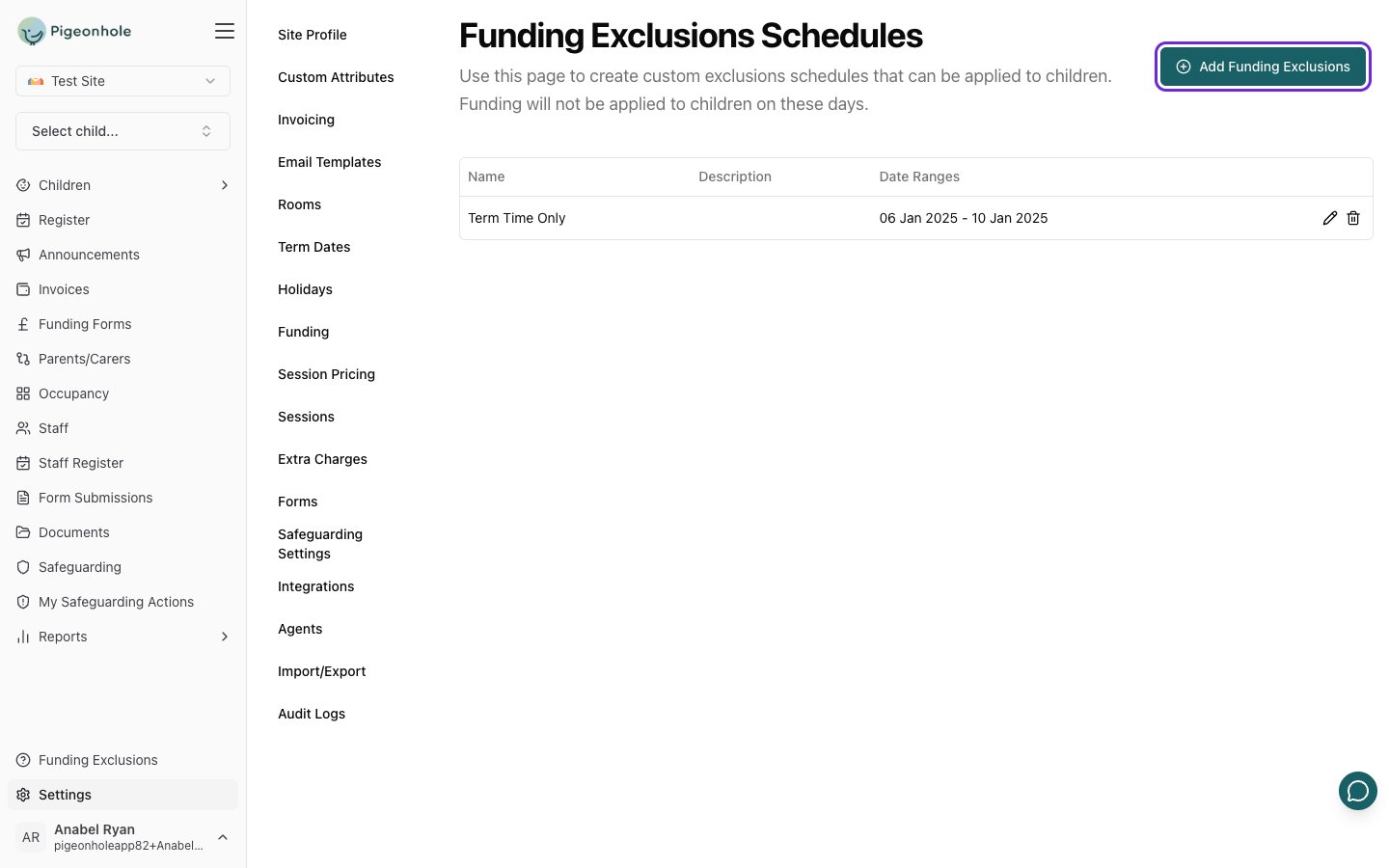
1. On the **Funding Exclusions Schedules** page, click **Add Funding Exclusions**.
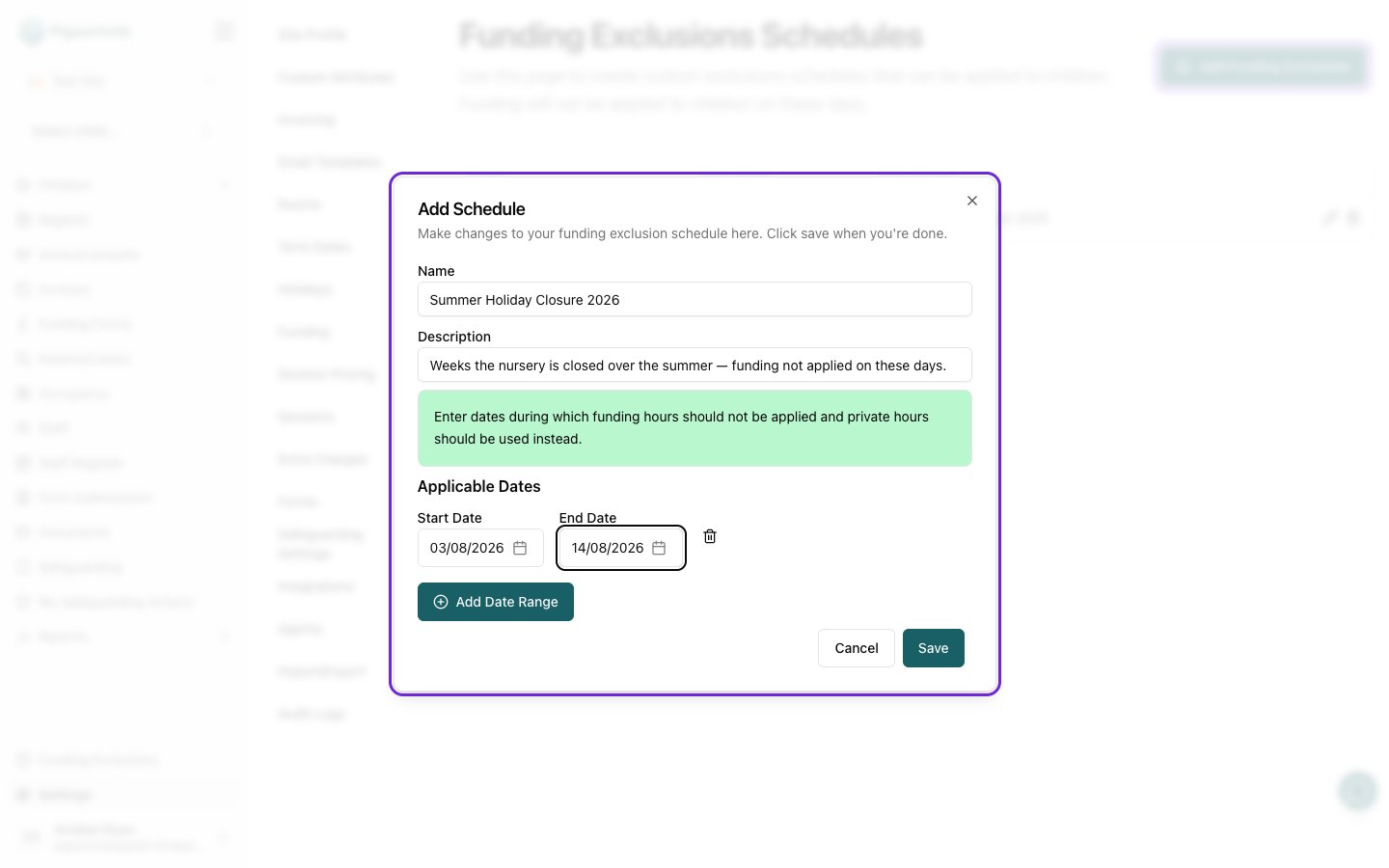
2. Enter a **Name** for the schedule so you can recognise it later (e.g. "Summer break exclusions").
3. Optionally enter a **Description** with any extra detail.
## Step 2: Add the Excluded Date Ranges
1. Click **Add Date Range**.
2. Choose a **Start Date** and an **End Date** for the period funding should not be applied.
3. Repeat to add as many date ranges as the schedule needs. Remove a range using the delete icon next to it.
During the dates you add here, funded hours are not applied and the child's private hours are charged instead.
## Step 1: Add a Schedule
1. On the **Funding Exclusions Schedules** page, click **Add Funding Exclusions**.
2. Enter a **Name** for the schedule so you can recognise it later (e.g. "Summer break exclusions").
3. Optionally enter a **Description** with any extra detail.
## Step 2: Add the Excluded Date Ranges
1. Click **Add Date Range**.
2. Choose a **Start Date** and an **End Date** for the period funding should not be applied.
3. Repeat to add as many date ranges as the schedule needs. Remove a range using the delete icon next to it.
During the dates you add here, funded hours are not applied and the child's private hours are charged instead.
 ## Step 3: Save
Click **Save**. The schedule appears in the list on the settings page.
## Editing and Deleting Schedules
* To change a schedule, click its edit action in the list, adjust the name, description, or date ranges, then click **Save**.
* To remove a schedule, use its delete action in the list.
Once a schedule exists, you apply it to individual children from their schedule so the exclusion dates take effect for that child.
## Step 3: Save
Click **Save**. The schedule appears in the list on the settings page.
## Editing and Deleting Schedules
* To change a schedule, click its edit action in the list, adjust the name, description, or date ranges, then click **Save**.
* To remove a schedule, use its delete action in the list.
Once a schedule exists, you apply it to individual children from their schedule so the exclusion dates take effect for that child.