> ## Documentation Index
> Fetch the complete documentation index at: https://pigeonholeapp.co.uk/docs/llms.txt
> Use this file to discover all available pages before exploring further.
# CSV Import
> How to import children, parents/carers, staff, and funding forms using CSV files.
# Web-Based CSV Import
Access the import page from your Pigeonhole dashboard at [**Settings → Import**](/app/admin/settings/import).
**Features:**
* **AI-Powered Column Mapping**: Upload any CSV file and our AI automatically maps columns to the correct fields
* **Built-in Editor**: Review and edit all extracted data before importing
* **Duplicate Detection**: Automatically flags potential duplicates with warning icons
* **Bulk Import**: Import hundreds of records in one go
* **Support for Any Format**: Works with CSV exports from any nursery software
***
## What is a CSV File?
A CSV (Comma-Separated Values) file is a simple spreadsheet format that most software can open and export. It looks like a spreadsheet but saves data as plain text, making it easy to move between different systems.
**You don't need to create a CSV from scratch** — most nursery software lets you export your data as a CSV directly. If you already have data in Excel or Google Sheets, you can convert it in a few steps.
1. Open your spreadsheet in **Microsoft Excel**
2. Click **File** → **Save As**
3. Choose where to save the file
4. In the **"Save as type"** dropdown, select **CSV (Comma delimited) (\*.csv)**
5. Click **Save** — Excel may warn you about features not supported in CSV; click **Yes** to continue
6. Your file is now ready to upload to Pigeonhole
If you have multiple sheets in your workbook, only the currently visible sheet will be saved as a CSV. Make sure the correct sheet is active before saving.
1. Open your spreadsheet in **Google Sheets**
2. Click **File** → **Download**
3. Select **Comma Separated Values (.csv)**
4. The file will download automatically to your computer
5. Upload this file to Pigeonhole
Pigeonhole's CSV import accepts `.csv` files only. If you have an Excel file, follow the steps above to save it as a CSV first. It only takes a moment and won't affect your original Excel file.
Your CSV should have:
* **A header row** in the first row (column names like "First Name", "Date of Birth", "Email")
* **One record per row** — each row is one child, parent, or staff member
* **Consistent formatting** — for example, all dates in the same format
You don't need to match our exact column names — our AI recognises variations like "First Name", "firstname", "Forename", and "first\_name" as the same field.
If you're not sure where to start, download our template from the import page. It includes all the column headers we support.
***
## Recommended Import Order
Always import in this order to ensure parents and funding forms link correctly to children.
1. **Children first** — children must exist in Pigeonhole before parents or funding forms can be linked to them
2. **Parents/Carers second** — relatives are linked to children during import
3. **Staff last** — staff records are independent but can reference children
4. **Funding Forms** — funding forms reference children, so import children first
***
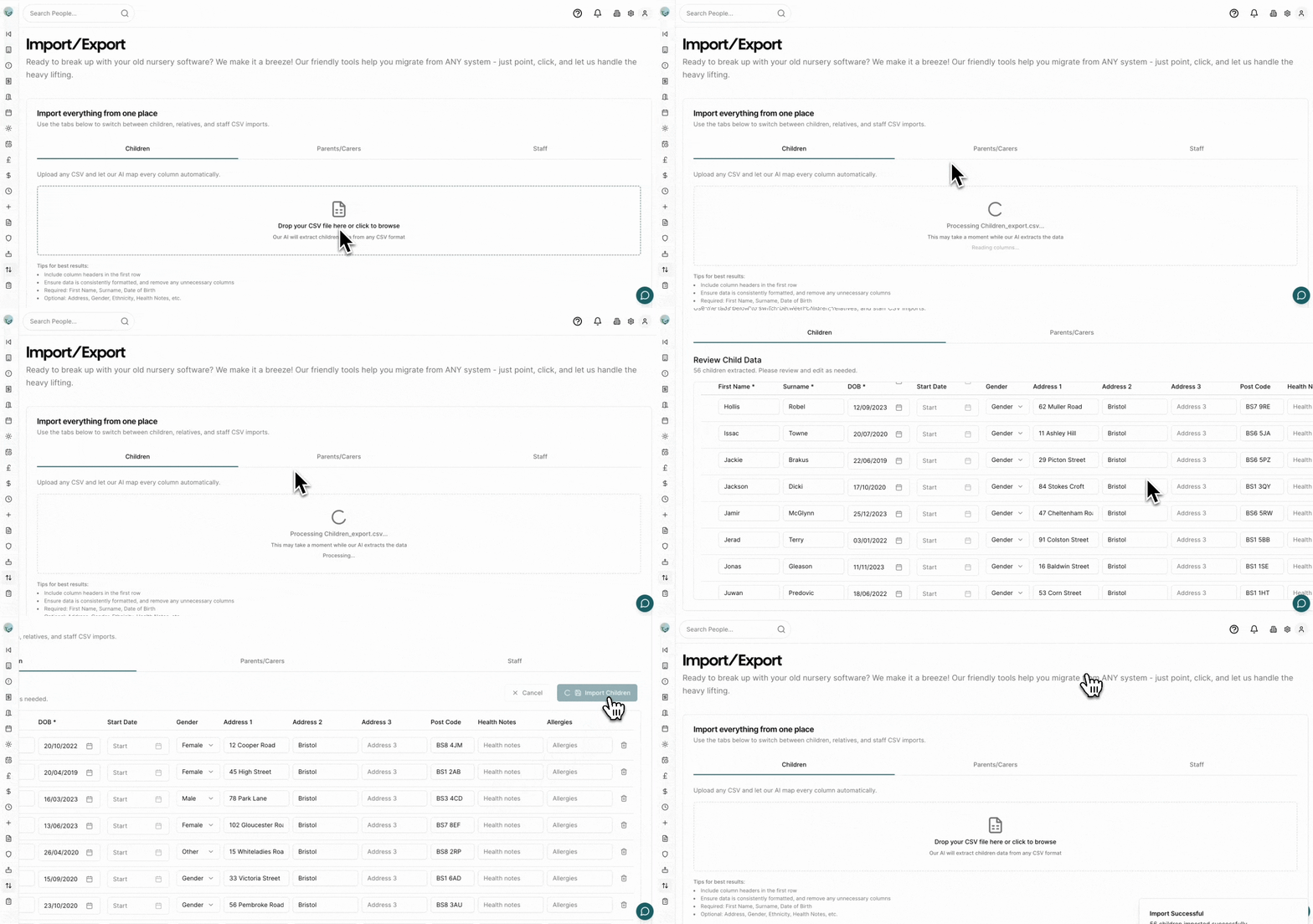
## How to Import via CSV
1. Navigate to **Settings > Import/Export** in Pigeonhole
2. Choose the tab for what you want to import (Children, Parents/Carers, Staff, or Funding Forms)
3. **Download our template** (optional but recommended) or use your own CSV export from your existing system
4. **Upload your CSV file** by clicking or dragging and dropping into the upload area
5. **Wait for AI processing** — our AI will automatically extract and map your data columns
6. **Review in the built-in editor**:
* Check the extracted information looks correct
* Edit any fields directly in the table
* Remove rows you don't want to import using the delete button
* Pay attention to warning icons that indicate potential duplicates
7. **Click "Import"** to save the records to Pigeonhole
 ***
## What Each Tab Imports
### Children
Imports child records including personal details, medical information, and custom attributes.
**Key fields:**
* First Name, Surname, Date of Birth (required)
* Start Date, Gender
* Address (Line 1, Town, County, Post Code)
* Health Notes, Allergies, Dietary requirements
* Collection Password
* Flags: Term Time Only, Two Year Funded, Looked After, EHC Plan, SEN, Pupil Premium, Free School Meals, EAL
* Any custom attributes you have set up in Pigeonhole
**Template:** Click **Download Template** on the Children tab to get a CSV with all supported column headers, including your custom attributes.
***
### Parents/Carers
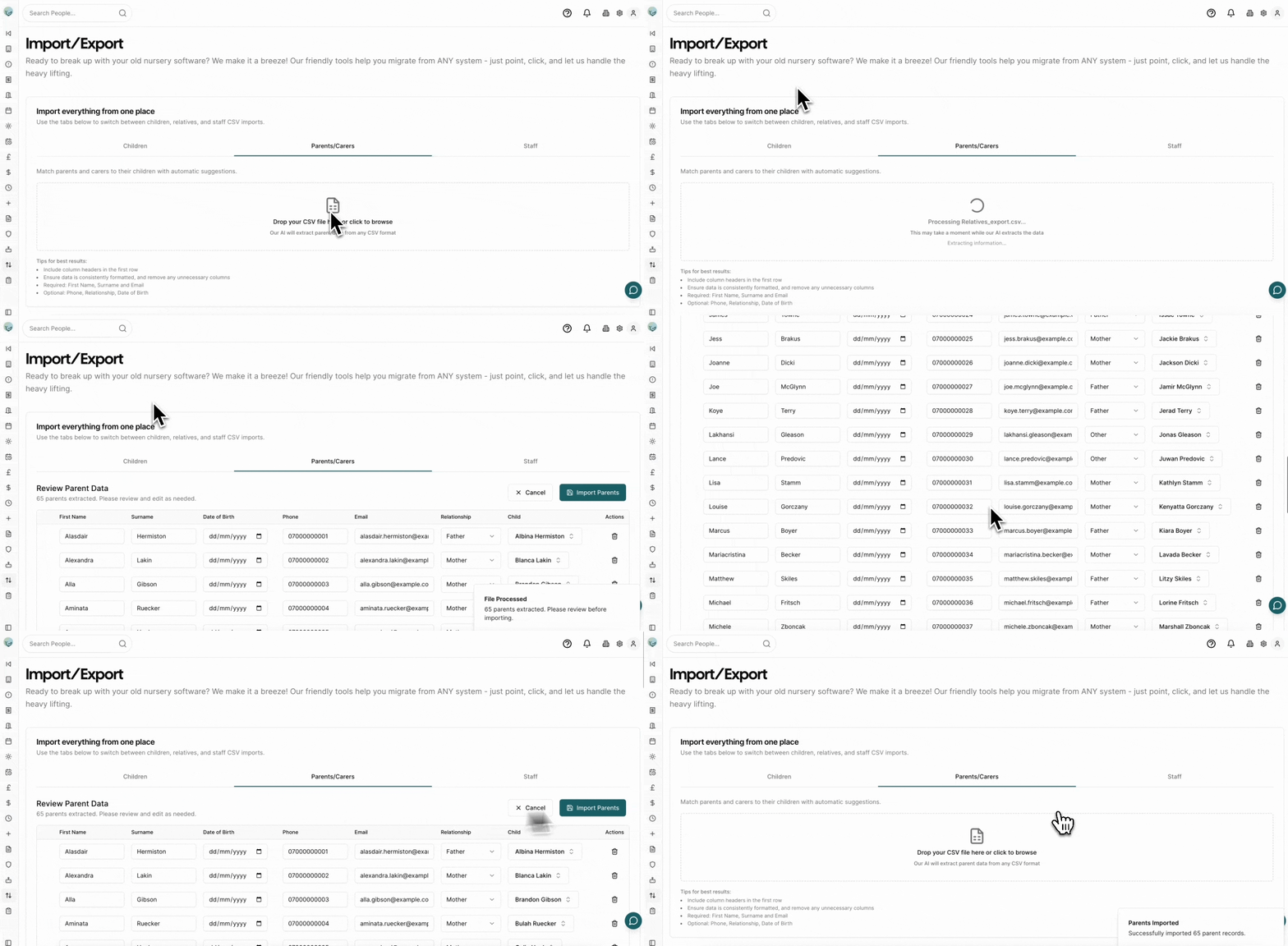
Imports parent and carer records and links them to their children.
**Import children before parents.** Children must already exist in Pigeonhole so that parents can be linked to them correctly during import.
**Key fields:**
* First Name, Surname, Email (required for parents and carers)
* Phone Number (required for emergency contacts)
* Relationship (Mother, Father, Grandmother, Grandfather, Other, Emergency Contact)
* Date of Birth
* Bill Payer — whether this person receives invoices
* Parental Responsibility — whether this person has legal parental responsibility
**Linking parents to children:**
Our AI will automatically try to match each parent to the correct child using the child's name columns. For best results, include **Child First Name** and **Child Surname** columns in your CSV (the template includes these).
**Template format — multiple parents per row:**
Our template supports importing two parents per row, which is useful if your existing system stores family data with one row per child:
| Child First Name | Child Surname | Parent 1 First Name | Parent 1 Email | Parent 2 First Name | Parent 2 Email | ... |
| ---------------- | ------------- | ------------------- | --------------------------------------------- | ------------------- | ------------------------------------------- | --- |
| Emma | Smith | Sarah | [sarah@example.com](mailto:sarah@example.com) | John | [john@example.com](mailto:john@example.com) | ... |
Each row will produce two separate parent records in Pigeonhole, both linked to the child. Download the template from the Parents/Carers tab to see the full list of columns.
You can also upload a CSV with **one parent per row** — any format works.
***
## What Each Tab Imports
### Children
Imports child records including personal details, medical information, and custom attributes.
**Key fields:**
* First Name, Surname, Date of Birth (required)
* Start Date, Gender
* Address (Line 1, Town, County, Post Code)
* Health Notes, Allergies, Dietary requirements
* Collection Password
* Flags: Term Time Only, Two Year Funded, Looked After, EHC Plan, SEN, Pupil Premium, Free School Meals, EAL
* Any custom attributes you have set up in Pigeonhole
**Template:** Click **Download Template** on the Children tab to get a CSV with all supported column headers, including your custom attributes.
***
### Parents/Carers
Imports parent and carer records and links them to their children.
**Import children before parents.** Children must already exist in Pigeonhole so that parents can be linked to them correctly during import.
**Key fields:**
* First Name, Surname, Email (required for parents and carers)
* Phone Number (required for emergency contacts)
* Relationship (Mother, Father, Grandmother, Grandfather, Other, Emergency Contact)
* Date of Birth
* Bill Payer — whether this person receives invoices
* Parental Responsibility — whether this person has legal parental responsibility
**Linking parents to children:**
Our AI will automatically try to match each parent to the correct child using the child's name columns. For best results, include **Child First Name** and **Child Surname** columns in your CSV (the template includes these).
**Template format — multiple parents per row:**
Our template supports importing two parents per row, which is useful if your existing system stores family data with one row per child:
| Child First Name | Child Surname | Parent 1 First Name | Parent 1 Email | Parent 2 First Name | Parent 2 Email | ... |
| ---------------- | ------------- | ------------------- | --------------------------------------------- | ------------------- | ------------------------------------------- | --- |
| Emma | Smith | Sarah | [sarah@example.com](mailto:sarah@example.com) | John | [john@example.com](mailto:john@example.com) | ... |
Each row will produce two separate parent records in Pigeonhole, both linked to the child. Download the template from the Parents/Carers tab to see the full list of columns.
You can also upload a CSV with **one parent per row** — any format works.
 ***
### Staff
Imports staff member records.
**Key fields:**
* First Name, Surname, Email (required)
* Phone Number
After importing, staff members will receive an invitation email to set up their Pigeonhole account and access the system.
***
### Funding Forms
Imports funding form records including child details, funding hours, and parent eligibility information. See the [dedicated Funding Forms Import guide](/onboarding/importing-funding-forms) for full instructions.
***
## Tips for Best Results
* **Include a header row** — column names in the first row help our AI map your data correctly
* **Ensure consistent formatting** — for example, use the same date format throughout (e.g. DD/MM/YYYY)
* **Remove unnecessary columns** — unused columns are simply ignored, but a cleaner file helps the AI
* **Use our template as a starting point** — it includes all supported column names and is ready to fill in
* **Test with a small batch first** — import 5–10 records to check everything looks right before doing a full import
* **Our AI handles column name variations** — "First Name", "firstname", "Forename", and "first\_name" all map to the same field
***
## Getting Data from Other Nursery Providers
Below are instructions for exporting data from common nursery software providers. Once you have your CSV export, use the import method above.
**Note:** Export functionality varies by provider. If you cannot find export options, contact your provider's support team directly.
1. Log in to your Baby's Days account
2. Navigate to the **Reports** section
3. Look for **Data Export** or **CSV Export** options
4. Select the data type (Children, Parents, Staff) and all available fields
5. Download the CSV file
*Contact Baby's Days support if export options aren't visible.*
1. Access your Blossom admin panel
2. Go to **Settings** or **Data Management**
3. Look for **Export Data** functionality
4. Select the record type to export and download as CSV
*Blossom may require admin permissions to access export features.*
1. Log in to Connect Childcare
2. Navigate to **Reports** or **Admin** section
3. Find **Data Export** or **Export to Excel/CSV**
4. Select the data you need and export
1. Open Instant Nursery Manager
2. Go to **Admin Tools** or **Reports**
3. Look for **Export** functionality
4. Choose CSV or Excel format and generate the export
1. Log in to your Kinderly account
2. Navigate to **Settings** > **Data Export**
3. Select the type of data and CSV format
4. Download your export
1. Access Kindersoft admin area
2. Go to **Reports** or **Data Management**
3. Find **Export** or **Download Data** option
4. Select CSV format and download
1. Log in to My Nursery Pal
2. Navigate to **Settings** or **Admin**
3. Look for **Export Data** or **Data Download**
4. Select CSV format and download
1. Access your Nursery Genie account
2. Go to **Admin** section
3. Find **Export** or **Backup Data** options
4. Select CSV format and download
1. Log in to Nursery in a Box
2. Navigate to **Settings** > **Export**
3. Select the data category and CSV format
4. Download your data
1. Log in to your Parenta account
2. Go to **Reports** or **Admin Panel**
3. Look for **Data Export** or **Export to CSV**
4. Select what you want to export and choose all fields
5. Download the CSV file
1. Access your iConnect/Red Fish account
2. Navigate to **Settings** or **Reports**
3. Find **Export Data** functionality
4. Select CSV format and download
1. Log in to your Tapestry account
2. Go to **Settings** > **Data Management**
3. Look for **Export** or **Download Data**
4. Select CSV format and download the file
1. Log in to your Famly account
2. Navigate to **Settings** > **Data Export**
3. Select the type of data to export and CSV format
4. Download your export file (ensure you select "All Fields" for best results)
***
### Staff
Imports staff member records.
**Key fields:**
* First Name, Surname, Email (required)
* Phone Number
After importing, staff members will receive an invitation email to set up their Pigeonhole account and access the system.
***
### Funding Forms
Imports funding form records including child details, funding hours, and parent eligibility information. See the [dedicated Funding Forms Import guide](/onboarding/importing-funding-forms) for full instructions.
***
## Tips for Best Results
* **Include a header row** — column names in the first row help our AI map your data correctly
* **Ensure consistent formatting** — for example, use the same date format throughout (e.g. DD/MM/YYYY)
* **Remove unnecessary columns** — unused columns are simply ignored, but a cleaner file helps the AI
* **Use our template as a starting point** — it includes all supported column names and is ready to fill in
* **Test with a small batch first** — import 5–10 records to check everything looks right before doing a full import
* **Our AI handles column name variations** — "First Name", "firstname", "Forename", and "first\_name" all map to the same field
***
## Getting Data from Other Nursery Providers
Below are instructions for exporting data from common nursery software providers. Once you have your CSV export, use the import method above.
**Note:** Export functionality varies by provider. If you cannot find export options, contact your provider's support team directly.
1. Log in to your Baby's Days account
2. Navigate to the **Reports** section
3. Look for **Data Export** or **CSV Export** options
4. Select the data type (Children, Parents, Staff) and all available fields
5. Download the CSV file
*Contact Baby's Days support if export options aren't visible.*
1. Access your Blossom admin panel
2. Go to **Settings** or **Data Management**
3. Look for **Export Data** functionality
4. Select the record type to export and download as CSV
*Blossom may require admin permissions to access export features.*
1. Log in to Connect Childcare
2. Navigate to **Reports** or **Admin** section
3. Find **Data Export** or **Export to Excel/CSV**
4. Select the data you need and export
1. Open Instant Nursery Manager
2. Go to **Admin Tools** or **Reports**
3. Look for **Export** functionality
4. Choose CSV or Excel format and generate the export
1. Log in to your Kinderly account
2. Navigate to **Settings** > **Data Export**
3. Select the type of data and CSV format
4. Download your export
1. Access Kindersoft admin area
2. Go to **Reports** or **Data Management**
3. Find **Export** or **Download Data** option
4. Select CSV format and download
1. Log in to My Nursery Pal
2. Navigate to **Settings** or **Admin**
3. Look for **Export Data** or **Data Download**
4. Select CSV format and download
1. Access your Nursery Genie account
2. Go to **Admin** section
3. Find **Export** or **Backup Data** options
4. Select CSV format and download
1. Log in to Nursery in a Box
2. Navigate to **Settings** > **Export**
3. Select the data category and CSV format
4. Download your data
1. Log in to your Parenta account
2. Go to **Reports** or **Admin Panel**
3. Look for **Data Export** or **Export to CSV**
4. Select what you want to export and choose all fields
5. Download the CSV file
1. Access your iConnect/Red Fish account
2. Navigate to **Settings** or **Reports**
3. Find **Export Data** functionality
4. Select CSV format and download
1. Log in to your Tapestry account
2. Go to **Settings** > **Data Management**
3. Look for **Export** or **Download Data**
4. Select CSV format and download the file
1. Log in to your Famly account
2. Navigate to **Settings** > **Data Export**
3. Select the type of data to export and CSV format
4. Download your export file (ensure you select "All Fields" for best results)