> ## Documentation Index
> Fetch the complete documentation index at: https://pigeonholeapp.co.uk/docs/llms.txt
> Use this file to discover all available pages before exploring further.
# Invoicing Settings
> Configure your site-wide invoicing settings during setup, including billing cadence, invoice text, and payment terms.
If you plan to raise invoices in Pigeonhole, set up your site-wide invoicing settings before you start billing. These settings apply to every child by default, and can be overridden on individual children later. This page is a quick setup orientation. For the full reference, see [Invoice Settings](/docs/managers/invoicing/settings).
Open in app: [Settings → Invoicing](/docs/app/admin/settings/invoicing).
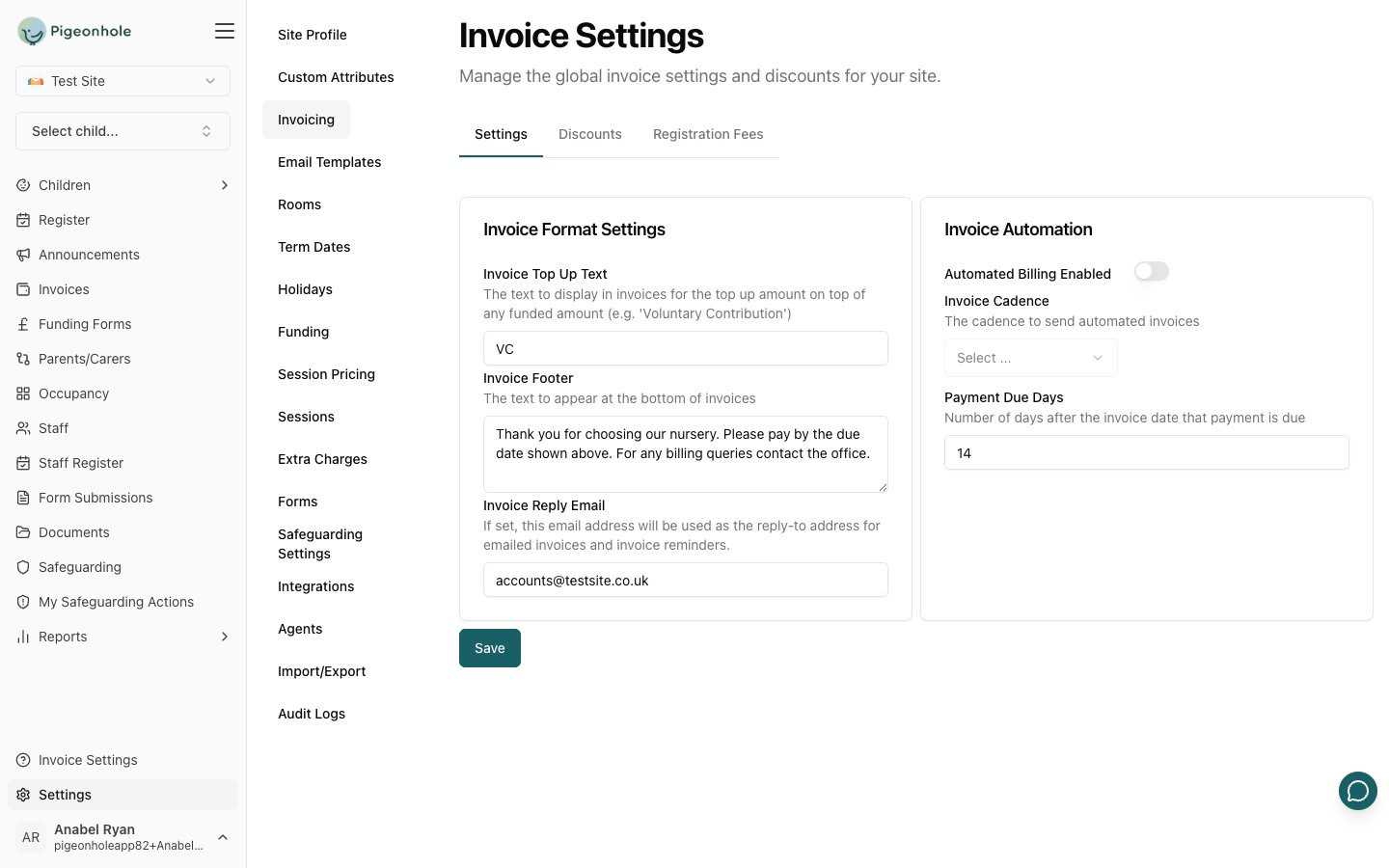 ## Invoice Format Settings
This card controls how your invoices read:
* **Invoice Top Up Text** - The label used on invoices for the top-up amount charged above any funded amount, for example "Voluntary Contribution".
* **Invoice Footer** - Text that appears at the bottom of every invoice.
* **Invoice Reply Email** - If set, parent replies to emailed invoices and reminders go to this address instead of the default no-reply sender. Leave blank if you don't need a dedicated reply address.
The **Childcare Account Reference** (your HMRC childcare account reference) is set per child on the child's own invoicing settings, not on this site-wide page.
## Invoice Automation
This card controls whether Pigeonhole raises invoices automatically:
1. Turn on **Automated Billing Enabled** to have invoices created for you.
2. Choose an **Invoice Cadence**:
* **Monthly** - Then set the **Invoice Day** (day of the month, 1-28).
* **Half Termly** or **Termly** - Then set **Invoice Days Before Term Starts**.
3. Set **Payment Due Days** - the number of days after the invoice date that payment is due.
If you leave **Automated Billing Enabled** off, you create invoices manually instead.
## Step-by-Step
1. Go to [**Settings → Invoicing**](/docs/app/admin/settings/invoicing).
2. Fill in the **Invoice Format Settings** card with your top-up text and footer, and a reply email if you use one.
3. In the **Invoice Automation** card, decide whether to enable automated billing and, if so, choose a cadence and payment terms.
4. Click **Save**.
For discounts, email templates, and per-child overrides, see the detailed [Invoice Settings](/docs/managers/invoicing/settings) guide and the wider [Invoicing](/docs/managers/invoicing/index) section.
## Invoice Format Settings
This card controls how your invoices read:
* **Invoice Top Up Text** - The label used on invoices for the top-up amount charged above any funded amount, for example "Voluntary Contribution".
* **Invoice Footer** - Text that appears at the bottom of every invoice.
* **Invoice Reply Email** - If set, parent replies to emailed invoices and reminders go to this address instead of the default no-reply sender. Leave blank if you don't need a dedicated reply address.
The **Childcare Account Reference** (your HMRC childcare account reference) is set per child on the child's own invoicing settings, not on this site-wide page.
## Invoice Automation
This card controls whether Pigeonhole raises invoices automatically:
1. Turn on **Automated Billing Enabled** to have invoices created for you.
2. Choose an **Invoice Cadence**:
* **Monthly** - Then set the **Invoice Day** (day of the month, 1-28).
* **Half Termly** or **Termly** - Then set **Invoice Days Before Term Starts**.
3. Set **Payment Due Days** - the number of days after the invoice date that payment is due.
If you leave **Automated Billing Enabled** off, you create invoices manually instead.
## Step-by-Step
1. Go to [**Settings → Invoicing**](/docs/app/admin/settings/invoicing).
2. Fill in the **Invoice Format Settings** card with your top-up text and footer, and a reply email if you use one.
3. In the **Invoice Automation** card, decide whether to enable automated billing and, if so, choose a cadence and payment terms.
4. Click **Save**.
For discounts, email templates, and per-child overrides, see the detailed [Invoice Settings](/docs/managers/invoicing/settings) guide and the wider [Invoicing](/docs/managers/invoicing/index) section.