> ## Documentation Index
> Fetch the complete documentation index at: https://pigeonholeapp.co.uk/docs/llms.txt
> Use this file to discover all available pages before exploring further.
# Rooms
> How to manage rooms in the Admin Portal.
# Rooms
Rooms are the physical or logical spaces within your nursery where children are assigned. Managing rooms allows you to organize children and staff, track attendance, and manage capacity.
Open in app: [Settings → Rooms](/app/admin/settings/rooms).
## Adding a Room
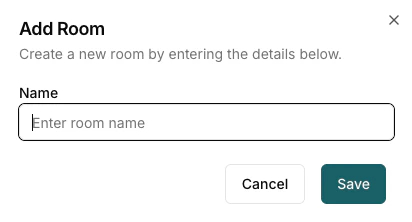
To add a new room, navigate to the Rooms section and click the "Add Room" button. You will see a dialog similar to the one below:
 ### Room Fields
* **Name**: Enter a descriptive name for the room (e.g., "Baby Room", "Preschool", "Toddler Room"). This name will be used throughout the system to identify the room.
## Managing Rooms
Once rooms are created, you can assign children and staff to them, edit room details, or remove rooms as needed.
### Room Fields
* **Name**: Enter a descriptive name for the room (e.g., "Baby Room", "Preschool", "Toddler Room"). This name will be used throughout the system to identify the room.
## Managing Rooms
Once rooms are created, you can assign children and staff to them, edit room details, or remove rooms as needed.