> ## Documentation Index
> Fetch the complete documentation index at: https://pigeonholeapp.co.uk/docs/llms.txt
> Use this file to discover all available pages before exploring further.
# Safeguarding Settings
> Configuring sign-off requirements for safeguarding concerns
# Safeguarding Settings
Safeguarding settings in Pigeonhole control the approval workflow for safeguarding concerns.
Open in app: [Settings → Safeguarding](/app/admin/settings/safeguarding).
## Accessing Safeguarding Settings
Safeguarding settings are available to Managers under [**Settings** → **Safeguarding Settings**](/app/admin/settings/safeguarding).
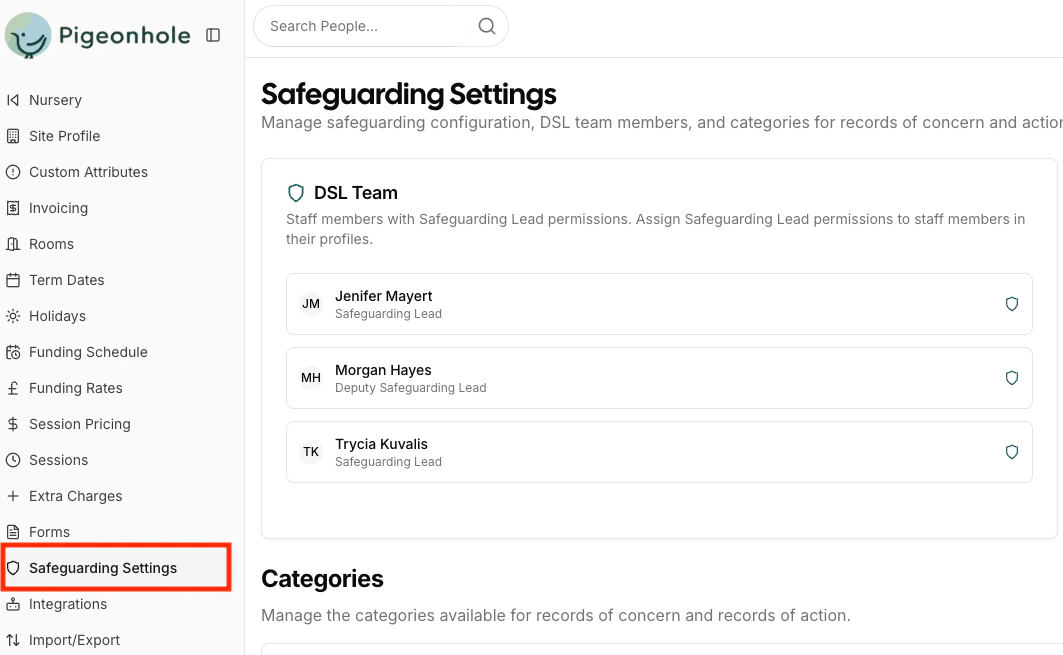 Safeguarding leads can be configured by giving staff members the [appropriate permissions](../managers/staff/permissions.mdx) on the staff profile page
## Sign-off Requirements
This setting determines whether safeguarding concerns require formal approval from a DSL.
Safeguarding leads can be configured by giving staff members the [appropriate permissions](../managers/staff/permissions.mdx) on the staff profile page
## Sign-off Requirements
This setting determines whether safeguarding concerns require formal approval from a DSL.
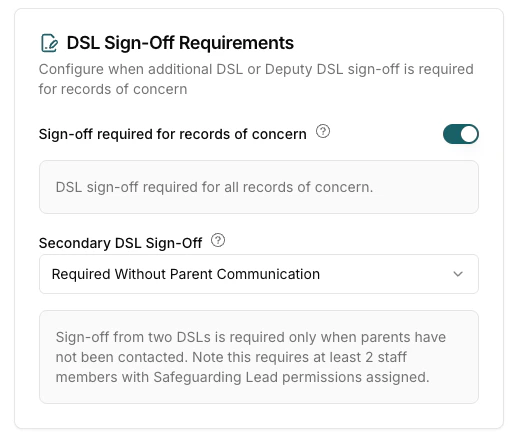 #### Sign-off required for records of concern
When selected, this means at least one assigned safeguarding lead must sign off the record of concern for any child or staff member. If not selected sign off functionality is disabled and sign off from a safeguarding lead will not be required/requested.
##### Who Can Sign Off?
When sign-off is required:
* Any DSL user can sign off any concern
* This includes the DSL who created the concern
* Admin users can also sign off concerns
#### Secondary DSL Sign-Off Requirements
In addition to the primary safeguarding lead sign-off setting, you can configure when a **second DSL** sign-off is required for additional oversight.
There are **three** secondary sign-off requirement levels:
#### 1. Not Required
**When selected**:
* Only one DSL sign-off is needed (if primary sign-off is enabled)
* No additional approval required
* Faster workflow for single DSL settings
#### 2. Always Required
**When selected**:
* Sign-off from **two DSLs** is required for all concerns
* The second DSL must be different from the first
* Ensures dual oversight on every concern
#### 3. Required Without Parent Communication
**When selected**:
* Sign-off from **two DSLs** is required **only when parents have not been contacted**
* If parents have been contacted, only one DSL sign-off is needed
* Balances oversight with practical workflow
**Note**: This setting only applies when primary "Sign-off Required" is set to **True**. If primary sign-off is disabled, secondary sign-off settings have no effect.
## Safeguarding Categories
Safeguarding categories help organize and classify records of concern, making it easier to track patterns and manage different types of safeguarding issues.
#### Sign-off required for records of concern
When selected, this means at least one assigned safeguarding lead must sign off the record of concern for any child or staff member. If not selected sign off functionality is disabled and sign off from a safeguarding lead will not be required/requested.
##### Who Can Sign Off?
When sign-off is required:
* Any DSL user can sign off any concern
* This includes the DSL who created the concern
* Admin users can also sign off concerns
#### Secondary DSL Sign-Off Requirements
In addition to the primary safeguarding lead sign-off setting, you can configure when a **second DSL** sign-off is required for additional oversight.
There are **three** secondary sign-off requirement levels:
#### 1. Not Required
**When selected**:
* Only one DSL sign-off is needed (if primary sign-off is enabled)
* No additional approval required
* Faster workflow for single DSL settings
#### 2. Always Required
**When selected**:
* Sign-off from **two DSLs** is required for all concerns
* The second DSL must be different from the first
* Ensures dual oversight on every concern
#### 3. Required Without Parent Communication
**When selected**:
* Sign-off from **two DSLs** is required **only when parents have not been contacted**
* If parents have been contacted, only one DSL sign-off is needed
* Balances oversight with practical workflow
**Note**: This setting only applies when primary "Sign-off Required" is set to **True**. If primary sign-off is disabled, secondary sign-off settings have no effect.
## Safeguarding Categories
Safeguarding categories help organize and classify records of concern, making it easier to track patterns and manage different types of safeguarding issues.
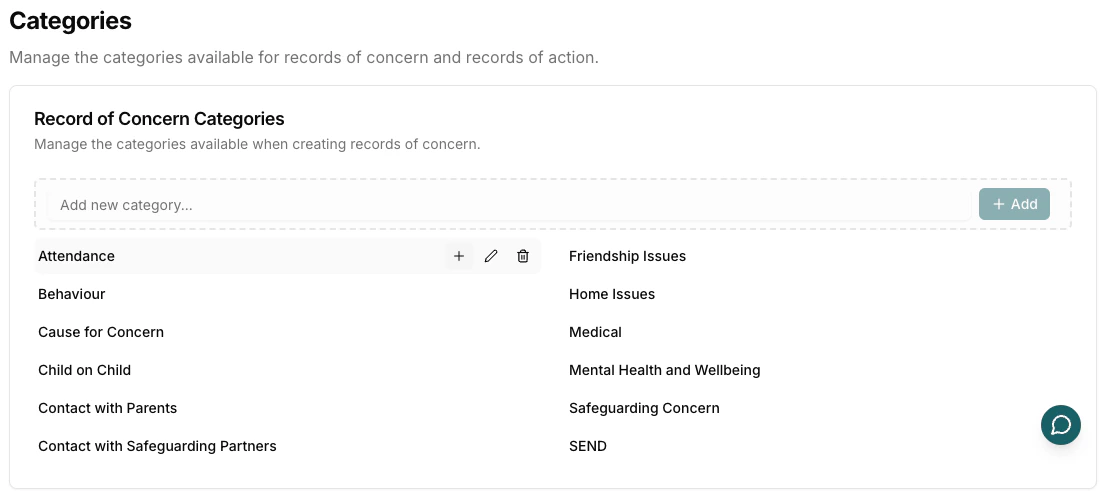 ### Managing Categories
#### Category Features
**Categories support**:
* Hierarchical structure (parent categories and subcategories)
* Custom naming
* Add, edit, and delete capabilities
* Nested subcategories for detailed classification
Your Pigeonhole site is configured with a default set of safeguarding categories that you can use.
### Adding Categories
1. In the "Add new category..." field, enter the category name
2. Click **Add** or press Enter
3. The category appears in the list
### Adding Subcategories
1. Hover over a parent category
2. Click the **+** (Plus) button that appears
3. Enter the subcategory name
4. Click the checkmark or press Enter
### Editing Categories
1. Hover over a category
2. Click the **Edit** (pencil) icon
3. Modify the name
4. Click the checkmark or press Enter to save
### Deleting Categories
1. Hover over a category
2. Click the **Delete** (trash) icon
3. Confirm the deletion
### Managing Categories
#### Category Features
**Categories support**:
* Hierarchical structure (parent categories and subcategories)
* Custom naming
* Add, edit, and delete capabilities
* Nested subcategories for detailed classification
Your Pigeonhole site is configured with a default set of safeguarding categories that you can use.
### Adding Categories
1. In the "Add new category..." field, enter the category name
2. Click **Add** or press Enter
3. The category appears in the list
### Adding Subcategories
1. Hover over a parent category
2. Click the **+** (Plus) button that appears
3. Enter the subcategory name
4. Click the checkmark or press Enter
### Editing Categories
1. Hover over a category
2. Click the **Edit** (pencil) icon
3. Modify the name
4. Click the checkmark or press Enter to save
### Deleting Categories
1. Hover over a category
2. Click the **Delete** (trash) icon
3. Confirm the deletion