> ## Documentation Index
> Fetch the complete documentation index at: https://pigeonholeapp.co.uk/docs/llms.txt
> Use this file to discover all available pages before exploring further.
# Managing Your Child's Contacts
> How to add, update, and manage contacts for your child in the Parent Portal.
# Managing Your Child's Contacts
The Contacts section allows you to manage who can collect your child and who should be called in an emergency. Keep this information up to date to ensure your child's safety.
## Accessing Your Child's Contacts
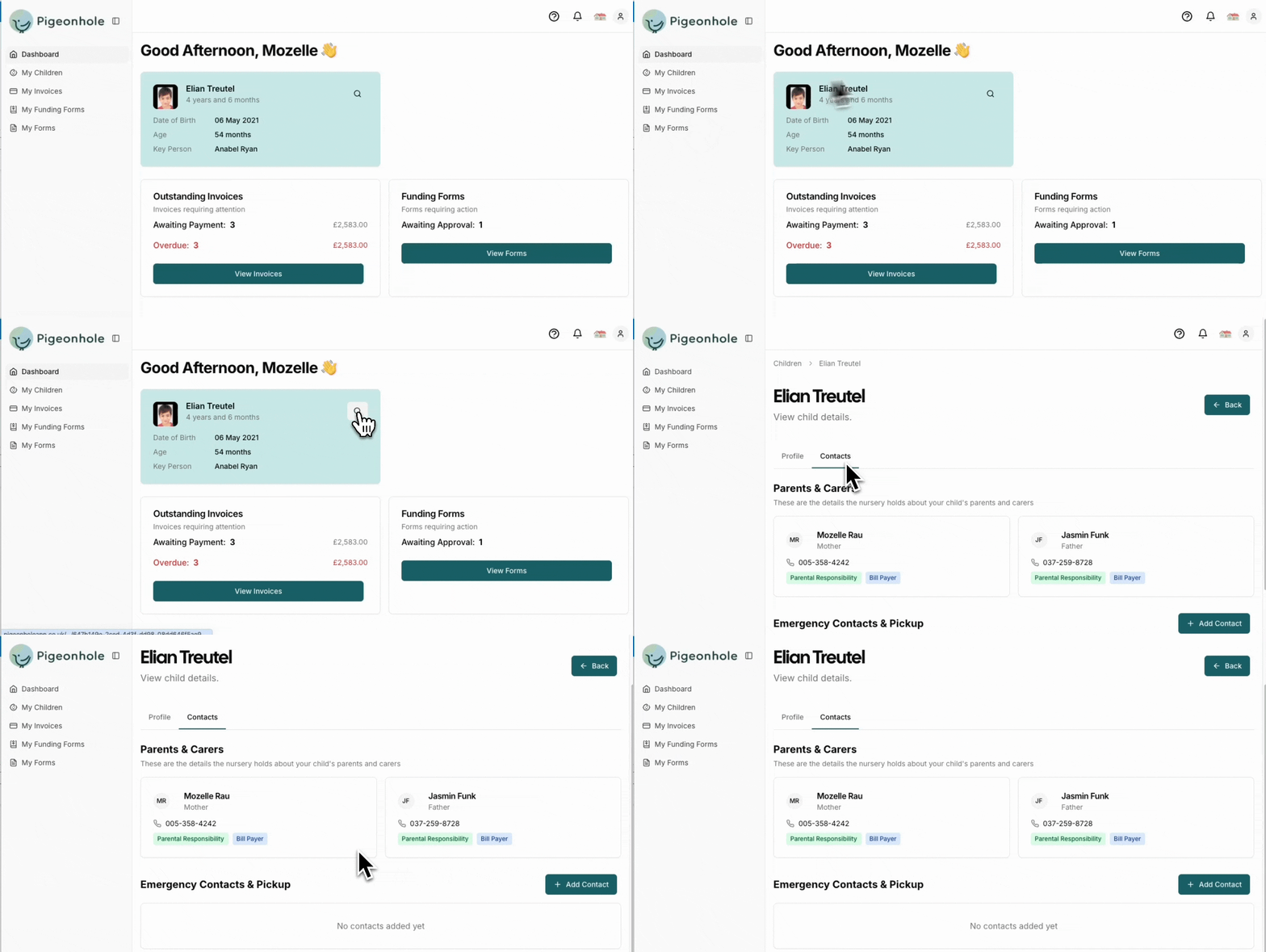
1. Log in to the Parent Portal.
2. Select your child from the dashboard.
3. Navigate to the **Contacts** tab.
 ## How to Add a Contact
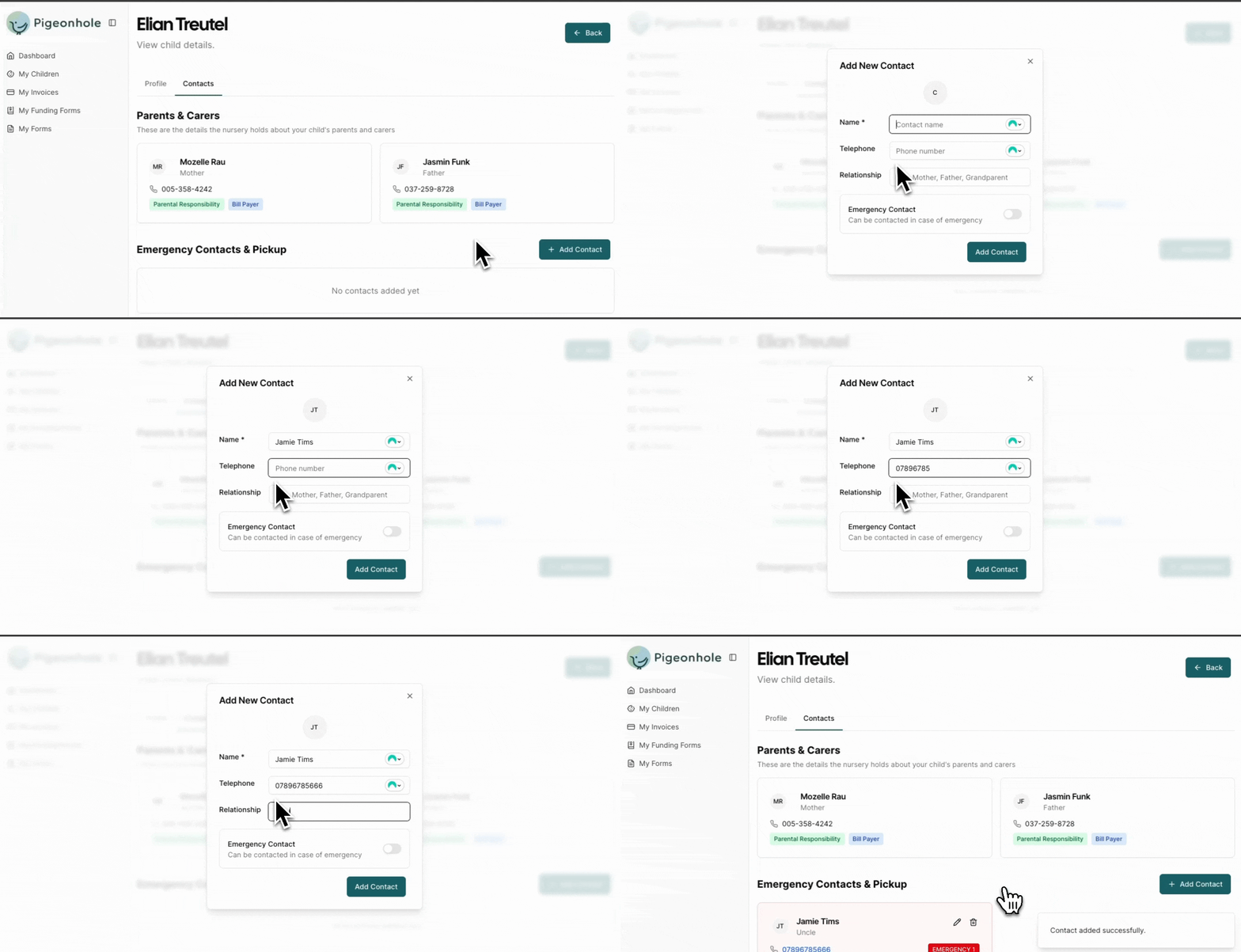
1. Click the **Add Contact** button.
2. Enter the contact details:
* **Name** (required)
* **Telephone Number** (required)
* **Relationship** to your child (e.g., Grandparent, Aunt, Family Friend)
* **Emergency Contact** toggle – Enable if this person should be called in emergencies or should just be enabled as a pick up contact.
3. Click **Save**.
## How to Add a Contact
1. Click the **Add Contact** button.
2. Enter the contact details:
* **Name** (required)
* **Telephone Number** (required)
* **Relationship** to your child (e.g., Grandparent, Aunt, Family Friend)
* **Emergency Contact** toggle – Enable if this person should be called in emergencies or should just be enabled as a pick up contact.
3. Click **Save**.
 ## Updating Contact Images
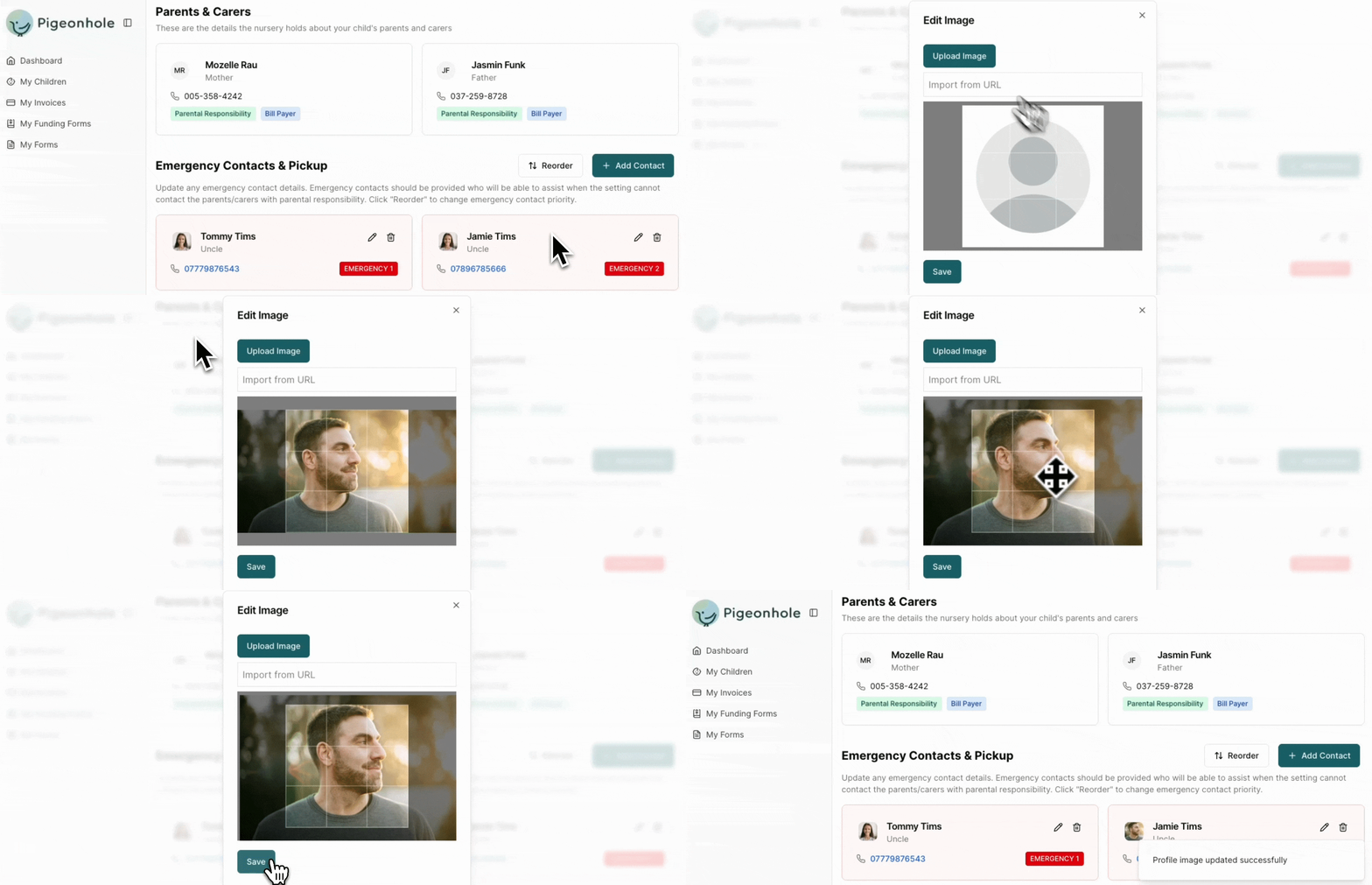
Adding a photo helps nursery staff identify authorised contacts during pickup.
1. Click the contact's avatar or photo placeholder.
2. Upload a clear, recent image.
3. Click **Save**.
## Updating Contact Images
Adding a photo helps nursery staff identify authorised contacts during pickup.
1. Click the contact's avatar or photo placeholder.
2. Upload a clear, recent image.
3. Click **Save**.
 A clear photo speeds up the pickup process and helps keep your child safe.
## Reordering Emergency Contacts
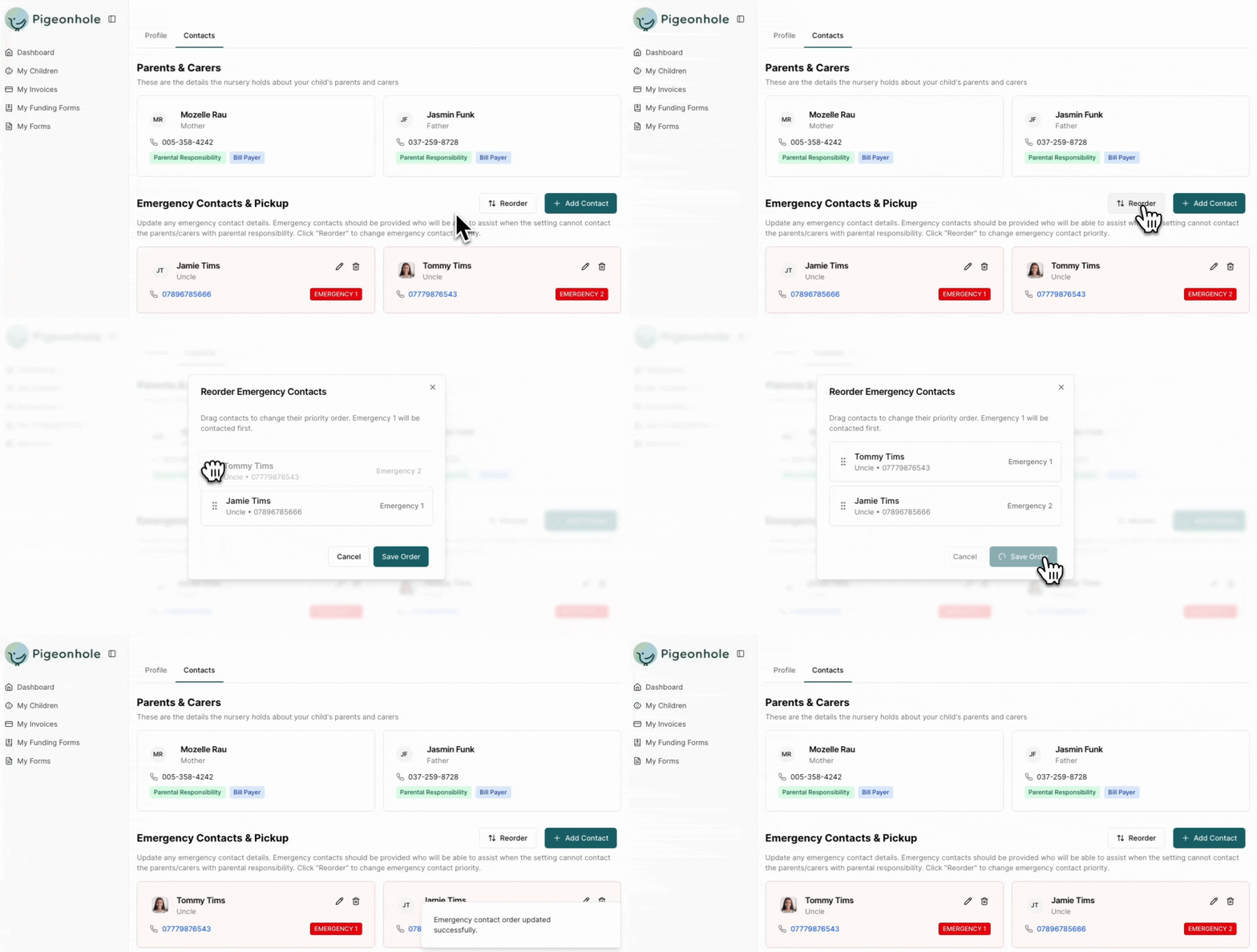
If you have multiple emergency contacts, you can set their priority order:
1. Click the **Reorder** button (visible when you have two or more emergency contacts).
2. Drag contacts into your preferred order.
3. Click **Save**.
A clear photo speeds up the pickup process and helps keep your child safe.
## Reordering Emergency Contacts
If you have multiple emergency contacts, you can set their priority order:
1. Click the **Reorder** button (visible when you have two or more emergency contacts).
2. Drag contacts into your preferred order.
3. Click **Save**.
 ## Editing and Deleting Contacts
### To Edit
1. Click the **pencil icon** on the contact card.
2. Update the information.
3. Click **Save**.
### To Delete
1. Click the **trash icon** on the contact card.
2. Confirm the deletion.
## Editing and Deleting Contacts
### To Edit
1. Click the **pencil icon** on the contact card.
2. Update the information.
3. Click **Save**.
### To Delete
1. Click the **trash icon** on the contact card.
2. Confirm the deletion.