> ## Documentation Index
> Fetch the complete documentation index at: https://pigeonholeapp.co.uk/docs/llms.txt
> Use this file to discover all available pages before exploring further.
# Submit a Funding Form
> Complete guide for parents on viewing, completing, and submitting funding forms through the Pigeonhole dashboard.
# Submit a funding form
This comprehensive guide will help you understand how to view and submit funding forms for your children through the Pigeonhole dashboard. You will be emailed by your setting when there is a new funding form to complete.
## Accessing Your Funding Forms
### 1. Navigate to Funding Forms
1. Log into your Pigeonhole
2. Click on **My Funding Forms** in the main navigation menu
3. You'll see a list of all funding forms for your children
### 2. Understanding the Forms List
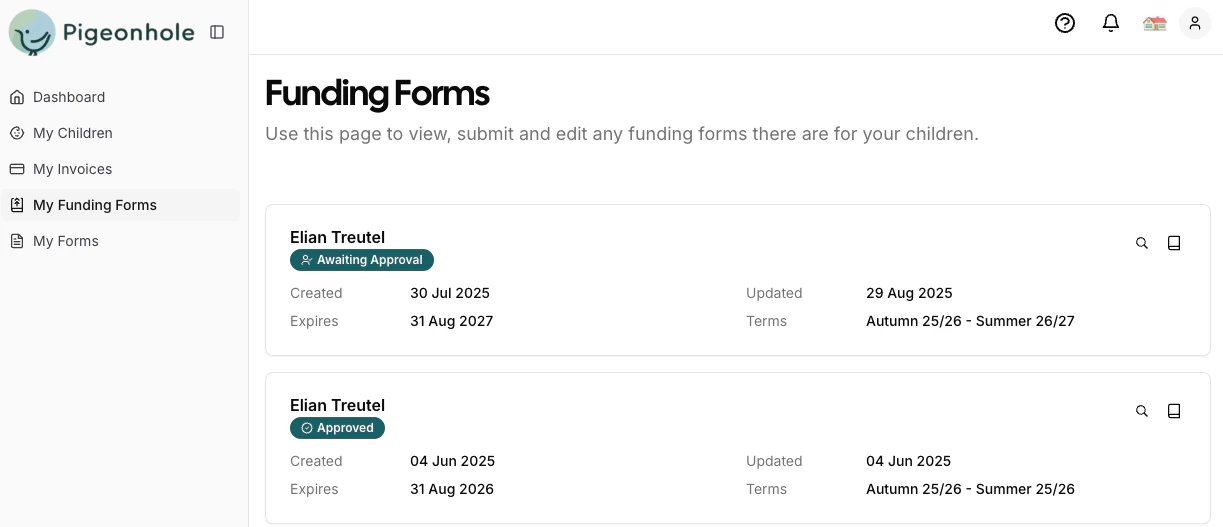
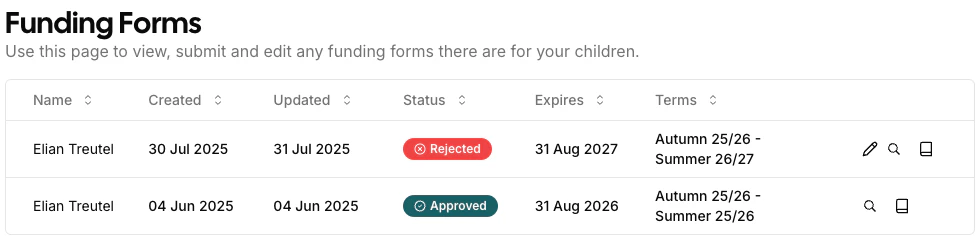
The funding forms list shows you:
* **Name**: Your child's name
* **Created**: When the form was first created
* **Updated**: When the form was last modified
* **Status**: Current status of the form (see status guide below)
* **Expires**: When the form expires and needs renewal (your nursery will send you a new form when it is needed)
* **Terms**: Which funding terms the form covers
 ***
## Understanding Form Status
Each funding form has a status badge that shows where it is in the process:
| Status | What It Means | What You Need To Do |
| ----------------------- | ----------------------------------------------------------------------------- | --------------------------------------------- |
| **Awaiting Completion** | The nursery has sent you a form to complete | Complete and submit the form |
| **In Progress** | You've started filling out the form but haven't submitted it for approval yet | Complete all required fields, sign and submit |
| **Awaiting Approval** | You've submitted the form and it's being reviewed | Wait for nursery approval |
| **Rejected** | The form was rejected and needs corrections | Review rejection reason and resubmit |
| **Approved** | The form has been approved | No action needed |
***
## Editing and Completing a Form
### When You Can Edit
You can edit a form when its status is:
* **Awaiting Completion**
* **In Progress**
* **Rejected**
### Starting to Edit
1. Click the **edit icon** (pencil) next to the form in the list
2. The form opens in edit mode with all fillable fields available
***
## Understanding Form Status
Each funding form has a status badge that shows where it is in the process:
| Status | What It Means | What You Need To Do |
| ----------------------- | ----------------------------------------------------------------------------- | --------------------------------------------- |
| **Awaiting Completion** | The nursery has sent you a form to complete | Complete and submit the form |
| **In Progress** | You've started filling out the form but haven't submitted it for approval yet | Complete all required fields, sign and submit |
| **Awaiting Approval** | You've submitted the form and it's being reviewed | Wait for nursery approval |
| **Rejected** | The form was rejected and needs corrections | Review rejection reason and resubmit |
| **Approved** | The form has been approved | No action needed |
***
## Editing and Completing a Form
### When You Can Edit
You can edit a form when its status is:
* **Awaiting Completion**
* **In Progress**
* **Rejected**
### Starting to Edit
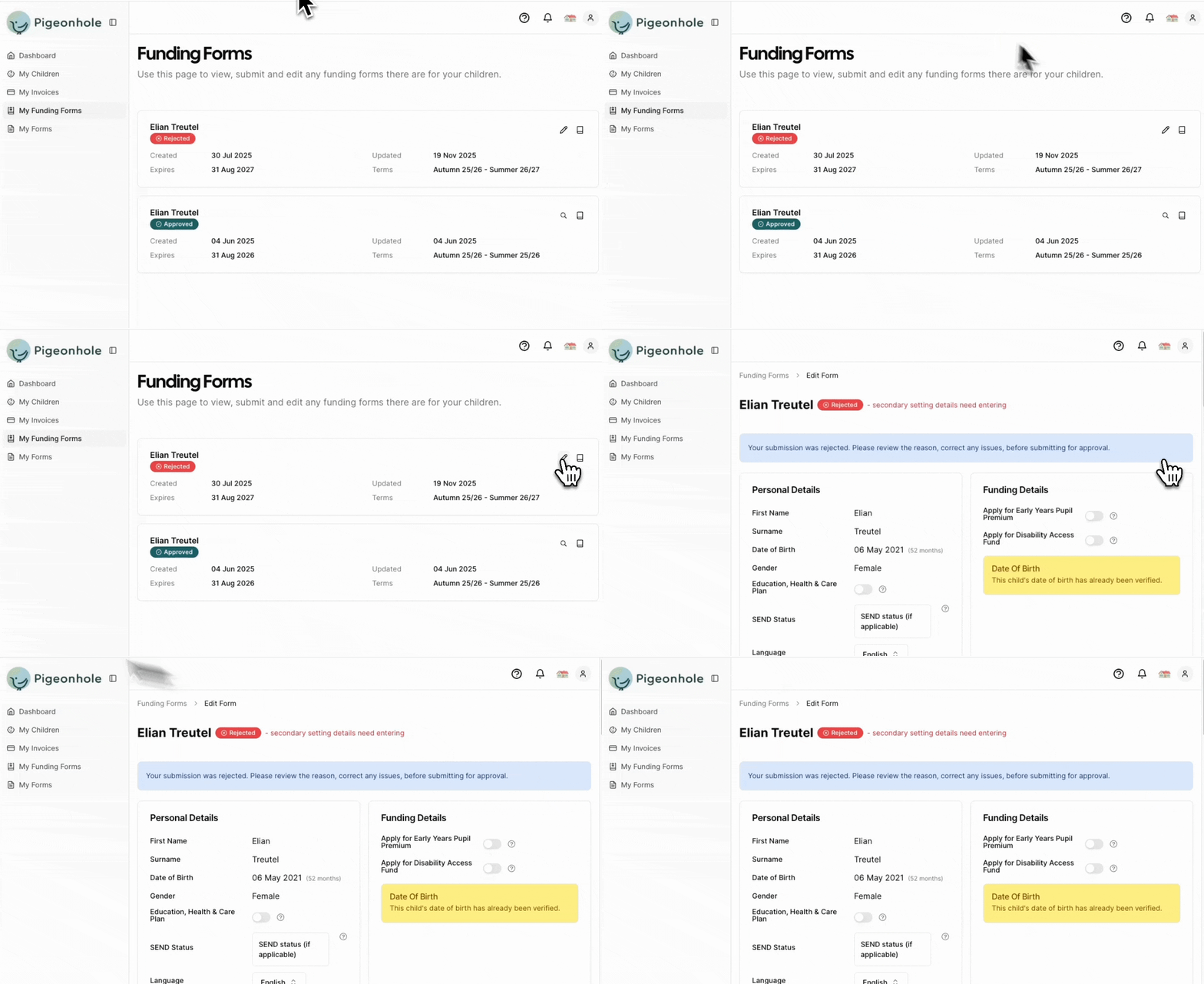
1. Click the **edit icon** (pencil) next to the form in the list
2. The form opens in edit mode with all fillable fields available
 ### Form Sections
Funding forms are organized into several cards/sections, each covering different aspects of your child's funding requirements:
#### 1. Personal Details
This section displays your child's basic information
* **First Name and Surname**: Your child's full name
* **Date of Birth**: Including age in months for eligibility verification
* **Gender**: Your child's gender
* **Education, Health & Care Plan (EHCP)**: Toggle to indicate if your child has an EHCP
* **SEND Status**: Select any Special Educational Needs and Disabilities that apply
#### 2. Funding Details
Enter funding-related information and benefits:
* **Early Years Pupil Premium**: Check this is you wish to apply for early years pupil premium at this setting.
* **Disability Access Fund**: Check this is you wish to apply for the disability access fund at this setting.
* **Proof of Date of Birth**: Upload documentation and enter details. Proof may not be required if you have provided it before to your nursery setting.
* Document type (Birth Certificate, Passport, Other)
* Document number
* Photo/scan of the document
If Proof of DOB is not required this will be shown on the form
### Form Sections
Funding forms are organized into several cards/sections, each covering different aspects of your child's funding requirements:
#### 1. Personal Details
This section displays your child's basic information
* **First Name and Surname**: Your child's full name
* **Date of Birth**: Including age in months for eligibility verification
* **Gender**: Your child's gender
* **Education, Health & Care Plan (EHCP)**: Toggle to indicate if your child has an EHCP
* **SEND Status**: Select any Special Educational Needs and Disabilities that apply
#### 2. Funding Details
Enter funding-related information and benefits:
* **Early Years Pupil Premium**: Check this is you wish to apply for early years pupil premium at this setting.
* **Disability Access Fund**: Check this is you wish to apply for the disability access fund at this setting.
* **Proof of Date of Birth**: Upload documentation and enter details. Proof may not be required if you have provided it before to your nursery setting.
* Document type (Birth Certificate, Passport, Other)
* Document number
* Photo/scan of the document
If Proof of DOB is not required this will be shown on the form
 #### 3. Funded Hours
Specify the weekly hours you'll claim at your primary nursery:
* **Number of Weeks**: How many weeks per term you'll need funding
* **Universal Hours**: Up to 15 hours per day across Monday-Friday
* **Free Childcare for Working Parents Hours**: Additional hours (up to 15 more per day) for working parents
This information is submitted by your provider. If there are any issues please contact them to amend.
#### 4. Funded Hours in Other Settings Card
If your child attends multiple nurseries, please add any other funding that you use at that settings:
* **Setting Name**: Name of the additional nursery/childminder
* **Number of Weeks**: Weeks needed at this setting in the academic year
* **Universal Hours**: Hours claimed at the additional setting
* **Free Childcare for Working Parents Hours**: Additional working parent hours
#### 5. Chargeable Hours and Costs Card
View the total additional weekly costs for your child's care. This information is submitted by your provider. If there are any issues please contact them to amend.
#### 6. Terms
Select which funding terms this form covers. This is important as you are committing funding for the selected terms.
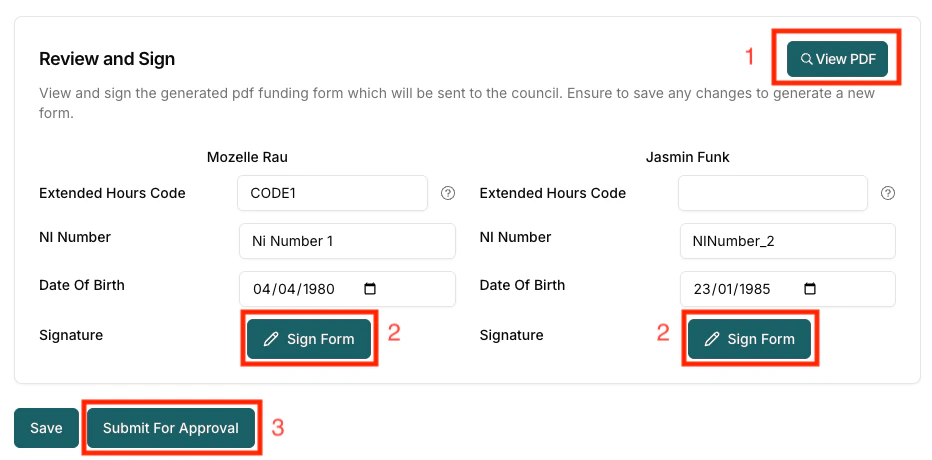
#### 7. Review and Sign
Final section for parent information and signatures:
* **Eligibility Code**: HMRC code for working parent entitlement (if claiming extended hours)
* **National Insurance Number**: Required for each parent/guardian
* **Date of Birth**: Parent/guardian date of birth
After you save the form a PDF is generated of the final form. After the form is saved you can:
1. View the generated PDF
2. Sign the form
3. Submit for approval
#### 3. Funded Hours
Specify the weekly hours you'll claim at your primary nursery:
* **Number of Weeks**: How many weeks per term you'll need funding
* **Universal Hours**: Up to 15 hours per day across Monday-Friday
* **Free Childcare for Working Parents Hours**: Additional hours (up to 15 more per day) for working parents
This information is submitted by your provider. If there are any issues please contact them to amend.
#### 4. Funded Hours in Other Settings Card
If your child attends multiple nurseries, please add any other funding that you use at that settings:
* **Setting Name**: Name of the additional nursery/childminder
* **Number of Weeks**: Weeks needed at this setting in the academic year
* **Universal Hours**: Hours claimed at the additional setting
* **Free Childcare for Working Parents Hours**: Additional working parent hours
#### 5. Chargeable Hours and Costs Card
View the total additional weekly costs for your child's care. This information is submitted by your provider. If there are any issues please contact them to amend.
#### 6. Terms
Select which funding terms this form covers. This is important as you are committing funding for the selected terms.
#### 7. Review and Sign
Final section for parent information and signatures:
* **Eligibility Code**: HMRC code for working parent entitlement (if claiming extended hours)
* **National Insurance Number**: Required for each parent/guardian
* **Date of Birth**: Parent/guardian date of birth
After you save the form a PDF is generated of the final form. After the form is saved you can:
1. View the generated PDF
2. Sign the form
3. Submit for approval
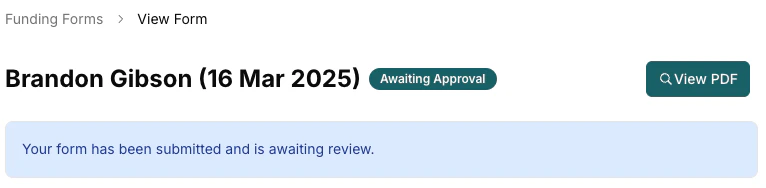
 Once you submit the form for approval it will then show that the forming is awaiting approval.
##
Once you submit the form for approval it will then show that the forming is awaiting approval.
##  ## Viewing a Funding Form
### Accessing Form Details
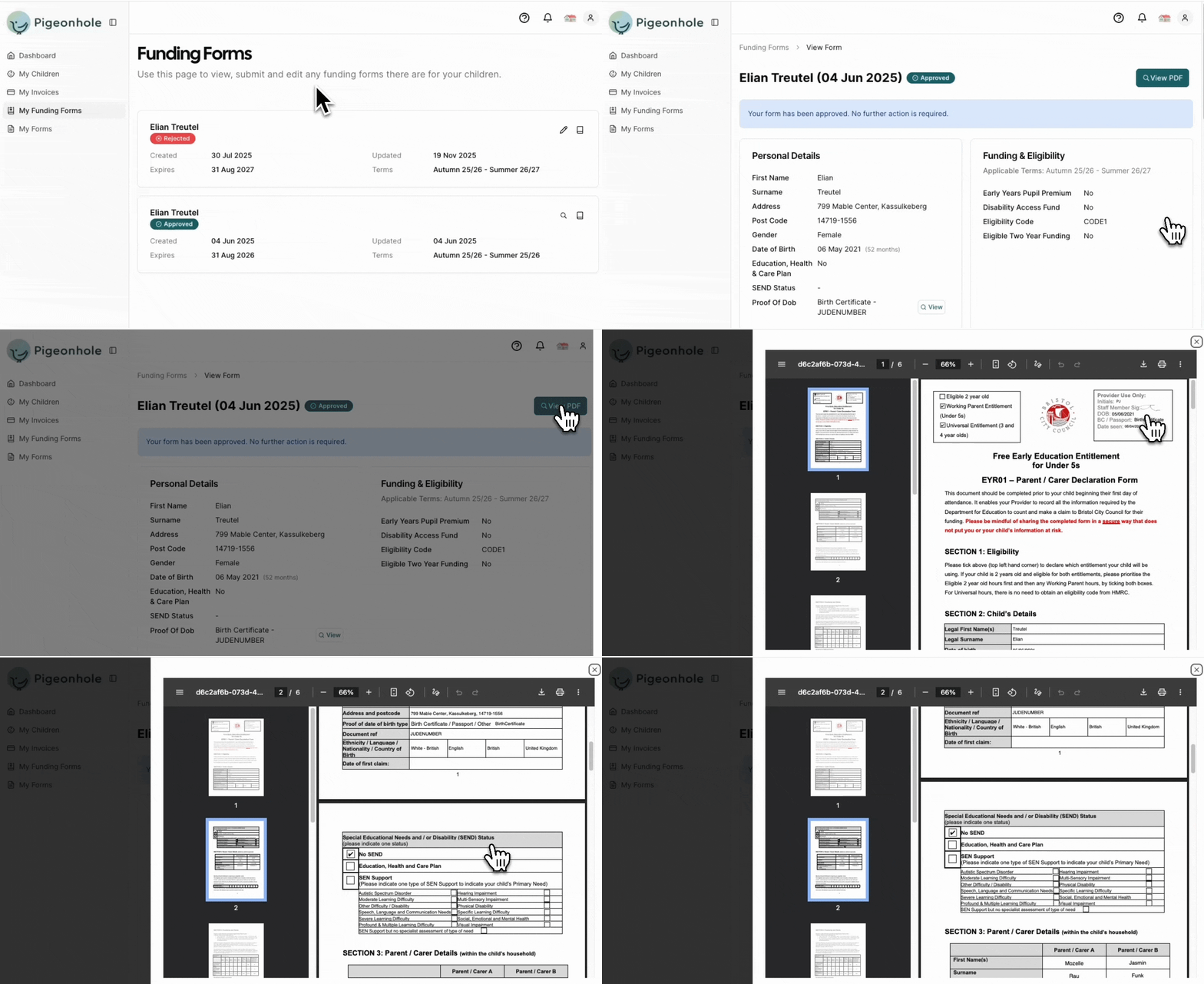
From the funding forms list, click the **view icon** (magnifying glass) next to the form to view the form, or click the **book** icon to view the completed PDF.
## Viewing a Funding Form
### Accessing Form Details
From the funding forms list, click the **view icon** (magnifying glass) next to the form to view the form, or click the **book** icon to view the completed PDF.
 ***
## Handling Form Rejections
When a form is rejected, you'll be emailed details of the rejection, and you can see the rejected form in the list of forms.
***
## Handling Form Rejections
When a form is rejected, you'll be emailed details of the rejection, and you can see the rejected form in the list of forms.
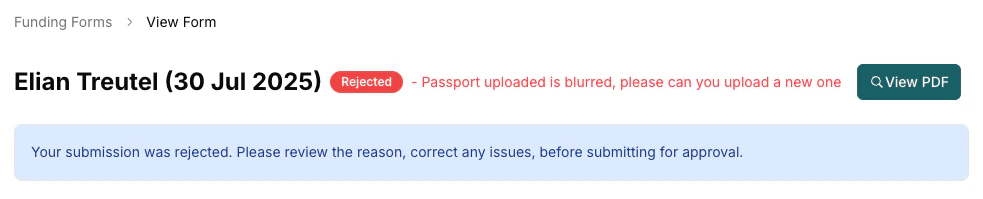
 Clicking **Edit** on the rejected form shows the details of the rejection
 You can then make the necessary adjustments to the form, and submit for approval again.
***
You can then make the necessary adjustments to the form, and submit for approval again.
***