> ## Documentation Index
> Fetch the complete documentation index at: https://pigeonholeapp.co.uk/docs/llms.txt
> Use this file to discover all available pages before exploring further.
# Home Moments
> Share photos and moments from home with your child's nursery, and see what happens after you send them.
Seen something new at home? A first word, a den in the garden, a trip to the seaside? **Home Moments** let you share it with your child's nursery. Once the nursery has had a look, they add it to your child's journal.
Home Moments only appear if your nursery has turned them on. You need parental responsibility for a child to share moments about them.
## Sharing a Moment
1. Open **Journal** and choose the **Home Moments** tab.
2. Click **Share a moment**.
3. Click **Add photos** and choose between 1 and 10 photos. Please avoid photos with other people's children in them.
4. If you have more than one child at the nursery, choose who the moment is about under **Who is it about?**. You can pick more than one.
5. Under **What happened?**, tell the nursery about it, in up to 2,000 characters.
6. Check the date under **When?**. It's today unless you change it. You can share moments from up to 30 days ago.
7. Click **Send to nursery**.
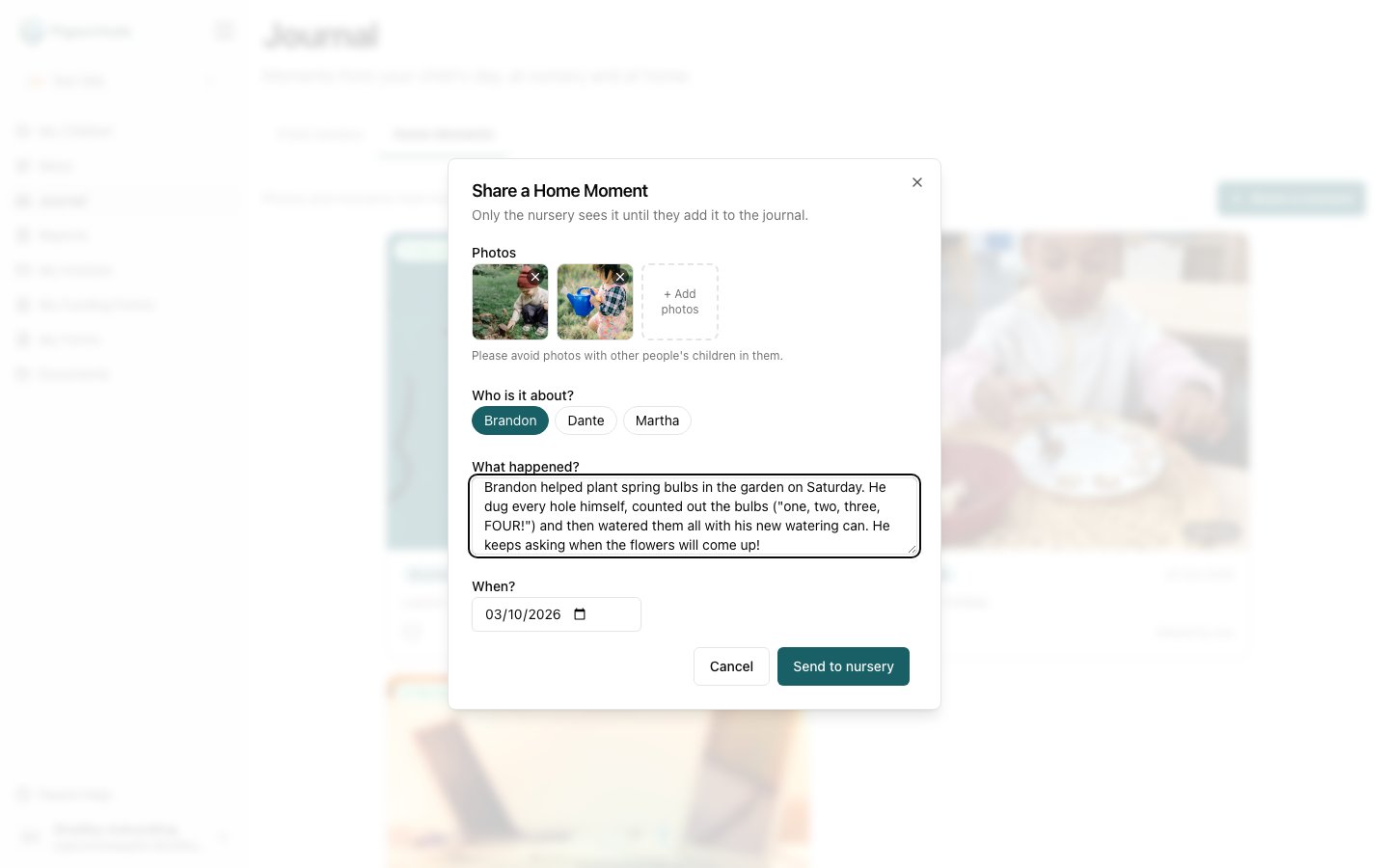 Only the nursery sees your moment until they add it to the journal.
## What Happens Next
Your moments show on the **Home Moments** tab with a label saying where they are:
* **Waiting for nursery**: the nursery hasn't looked at it yet. You can still change it.
* **Returned — see note**: the nursery has asked for a small change before adding it to the journal.
* **In the journal**: it's in the journal, where everyone with parental responsibility for your child can see it.
Only the nursery sees your moment until they add it to the journal.
## What Happens Next
Your moments show on the **Home Moments** tab with a label saying where they are:
* **Waiting for nursery**: the nursery hasn't looked at it yet. You can still change it.
* **Returned — see note**: the nursery has asked for a small change before adding it to the journal.
* **In the journal**: it's in the journal, where everyone with parental responsibility for your child can see it.
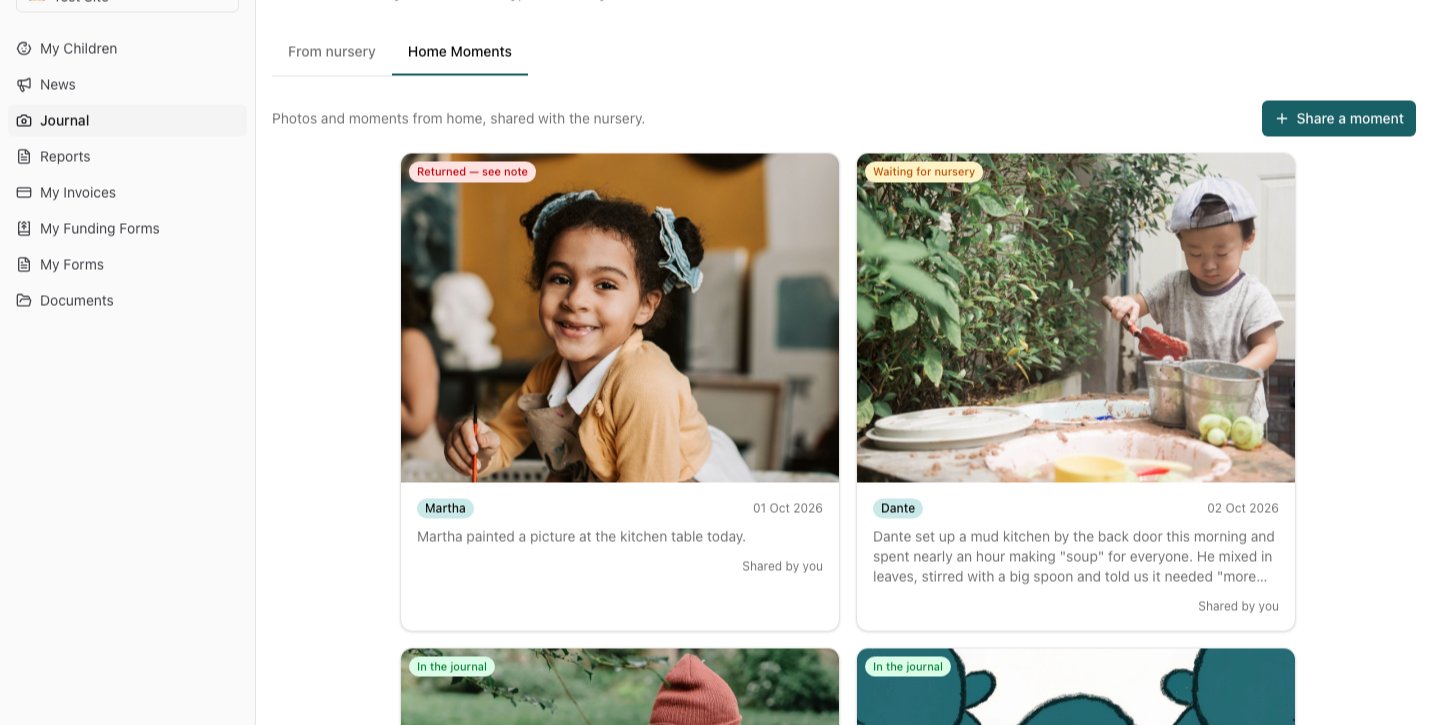 You also see moments that another parent or carer of your child shared, once they're in the journal.
### If the nursery returns your moment
You'll get an email ("Your moment from home needs a small change") with the nursery's note. Open the moment to read the note, then click **Edit and resend**, make the change and click **Resend to nursery**.
You also see moments that another parent or carer of your child shared, once they're in the journal.
### If the nursery returns your moment
You'll get an email ("Your moment from home needs a small change") with the nursery's note. Open the moment to read the note, then click **Edit and resend**, make the change and click **Resend to nursery**.
 ## Changing or Deleting a Moment
Open the moment and use the **⋮** menu:
* **Edit**: available while the moment is waiting for the nursery or has been returned.
* **Delete**: available at any time. Deleting a moment that is already in the journal removes it from the journal for everyone, along with its photos and comments.
Once a moment is in the journal you can't edit it, but you can still delete it.
## Comments and Likes
If your nursery allows it, you can comment on moments and on observations in your child's journal. Type in **Add a comment…** and click **Post**. Comments from the nursery show **· nursery** after the staff member's name.
## Changing or Deleting a Moment
Open the moment and use the **⋮** menu:
* **Edit**: available while the moment is waiting for the nursery or has been returned.
* **Delete**: available at any time. Deleting a moment that is already in the journal removes it from the journal for everyone, along with its photos and comments.
Once a moment is in the journal you can't edit it, but you can still delete it.
## Comments and Likes
If your nursery allows it, you can comment on moments and on observations in your child's journal. Type in **Add a comment…** and click **Post**. Comments from the nursery show **· nursery** after the staff member's name.
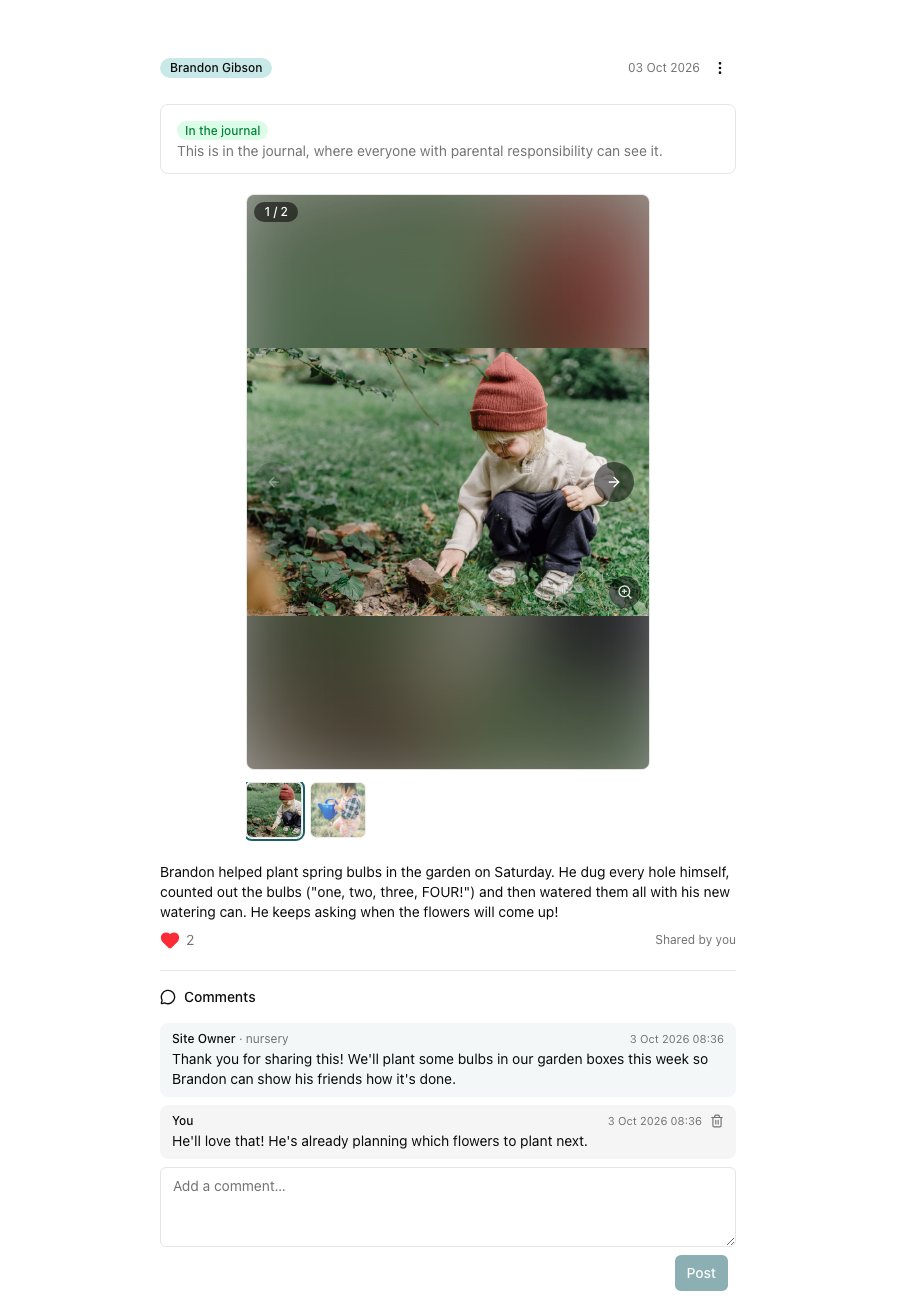 Tap the ♥ to like a moment that's in the journal.
On an observation of several children, you only see the comments about **your** child. Other families' conversations are never shown to you.
### Emails when the nursery replies
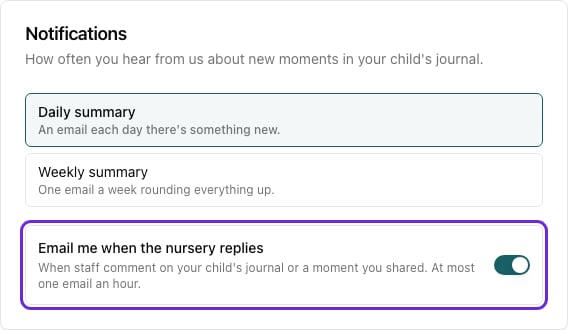
When the nursery comments on your child's journal or on a moment you shared, you'll get an email, at most once an hour. To turn these off, open **My Account** and switch off **Email me when the nursery replies** under **Notifications**.
Tap the ♥ to like a moment that's in the journal.
On an observation of several children, you only see the comments about **your** child. Other families' conversations are never shown to you.
### Emails when the nursery replies
When the nursery comments on your child's journal or on a moment you shared, you'll get an email, at most once an hour. To turn these off, open **My Account** and switch off **Email me when the nursery replies** under **Notifications**.
 ## Frequently Asked Questions
### Are Home Moments part of my child's reports?
No. Home Moments are kept separately from the nursery's observations. They aren't included in progress reports, the journal email summaries, or the journal download.
### Can I share from the Pigeonhole app?
The Pigeonhole app is for nursery staff. Share moments from the Pigeonhole website. It works in your phone's browser too.
### Who can see my moment?
Until it's added to the journal, only the nursery. Once it's in the journal, everyone with parental responsibility for the children in it can see it.
This documentation is built and hosted on [Mintlify](https://mintlify.com), a developer documentation platform.
## Frequently Asked Questions
### Are Home Moments part of my child's reports?
No. Home Moments are kept separately from the nursery's observations. They aren't included in progress reports, the journal email summaries, or the journal download.
### Can I share from the Pigeonhole app?
The Pigeonhole app is for nursery staff. Share moments from the Pigeonhole website. It works in your phone's browser too.
### Who can see my moment?
Until it's added to the journal, only the nursery. Once it's in the journal, everyone with parental responsibility for the children in it can see it.
This documentation is built and hosted on [Mintlify](https://mintlify.com), a developer documentation platform.