> ## Documentation Index
> Fetch the complete documentation index at: https://pigeonholeapp.co.uk/docs/llms.txt
> Use this file to discover all available pages before exploring further.
# Viewing and Sharing Safeguarding History
> Viewing timelines and securely sharing safeguarding information
# Safeguarding History
The safeguarding history provides a complete chronological timeline of all concerns and actions for a child or staff member. This guide explains how to view, export, and securely share safeguarding histories.
## What is Safeguarding History?
A safeguarding history is a comprehensive record showing:
* All concerns recorded about a person
* All actions taken in response
* Chronological timeline of events
Users with the manager, safeguarding lead or deputy safeguarding lead permissions can view and send safeguarding histories.
## Accessing Safeguarding History
### From Child Profile
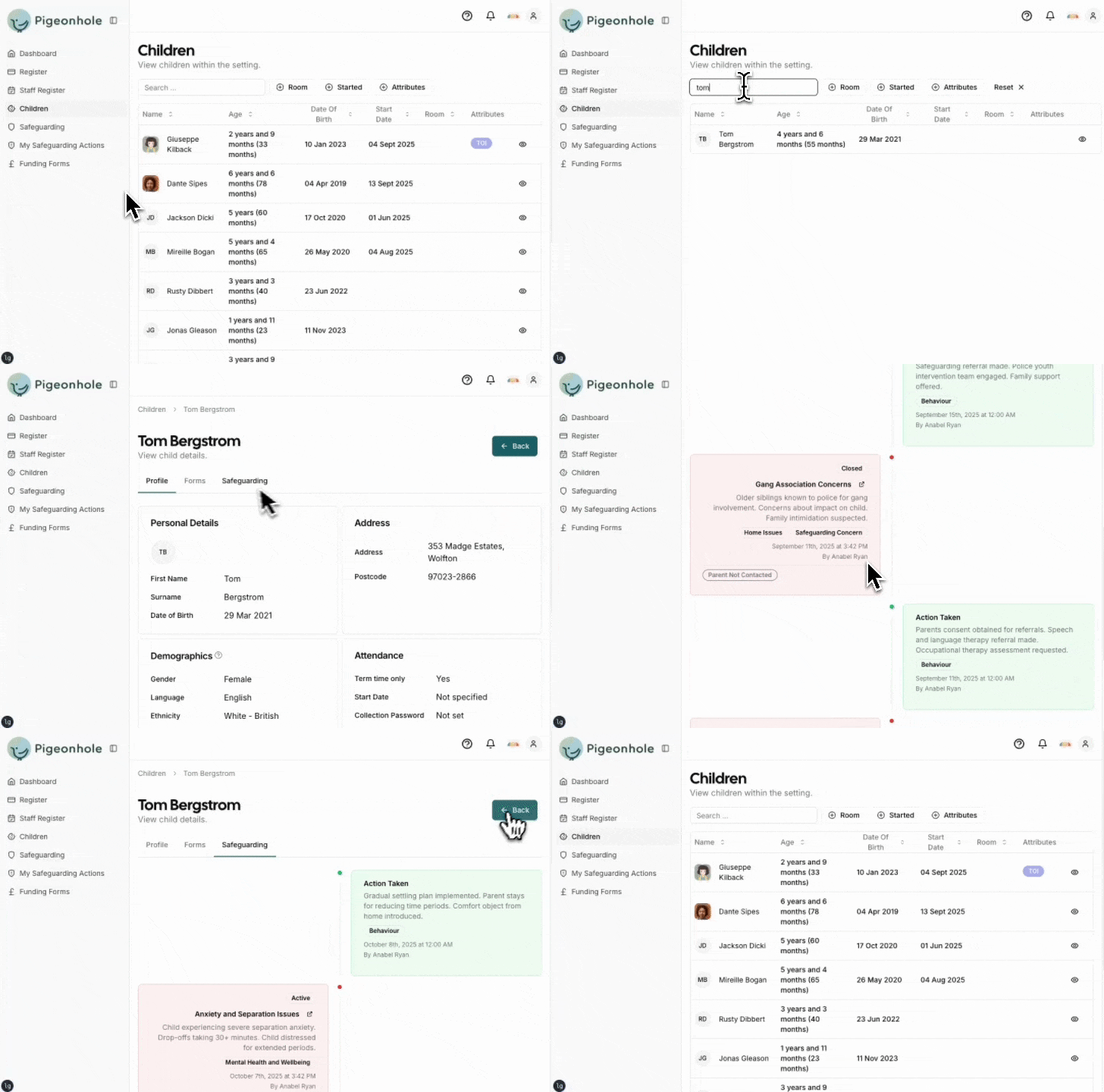
1. Navigate to **Children** in main menu
2. Select a child
3. Click the **Safeguarding** tab
4. View complete safeguarding history
 ### From Concern Details
1. Open any safeguarding concern
2. Click **View Full History** link
3. See all concerns/actions for that subject
### From Concern Details
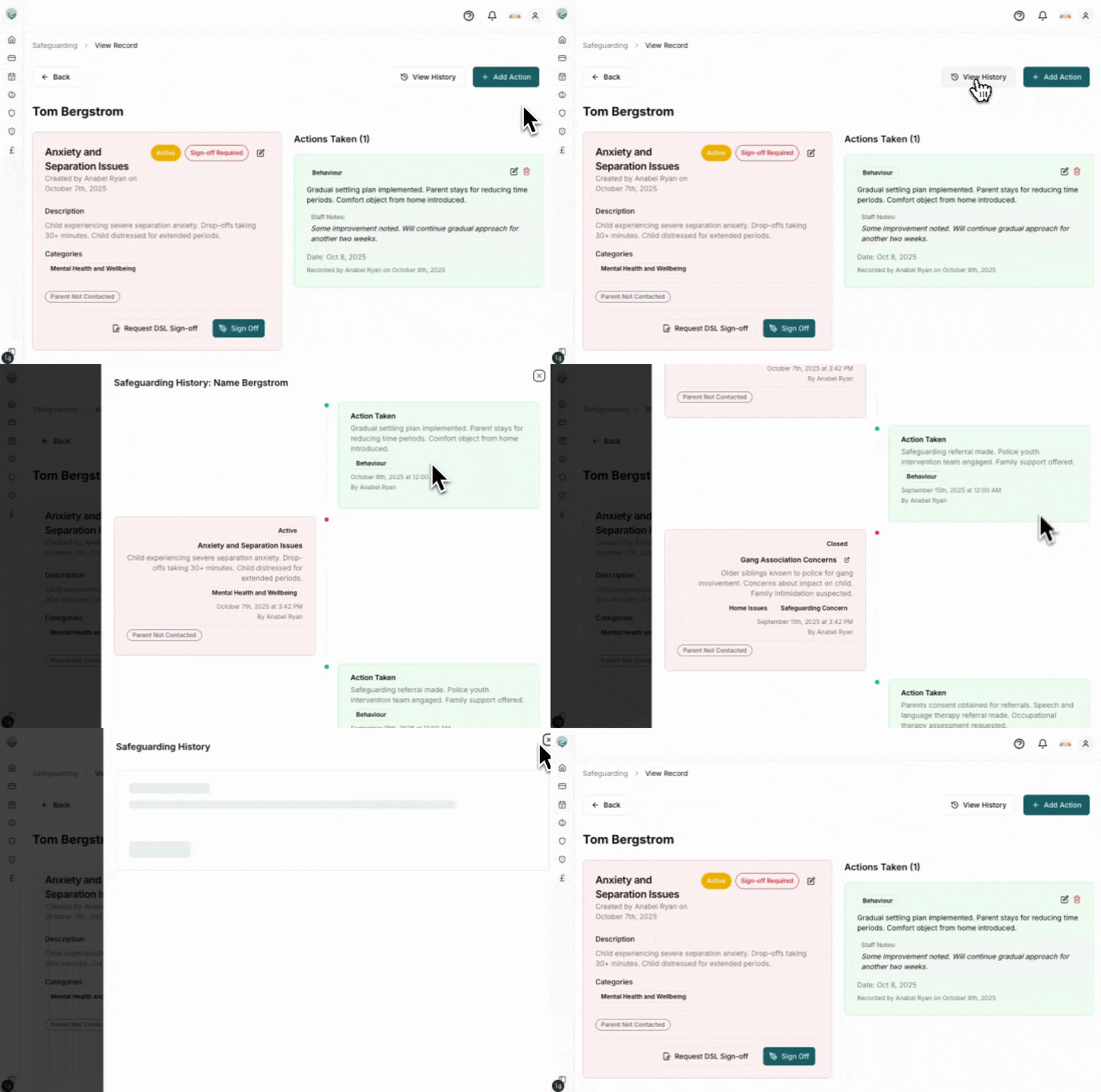
1. Open any safeguarding concern
2. Click **View Full History** link
3. See all concerns/actions for that subject
 ## Sending History
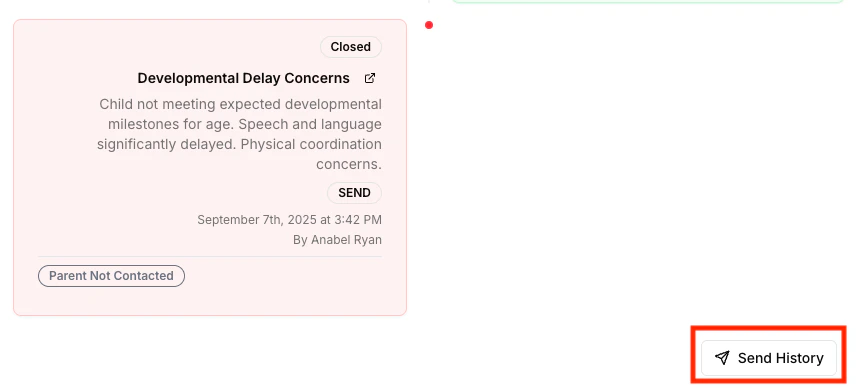
Pigeonhole allows you to easily send the safeguarding history to a 3rd Party (e.g. another nursery/school) in a secure way. You can access the send history dialog
## Sending History
Pigeonhole allows you to easily send the safeguarding history to a 3rd Party (e.g. another nursery/school) in a secure way. You can access the send history dialog
 The secure share dialog will then appear.
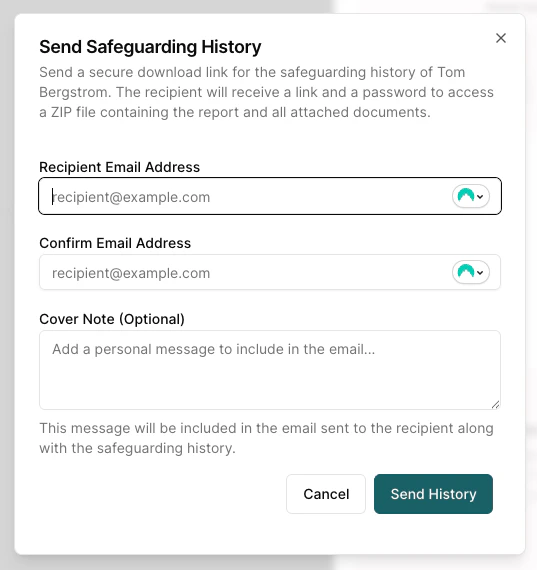 Here you can enter the recipients email and a cover note that is included in the email that will be sent to them.
### Why Secure Sharing?
**Standard email is NOT secure**, as safeguarding data is highly sensitive, email can be intercepted and attachments not encrypted.
**Pigeonhole Secure Sharing** ensures data is encrypted and secure. 3rd party's are emailed a link with the encryption password which they can use to download an encrypted file which contains the safeguarding history for a child and all attachments. Recipients then have to enter an additional OTP (one time password) code that is emailed to them before the download is available to them.
Here you can enter the recipients email and a cover note that is included in the email that will be sent to them.
### Why Secure Sharing?
**Standard email is NOT secure**, as safeguarding data is highly sensitive, email can be intercepted and attachments not encrypted.
**Pigeonhole Secure Sharing** ensures data is encrypted and secure. 3rd party's are emailed a link with the encryption password which they can use to download an encrypted file which contains the safeguarding history for a child and all attachments. Recipients then have to enter an additional OTP (one time password) code that is emailed to them before the download is available to them.