> ## Documentation Index
> Fetch the complete documentation index at: https://pigeonholeapp.co.uk/docs/llms.txt
> Use this file to discover all available pages before exploring further.
# Sign-off Rules and Exclusions
> How your Safeguarding Leads set signature and sign-off rules, and keep staff away from records about their own children or relatives.
Your Safeguarding Leads control two settings. **Signatures and sign-off** sets when a signature is needed and who must read and sign a concern before it closes. **Safeguarding exclusions** keeps a member of staff away from safeguarding records about a particular child or colleague, usually their own child or a relative who also works at your setting.
Open in app: [Safeguarding → Settings](https://pigeonholeapp.co.uk/app/admin/settings/safeguarding).
## Opening the Settings
1. Click **Safeguarding** in the main menu.
2. Click **Settings** at the top of the records of concern list.
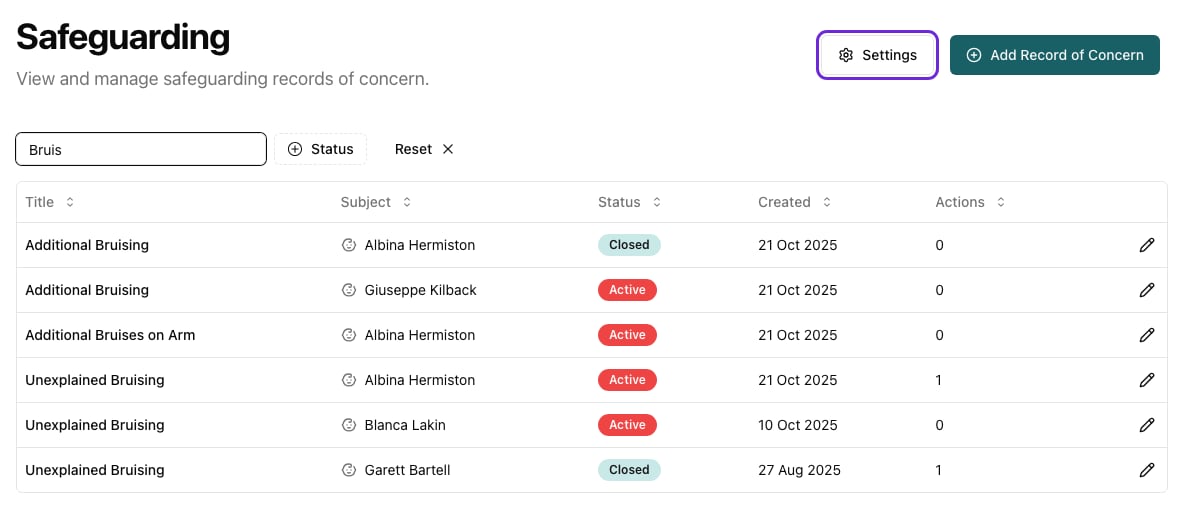 The page shows your **DSL Team**, the **Signatures and sign-off** rules, the **Safeguarding exclusions** and the **Categories** for records of concern and action.
### Who can change what
| | Safeguarding Lead | Deputy Safeguarding Lead | Manager (not a lead) |
| - | - | - | - |
| See the DSL team | Yes | Yes | Yes |
| See the sign-off rules | Yes | Yes | Yes |
| Change the sign-off rules | Yes | No | No |
| See exclusions | Yes | Yes | No |
| Add or remove exclusions | Yes | No | No |
| Add, rename or delete categories | Yes | Yes | Yes |
Only a main Safeguarding Lead can change the sign-off rules and exclusions. Nobody working on a concern can lower the bar for closing it, and managers who aren't on the DSL team never see which members of staff are related to which children or colleagues.
This is the same page managers open from **Settings → Safeguarding Settings**. A manager who isn't a lead sees a note saying a Safeguarding Lead manages the rules, and doesn't see exclusions. See [Safeguarding Settings](/docs/onboarding/safeguarding-settings).
## Signatures and Sign-off
The page shows your **DSL Team**, the **Signatures and sign-off** rules, the **Safeguarding exclusions** and the **Categories** for records of concern and action.
### Who can change what
| | Safeguarding Lead | Deputy Safeguarding Lead | Manager (not a lead) |
| - | - | - | - |
| See the DSL team | Yes | Yes | Yes |
| See the sign-off rules | Yes | Yes | Yes |
| Change the sign-off rules | Yes | No | No |
| See exclusions | Yes | Yes | No |
| Add or remove exclusions | Yes | No | No |
| Add, rename or delete categories | Yes | Yes | Yes |
Only a main Safeguarding Lead can change the sign-off rules and exclusions. Nobody working on a concern can lower the bar for closing it, and managers who aren't on the DSL team never see which members of staff are related to which children or colleagues.
This is the same page managers open from **Settings → Safeguarding Settings**. A manager who isn't a lead sees a note saying a Safeguarding Lead manages the rules, and doesn't see exclusions. See [Safeguarding Settings](/docs/onboarding/safeguarding-settings).
## Signatures and Sign-off
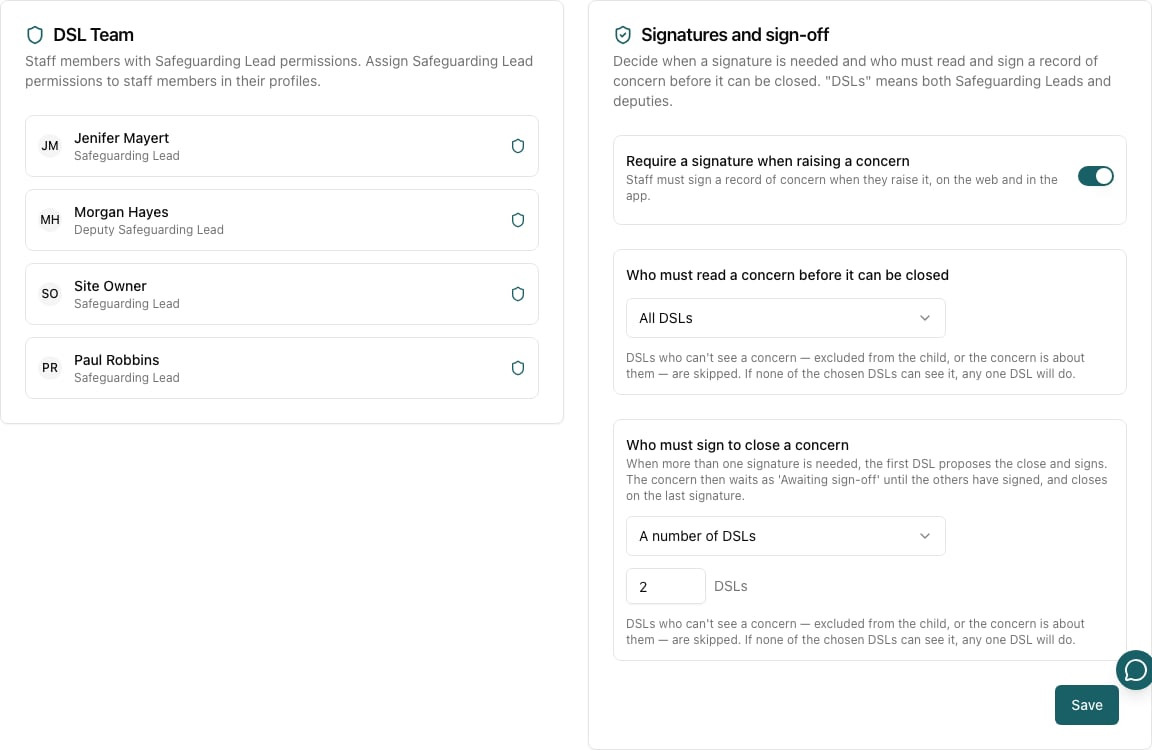 "DSLs" here means both Safeguarding Leads and Deputy Safeguarding Leads.
### Require a signature when raising a concern
When this is on, anyone raising a record of concern must sign it and type their name, on the web and in the app. The signature is shown on the concern and printed in the safeguarding history. See [Raising a Safeguarding Concern](/docs/staff/raising-a-concern).
### Who must read a concern before it can be closed
Choose one:
* **No requirement**: a concern can be closed at any time.
* **All DSLs**: every Safeguarding Lead and deputy must have opened the concern.
* **Specific DSLs**: tick the people who must have opened it.
* **A number of DSLs**: enter how many must have opened it, for example 2.
Until the rule is met, the **Close concern** button is greyed out, with a note saying who still needs to read the concern. Opening a concern counts as reading it, and the **Seen by** panel on each concern shows who has. See [Closing and Sign-off](/docs/safeguarding/sign-off-process#seen-by).
### Who must sign to close a concern
Choose one:
* **No signature needed**: closing a concern records who closed it, with no signature.
* **All DSLs**, **Specific DSLs** or **A number of DSLs**: those people must sign before the concern closes.
When only one signature is needed, the DSL who closes the concern signs as they close it. When more are needed, the first DSL proposes the close and signs. The concern then shows as **Awaiting sign-off** until the others have signed, and closes on the last signature. See [Closing and Sign-off](/docs/safeguarding/sign-off-process).
Click **Save** to apply your changes. They take effect straight away on every open concern, including ones already awaiting sign-off.
### DSLs who can't see a concern are skipped
A DSL is left out of both rules for a concern they can't see. That happens when:
* they are [excluded](#safeguarding-exclusions) from the child the concern is about, from a linked child, or from the colleague the concern is about
* the concern is about them
* they have left, or are no longer a Safeguarding Lead or deputy
If none of the people you chose can see a concern, any one DSL can read it or sign it off instead. A number is capped at the DSLs who can see the concern. This means a concern is never left unable to close.
The read rule has no start date. If you choose **All DSLs** and then appoint a new deputy, they must open each open concern before it can be closed.
## Safeguarding Exclusions
Sometimes a member of staff shouldn't see or be told about a concern, most often because the child is their own, or because the concern is about a relative or partner who also works at your setting. You can exclude a member of staff from records about **a child** or about **a colleague**. Add an exclusion and that person:
* doesn't see any record of concern about that child or colleague. For a child, that covers concerns where the child is the subject or a linked child, and they can't open the child's safeguarding history
* isn't alerted when a concern about them is raised, or when an action on it is shared with all staff
* can't be assigned actions on those concerns, and no longer sees any already assigned to them
* doesn't count towards the sign-off rules for those concerns
They can still raise a concern about the child or colleague. It disappears from their view once it's saved.
### Concerns about a member of staff
A member of staff never sees a concern about themselves. That applies to everyone, including Safeguarding Leads and deputies, so you don't need to add an exclusion for it. They aren't alerted about it, can't be assigned its actions and don't count towards its sign-off rules. This still applies if they leave and are added back as staff later.
To keep someone else away from a concern about a colleague, such as their partner or a relative, exclude them from that colleague.
"DSLs" here means both Safeguarding Leads and Deputy Safeguarding Leads.
### Require a signature when raising a concern
When this is on, anyone raising a record of concern must sign it and type their name, on the web and in the app. The signature is shown on the concern and printed in the safeguarding history. See [Raising a Safeguarding Concern](/docs/staff/raising-a-concern).
### Who must read a concern before it can be closed
Choose one:
* **No requirement**: a concern can be closed at any time.
* **All DSLs**: every Safeguarding Lead and deputy must have opened the concern.
* **Specific DSLs**: tick the people who must have opened it.
* **A number of DSLs**: enter how many must have opened it, for example 2.
Until the rule is met, the **Close concern** button is greyed out, with a note saying who still needs to read the concern. Opening a concern counts as reading it, and the **Seen by** panel on each concern shows who has. See [Closing and Sign-off](/docs/safeguarding/sign-off-process#seen-by).
### Who must sign to close a concern
Choose one:
* **No signature needed**: closing a concern records who closed it, with no signature.
* **All DSLs**, **Specific DSLs** or **A number of DSLs**: those people must sign before the concern closes.
When only one signature is needed, the DSL who closes the concern signs as they close it. When more are needed, the first DSL proposes the close and signs. The concern then shows as **Awaiting sign-off** until the others have signed, and closes on the last signature. See [Closing and Sign-off](/docs/safeguarding/sign-off-process).
Click **Save** to apply your changes. They take effect straight away on every open concern, including ones already awaiting sign-off.
### DSLs who can't see a concern are skipped
A DSL is left out of both rules for a concern they can't see. That happens when:
* they are [excluded](#safeguarding-exclusions) from the child the concern is about, from a linked child, or from the colleague the concern is about
* the concern is about them
* they have left, or are no longer a Safeguarding Lead or deputy
If none of the people you chose can see a concern, any one DSL can read it or sign it off instead. A number is capped at the DSLs who can see the concern. This means a concern is never left unable to close.
The read rule has no start date. If you choose **All DSLs** and then appoint a new deputy, they must open each open concern before it can be closed.
## Safeguarding Exclusions
Sometimes a member of staff shouldn't see or be told about a concern, most often because the child is their own, or because the concern is about a relative or partner who also works at your setting. You can exclude a member of staff from records about **a child** or about **a colleague**. Add an exclusion and that person:
* doesn't see any record of concern about that child or colleague. For a child, that covers concerns where the child is the subject or a linked child, and they can't open the child's safeguarding history
* isn't alerted when a concern about them is raised, or when an action on it is shared with all staff
* can't be assigned actions on those concerns, and no longer sees any already assigned to them
* doesn't count towards the sign-off rules for those concerns
They can still raise a concern about the child or colleague. It disappears from their view once it's saved.
### Concerns about a member of staff
A member of staff never sees a concern about themselves. That applies to everyone, including Safeguarding Leads and deputies, so you don't need to add an exclusion for it. They aren't alerted about it, can't be assigned its actions and don't count towards its sign-off rules. This still applies if they leave and are added back as staff later.
To keep someone else away from a concern about a colleague, such as their partner or a relative, exclude them from that colleague.
 ### Adding an exclusion
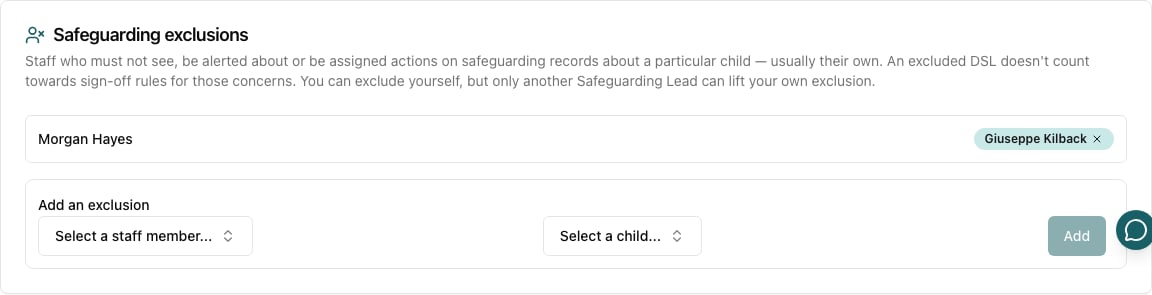
1. Under **Add an exclusion**, choose the member of staff from **Select a staff member...**.
2. Choose **A child** or **A colleague**.
3. Choose the child from **Select a child...**, or the colleague from **Select a colleague...**.
4. Click **Add**.
The exclusion saves straight away. A member of staff can be excluded from more than one child or colleague. Each one appears as a tag next to their name, and colleagues' tags show a person icon.
### Removing an exclusion
Click the **×** on the child's or colleague's tag.
You can add an exclusion to your own record, for example if you are the only Safeguarding Lead and your own child attends. You can't remove your own exclusion. Another Safeguarding Lead has to do that, so nobody can quietly lift their own exclusion.
Exclusions stay in place if the person loses and later regains a safeguarding role, and if the child leaves.
Make sure at least one Safeguarding Lead or deputy can still see each child and each colleague you exclude people from. If everyone on your DSL team is excluded, nobody is alerted to concerns about that child or colleague and nobody can open them.
This documentation is built and hosted on [Mintlify](https://mintlify.com), a developer documentation platform.
### Adding an exclusion
1. Under **Add an exclusion**, choose the member of staff from **Select a staff member...**.
2. Choose **A child** or **A colleague**.
3. Choose the child from **Select a child...**, or the colleague from **Select a colleague...**.
4. Click **Add**.
The exclusion saves straight away. A member of staff can be excluded from more than one child or colleague. Each one appears as a tag next to their name, and colleagues' tags show a person icon.
### Removing an exclusion
Click the **×** on the child's or colleague's tag.
You can add an exclusion to your own record, for example if you are the only Safeguarding Lead and your own child attends. You can't remove your own exclusion. Another Safeguarding Lead has to do that, so nobody can quietly lift their own exclusion.
Exclusions stay in place if the person loses and later regains a safeguarding role, and if the child leaves.
Make sure at least one Safeguarding Lead or deputy can still see each child and each colleague you exclude people from. If everyone on your DSL team is excluded, nobody is alerted to concerns about that child or colleague and nobody can open them.
This documentation is built and hosted on [Mintlify](https://mintlify.com), a developer documentation platform.