> ## Documentation Index
> Fetch the complete documentation index at: https://pigeonholeapp.co.uk/docs/llms.txt
> Use this file to discover all available pages before exploring further.
# Observations
> Capture a learning moment on the web — add photos, tag children, draft with the AI assistant, link to areas of learning and submit for approval.
An observation records one moment in a child's day: what they did, what they said, and what you might try next. Once it's published, it appears in the learning journal of every child you tagged, and their families can see it.
Capturing on your phone? See [Observations in the staff app](/docs/staff/using-the-app/observations). Open in app: [Development → Observations](https://pigeonholeapp.co.uk/app/staff/development/observations).
## The Observations page
Go to **Development → Observations** in the sidebar. Each card shows the first photo, the title, the start of the write-up, the children tagged and the date. A pill in the corner shows its status.
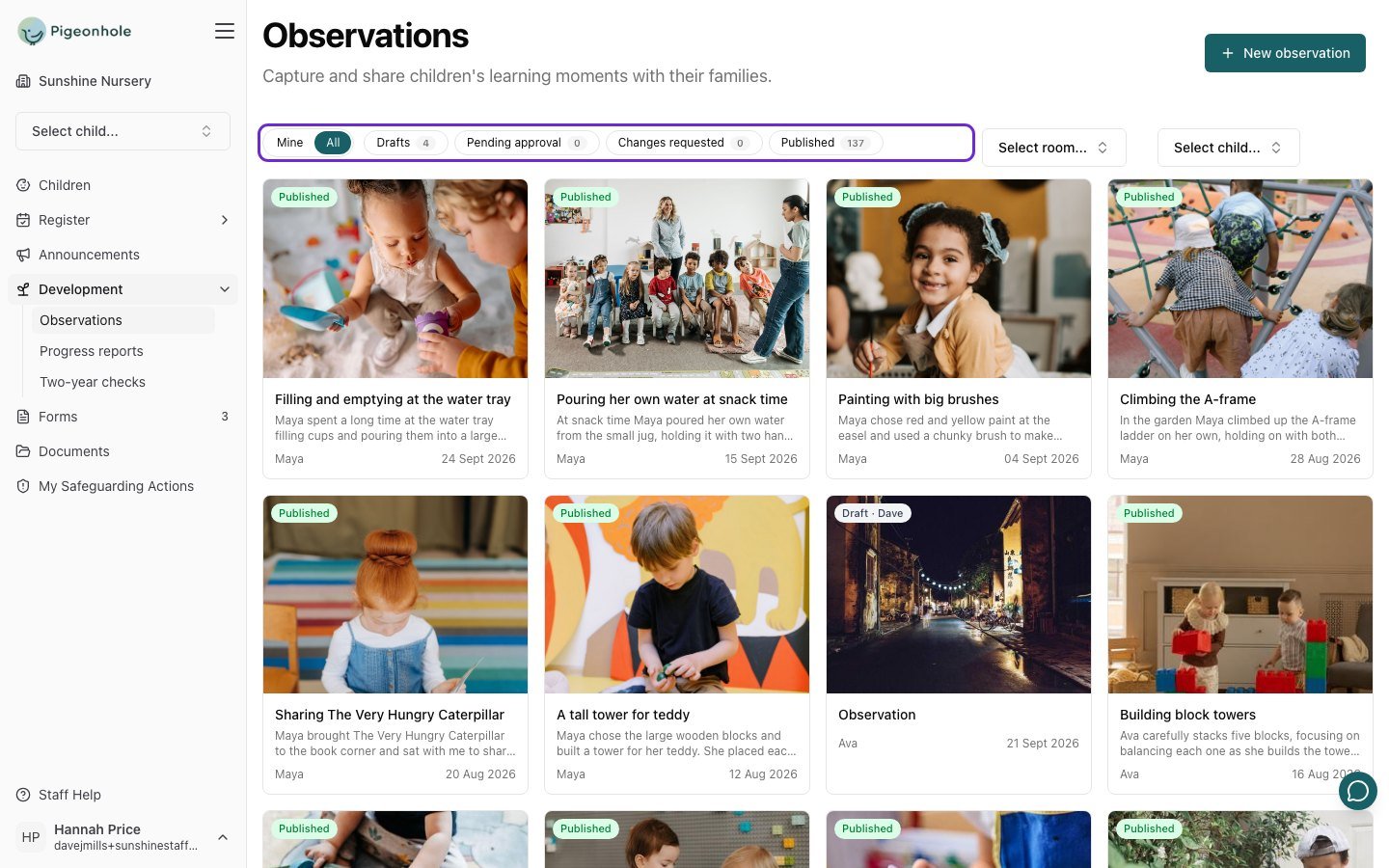 Use the bar across the top to find what you need:
* **Mine** shows only your own observations. **All** shows everything you can see: everything published, plus colleagues' drafts if your setting shares them.
* The status chips — **Drafts**, **Pending approval**, **Changes requested** and **Published** — filter the list. Each chip shows how many observations it holds. Click more than one to combine them.
* **Select room...** and **Select child...** narrow the list to one room or one child.
Your choices are remembered, so you come back to the same view after opening or editing an observation.
## Step 1: Add photos and tag the children
1. Click **New observation**.
2. Click **+ Add photos or video** and choose one or more files. You can add more at any time while you're writing.
3. Under **Children**, pick every child involved. For a group activity, tag them all. Each family sees it in their own child's journal.
Use the bar across the top to find what you need:
* **Mine** shows only your own observations. **All** shows everything you can see: everything published, plus colleagues' drafts if your setting shares them.
* The status chips — **Drafts**, **Pending approval**, **Changes requested** and **Published** — filter the list. Each chip shows how many observations it holds. Click more than one to combine them.
* **Select room...** and **Select child...** narrow the list to one room or one child.
Your choices are remembered, so you come back to the same view after opening or editing an observation.
## Step 1: Add photos and tag the children
1. Click **New observation**.
2. Click **+ Add photos or video** and choose one or more files. You can add more at any time while you're writing.
3. Under **Children**, pick every child involved. For a group activity, tag them all. Each family sees it in their own child's journal.
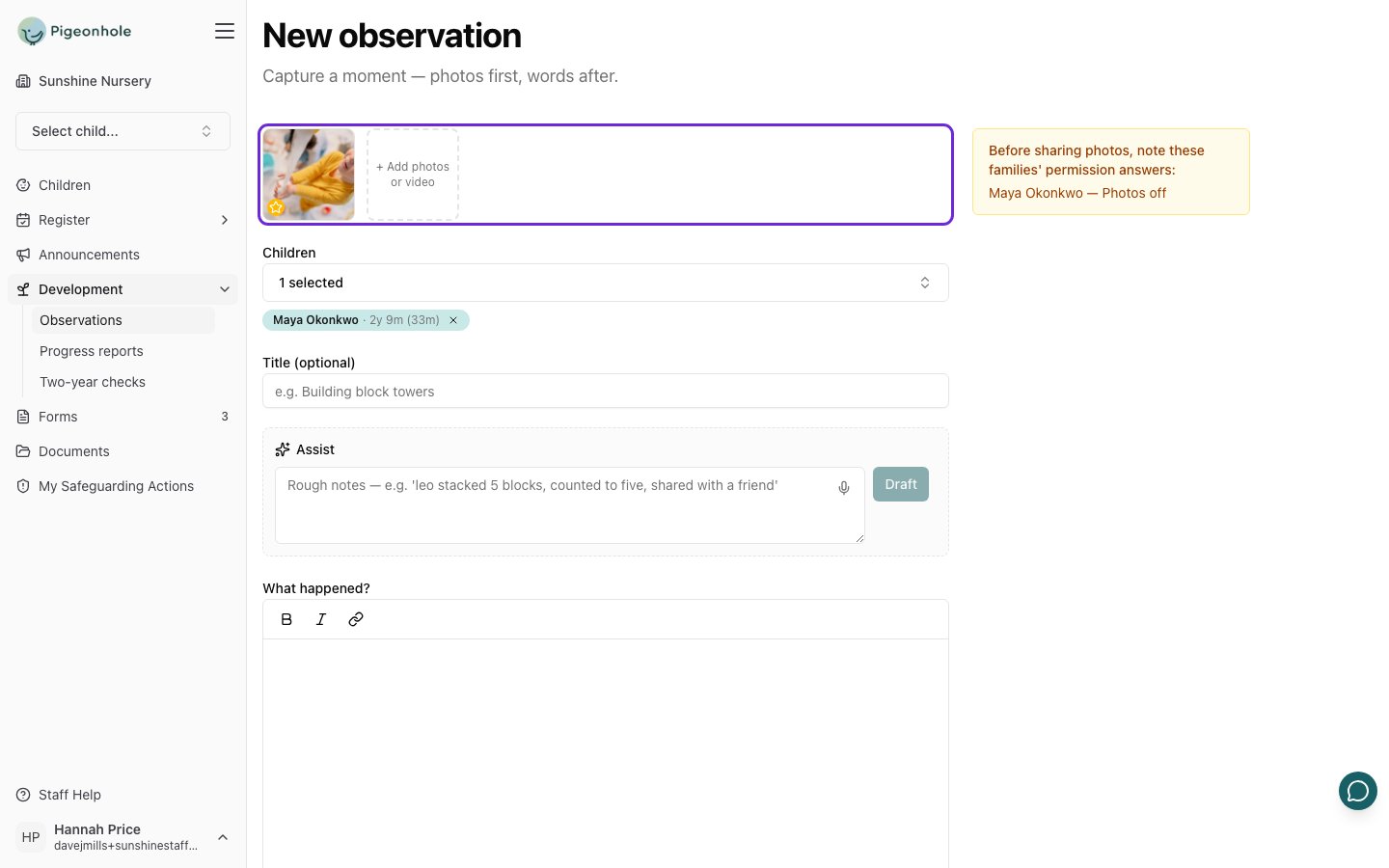 The first photo becomes the **featured image**, shown on the card and in the family's journal. To feature a different one, hover over it and click the **star**. Click the **X** to remove a photo.
If a tagged child's family hasn't agreed to photos, an amber reminder appears beside the form — for example *"Maya Okonkwo — Photos off"*. It doesn't stop you saving. Check whether that child can actually be seen in your photos, and remove or swap the photo if so.
## Step 2: Write what happened
1. Add a **Title** if you like, such as *Making sand castles*. If you leave it blank, the start of your write-up is used instead.
2. Describe the moment in **What happened?** Say what the child did and said, as specifically as you can.
3. Add **Next steps** if you have an idea for what to try next. These are optional.
4. **Observed on** defaults to now. Change it if you're writing up something from earlier.
### Let the AI assistant draft it for you
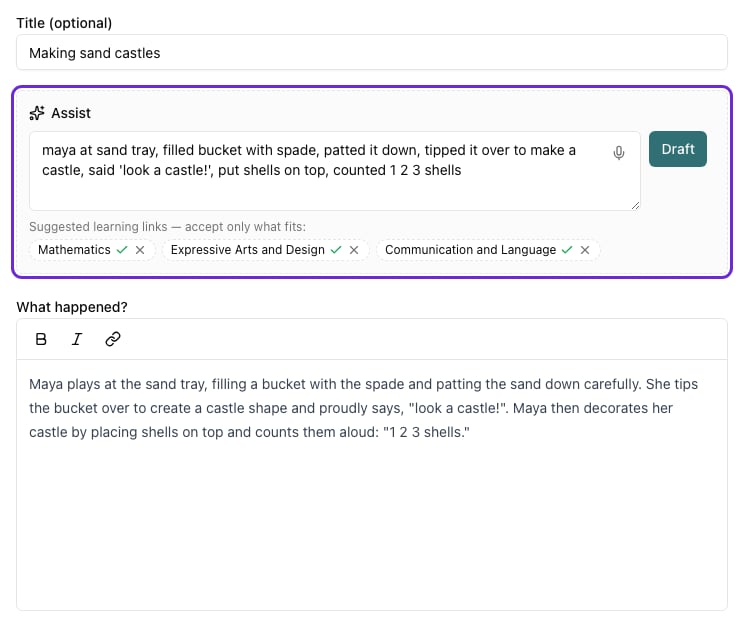
If your setting uses AI drafting, you'll see an **Assist** box above **What happened?**. Type your rough notes in any shorthand you like, then click **Draft**:
> maya at sand tray, filled bucket with spade, patted it down, tipped it over to make a castle, said 'look a castle!', put shells on top, counted 1 2 3 shells
A few seconds later the write-up appears in **What happened?**. If they were empty, the title and next steps are filled in too.
The first photo becomes the **featured image**, shown on the card and in the family's journal. To feature a different one, hover over it and click the **star**. Click the **X** to remove a photo.
If a tagged child's family hasn't agreed to photos, an amber reminder appears beside the form — for example *"Maya Okonkwo — Photos off"*. It doesn't stop you saving. Check whether that child can actually be seen in your photos, and remove or swap the photo if so.
## Step 2: Write what happened
1. Add a **Title** if you like, such as *Making sand castles*. If you leave it blank, the start of your write-up is used instead.
2. Describe the moment in **What happened?** Say what the child did and said, as specifically as you can.
3. Add **Next steps** if you have an idea for what to try next. These are optional.
4. **Observed on** defaults to now. Change it if you're writing up something from earlier.
### Let the AI assistant draft it for you
If your setting uses AI drafting, you'll see an **Assist** box above **What happened?**. Type your rough notes in any shorthand you like, then click **Draft**:
> maya at sand tray, filled bucket with spade, patted it down, tipped it over to make a castle, said 'look a castle!', put shells on top, counted 1 2 3 shells
A few seconds later the write-up appears in **What happened?**. If they were empty, the title and next steps are filled in too.
 * Click the **microphone** in the notes box to dictate instead of typing. Click it again to stop. What you said is added to your notes, so you can check it before you click **Draft**.
* The draft **replaces** whatever was in **What happened?**. A title or next steps you've already written are left alone.
* It only uses what's in your notes, and won't invent detail. Short notes give a short observation.
* **Suggested learning links** may appear under your notes. Click ✓ to accept a link or ✕ to dismiss it. Nothing is added unless you accept it.
* Your photos are never sent to the AI. Only your typed or dictated notes are.
It's your observation, with your name on it. Always read the draft and correct anything that isn't quite right before you submit it.
## Step 3: Add learning links
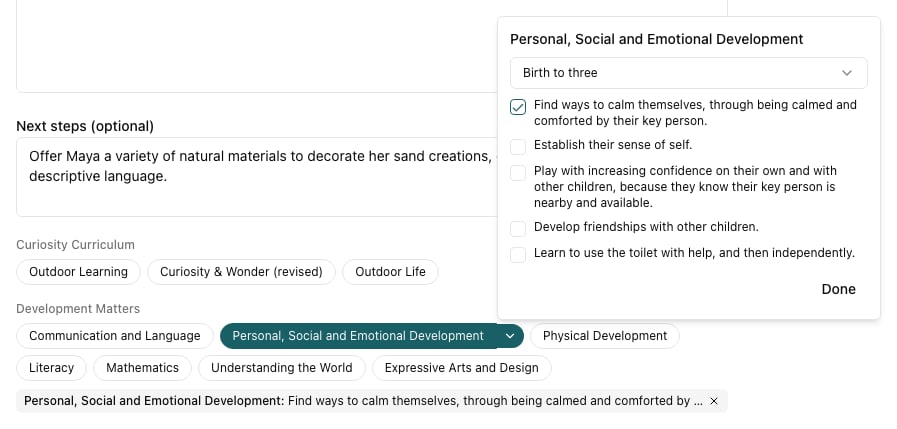
If your setting links observations to areas of learning, the areas from each framework appear as chips below **Next steps**. They're grouped under the framework's name, such as **EYFS Areas of Learning** or **Development Matters**. Click a chip to link it, and click it again to unlink it.
Some frameworks, such as Development Matters, also have statements within each area. Once you've picked one of those areas, click the **▾** next to it to choose statements:
1. Check the **age band**. It starts at the youngest tagged child's age.
2. Tick the statements this moment shows.
3. Click **Done**. Each statement appears as a chip under the framework, and you can remove it with its **X**.
* Click the **microphone** in the notes box to dictate instead of typing. Click it again to stop. What you said is added to your notes, so you can check it before you click **Draft**.
* The draft **replaces** whatever was in **What happened?**. A title or next steps you've already written are left alone.
* It only uses what's in your notes, and won't invent detail. Short notes give a short observation.
* **Suggested learning links** may appear under your notes. Click ✓ to accept a link or ✕ to dismiss it. Nothing is added unless you accept it.
* Your photos are never sent to the AI. Only your typed or dictated notes are.
It's your observation, with your name on it. Always read the draft and correct anything that isn't quite right before you submit it.
## Step 3: Add learning links
If your setting links observations to areas of learning, the areas from each framework appear as chips below **Next steps**. They're grouped under the framework's name, such as **EYFS Areas of Learning** or **Development Matters**. Click a chip to link it, and click it again to unlink it.
Some frameworks, such as Development Matters, also have statements within each area. Once you've picked one of those areas, click the **▾** next to it to choose statements:
1. Check the **age band**. It starts at the youngest tagged child's age.
2. Tick the statements this moment shows.
3. Click **Done**. Each statement appears as a chip under the framework, and you can remove it with its **X**.
 Learning links are optional. Link what the moment genuinely shows, not everything it could possibly touch on.
## Step 4: Save, submit or publish
The buttons at the bottom depend on your role:
* **Save draft** keeps your work without sharing it. Come back to it from the **Drafts** chip whenever you like.
* **Submit for approval** sends it to your setting's approvers, who are emailed. This is what most staff see.
* **Publish** shares it with the families straight away. You'll only see this if you have the **Publisher** role or you're a manager. You're asked to confirm first.
The buttons stay disabled while photos are still uploading.
### Writing reminders
When you submit or publish, your writing is checked against your setting's writing rules. If something is flagged, an amber box appears above the buttons showing the phrase, the rule it breaks, and a suggested rewrite.
Learning links are optional. Link what the moment genuinely shows, not everything it could possibly touch on.
## Step 4: Save, submit or publish
The buttons at the bottom depend on your role:
* **Save draft** keeps your work without sharing it. Come back to it from the **Drafts** chip whenever you like.
* **Submit for approval** sends it to your setting's approvers, who are emailed. This is what most staff see.
* **Publish** shares it with the families straight away. You'll only see this if you have the **Publisher** role or you're a manager. You're asked to confirm first.
The buttons stay disabled while photos are still uploading.
### Writing reminders
When you submit or publish, your writing is checked against your setting's writing rules. If something is flagged, an amber box appears above the buttons showing the phrase, the rule it breaks, and a suggested rewrite.
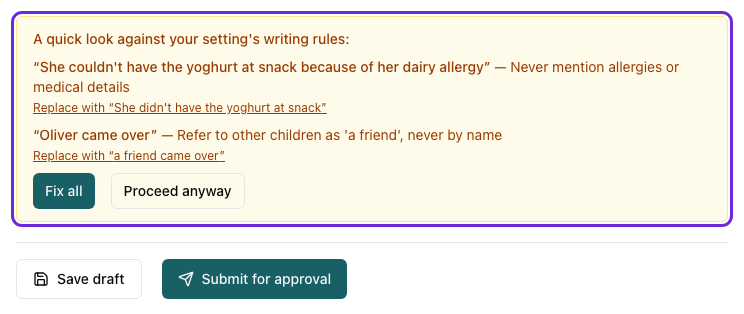 * Click **Replace with "…"** to accept one suggestion.
* Click **Fix all** to accept them all. Click **Submit for approval** (or **Publish**) again when you're happy.
* Click **Proceed anyway** to carry on with your writing as it is.
## After you submit
While your observation is **Pending approval**, you can still change your mind. Open it and click **Withdraw** to take it back to your drafts.
### If it comes back to you
An approver may return an observation with a comment saying what needs changing. You'll get an email, and the observation shows as **Changes requested**. Open it and click **Edit**: the comment is at the top of the form.
* Click **Replace with "…"** to accept one suggestion.
* Click **Fix all** to accept them all. Click **Submit for approval** (or **Publish**) again when you're happy.
* Click **Proceed anyway** to carry on with your writing as it is.
## After you submit
While your observation is **Pending approval**, you can still change your mind. Open it and click **Withdraw** to take it back to your drafts.
### If it comes back to you
An approver may return an observation with a comment saying what needs changing. You'll get an email, and the observation shows as **Changes requested**. Open it and click **Edit**: the comment is at the top of the form.
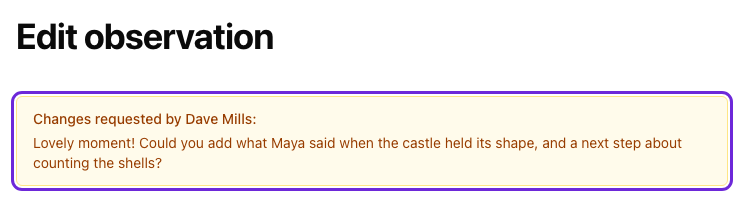 Make the changes, then click **Resubmit for approval**.
### Once it's published
Published observations can't be edited by regular staff. If you've tagged the wrong child or spotted a mistake, ask a manager or a colleague with the **Publisher** role. They can edit it even after families have seen it.
Open a published observation to see everything on it: the photos, the write-up, next steps, the children tagged with their age at the time, and the learning links.
Make the changes, then click **Resubmit for approval**.
### Once it's published
Published observations can't be edited by regular staff. If you've tagged the wrong child or spotted a mistake, ask a manager or a colleague with the **Publisher** role. They can edit it even after families have seen it.
Open a published observation to see everything on it: the photos, the write-up, next steps, the children tagged with their age at the time, and the learning links.
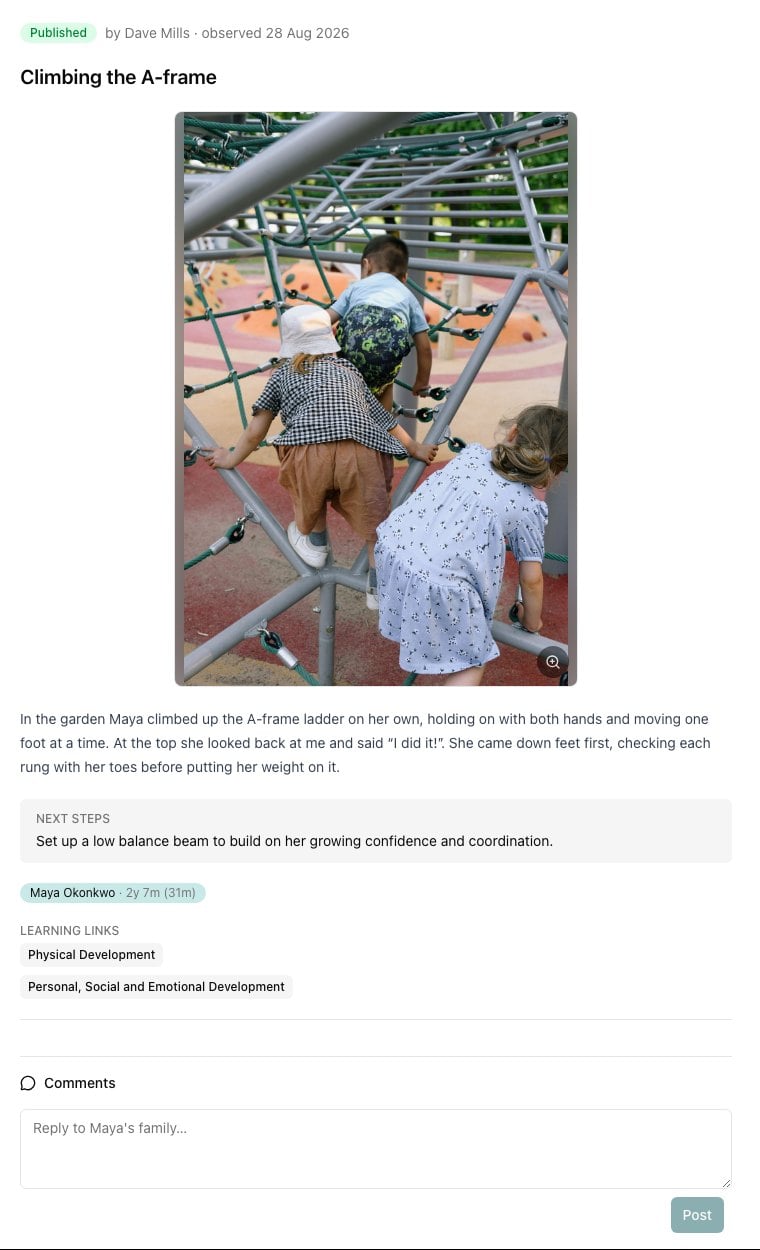 If your setting allows comments, there's a **Comments** box at the bottom. Type a reply and click **Post**. Each family only sees the conversation about their own child. You can delete your own comments with the bin icon.
## Working on a colleague's draft
Your manager can choose to share drafts with all staff, so the team can finish or tidy up each other's write-ups. When drafts are shared:
* Colleagues' drafts appear under **All**, with the author's first name on the **Draft** pill — for example **Draft · Dave**.
* If your setting allows editing, open the draft and click **Edit**. A note at the top reminds you whose draft it is.
* You can only **Save draft**. Submitting, publishing and deleting stay with the author.
If someone else saves the same observation while you're editing it, your save is refused with *"Someone else changed this observation while you were editing it"*. That way neither of you overwrites the other. Your changes stay on screen: copy anything you need, reopen the observation to see the latest version, and add your changes back.
## Frequently Asked Questions
### Can I see another member of staff's observations?
You can see everything that's been published. Drafts are private to whoever wrote them unless your setting shares drafts with staff. Observations sent back with changes requested are always private to their author and the approvers.
### Why is my list empty?
Check the room and child pickers, and which status chips are on. Your filters are remembered, so a child chosen last time — including one who has since left — stays selected until you clear it.
### I tagged the wrong child and it's already published.
Ask a manager or a colleague with the **Publisher** role. They can open it and click **Edit** to fix it. Only a manager can delete a published observation.
### Can I delete an observation?
You can delete your own observation until it's published. Open it and click **Delete**. After that, only a manager can delete it.
### The AI assistant isn't there.
Your setting has AI drafting switched off. Write the observation yourself — everything else works the same.
### There are no learning links on my observation.
Your setting has framework linking switched off. Carry on as normal. Reports drafted from your journal still follow your setting's areas of learning.
This documentation is built and hosted on [Mintlify](https://mintlify.com), a developer documentation platform.
If your setting allows comments, there's a **Comments** box at the bottom. Type a reply and click **Post**. Each family only sees the conversation about their own child. You can delete your own comments with the bin icon.
## Working on a colleague's draft
Your manager can choose to share drafts with all staff, so the team can finish or tidy up each other's write-ups. When drafts are shared:
* Colleagues' drafts appear under **All**, with the author's first name on the **Draft** pill — for example **Draft · Dave**.
* If your setting allows editing, open the draft and click **Edit**. A note at the top reminds you whose draft it is.
* You can only **Save draft**. Submitting, publishing and deleting stay with the author.
If someone else saves the same observation while you're editing it, your save is refused with *"Someone else changed this observation while you were editing it"*. That way neither of you overwrites the other. Your changes stay on screen: copy anything you need, reopen the observation to see the latest version, and add your changes back.
## Frequently Asked Questions
### Can I see another member of staff's observations?
You can see everything that's been published. Drafts are private to whoever wrote them unless your setting shares drafts with staff. Observations sent back with changes requested are always private to their author and the approvers.
### Why is my list empty?
Check the room and child pickers, and which status chips are on. Your filters are remembered, so a child chosen last time — including one who has since left — stays selected until you clear it.
### I tagged the wrong child and it's already published.
Ask a manager or a colleague with the **Publisher** role. They can open it and click **Edit** to fix it. Only a manager can delete a published observation.
### Can I delete an observation?
You can delete your own observation until it's published. Open it and click **Delete**. After that, only a manager can delete it.
### The AI assistant isn't there.
Your setting has AI drafting switched off. Write the observation yourself — everything else works the same.
### There are no learning links on my observation.
Your setting has framework linking switched off. Carry on as normal. Reports drafted from your journal still follow your setting's areas of learning.
This documentation is built and hosted on [Mintlify](https://mintlify.com), a developer documentation platform.