> ## Documentation Index
> Fetch the complete documentation index at: https://pigeonholeapp.co.uk/docs/llms.txt
> Use this file to discover all available pages before exploring further.
# Observations and Reports
> Capture learning moments, use the AI assistant, and write progress reports for the children you key-work.
Observations are how you share what children have been doing with their families. This guide covers capturing them on the web, the AI assistant, and writing progress reports.
Capturing on your phone instead? See [Observations in the staff app](/docs/staff/using-the-app/observations) — it works offline.
## Capturing a moment
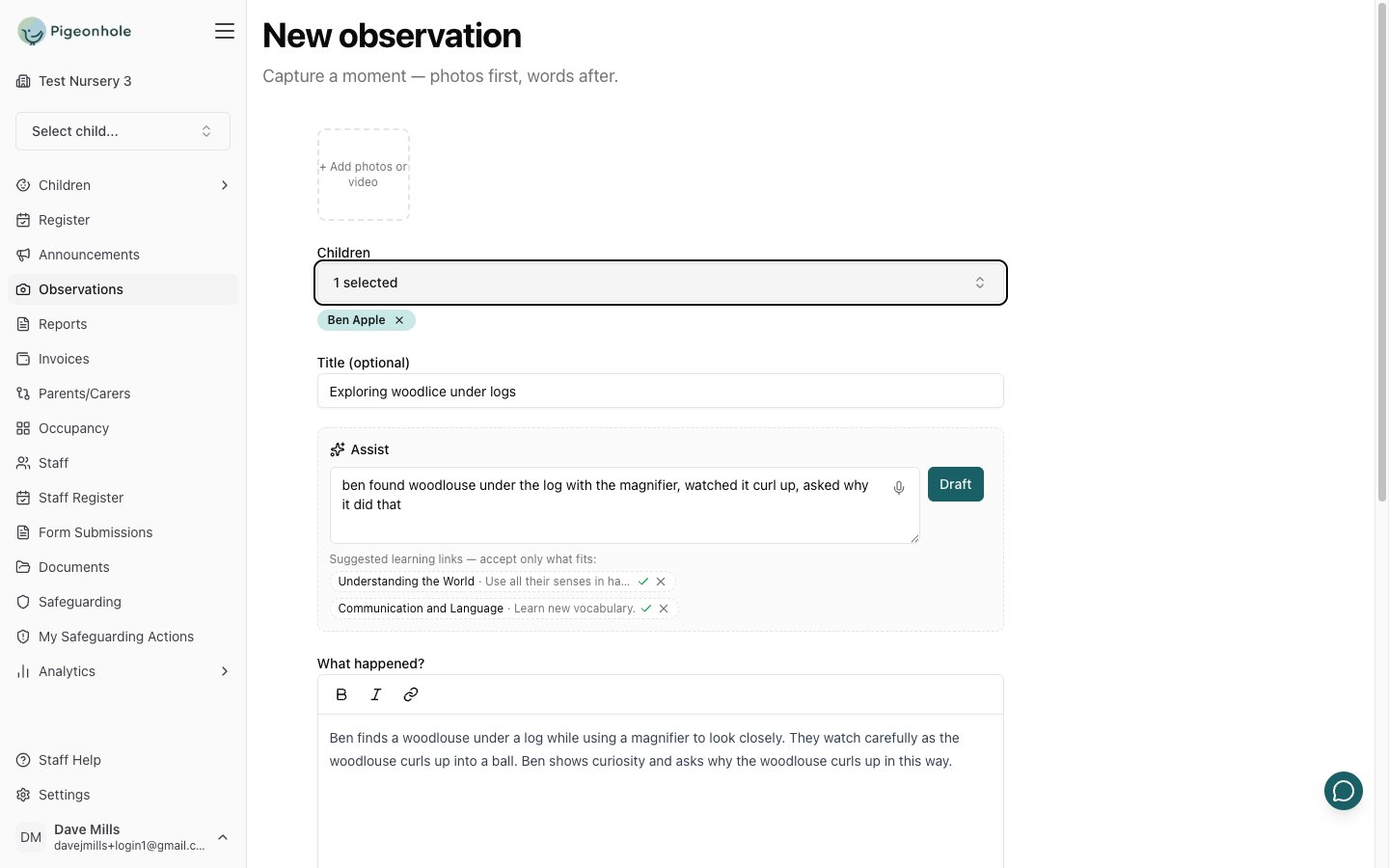
1. Click **New observation** on the Observations page.
2. Add photos or a video first — capture is photo-led, and the first image becomes the journal thumbnail.
3. Tag the **children** involved. Group observations are fine; every tagged child's family sees it.
4. Add a **title** (optional), then describe what happened.
5. Add **next steps** and **learning links** if your setting uses them — both optional.
6. Save.
 What you do next depends on your role. Most staff click **Submit for approval** — a manager or publisher is emailed and reviews it. If you have the **Publisher** role you'll see **Publish** instead and can share it with families directly.
Your drafts are private to you until you submit them, so there's no rush to finish one in a single sitting.
## The AI assistant
The **✨ Assist** panel turns rough notes into a written-up observation. Type or dictate what happened in whatever shorthand you like:
> ben found woodlouse under the log with the magnifier, watched it curl up, asked why it did that
Click **Draft** and you get back a title and a written observation:
> **Exploring woodlice under logs**
>
> Ben finds a woodlouse under a log while using a magnifier to look closely. They watch carefully as the woodlouse curls up into a ball. Ben shows curiosity and asks why the woodlouse curls up in this way.
It may also suggest **learning links** below the notes box. Accept the ones that fit with ✓ and dismiss the rest with ✕ — nothing is added unless you say so.
A few things worth knowing:
* The draft **replaces** the "What happened?" box, but a title or next steps you've already typed are never overwritten.
* It won't invent detail that isn't in your notes. Vague notes give a vague observation — the more you put in, the better it reads.
* Your photos are **never** sent to the AI. Only your typed notes.
* Use the microphone to dictate instead of typing. The transcription is added to your notes for you to check before drafting.
It's your observation and your name on it. Always read the draft before you submit — it's a starting point, not a finished piece of writing.
### Writing reminders
When you submit or publish, your writing is checked against your setting's rules — things like referring to other children as "a friend". If something is flagged you'll see the phrase, the rule it breaks, and a suggested rewrite, with a **Fix all** button.
You can always click **Proceed anyway**. The reminder never blocks you, and it never changes your writing without you clicking.
## If your observation comes back
An approver can return an observation with a comment explaining what needs changing. You'll get an email, and the comment appears at the top of the edit screen. Make the changes and click **Resubmit for approval**.
While an observation is waiting for approval you can **withdraw** it back to a draft if you've thought better of it.
## Writing reports
A **progress report** is the summative write-up for a child you key-work, covering a stretch of their journal rather than a single moment.
1. Go to **Reports** and click **New progress report** — or start from the **Reports** sub-tab on a child's Journal.
2. Pick the child and the **reporting period**. Only *published* observations in that window are used.
3. Write the report, or click **Draft from observations** to get a first draft built from the child's journal.
4. Submit for approval, or publish if you can.
A report is one piece of writing in a rich-text box, so add your own headings if you want to break it up.
If your setting has learning frameworks switched on, a **Draft from observations** draft is organised around your areas of learning — and it works out the area for observations that weren't tagged, so an untagged journal still gives you a structured draft.
If you change the reporting period, **save before drafting**. Drafting uses the period the report was last saved with.
The same writing reminders apply to reports, checked against your setting's separate report rules.
## Frequently Asked Questions
### Can I see another member of staff's observations?
You can see everything that's been published. Drafts and returned items are private to whoever wrote them.
### I tagged the wrong child and it's already published.
Ask a manager — only managers can edit an observation after families have seen it.
### The AI assistant isn't there.
Your setting has AI drafting switched off. Write the observation yourself; everything else works the same.
### Why does it say "limited recorded evidence" in my report draft?
The AI only writes from observations that actually exist in the period. That line means there wasn't much recorded for that area — widen the period, or write that part from what you know.
### There's no learning links box on my observation.
Your setting has framework linking switched off. Carry on writing the observation as normal — reports drafted from your journal still follow your setting's areas of learning.
What you do next depends on your role. Most staff click **Submit for approval** — a manager or publisher is emailed and reviews it. If you have the **Publisher** role you'll see **Publish** instead and can share it with families directly.
Your drafts are private to you until you submit them, so there's no rush to finish one in a single sitting.
## The AI assistant
The **✨ Assist** panel turns rough notes into a written-up observation. Type or dictate what happened in whatever shorthand you like:
> ben found woodlouse under the log with the magnifier, watched it curl up, asked why it did that
Click **Draft** and you get back a title and a written observation:
> **Exploring woodlice under logs**
>
> Ben finds a woodlouse under a log while using a magnifier to look closely. They watch carefully as the woodlouse curls up into a ball. Ben shows curiosity and asks why the woodlouse curls up in this way.
It may also suggest **learning links** below the notes box. Accept the ones that fit with ✓ and dismiss the rest with ✕ — nothing is added unless you say so.
A few things worth knowing:
* The draft **replaces** the "What happened?" box, but a title or next steps you've already typed are never overwritten.
* It won't invent detail that isn't in your notes. Vague notes give a vague observation — the more you put in, the better it reads.
* Your photos are **never** sent to the AI. Only your typed notes.
* Use the microphone to dictate instead of typing. The transcription is added to your notes for you to check before drafting.
It's your observation and your name on it. Always read the draft before you submit — it's a starting point, not a finished piece of writing.
### Writing reminders
When you submit or publish, your writing is checked against your setting's rules — things like referring to other children as "a friend". If something is flagged you'll see the phrase, the rule it breaks, and a suggested rewrite, with a **Fix all** button.
You can always click **Proceed anyway**. The reminder never blocks you, and it never changes your writing without you clicking.
## If your observation comes back
An approver can return an observation with a comment explaining what needs changing. You'll get an email, and the comment appears at the top of the edit screen. Make the changes and click **Resubmit for approval**.
While an observation is waiting for approval you can **withdraw** it back to a draft if you've thought better of it.
## Writing reports
A **progress report** is the summative write-up for a child you key-work, covering a stretch of their journal rather than a single moment.
1. Go to **Reports** and click **New progress report** — or start from the **Reports** sub-tab on a child's Journal.
2. Pick the child and the **reporting period**. Only *published* observations in that window are used.
3. Write the report, or click **Draft from observations** to get a first draft built from the child's journal.
4. Submit for approval, or publish if you can.
A report is one piece of writing in a rich-text box, so add your own headings if you want to break it up.
If your setting has learning frameworks switched on, a **Draft from observations** draft is organised around your areas of learning — and it works out the area for observations that weren't tagged, so an untagged journal still gives you a structured draft.
If you change the reporting period, **save before drafting**. Drafting uses the period the report was last saved with.
The same writing reminders apply to reports, checked against your setting's separate report rules.
## Frequently Asked Questions
### Can I see another member of staff's observations?
You can see everything that's been published. Drafts and returned items are private to whoever wrote them.
### I tagged the wrong child and it's already published.
Ask a manager — only managers can edit an observation after families have seen it.
### The AI assistant isn't there.
Your setting has AI drafting switched off. Write the observation yourself; everything else works the same.
### Why does it say "limited recorded evidence" in my report draft?
The AI only writes from observations that actually exist in the period. That line means there wasn't much recorded for that area — widen the period, or write that part from what you know.
### There's no learning links box on my observation.
Your setting has framework linking switched off. Carry on writing the observation as normal — reports drafted from your journal still follow your setting's areas of learning.