> ## Documentation Index
> Fetch the complete documentation index at: https://pigeonholeapp.co.uk/docs/llms.txt
> Use this file to discover all available pages before exploring further.
# Raising a Safeguarding Concern
> How to raise a safeguarding concern as a staff member from the web app and mobile app.
# Raising a Safeguarding Concern
As a staff member, it's crucial to report any safeguarding concerns promptly. Pigeonhole makes it easy to raise concerns from multiple locations in both the web and mobile applications.
If you witness or become aware of any situation that may put a child at risk, you should raise a safeguarding concern immediately. Never delay reporting due to uncertainty - it's better to raise a concern that turns out to be nothing than to miss a genuine safeguarding issue.
## Raising a Concern from the Web App
### From the My Safeguarding Actions Page
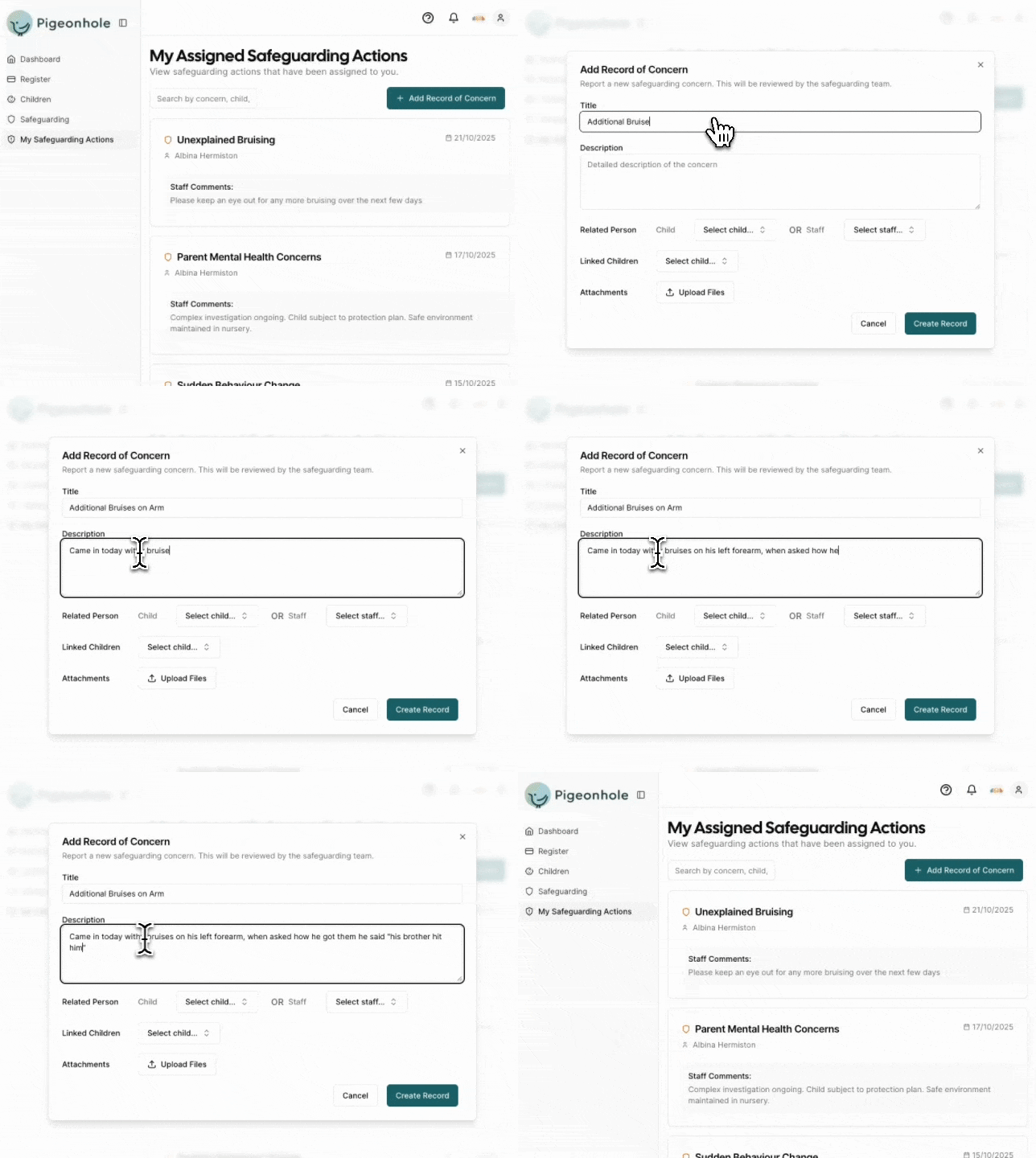
1. Navigate to **My Safeguarding Actions** from the staff section in the main menu
2. Click the **"Add New Concern"** .
3. Fill in the fields to raise a concern:
**Title (Required)** - Provides a brief, clear headline for the concern
**Description (Required)** - Detailed account of what happened, when, and who was involved
**Related Person** - You must select **either** a child **or** a staff member that this concern relates to. Optionally leave this blank if its a concern relating to the whole setting.
You can only select **one** person - either a child OR a staff member, not both. If you try to select both, you'll see an error message.
**Linked Children (Optional)** - Connect other children who are related to this concern (e.g. Primary concern is about Child A, but siblings Child B and C are also affected).
**Attachments** - Add supporting evidence or documentation
 The designated safeguarding lead will be notified when a new safeguarding concern is submitted
## Raising a Concern from the Mobile App
### From the Safeguarding Page
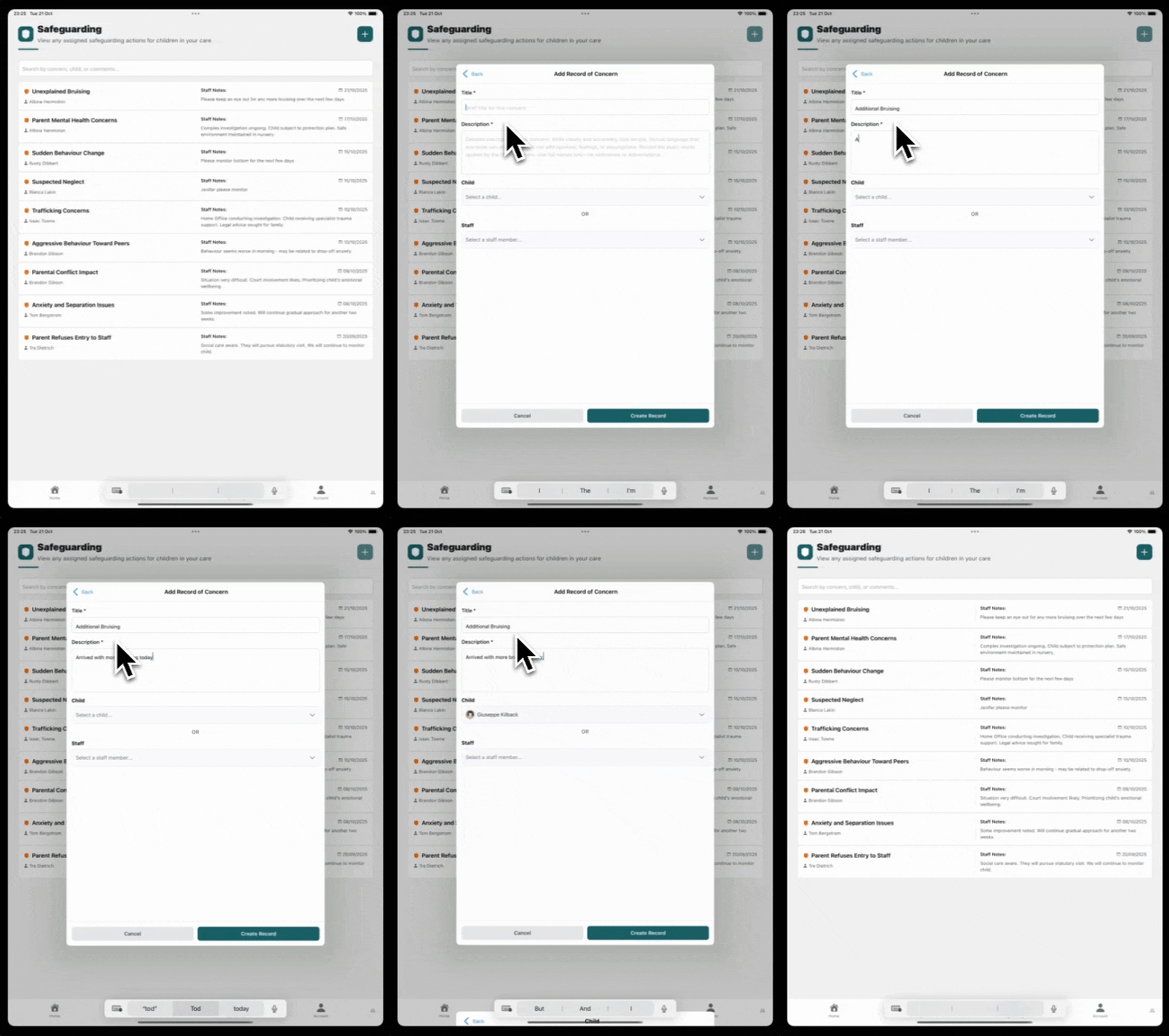
1. Open the Pigeonhole mobile app
2. Tap the **Safeguarding** icon in the bottom navigation or from the main menu
3. Tap the **"+"** button (in the top right corner)
4. Fill in the concern form on your mobile device
5. Submit the concern
The designated safeguarding lead will be notified when a new safeguarding concern is submitted
## Raising a Concern from the Mobile App
### From the Safeguarding Page
1. Open the Pigeonhole mobile app
2. Tap the **Safeguarding** icon in the bottom navigation or from the main menu
3. Tap the **"+"** button (in the top right corner)
4. Fill in the concern form on your mobile device
5. Submit the concern
 ### From the Register
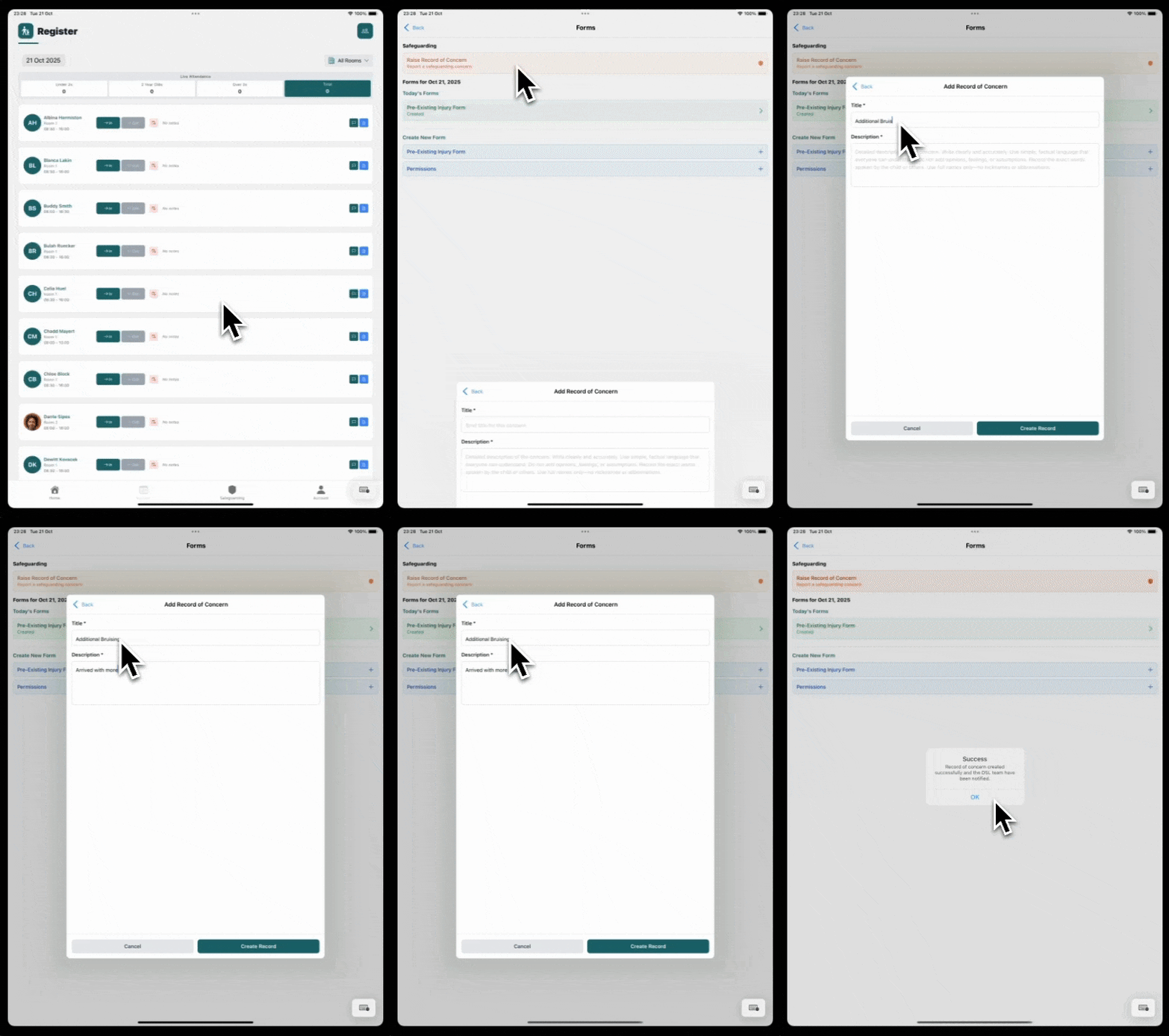
Raising a concern directly from the register is particularly useful as it automatically links the concern to the correct child, saving you time and reducing the chance of errors.
1. Open the mobile app and navigate to the **Register** section
2. Find the child you have a concern about
3. Tap the 'Forms' document icon on the childs profile
4. Select for the **"Raise Record of Concern"** option
5. Enter the title and description
6. Submit the concern
### From the Register
Raising a concern directly from the register is particularly useful as it automatically links the concern to the correct child, saving you time and reducing the chance of errors.
1. Open the mobile app and navigate to the **Register** section
2. Find the child you have a concern about
3. Tap the 'Forms' document icon on the childs profile
4. Select for the **"Raise Record of Concern"** option
5. Enter the title and description
6. Submit the concern
 The designated safeguarding lead will be notified when a new safeguarding concern is submitted