> ## Documentation Index
> Fetch the complete documentation index at: https://pigeonholeapp.co.uk/docs/llms.txt
> Use this file to discover all available pages before exploring further.
# My Safeguarding Actions
> How to view and manage your assigned safeguarding actions.
# My Safeguarding Actions
## What is the My Safeguarding Actions Page?
The My Safeguarding Actions page is a centralized dashboard that displays all safeguarding actions that have been assigned to you. This feature helps staff members stay on top of their safeguarding responsibilities by providing a clear overview of pending tasks related to safeguarding concerns.
## How It Helps with Safeguarding
The My Safeguarding Actions page plays a crucial role in safeguarding management by:
* **Centralizing Responsibilities**: All your assigned safeguarding actions are displayed in one place, ensuring nothing gets overlooked
* **Improving Accountability**: Clear visibility of who is responsible for each action and when it needs to be completed
* **Maintaining Child Safety**: By keeping track of required actions, you ensure that safeguarding concerns are properly addressed and followed up
## How to Access It
### Web App
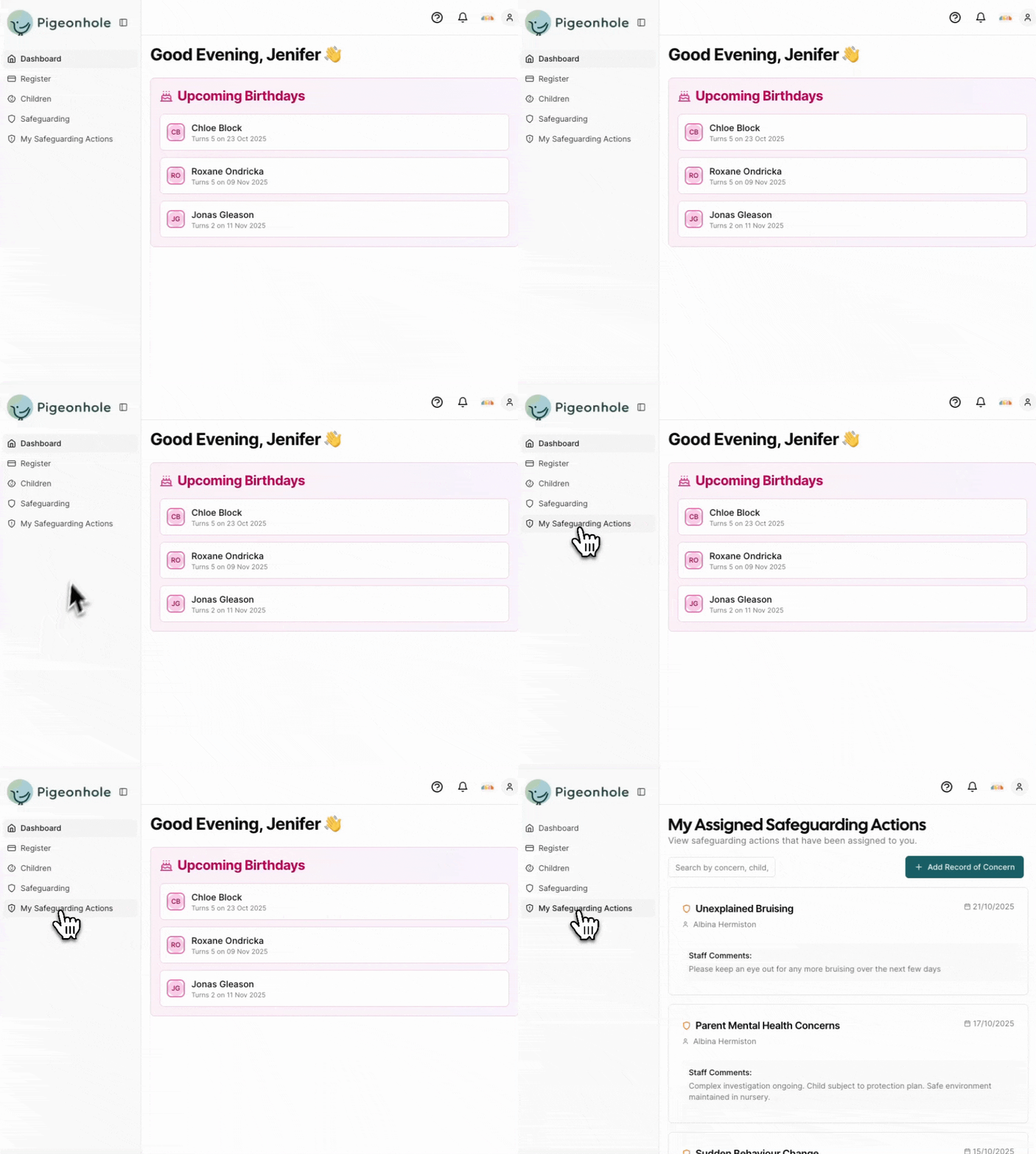
1. Log in to the Pigeonhole web application
2. From the main navigation menu, click on **"My Safeguarding Actions"** in the staff section
3. The page will display a list of all actions currently assigned to you
 ### Mobile App
1. Open the Pigeonhole mobile app on your device
2. Click on the Safeguarding icon at the bottom of the screen
3. Enter your PIN. A PIN is required on a mobile device to ensure everyone can only see their specific safeguarding actions.
4. You'll see a mobile-optimized view of all your assigned actions
### Mobile App
1. Open the Pigeonhole mobile app on your device
2. Click on the Safeguarding icon at the bottom of the screen
3. Enter your PIN. A PIN is required on a mobile device to ensure everyone can only see their specific safeguarding actions.
4. You'll see a mobile-optimized view of all your assigned actions
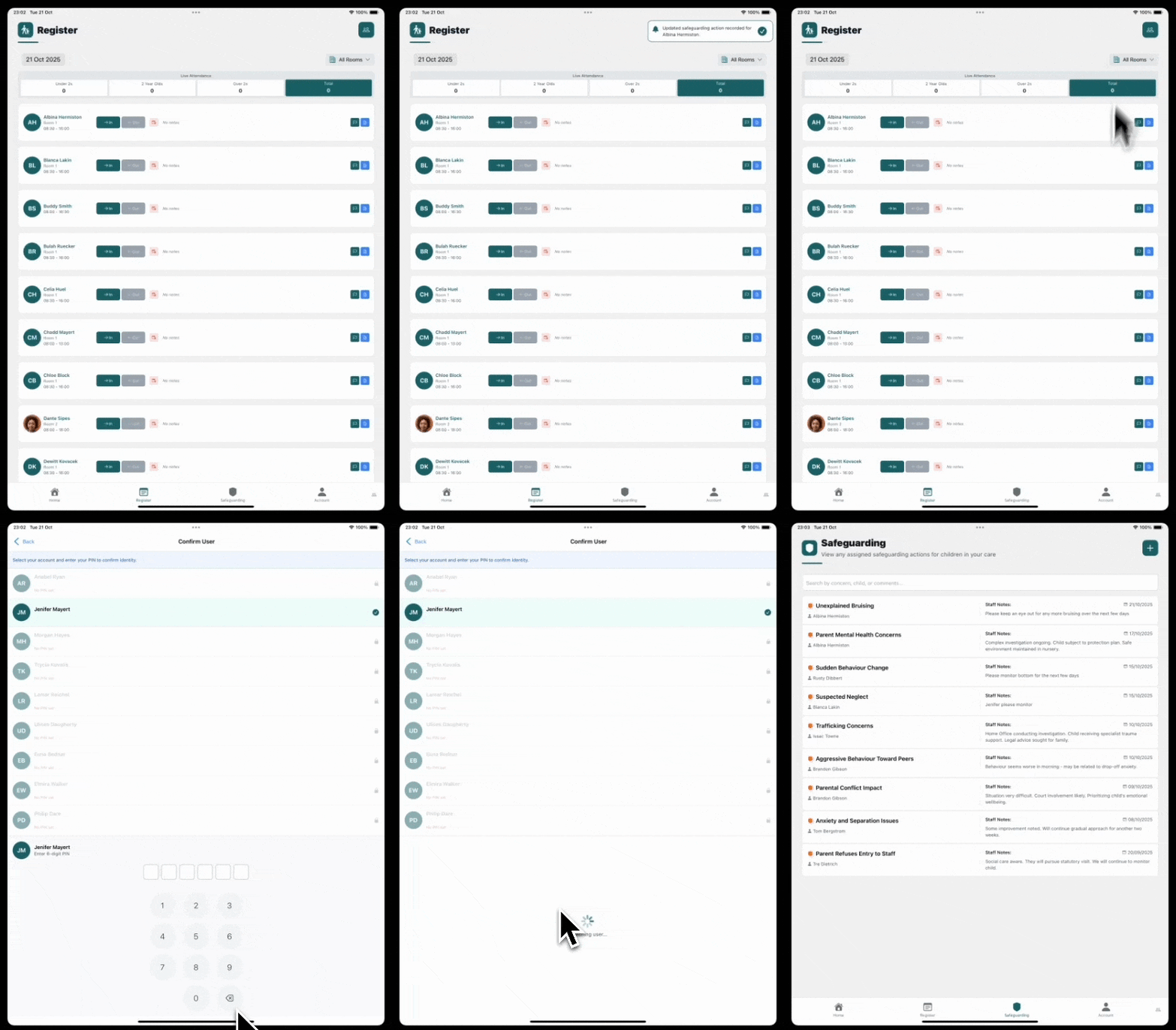 The mobile app provides in-app notifications whenever a safeguarding concern is assigned to you, ensuring that all staff are notified as quickly as possible of any safeguarding actions.