> ## Documentation Index
> Fetch the complete documentation index at: https://pigeonholeapp.co.uk/docs/llms.txt
> Use this file to discover all available pages before exploring further.
# Getting Started
> How to install, set up, and use the mobile staff app for nursery management.
The mobile staff app provides powerful tools for managing daily nursery operations directly from your phone or tablet. This guide will help you install, set up, and start using the app effectively.
## Installing the App
### Download and Installation
The Pigeonhole app can be downloaded from the play store on android or the apple store on iOS.
### First-Time Login
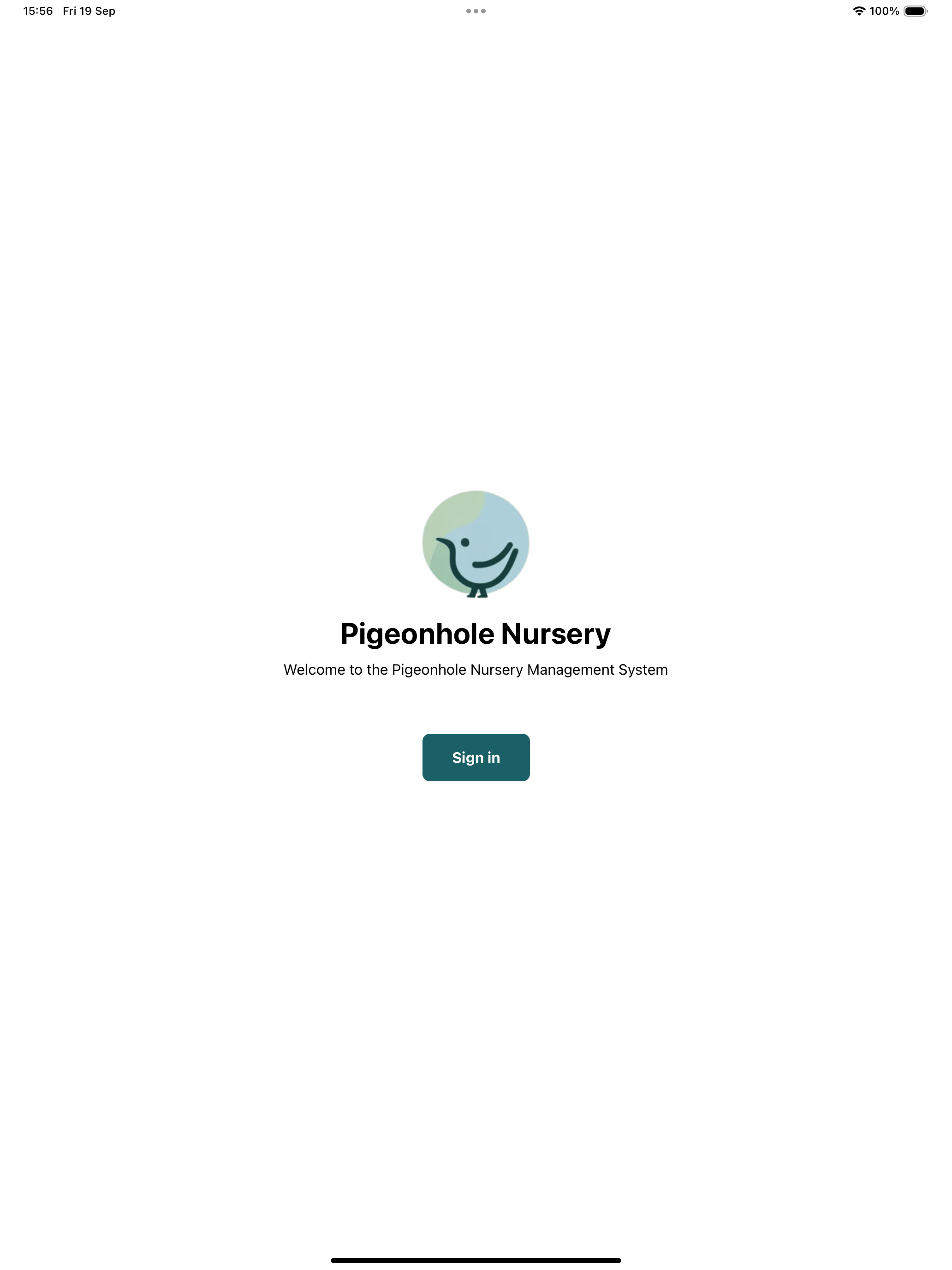
When you first open the tap **"Sign In"** to proceed to the login screen. You can then login with your credentials to setup the app for use.
 Your login credentials are the same as those you use for the web system. If you don't have login details, contact your nursery administrator.
### Site Selection
If your nursery has multiple locations:
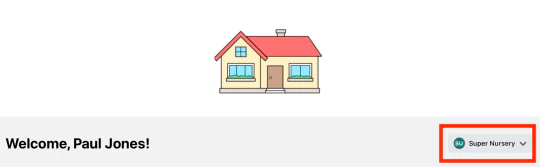
1. **Select your site** from the dropdown menu
2. **Confirm your choice** - this affects which children and staff you can see
3. **Change sites later** if needed from the account screen
Your login credentials are the same as those you use for the web system. If you don't have login details, contact your nursery administrator.
### Site Selection
If your nursery has multiple locations:
1. **Select your site** from the dropdown menu
2. **Confirm your choice** - this affects which children and staff you can see
3. **Change sites later** if needed from the account screen
 ## Using the Staff App
### Setting a PIN
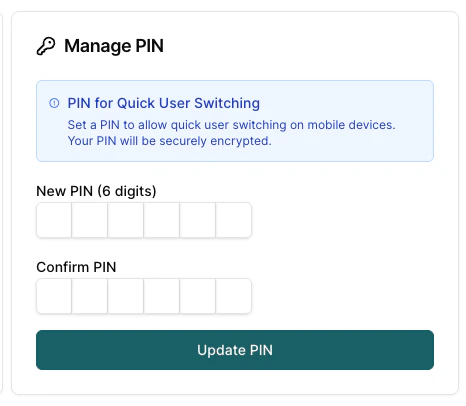
Your Staff PIN is used for signing in/out on the app when using shared devices. In order to setup a PIN each staff member should set a PIN on the [My Account](https://pigeonholeapp.co.uk/account) page on the web application.
## Using the Staff App
### Setting a PIN
Your Staff PIN is used for signing in/out on the app when using shared devices. In order to setup a PIN each staff member should set a PIN on the [My Account](https://pigeonholeapp.co.uk/account) page on the web application.
 ### Switching Users
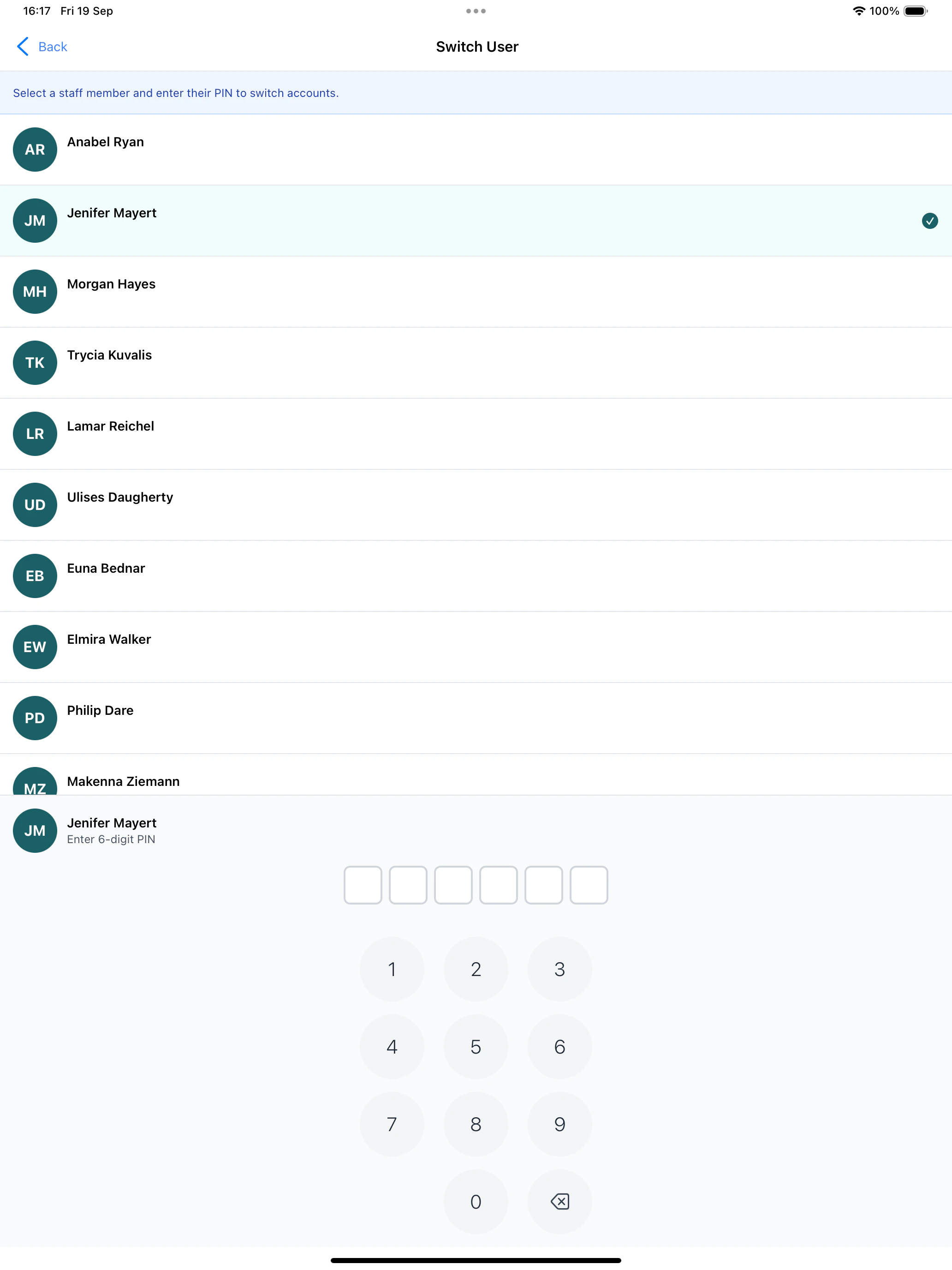
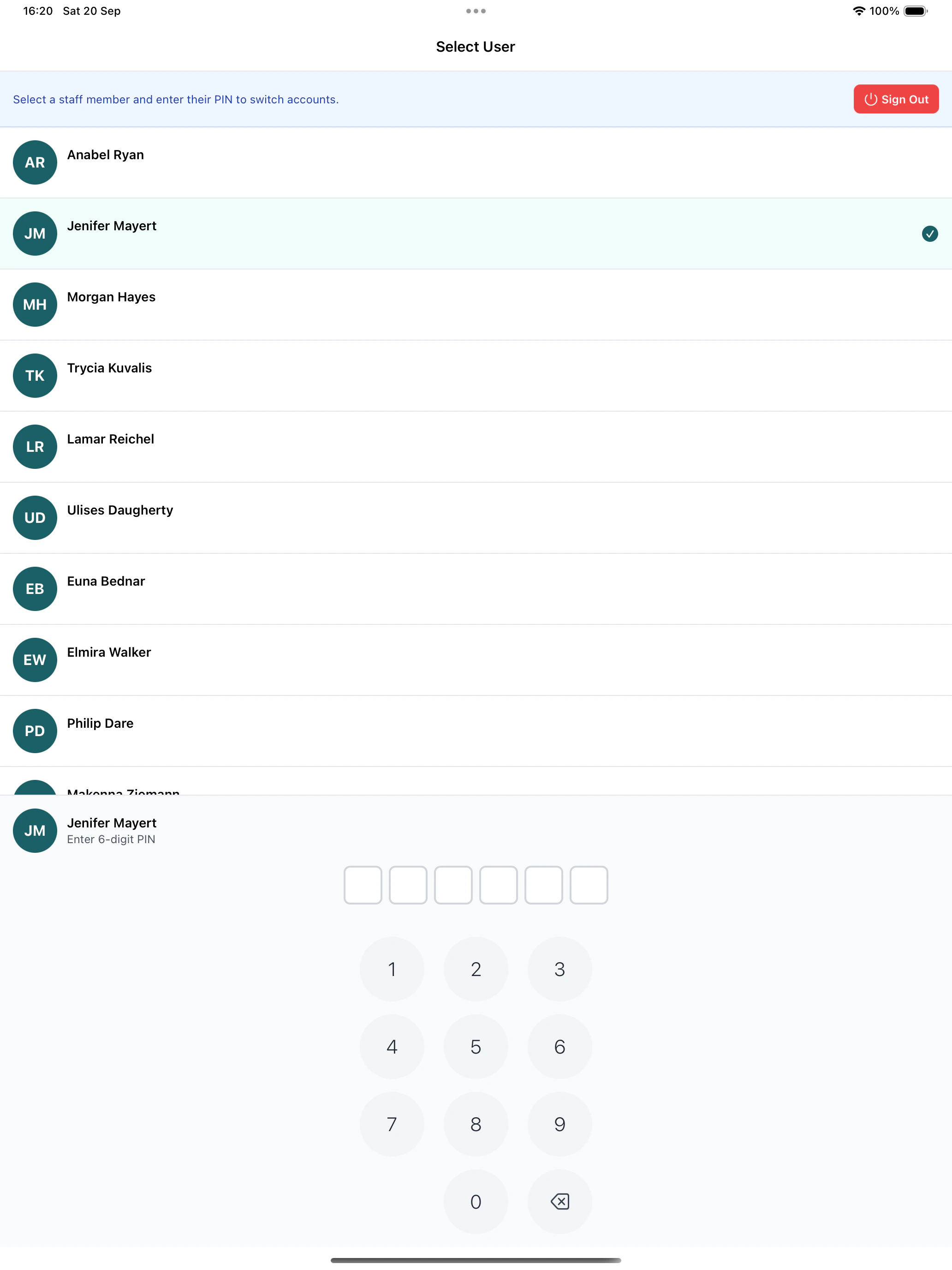
When multiple staff members need to use the same device, you can easily switch users using the PIN functionality. In order to do this:
1. Click the switch user icon in the bottom tab
### Switching Users
When multiple staff members need to use the same device, you can easily switch users using the PIN functionality. In order to do this:
1. Click the switch user icon in the bottom tab
 2\. Click on the user you wish to sign in and then enter their PIN.
 ### Locked Devices
For security whenever the app is loaded the users PIN will be prompted for automatically.
### Locked Devices
For security whenever the app is loaded the users PIN will be prompted for automatically.
 ## App Features Overview
Now that you have the app installed and set up, explore these key features:
Complete guide to managing daily child attendance, including sign in/out, absences, notes, and room management.
Comprehensive coverage of staff attendance management with PIN authentication, time tracking, and administrative features.
Step-by-step instructions for creating, completing, and managing forms for incidents, observations, and parent communication.
The mobile app is designed to make your daily nursery operations more efficient and improve communication with parents. Take time to explore each feature and don't hesitate to ask for help when needed.
## App Features Overview
Now that you have the app installed and set up, explore these key features:
Complete guide to managing daily child attendance, including sign in/out, absences, notes, and room management.
Comprehensive coverage of staff attendance management with PIN authentication, time tracking, and administrative features.
Step-by-step instructions for creating, completing, and managing forms for incidents, observations, and parent communication.
The mobile app is designed to make your daily nursery operations more efficient and improve communication with parents. Take time to explore each feature and don't hesitate to ask for help when needed.