> ## Documentation Index
> Fetch the complete documentation index at: https://pigeonholeapp.co.uk/docs/llms.txt
> Use this file to discover all available pages before exploring further.
# Creating Forms
> How to create, complete, and manage forms for children using the mobile app register.
Forms are an essential tool for documenting incidents, observations, assessments, and other important information about children in your care. The mobile app provides an integrated form system that allows staff to create, complete, and manage forms directly from the register.
Forms can also be created from the **web register** — see [Creating Forms from the Register](/staff/using-the-register#creating-forms-from-the-register) for the web-based workflow.
## Accessing Forms from the Register
### Prerequisites
* Forms must be configured by your nursery administrator as set as ['Staff Can Create'](../../managers/custom-forms/creating-forms)
### Opening the Forms Interface
 1. Navigate to the Register tab in the mobile app
2. Locate the child you need to create a form for
3. Look for the **document icon** (forms button) next to their attendance controls
4. Tap the forms button to open the form selection screen
1. Navigate to the Register tab in the mobile app
2. Locate the child you need to create a form for
3. Look for the **document icon** (forms button) next to their attendance controls
4. Tap the forms button to open the form selection screen
 The forms button only appears if your nursery has forms as 'Staff Creatable' use. If you don't see this button, contact your administrator.
## Creating a Form for a Child
### Form Selection Screen
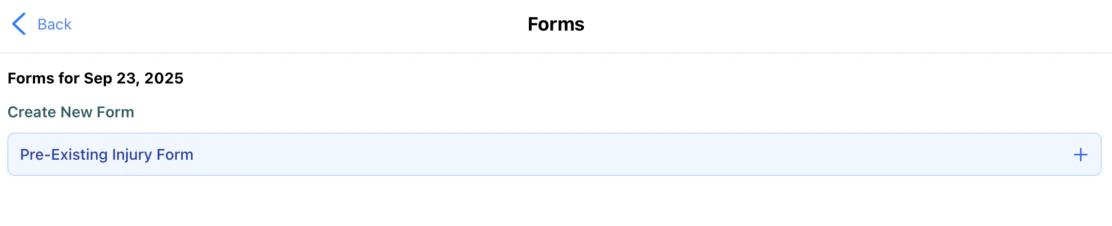
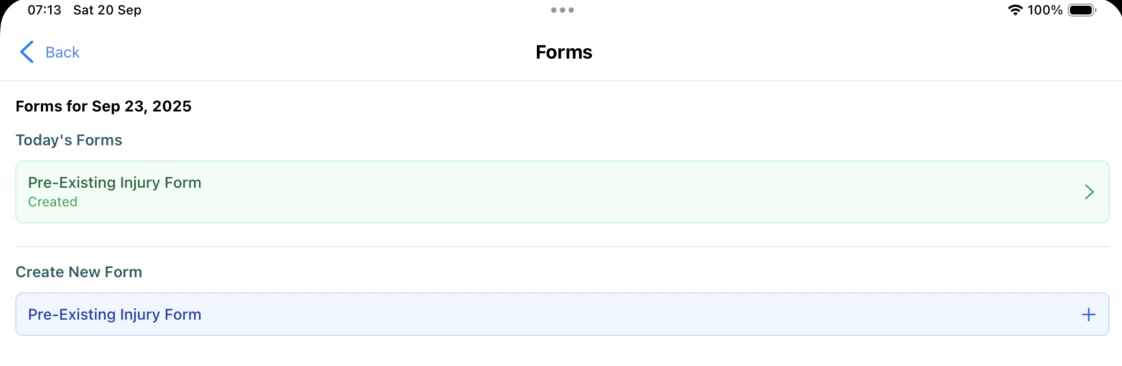
When you tap the forms button, the Form Selection screen opens showing:
**Today's Forms Section**:
* Lists any forms already started for this child on the selected date
* Shows form name and current status (Draft, Completed, etc.)
* Tap to continue editing or reviewing existing forms
**Create New Form Section**:
* Lists all available form types configured for register use
* Shows form names and descriptions
* Tap to create a new form assignment
The forms button only appears if your nursery has forms as 'Staff Creatable' use. If you don't see this button, contact your administrator.
## Creating a Form for a Child
### Form Selection Screen
When you tap the forms button, the Form Selection screen opens showing:
**Today's Forms Section**:
* Lists any forms already started for this child on the selected date
* Shows form name and current status (Draft, Completed, etc.)
* Tap to continue editing or reviewing existing forms
**Create New Form Section**:
* Lists all available form types configured for register use
* Shows form names and descriptions
* Tap to create a new form assignment
 ## Editing and Saving Forms
When you click on a form the form editing dialog appears. Here you can fill in any form details.
## Editing and Saving Forms
When you click on a form the form editing dialog appears. Here you can fill in any form details.
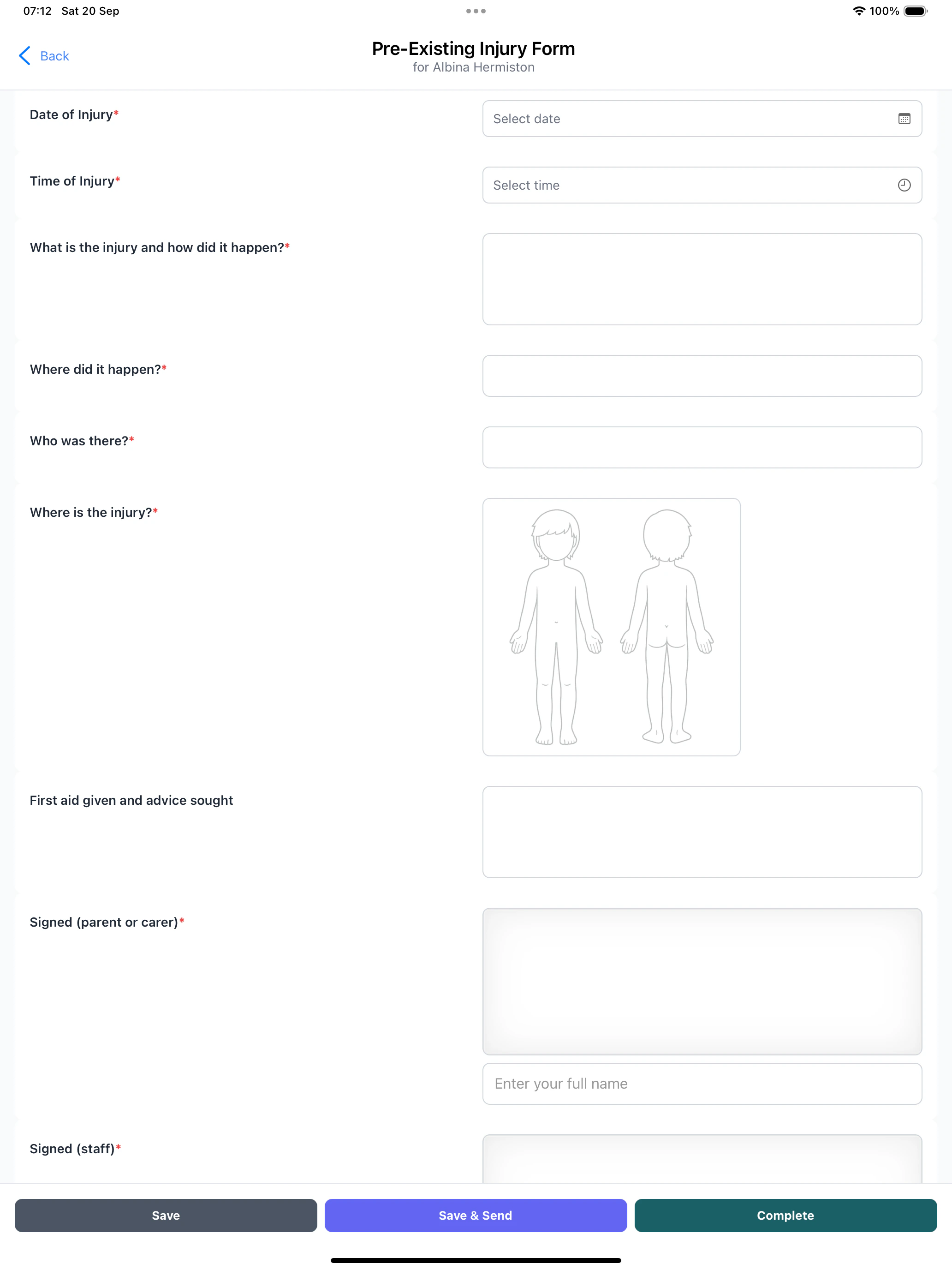 When you have finished with a form there are 3 options available to you, and the app provides multiple saving options to suit different workflows:
### Save
Use the **Save** button to:
* Store current progress without completing the form
* Continue editing later
* Preserve data if you need to leave the form
**When to use Save**:
* Need more information before completing
* Want to discuss with colleagues
* Time constraints prevent immediate completion
* Waiting for additional information
### Save & Send
Use **Save & Send** to:
* Save the current form state
* Automatically notify parents/guardians that there is a form available for them to complete
**Process**:
1. Tap "Save & Send" button
2. Confirm action in popup dialog
3. Form saves and notification is sent
4. Parents receive notification of new form activity
Save & Send is useful when parents need to provide additional information, for example an accident form that they need to sign.
### Complete
Use **Complete** to:
* Finalize the form
* Mark as fully completed
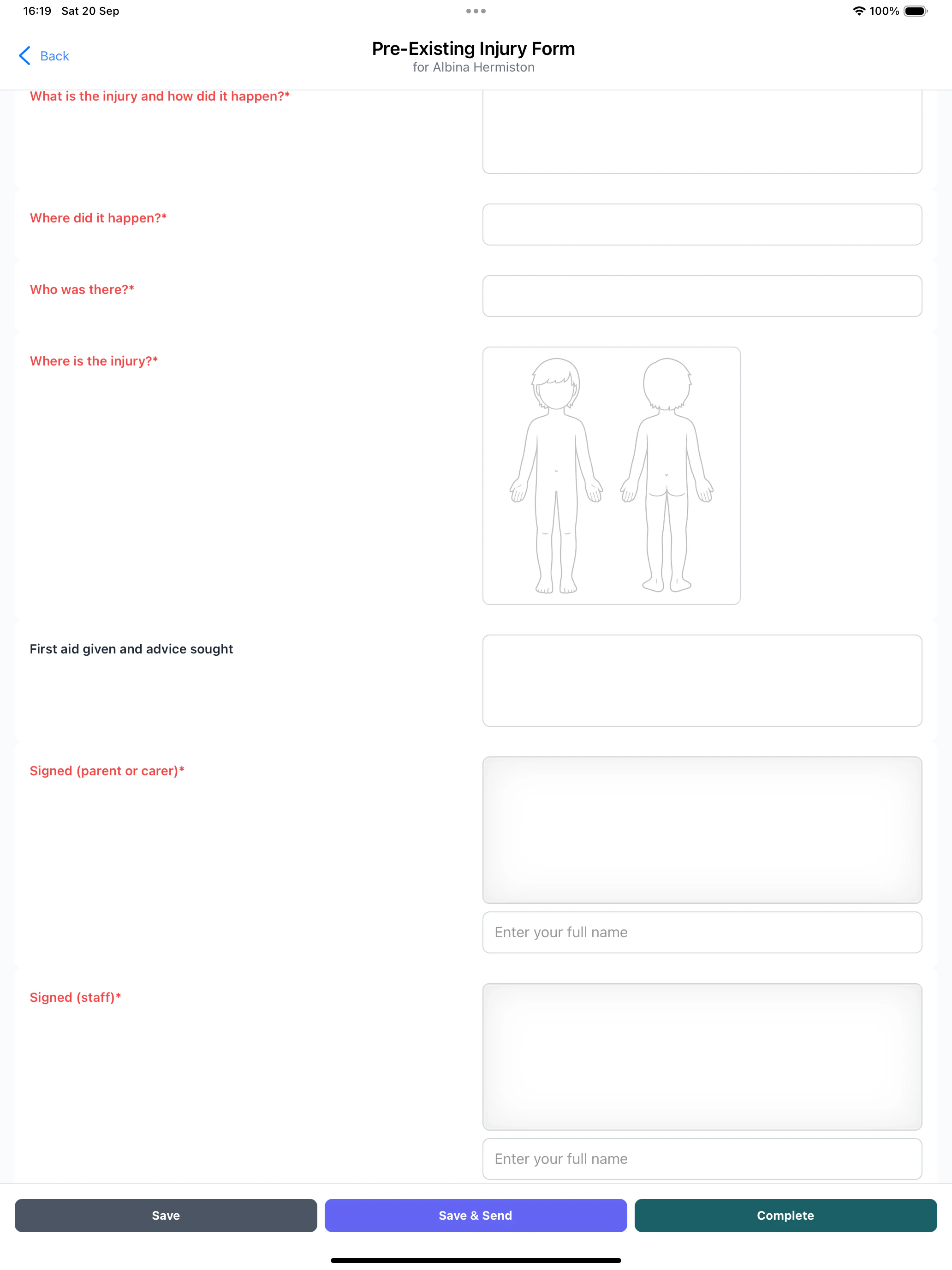
When completing a form all required fields must be provided
**Validation Requirements**:
* All required fields must be completed
* Signatures must be captured where required
When you have finished with a form there are 3 options available to you, and the app provides multiple saving options to suit different workflows:
### Save
Use the **Save** button to:
* Store current progress without completing the form
* Continue editing later
* Preserve data if you need to leave the form
**When to use Save**:
* Need more information before completing
* Want to discuss with colleagues
* Time constraints prevent immediate completion
* Waiting for additional information
### Save & Send
Use **Save & Send** to:
* Save the current form state
* Automatically notify parents/guardians that there is a form available for them to complete
**Process**:
1. Tap "Save & Send" button
2. Confirm action in popup dialog
3. Form saves and notification is sent
4. Parents receive notification of new form activity
Save & Send is useful when parents need to provide additional information, for example an accident form that they need to sign.
### Complete
Use **Complete** to:
* Finalize the form
* Mark as fully completed
When completing a form all required fields must be provided
**Validation Requirements**:
* All required fields must be completed
* Signatures must be captured where required