> ## Documentation Index
> Fetch the complete documentation index at: https://pigeonholeapp.co.uk/docs/llms.txt
> Use this file to discover all available pages before exploring further.
# Using the staff register
> How to manage staff attendance, track working hours, and monitor team presence using the staff register.
The Staff Register is a specialized tool for managing staff attendance, tracking working hours, and monitoring team presence across different areas of your nursery. This system provides secure access controls with PIN authentication and comprehensive oversight of your team's daily attendance.
## Overview
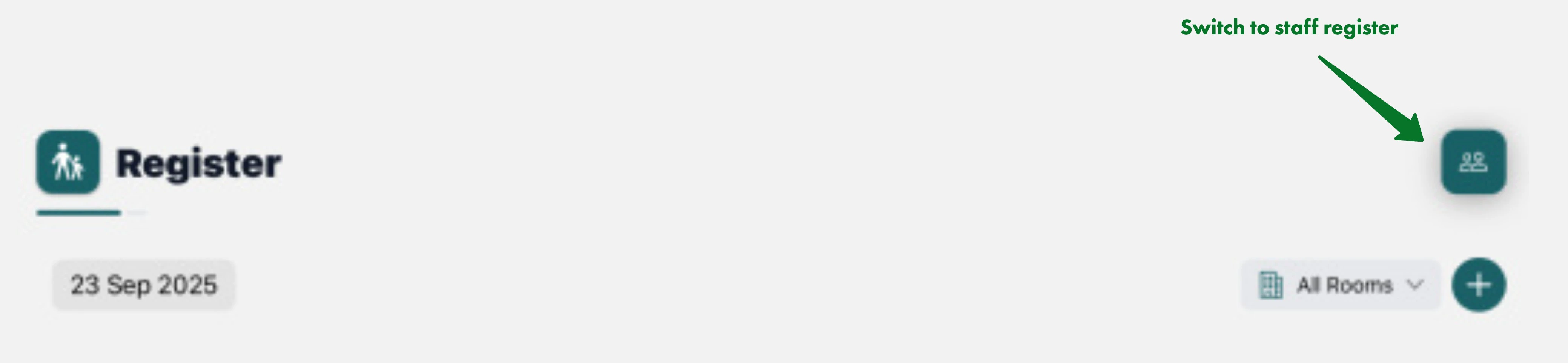
The Staff Register can be accessed by toggling from the Children's Register using the toggle button in the header. It provides a comprehensive view of all staff scheduled for the day, their expected working hours, current attendance status, and room assignments.
 ### Key Features
* **Secure PIN authentication** for staff who don't own the device
* **Real-time staff attendance tracking** with live counts by room
* **Room-based attendance statistics** showing current vs expected staff
* **Admin-only absence management** for schedule adjustments
* **Notes system** for communication and shift handovers
* **Time editing capabilities** for corrections and adjustments
## Understanding the Interface
### Date and Room Controls
The top section includes:
* **Date Selector**: View staff attendance for different dates
* **Room Filter**: Filter staff by assigned rooms
* **Toggle Button**: Switch between Children's and Staff registers
### Staff Attendance Statistics
The staff register displays real-time attendance counts with room breakdown:
**Total Staff Section**:
* Current staff attendance count
* Expected staff count (on current day only)
* Overall staffing level indicator
**Room-Specific Sections**:
* Individual room attendance counts
* Expected vs actual staff per room
* Visual indicators for staffing levels
This helps managers quickly assess:
* Overall staffing levels
* Room-specific coverage
* Whether expected staff levels are met
### Staff List
Each staff entry displays key information in a structured format:
### Key Features
* **Secure PIN authentication** for staff who don't own the device
* **Real-time staff attendance tracking** with live counts by room
* **Room-based attendance statistics** showing current vs expected staff
* **Admin-only absence management** for schedule adjustments
* **Notes system** for communication and shift handovers
* **Time editing capabilities** for corrections and adjustments
## Understanding the Interface
### Date and Room Controls
The top section includes:
* **Date Selector**: View staff attendance for different dates
* **Room Filter**: Filter staff by assigned rooms
* **Toggle Button**: Switch between Children's and Staff registers
### Staff Attendance Statistics
The staff register displays real-time attendance counts with room breakdown:
**Total Staff Section**:
* Current staff attendance count
* Expected staff count (on current day only)
* Overall staffing level indicator
**Room-Specific Sections**:
* Individual room attendance counts
* Expected vs actual staff per room
* Visual indicators for staffing levels
This helps managers quickly assess:
* Overall staffing levels
* Room-specific coverage
* Whether expected staff levels are met
### Staff List
Each staff entry displays key information in a structured format:
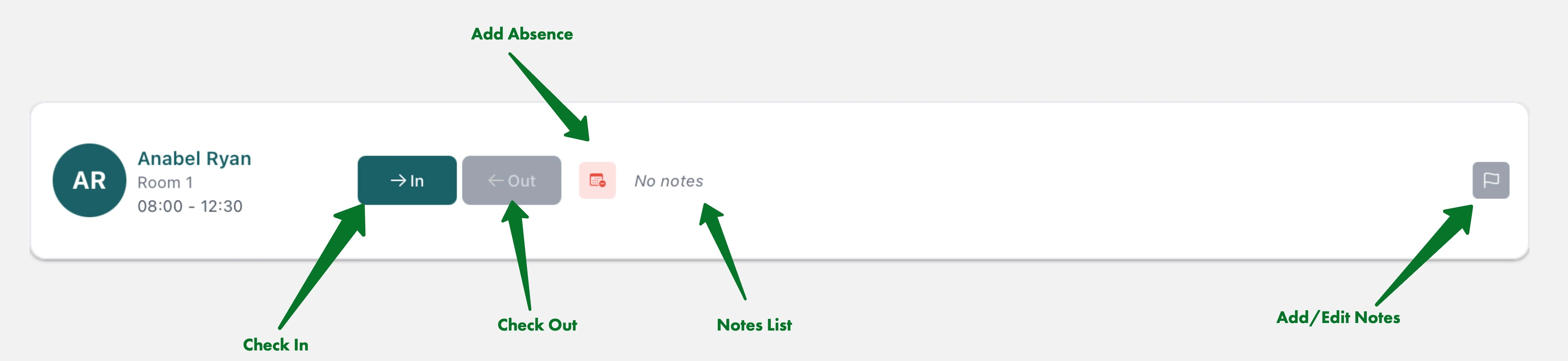 **Staff Information Section**:
* Staff member's name
* Assigned room
* Expected working hours (start - end time)
* Profile avatar (on larger screens)
**Attendance Controls**:
* **In Button**: Sign staff member in with current time
* **Out Button**: Sign staff member out (available after sign-in)
* **Absence Button**: Record absence (Manager only)
## Signing Staff In and Out
### Authentication Methods
The Staff Register supports two authentication methods:
1. **Direct Access**: For the logged in staff member or managers
2. **PIN Authentication**: For staff members using shared devices
### Checking In
1. Locate your name in the staff list
2. Tap the green **"In"** button
3. If you are signed in under your account, or in the Manager role, check in will proceed. If the app is signed in under someone else, please enter your 6-digit PIN for authentication
**Staff Information Section**:
* Staff member's name
* Assigned room
* Expected working hours (start - end time)
* Profile avatar (on larger screens)
**Attendance Controls**:
* **In Button**: Sign staff member in with current time
* **Out Button**: Sign staff member out (available after sign-in)
* **Absence Button**: Record absence (Manager only)
## Signing Staff In and Out
### Authentication Methods
The Staff Register supports two authentication methods:
1. **Direct Access**: For the logged in staff member or managers
2. **PIN Authentication**: For staff members using shared devices
### Checking In
1. Locate your name in the staff list
2. Tap the green **"In"** button
3. If you are signed in under your account, or in the Manager role, check in will proceed. If the app is signed in under someone else, please enter your 6-digit PIN for authentication
 PIN authentication ensures secure access while allowing multiple staff members to use shared devices for attendance tracking.
### Checking Out
1. Locate your name in the staff list
2. Tap the teal **"Out"** button (only available if signed in)
3. If you are signed in under your account, or in the Manager role, check out will proceed. If the app is signed in under someone else, please enter your 6-digit PIN for authentication
PIN authentication ensures secure access while allowing multiple staff members to use shared devices for attendance tracking.
### Checking Out
1. Locate your name in the staff list
2. Tap the teal **"Out"** button (only available if signed in)
3. If you are signed in under your account, or in the Manager role, check out will proceed. If the app is signed in under someone else, please enter your 6-digit PIN for authentication
 ***
For editing times, managing absences, and adding notes, see [Staff Register Management](/staff/using-the-app/staff-register-management).
***
For editing times, managing absences, and adding notes, see [Staff Register Management](/staff/using-the-app/staff-register-management).