
See the week before you have to staff it
Children booked, staff rostered and places left — across the whole week, room by room. Change a rota line and watch the picture move before you save it.
- Or the whole setting at once
- Room by room
- Page forward to next term
- Any week
- Plan rooms, staff and profit
- Whole year
Or the whole setting at once
Page forward to next term
Plan rooms, staff and profit

The week, as it actually falls
Occupancy is rarely a whole-day question. A room can be full at nine, half empty by two, and tight again at pick-up — and a daily headcount hides all of it. The Occupancy Tracker draws the week in five-minute detail, so the shape of each day is visible rather than averaged away.
Switch between children, staff and occupancy, and read the same week three ways. Hover anywhere to see exactly who makes up that number — including who's booked in but has been notified absent.
Absences stay advisory
When a parent tells you their child is off, the heatmap shows it — the block reads 12 (10) and the tooltip names who's away and why.
But your occupancy percentage and your remaining places stay based on the booked count, never the expected one. A cancelled absence, or a child who turns up anyway, can never leave a room short-staffed because the system quietly counted them out.
Three ways to read the same week
One heatmap, switched between what you need to know
Children
How many children are booked in each part of the day, with an age breakdown on hover — and who's booked but notified absent, so you can see the difference between the two.
Staff
Who is rostered where, through the day. Hover any part of the week to see the names on duty in that room at that moment.
Occupancy
Children as a percentage of the capacity your target ratios give you — or switched to spaces, the number of places left before you hit 100%.
Planning, not just counting
Your ratios, not ours
Set the children-per-staff figure you work to, per room, and split the day into periods where it changes. Occupancy and spare places are worked out against the ratios you set.
Any week, forward or back
Page to next term or next September and see what's already booked. It's a roll-forward of the sessions, start dates and leaving dates you hold today — not a guess at demand.
Room moves, before they happen
Schedule a group of children into their next room from a date. Browse to a week after the move and they're already there, so you can check the receiving room has the space and the staff.
Fill a gap from the waitlist
Spot a quiet afternoon, open Manage Children, and your waitlist is in the same picker as your current children. Added children show in the heatmap as drafts before you commit.
Rotas you edit where you can see their effect
Staff schedules are a weekly pattern with a start date, not a rota you rebuild every week. Someone works Monday to Thursday in the Baby Room from September, and that's what the system knows until you change it. Change it from a date and the new pattern takes over.
One person can be in two rooms in a day — mornings with the babies, afternoons with the toddlers — and you can copy a schedule from a colleague who already works the same pattern rather than typing it again.
The part that saves the most time: you edit the rota from the occupancy page itself. Move a shift, and the heatmap redraws before you save, so you can try three arrangements and keep the one that works.

Try It Before You Do It
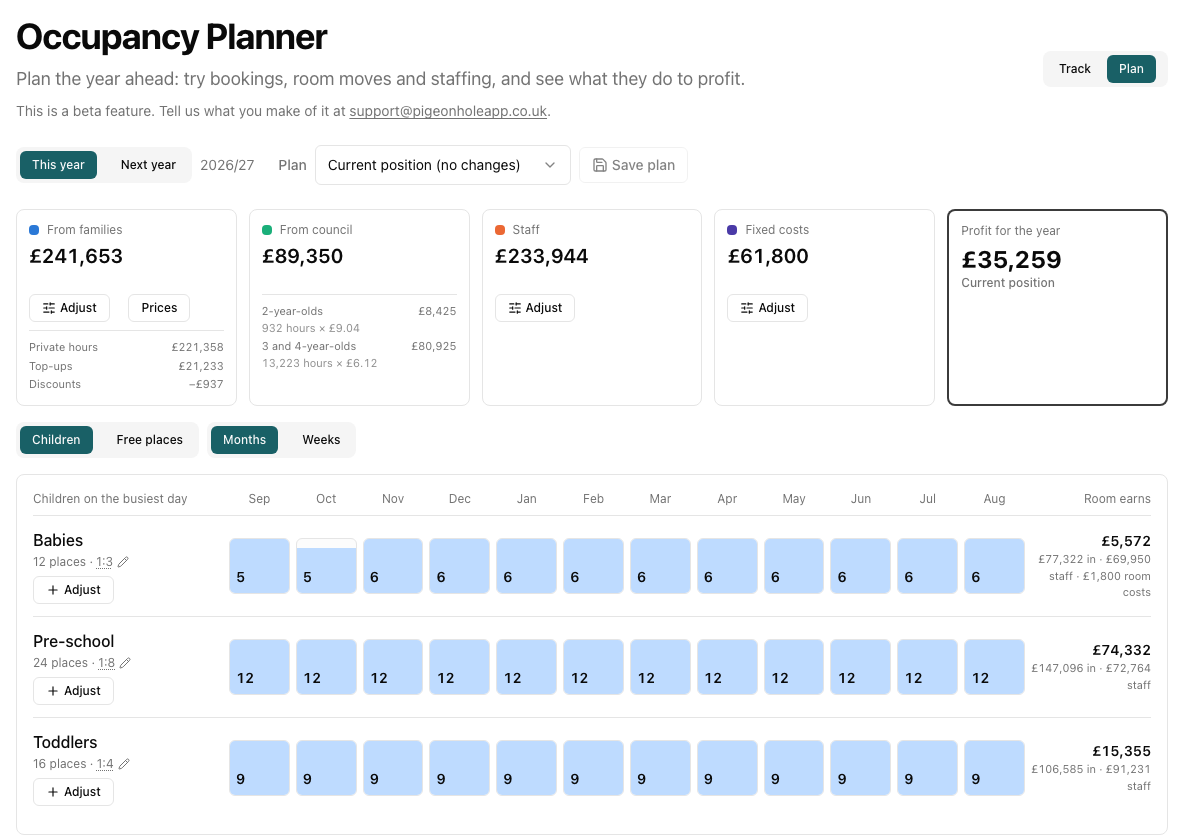
Switch from this week to the whole academic year. The planner projects every room month by month — who moves up in September, who leaves for school, what families and the council pay — and shows what the year makes after staff and running costs.
Then try a change and watch the profit move, before anything real does.
- A staff pay rise, costed with on-costs and holiday pay
- A price change, per price list
- Children from the waiting list, or leavers
- Moving a group up to the next room early
- Save a plan, compare it with today's position
What it doesn't do
Worth knowing before you decide, rather than after
It works to your ratios, not to a built-in EYFS figure. You set the children-per-staff number for each room and each part of the day, and occupancy is measured against that. Pigeonhole doesn't decide what your ratios should be, and it won't raise an alarm if a room goes over — the numbers are there for you to read, and the judgement stays yours.
Staff absence isn't reflected in the week view yet. Annual leave and sickness are recorded against the staff member, but the occupancy picture is built from the rota, so someone on leave still shows as rostered.
In the week view, spare places are worked out from staffing. “Spaces” means the places left before you reach 100% of the capacity your rota and your ratios allow. It isn't aware of the number of places you're registered for — the year planner is, if you enter them for each room.
Where the numbers come from
Occupancy reads the sessions you already hold, so there is nothing extra to keep up to date.
See it on your own setting
30-day free trial · no card needed · see pricing
Part of Pigeonhole's nursery management software.