
Managing Child Contacts
The Contacts section on a child’s profile allows you to manage emergency contacts and pickup-only contacts. This guide covers adding contacts, updating their images, reordering emergency priority, and understanding contact types.Accessing Child Contacts
- Navigate to Children in the main menu.
- Click on a child’s name to open their profile.
- Select the Parents, Carers & Contacts tab.
- Parents & Carers – Relatives with parental responsibility or bill payer status.
- Emergency Contacts & Pickup – Additional contacts for emergencies or collection. Emergency contacts are prioritized and called if parents/carers cannot be reached; pickup-only contacts may collect the child but are not used for emergencies.
Reordering Emergency Contacts
Emergency contacts are called in order of priority. To change the order:- Ensure you have at least two emergency contacts.
- Click the Reorder button (appears when multiple emergency contacts exist).
- Drag and drop contacts to set the priority order.
- Click Save.
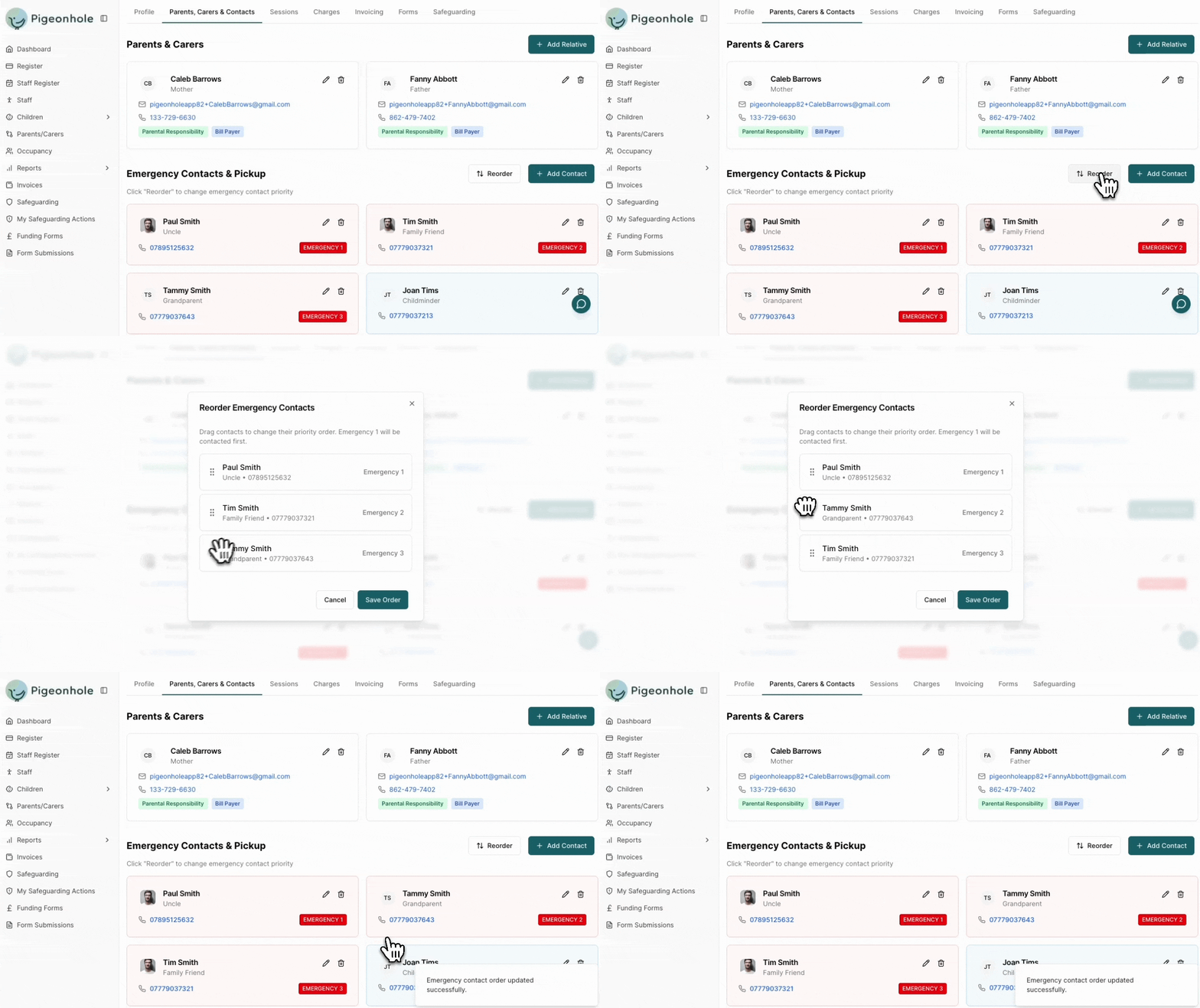
Emergency contacts are Pickup contacts are shown on the register under the child profile, making them easy to access at all times.
How to Add a Contact
- Click the Add Contact button (top right of the Emergency Contacts section).
- Fill in the contact details:
- Name (required)
- Telephone Number (required)
- Relationship (e.g., Grandparent, Aunt, Family Friend)
- Emergency Contact toggle – Enable if this person should be called in emergencies.
- Click Save.
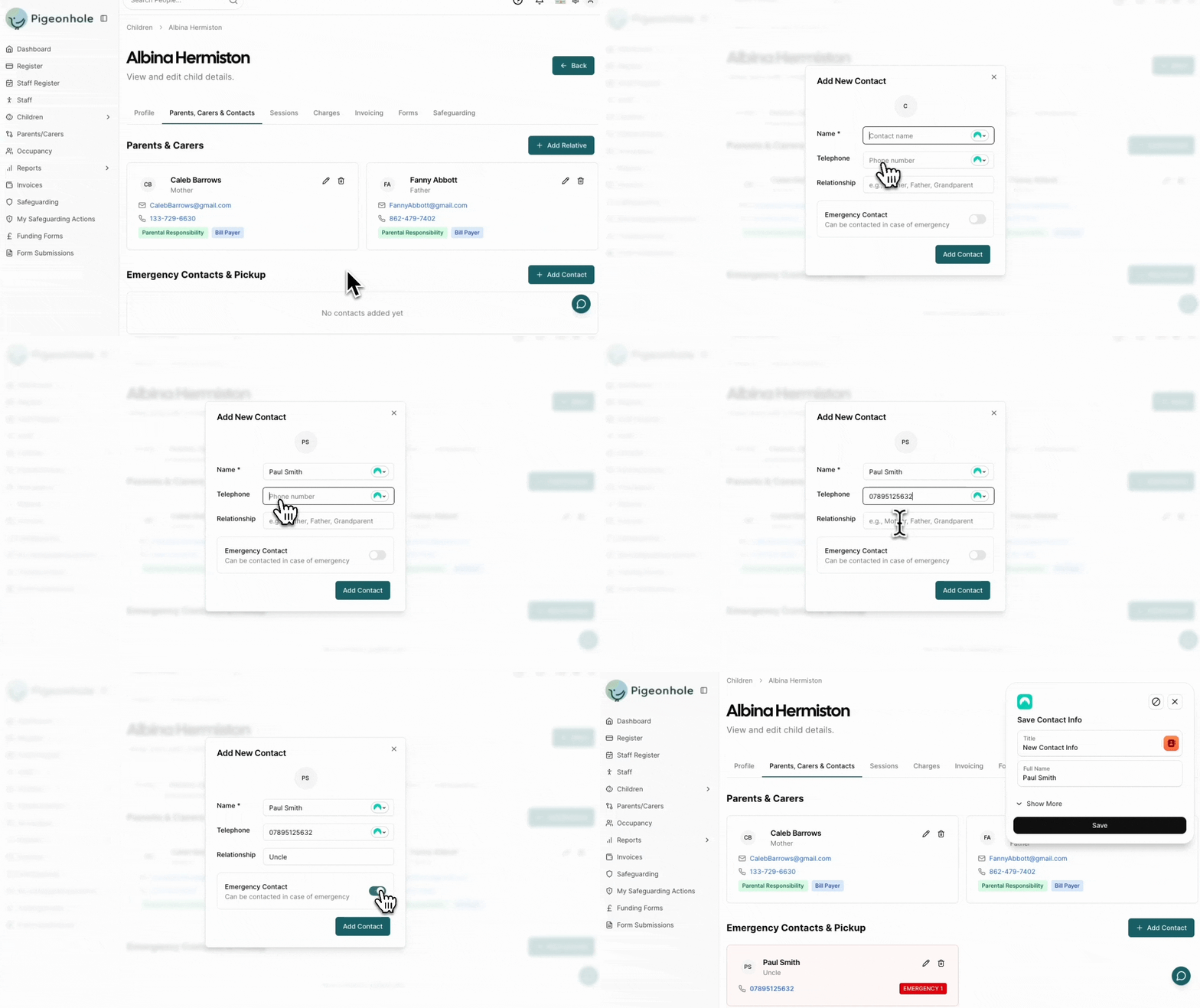
Emergency contacts are shown with a red badge and numbered by priority (e.g., EMERGENCY 1, EMERGENCY 2).
Updating Contact Images
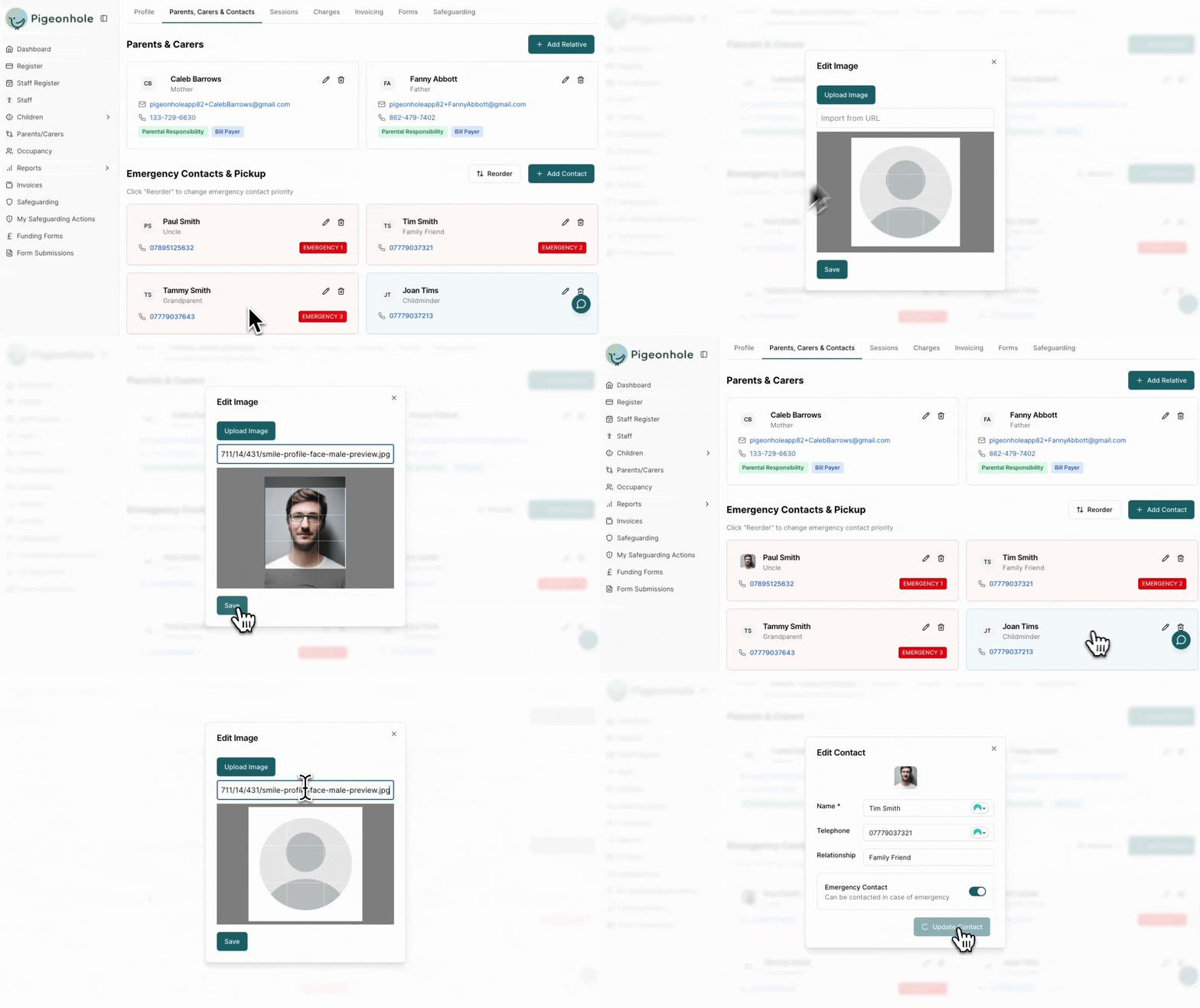
Each contact can have a profile image to help staff identify them at pickup.- Click the contact’s avatar/photo placeholder on either the list view or contact edit view.
- Upload an image from your device, or paste in a url to the image.
- The image saves automatically.
Editing and Deleting Contacts
To Edit
- Click the pencil icon on the contact card.
- Update the details.
- Click Save.
To Delete
- Click the trash icon on the contact card.
- Confirm the deletion when prompted.