
Managing Your Dashboard
The Dashboard provides a customizable overview of key information relevant to your role. You can add, remove, resize, and rearrange widgets to create a personalized workspace that displays the data most important to you.Available Widgets
Depending on your role, you may have access to the following widgets:- Absences - View upcoming absences and add new ones
- Funding Forms - View and manage funding form statistics
- Outstanding Invoices - Monitor invoice status and amounts
- Safeguarding - Track safeguarding concerns
- Upcoming Birthdays - See children’s upcoming birthdays
- Live Attendance - Real-time attendance overview by age group and room
- On Roll - Total children on roll, broken down by age
Your dashboard layout is automatically saved and synced across devices. Changes you make are preserved when you sign out and back in.
Entering Edit Mode
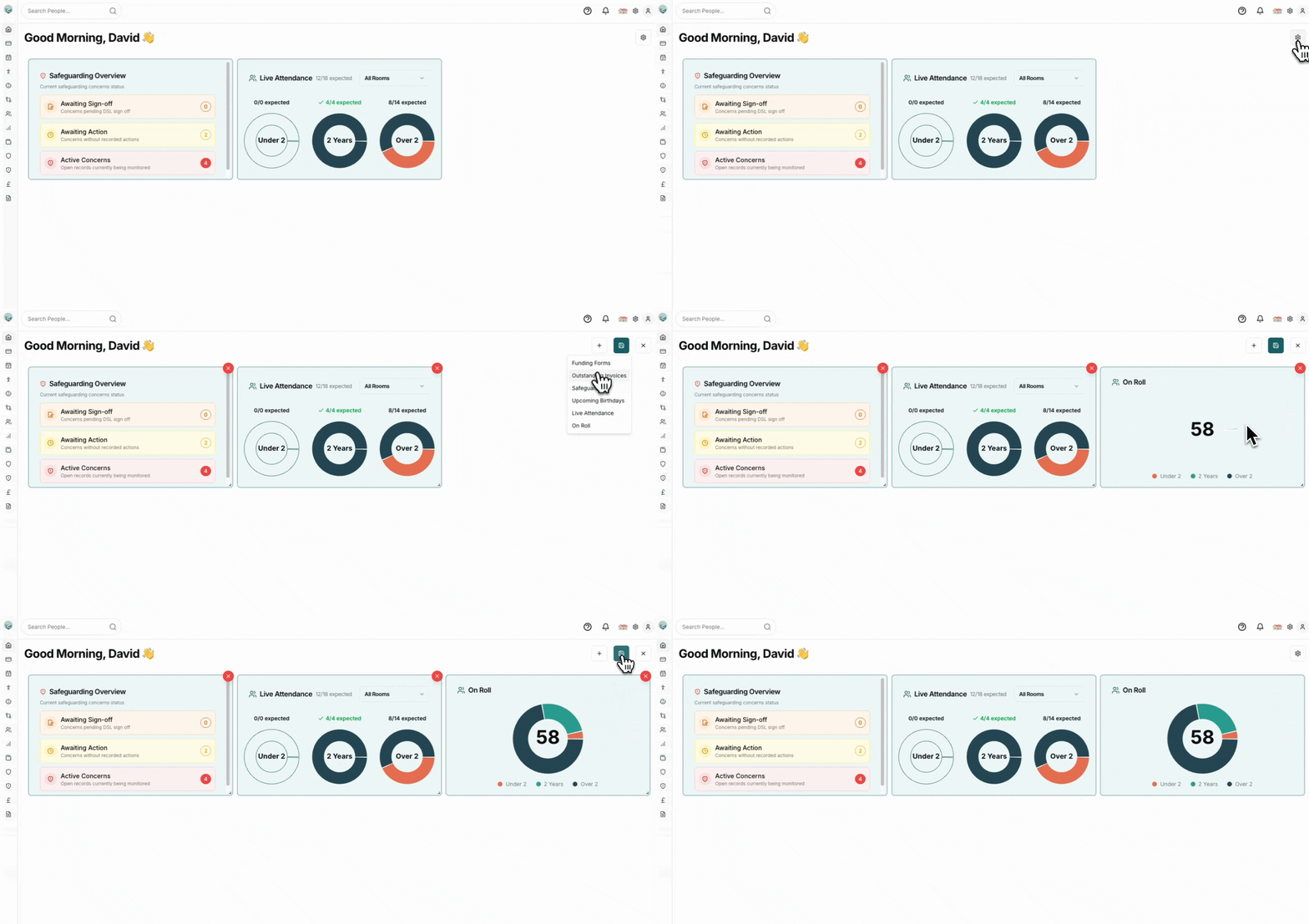
To customize your dashboard:- Click the Settings icon (⚙️) in the top-right corner of the dashboard
- The dashboard will enter edit mode, showing additional controls
Adding Widgets
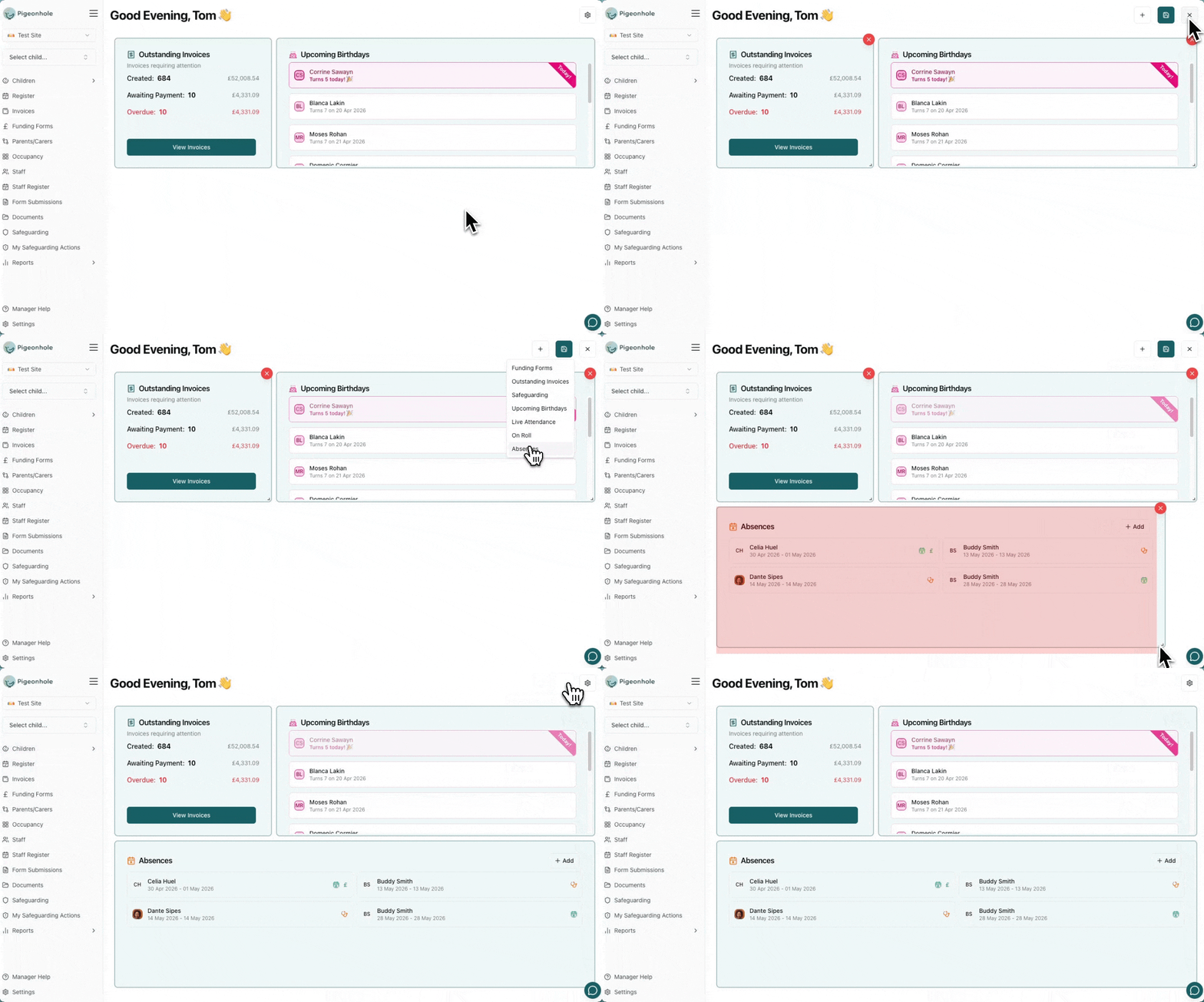
Once in edit mode:- Click the Plus icon (+) button
- Select a widget from the dropdown menu
- The widget will be added to your dashboard automatically
You can only see widgets that are available to your role. Some widgets are restricted to specific permissions.
Removing Widgets
To remove a widget from your dashboard:- Enter edit mode by clicking the Settings icon
- Click the red X button in the top-right corner of any widget
- The widget will be removed immediately
Resizing Widgets
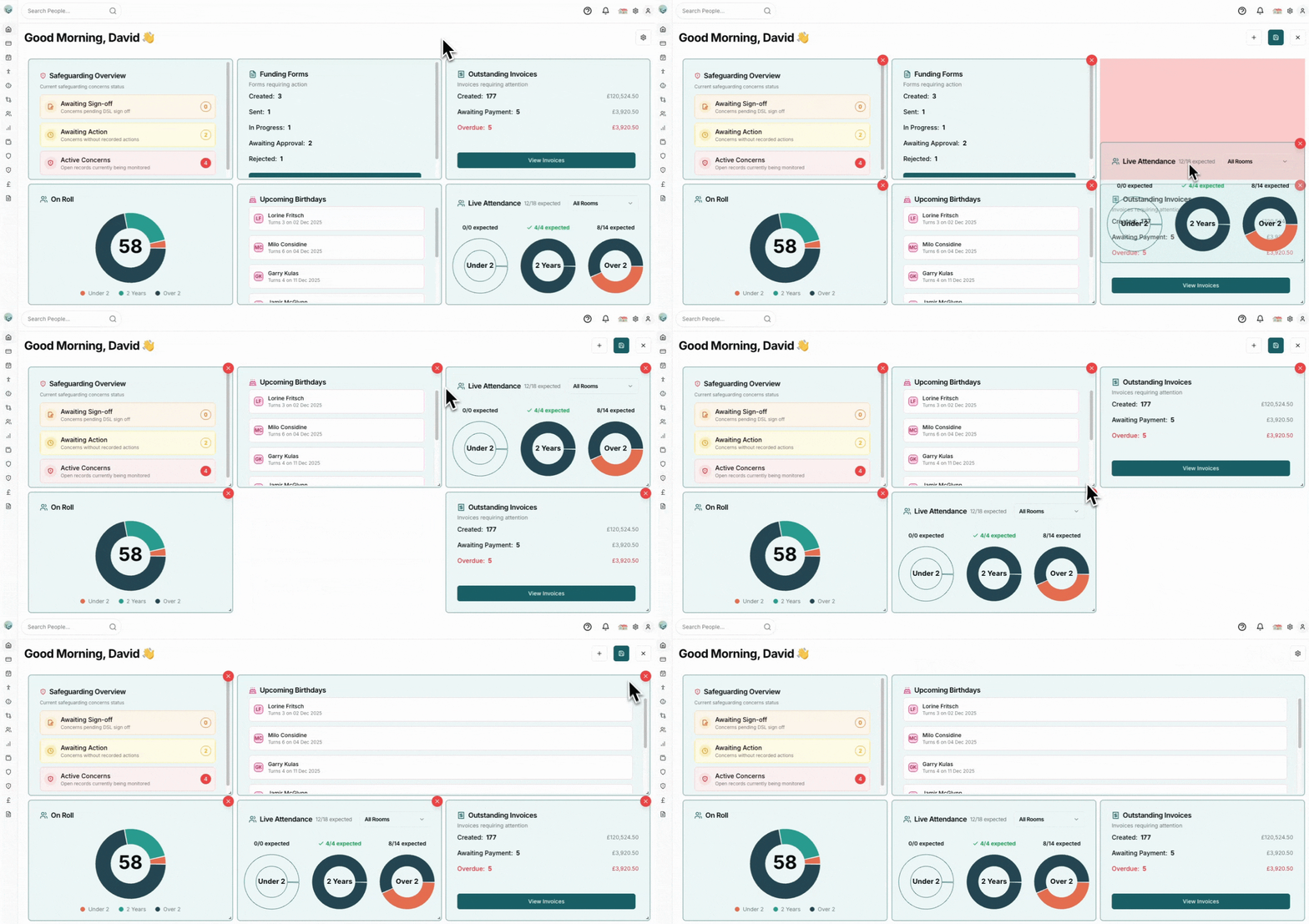
While in edit mode, you can resize widgets to better fit your needs:- Hover over the bottom-right corner of any widget
- Click and drag the resize handle to adjust the widget’s dimensions
- Widgets will automatically snap to the grid
Rearranging Widgets
To move widgets around your dashboard:- Enter edit mode
- Click and drag any widget by its header
- Drop the widget in your desired location
- Other widgets will automatically reposition to accommodate the change
Saving Changes
When you’re finished customizing your dashboard:- Click the Save icon (💾) button
- The dashboard will exit edit mode and your layout will be synced to your account
Absences Widget
The Absences widget displays a scrollable list of all child absences for the next two months. Each absence shows:- The child’s name and profile picture
- The date range of the absence
- The absence type icon (Holiday, Illness, or Other)
- A non-chargeable indicator, if applicable
Viewing Absences
Click on any absence in the list to navigate directly to the Register for that date, where you can see the full attendance details.Adding an Absence
- Click the Add button in the top-right corner of the widget
- Select a child from the dropdown
- Set the start and end dates, absence type, and any notes
- Optionally toggle Non-chargeable if the child should not be billed. A panel appears listing the child’s sessions and charges — switch off any item that should still be charged. See Chargeable vs Non-Chargeable Absences for details.
- Click Save
Editing an Absence
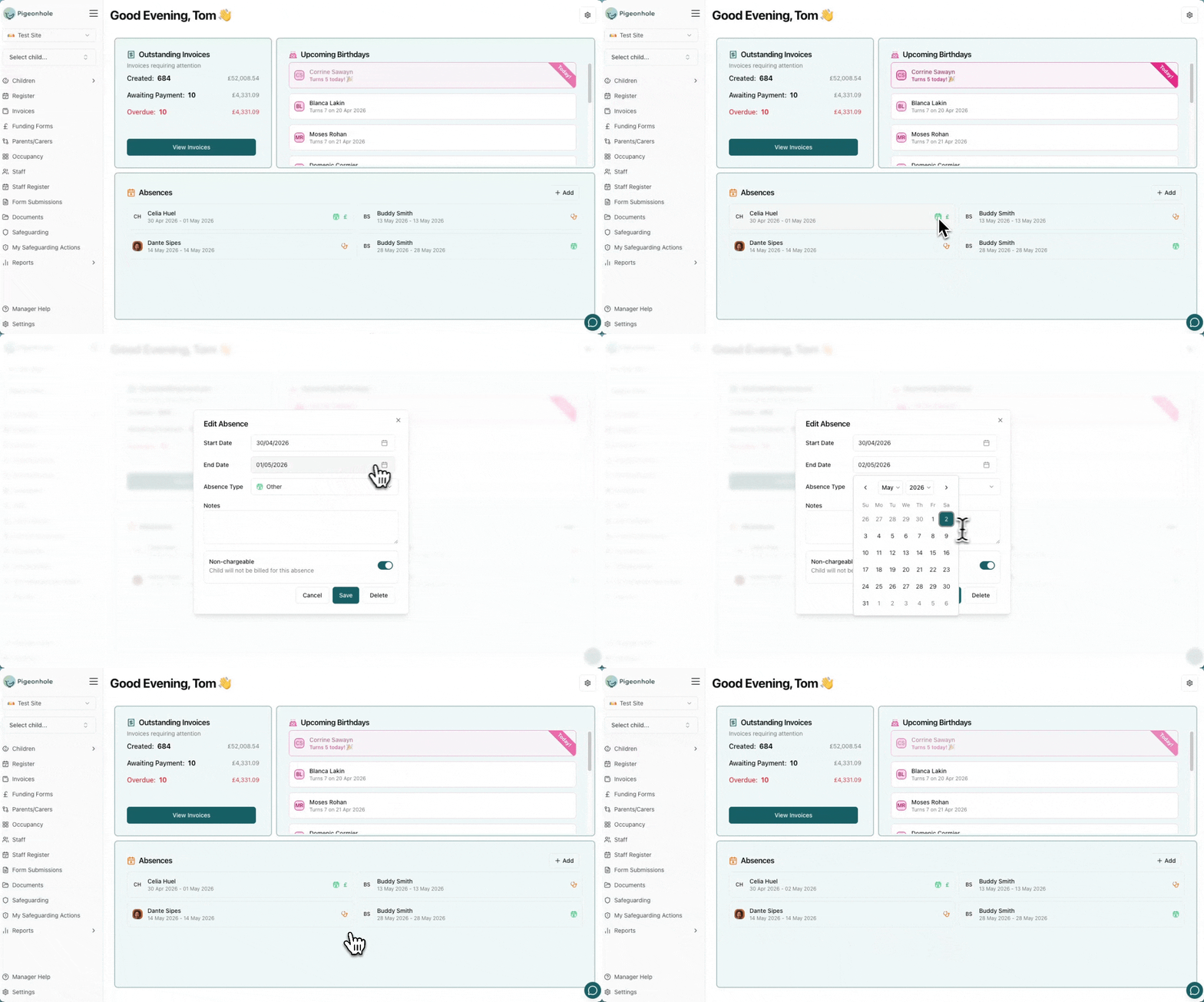
- Click the absence type icon on any absence in the list
- The edit dialog will open with the current absence details
- Update the fields as needed, or click Delete to remove the absence
- Click Save
Staff members can view the Absences widget but cannot add or edit absences — only Admins have access to those actions.