
Open in app: Forms.
The Forms page
The page has three tabs:
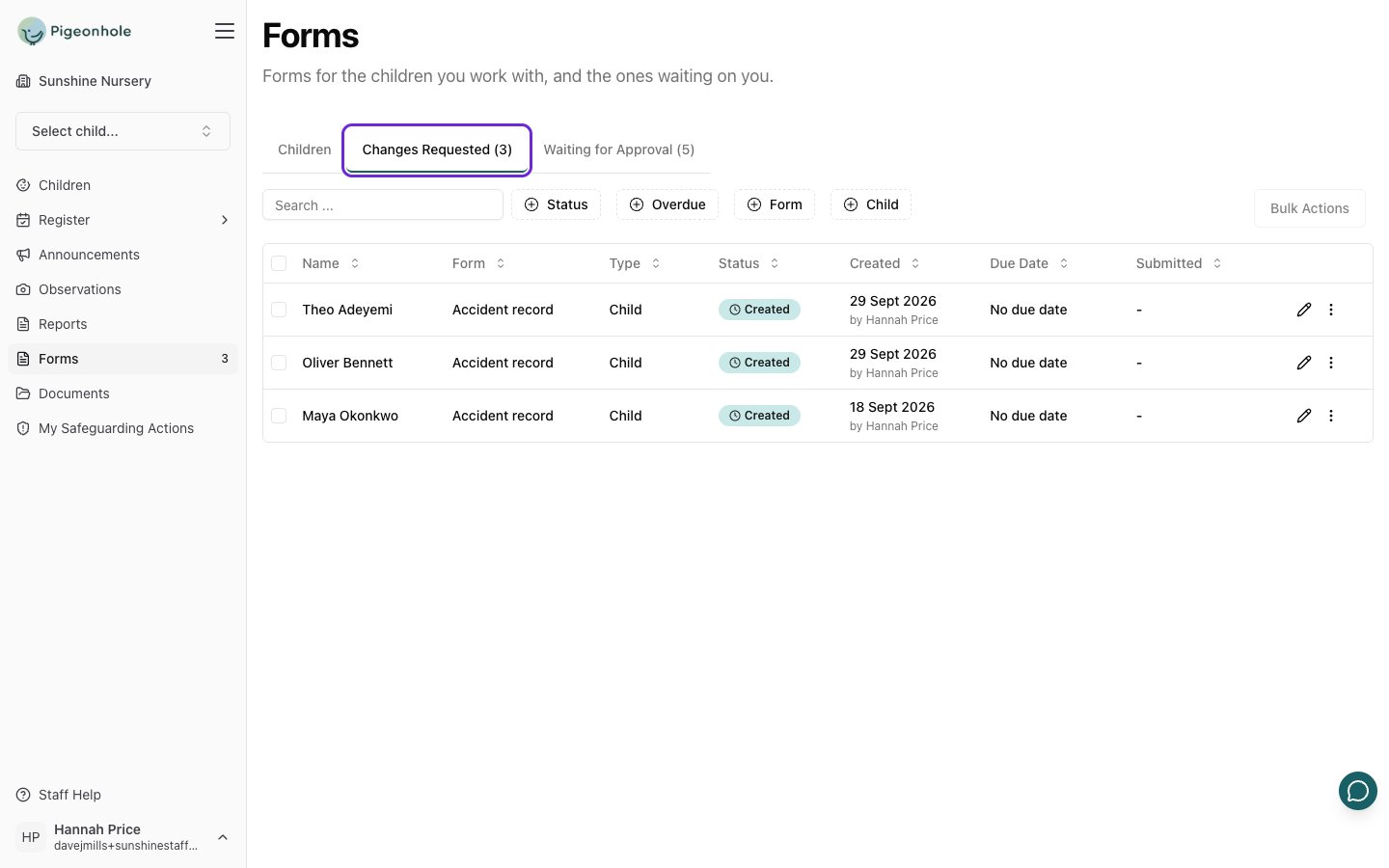
The number next to Forms in the sidebar counts the forms in Changes Requested, so you can see at a glance when one needs you.
Signing with your saved signature
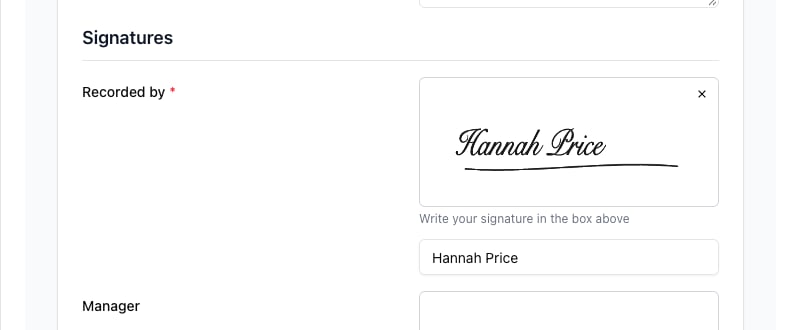
You don’t have to draw your signature every time. The first time you sign a form and save it, Pigeonhole keeps your signature. On the next form, click Use my signature under the signature box instead of drawing.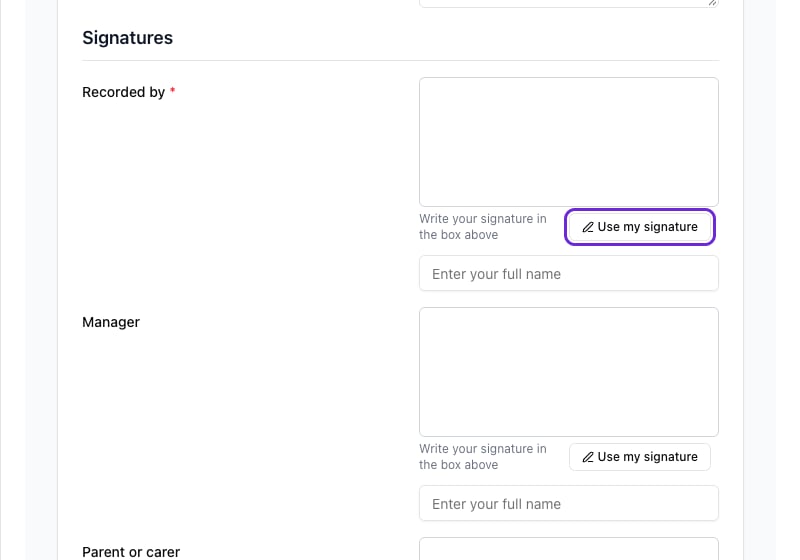
Changing or deleting your saved signature
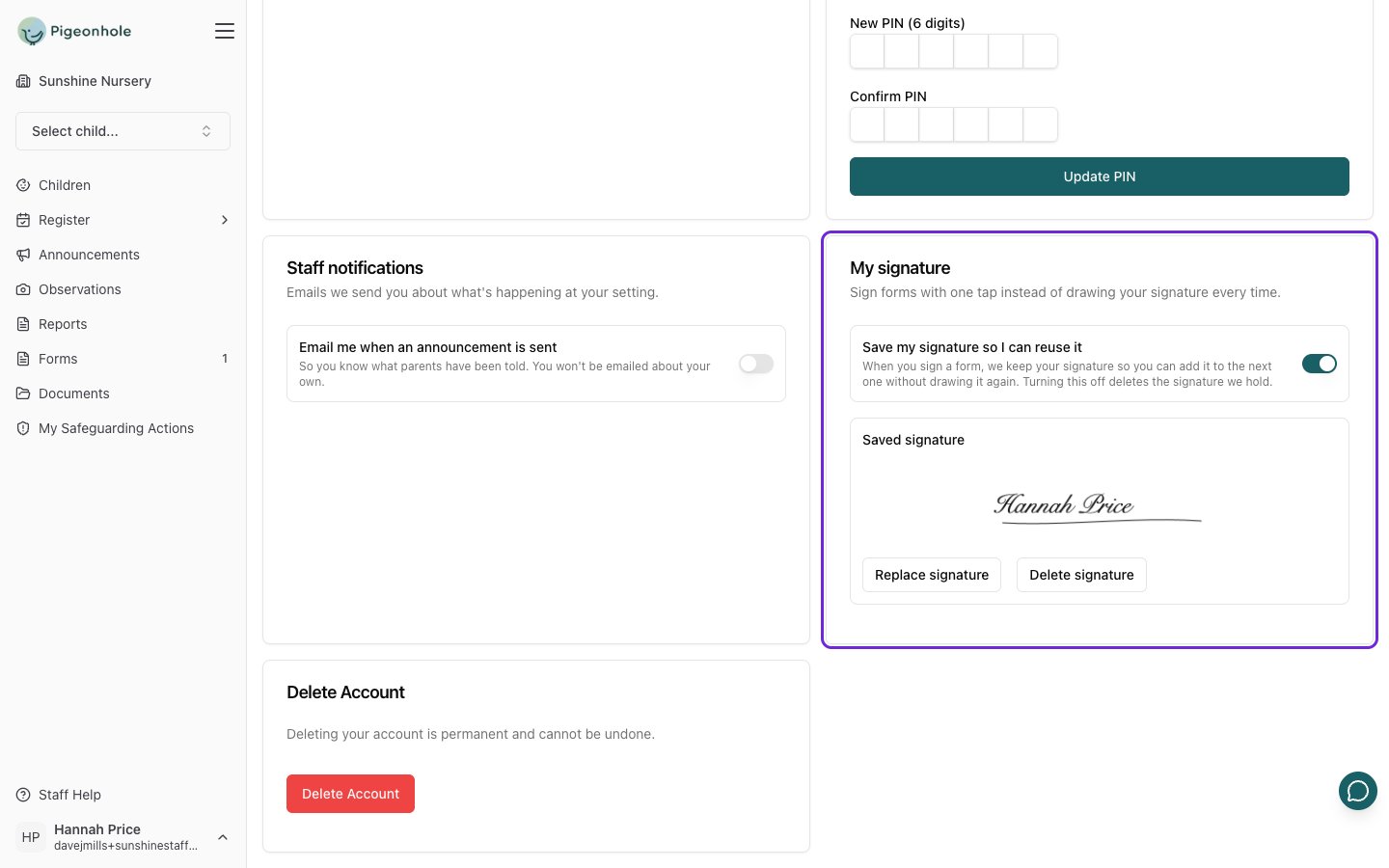
Go to My Account and find the My signature card.- Replace signature lets you draw a new one. Pigeonhole never replaces your saved signature on its own, even if you draw a different one on a form.
- Delete signature removes it. The next form you sign saves a new one.
- Turn off Save my signature so I can reuse it if you’d rather draw it every time. This also deletes the signature Pigeonhole holds.
When Pigeonhole suggests tidying your writing
Some forms have writing rules: house rules your managers have set, such as “capitalise names” or “describe what happened factually”. When you click Save & Send or Save & Submit for Approval on one of these forms, Pigeonhole checks what you’ve written first. It takes a few seconds, and the button shows Checking writing… while it does. If an answer could be tidied up, the form pauses:- A short reason appears under the question, such as Capitalise names · Don’t guess at causes.
- A suggested rewrite appears under your answer, with a Fix button.
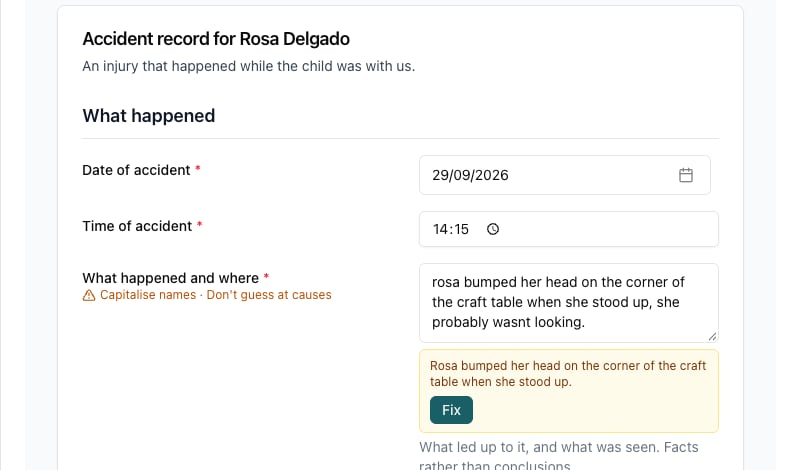

- Fix swaps one answer for the suggested rewrite.
- Fix all fixes every flagged answer at once.
- Undo fix puts back what you’d written, if you prefer it. It stays available until the form is sent or closed.
- Proceed anyway sends the form exactly as you wrote it. The check is only ever a suggestion.
- Keep editing takes you back to the form to change things yourself.
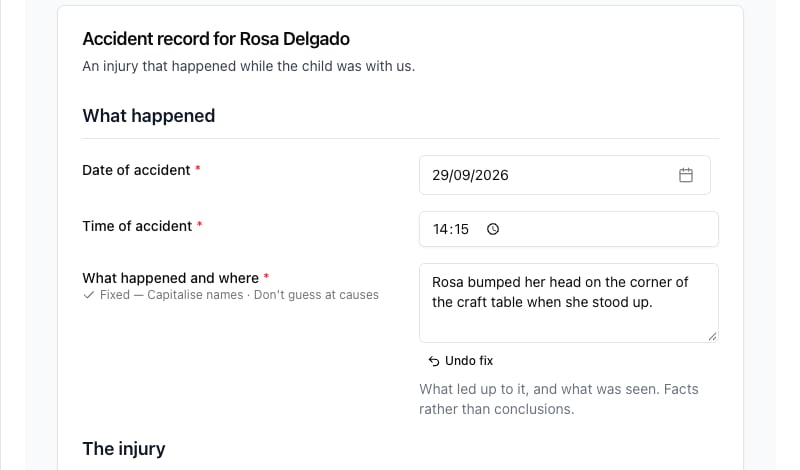
The check never runs when you only click Save Form, and it never looks at answers parents give. If it can’t run, for example because it’s taking too long, Pigeonhole tells you and you can Try again or Proceed anyway.
When a manager sends a form back
A manager who’s checking your form can send it back with a note instead of approving it. You’ll find out:- By email, with the manager’s note, if you have an email address.
- In the mobile app, with a notification and a forms need changes card on the home screen. If you only sign in to the app with a PIN, this is how you’ll hear about it.
On the web
-
Open Forms and go to the Changes Requested tab. The number next to Forms in the sidebar tells you how many are waiting.
-
Click the pencil icon to open the form. The manager’s note is at the top.
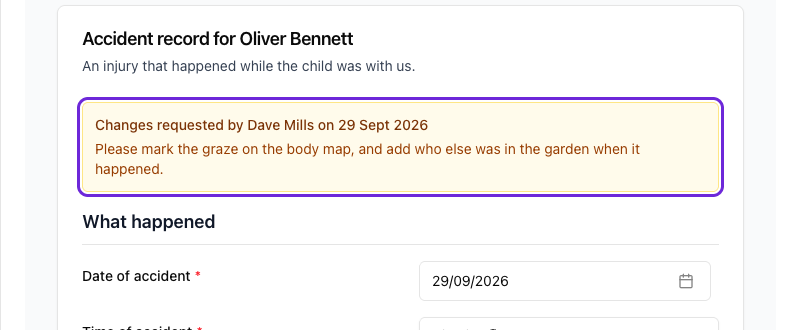
- Make the changes, then click Save & Submit for Approval. Save Form keeps your changes without sending the form back yet.
In the app
-
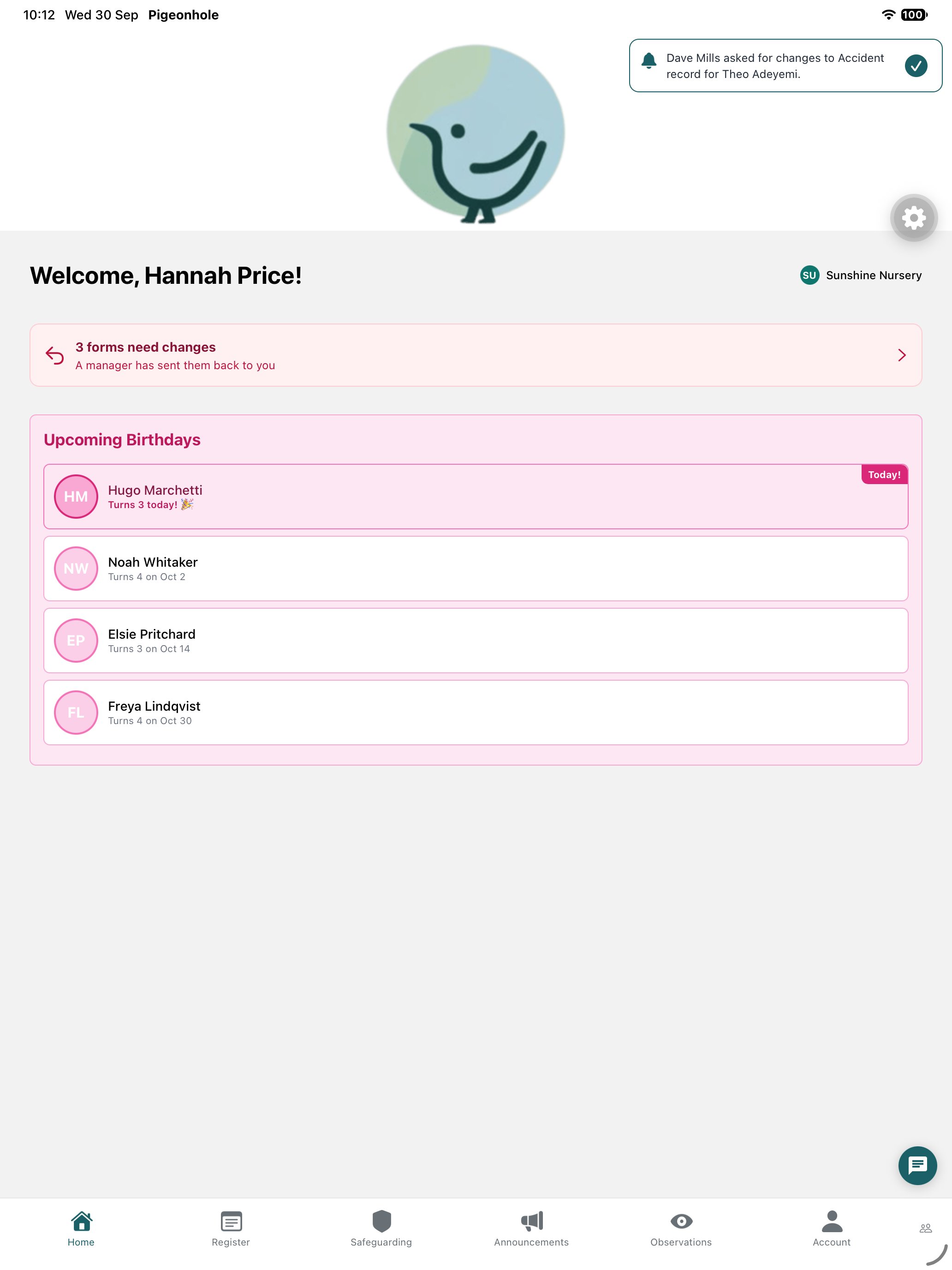
When you sign in or switch to yourself, a notification at the top of the screen tells you who asked for changes, and to which form. Tap the tick to dismiss it. The home screen shows a forms need changes card until you’ve dealt with them all.
-
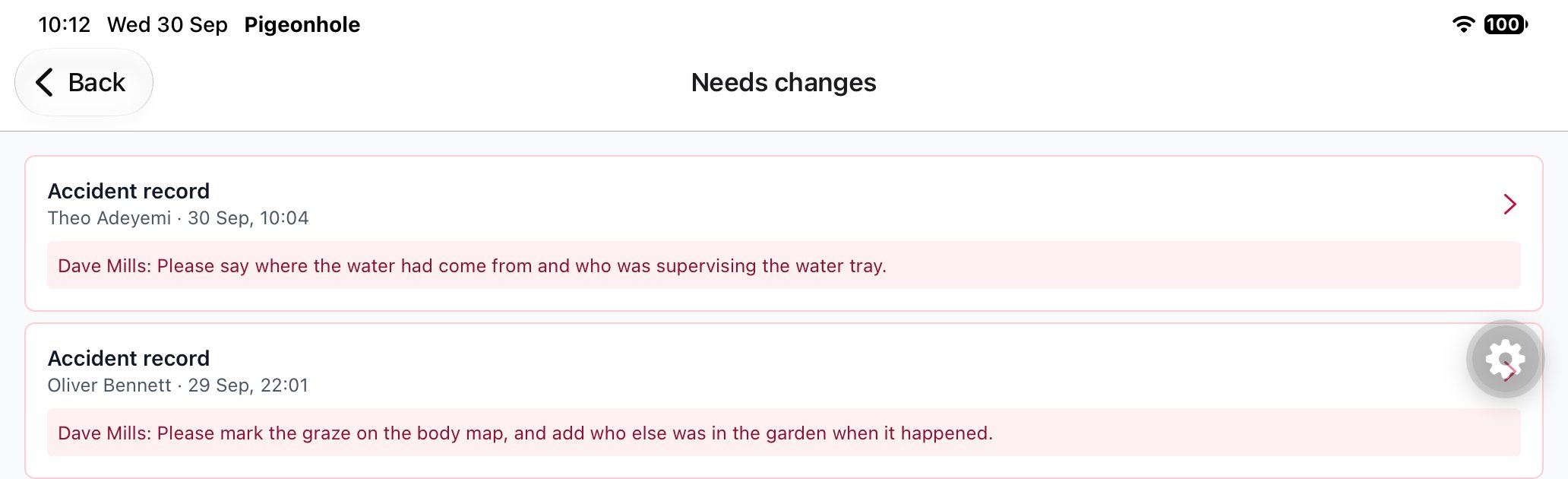
Tap the card. The Needs changes list shows each form with the manager’s note, so you can see what’s wanted before you open it.
-
Tap a form to open it. The note is at the top.
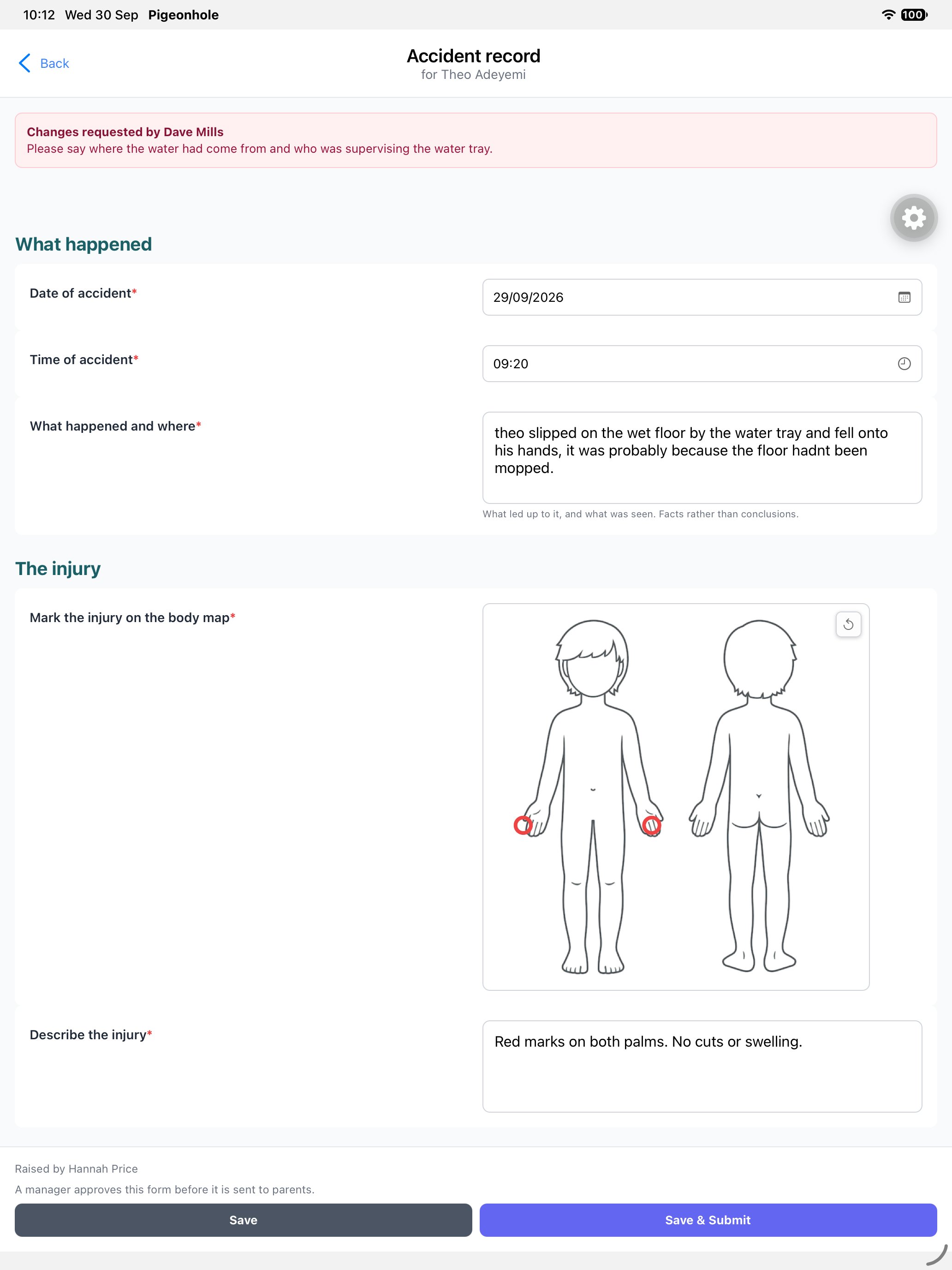
- Make the changes, then tap Save & Submit. Save keeps your changes without sending the form back yet.