Accessing Documents
To access the documents section, click Documents in the main navigation.Permissions
Admin users and staff with the Docs permission can upload, edit, and delete documents. Other staff members can view documents but cannot make changes.
Uploading Documents
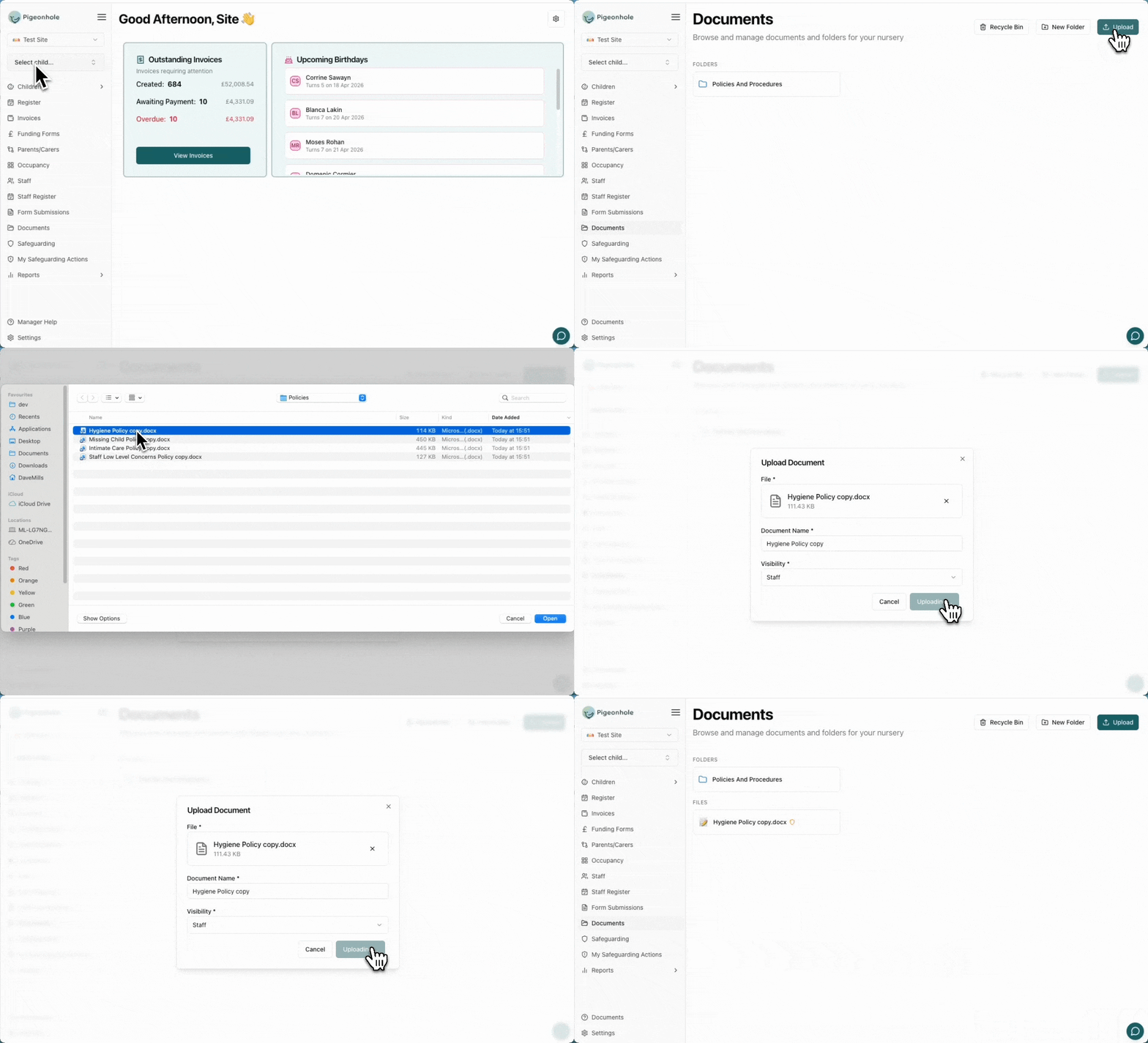
To upload a new document:- Click the Upload button in the top-right corner
- Drag and drop a file into the upload area, or click to select a file from your device
- Enter a Document Name (this is auto-filled from the file name but can be changed)
- Choose the Visibility level to control who can see the document
- Click Upload to save the document
Supported file types are PDF, Word (.docx), and PowerPoint (.pptx). Files must be 50 MB or smaller.
Visibility Options
When uploading a document, you can set its visibility:- Public — visible to all staff and parents/carers
- Parents/Carers — visible to staff and parents/carers
- Staff — visible to staff members only
- Managers — visible to managers and admins only
Creating Folders
Folders help you organise documents by category, such as “Policies”, “Permission Slips”, or “Training Materials”. To create a new folder:- Click the New Folder button in the top-right corner
- Enter a Folder Name
- Click Create
Editing Documents
To edit an existing document:- Click the edit icon on the document card
- Update the Document Name, Visibility, or replace the file as needed
- Click Save to apply your changes
Child-Linked Documents
Documents can be linked to a specific child when uploading. Child-linked documents are visible to that child’s parents and carers in the parent portal, making it easy to share individual permission slips, reports, or other child-specific files.When a document is linked to a child, the child’s name is displayed on the document card for easy identification.
Viewing Documents
To view a document, click on it in the document list:- PDFs open inline in a slide-out viewer with page navigation and download options
- Other file types can be downloaded to your device
Recycle Bin
When you delete a document, it is moved to the recycle bin rather than being permanently removed. This gives you a safety net in case you delete something by accident. To access the recycle bin:- Click the Recycle Bin button in the top-right corner of the documents page
- Browse deleted documents — each entry shows the document name, linked child (if any), and when it was deleted
- Click Restore to move a document back to the root folder
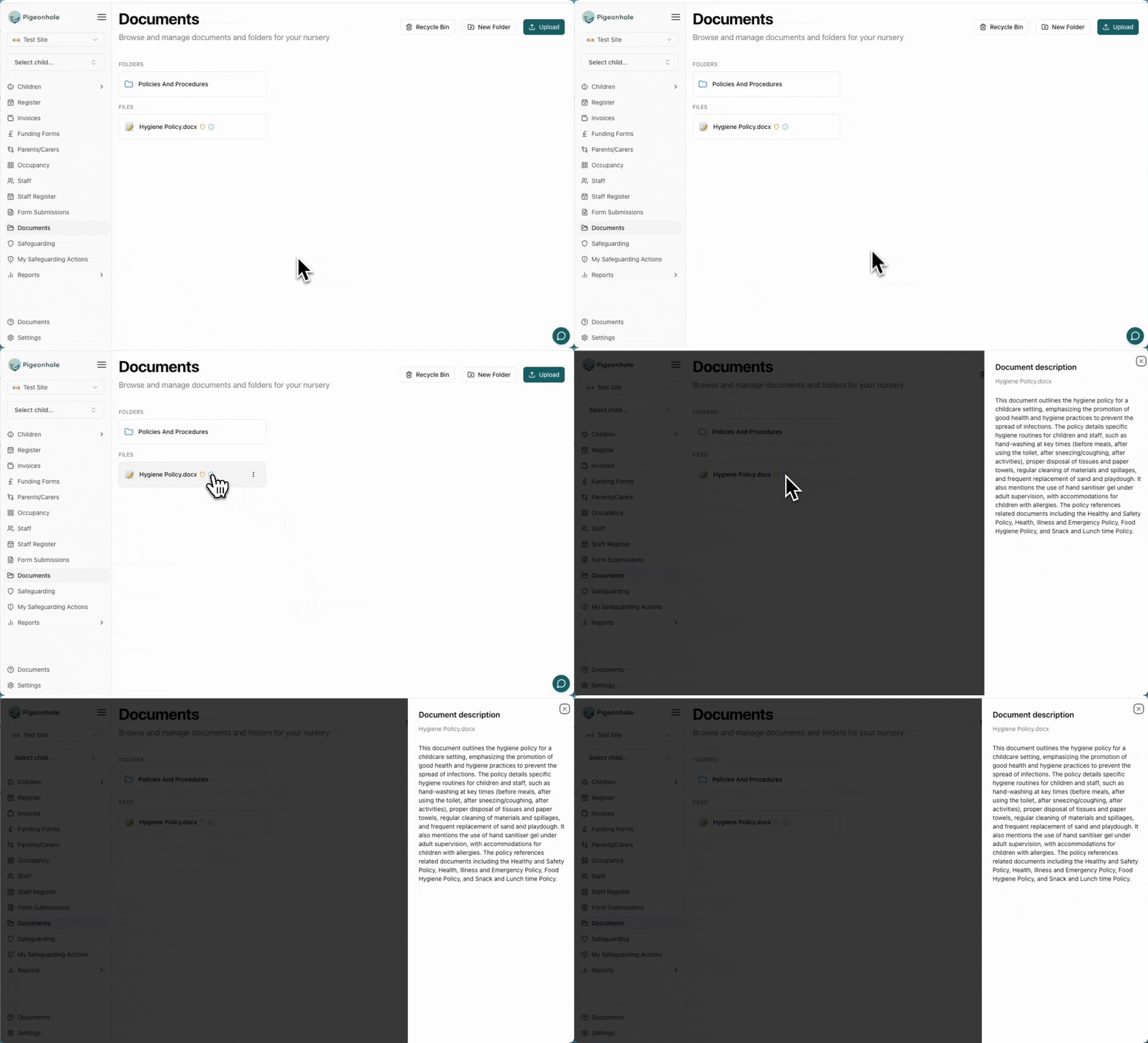
AI summaries and document search
After a document is uploaded, Pigeonhole extracts the key information from it. Click the info icon on any document to read the summary. The extracted text also powers document search, so you can find a document by what is inside it rather than only by its file name, and the AI Assistant can answer questions from your documents and link you back to the source.