
Site Profile
The Site Profile page allows you to manage the global profile settings for your site. These settings are used throughout the application and affect how your nursery is represented and operates.Open in app: Settings.
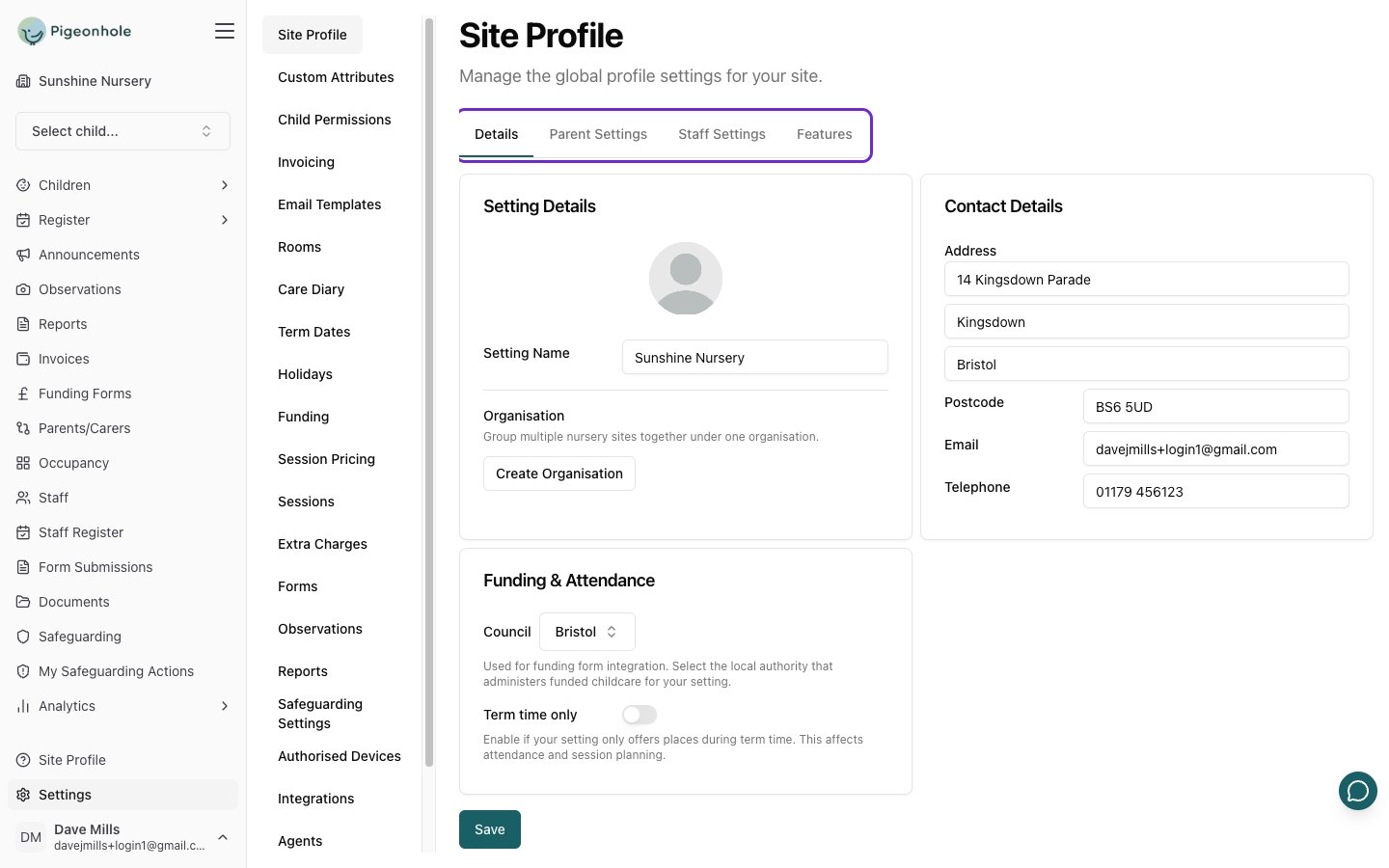
There is one Save button for the whole page, at the bottom. If you make a change and then try
to switch tabs or leave the page without saving, Pigeonhole asks you to confirm first.
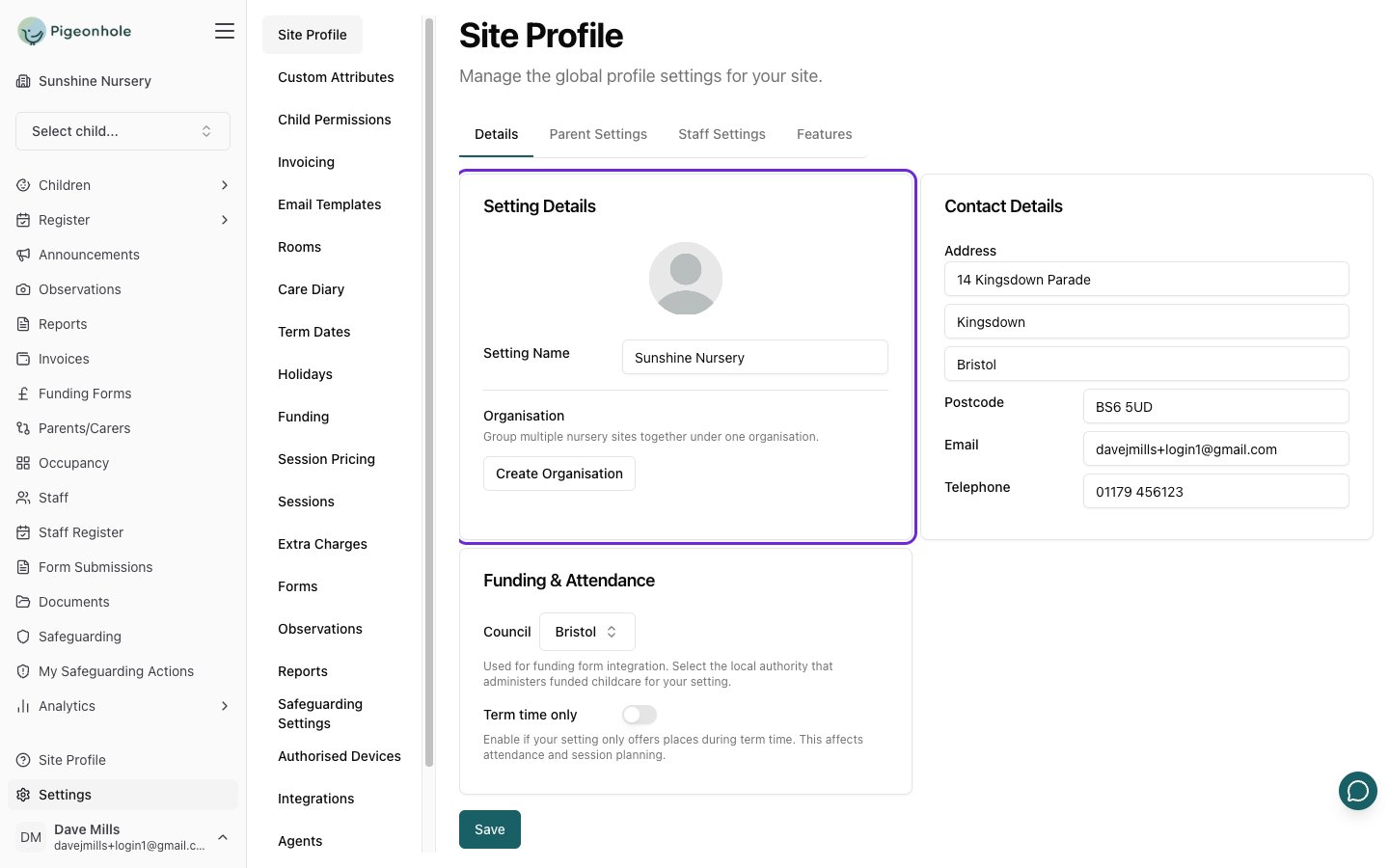
Setting Details
On the Details tab. This section allows you to define the name of your nursery and upload a logo.- Logo: Click the image at the top of the card to upload and crop a logo or photo for your setting. Your logo appears in parts of the application and on communications sent to parents. If you don’t upload one, a default placeholder image is used.
- Setting Name: Enter the official name of your nursery. This name will be displayed in various parts of the application and in communications.
Contact Details
On the Details tab. This section is for your nursery’s contact information.- Address: The first line of your nursery’s address (e.g., “123 Nursery Lane”). Two further address lines are available below it for the remainder of your address (e.g. area and town/city).
- Postcode: The postcode for your nursery’s address (e.g., “BS9 5TR”).
- Email: The primary email address for your nursery. This is used in any communications to parents.
- Telephone: The main contact phone number for your nursery. This is used in any communications to parents.
Funding & Attendance
On the Details tab. Configure funding and attendance related settings here.- Council: Select the council your nursery is associated with from the dropdown list (e.g., “Bristol”). This is used for funding form integration — it selects the local authority that administers funded childcare for your setting, which determines the funding forms available to you.
- Term time only: Toggle this switch on if your nursery operates on a term-time only basis. This is used for funding calculations and invoicing, it can be overridden per child.
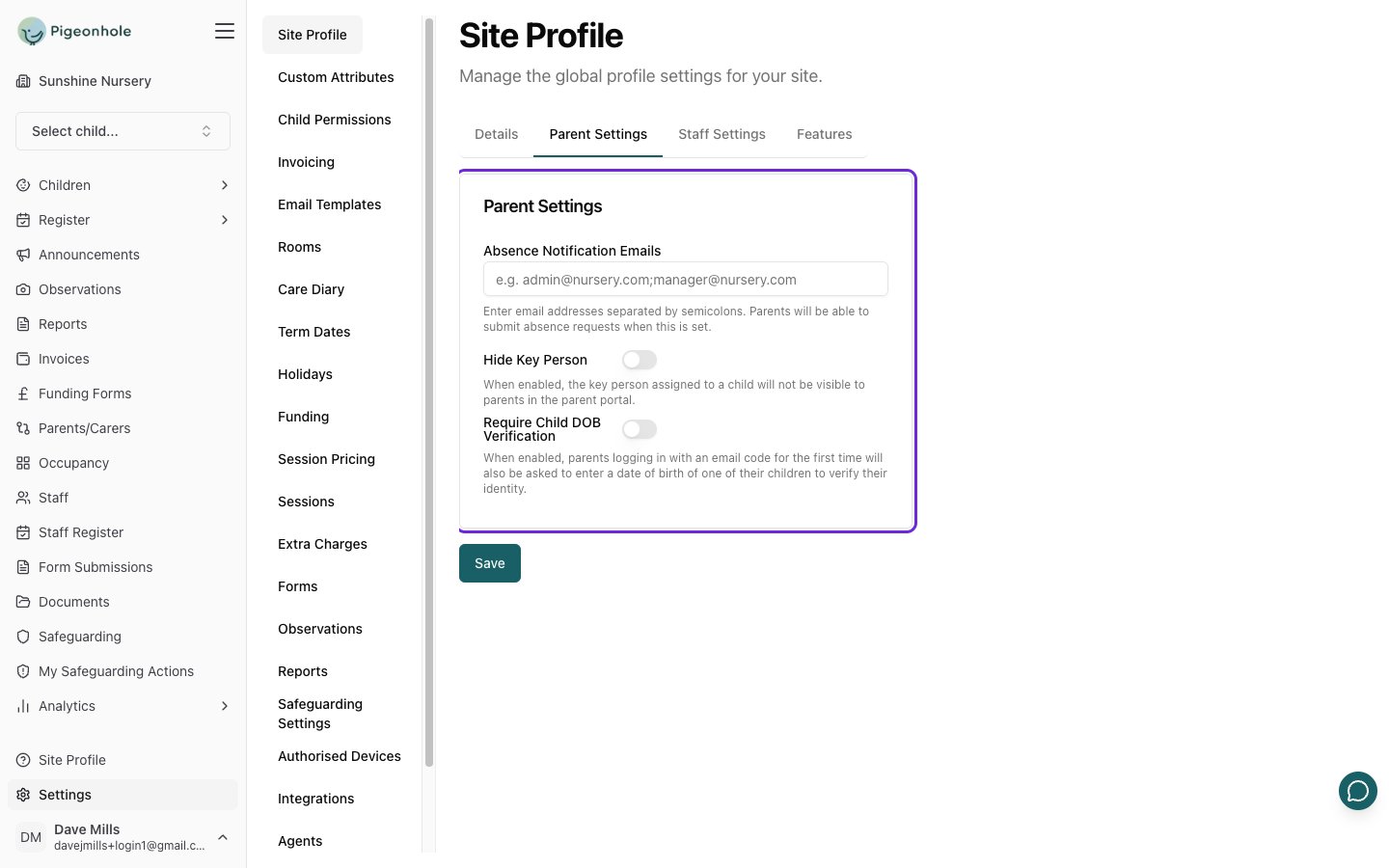
Parent Settings
On the Parent Settings tab. Control what parents can see and do in the Parent Portal.- Absence Notification Emails: Enter one or more email addresses (separated by semicolons) to receive absence notifications. When set, parents will see an Add Absence button on their My Children page. Leave blank to disable parent absence requests. See Enabling Parent Absence Requests for full details.
- Hide Key Person: When enabled, the key person assigned to a child will not be visible to parents in the Parent Portal. Enable this if your setting prefers not to disclose key person assignments to families.
- Require Child DOB Verification: When enabled, parents logging in for the first time using an email verification code will also be asked to enter the date of birth of one of their registered children before they can access the portal. This provides an additional check to confirm the right person is logging in — for example, if an email address was entered incorrectly when setting up a parent account. Once a parent passes this check their first time, they will not be asked again. See Child DOB Verification below for more details.
Staff Settings
On the Staff Settings tab. Control what your staff can see. Restrict contact details hides parents’ and carers’ addresses, email addresses and phone numbers from staff who don’t manage children. Managers and anyone with the Child Administrator permission always see them. Turning it on hides all three to begin with. Switch any back on that your staff still need:- Hide home addresses
- Hide email addresses
- Hide phone numbers — most settings leave this off, so staff can ring a parent without finding a manager first
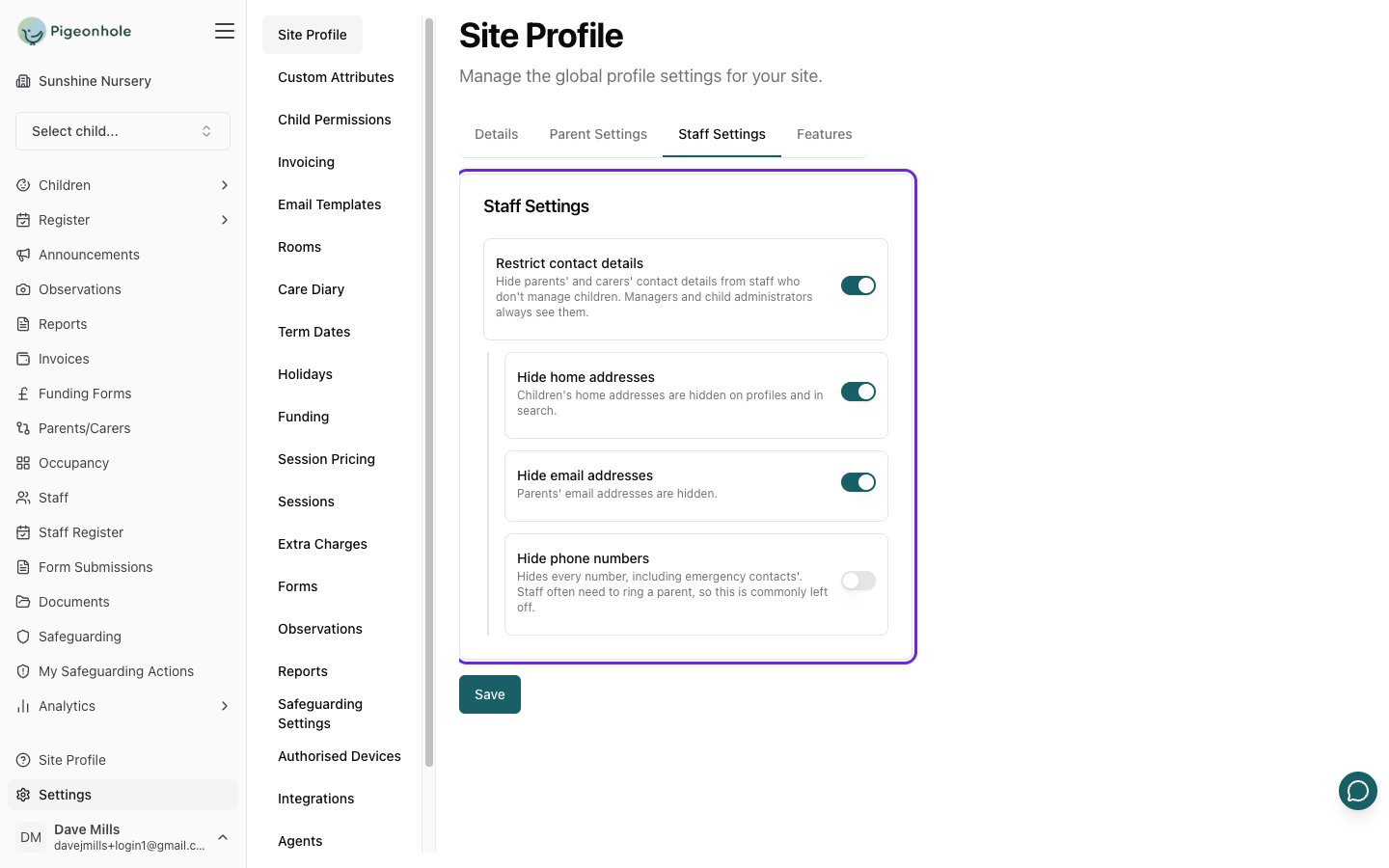
See Restricting Contact Details for the
full detail of what each switch hides and who is exempt.
Child DOB Verification
The Require Child DOB Verification setting adds an extra identity check to the parent login flow. When enabled, any parent logging in via email code for the first time will see an additional field asking them to enter the date of birth of one of their children. Pigeonhole checks this against the date of birth recorded on the child’s profile. If the date matches, the login proceeds normally. If it does not match, the parent is shown an error and cannot log in.This check only applies to parents (not staff) and only triggers once — on their very first login. Subsequent logins do not require the DOB entry.
- Your setting manually enters parent email addresses and wants a safeguard against typos
- You want to confirm a new parent account is accessed by the intended person before they can view their child’s information
- The child must be linked to the parent’s account in Pigeonhole
- The child’s Date of Birth must be recorded on their profile — if no children with a DOB are linked to the account, the check is skipped automatically
Features
Not every setting uses every part of Pigeonhole. The Features tab lets you switch off the ones you don’t, so they disappear from the menus for staff and families instead of sitting there unused.
The first four are on by default, so you only need this tab if you want to turn one off. Authorised devices and Care diary are the other way round — they stay off until you ask for them.
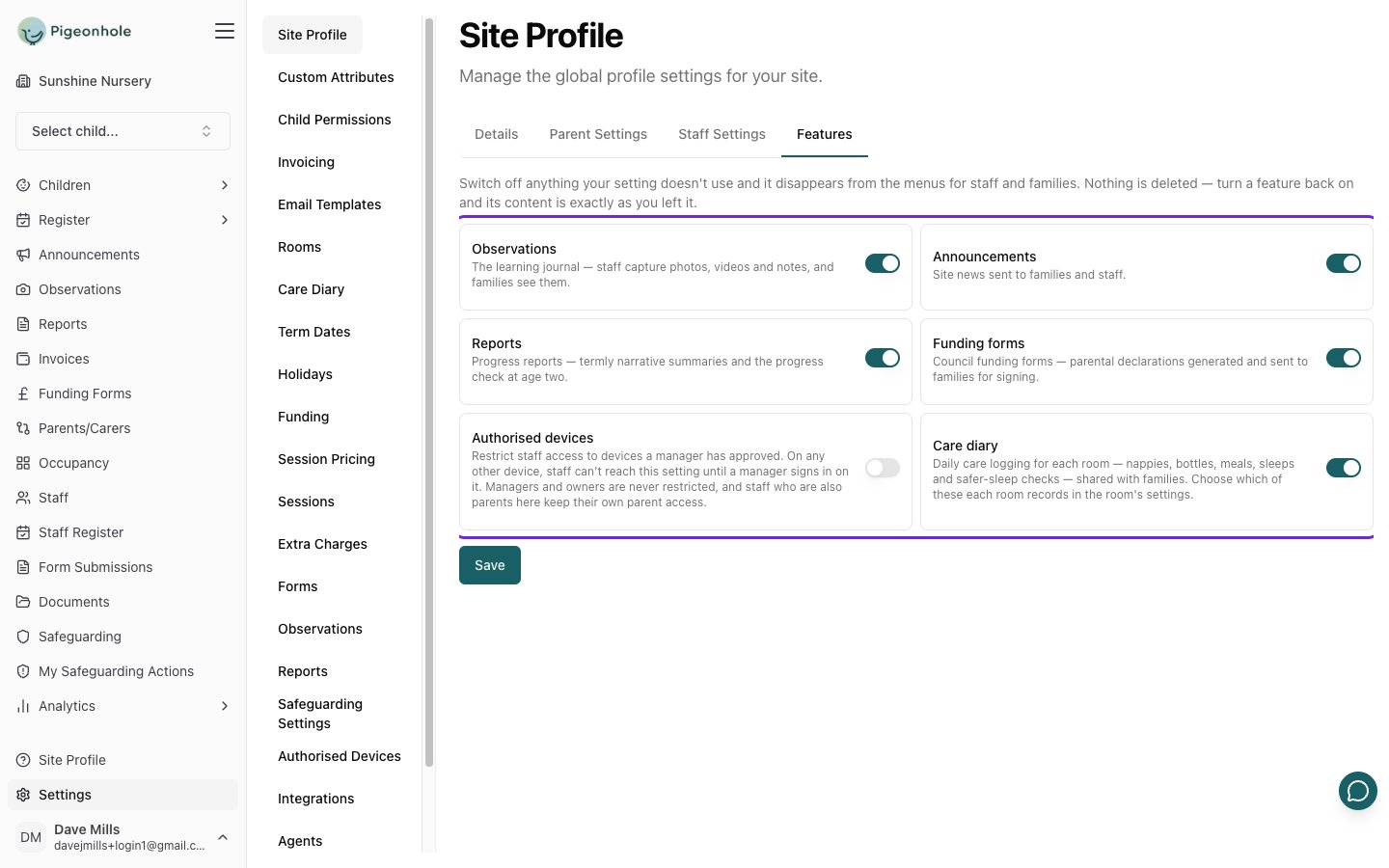
Reports are written from published observations, so they need Observations switched on. Turning Observations off greys the Reports switch out.
Organisation
If you run more than one nursery, Pigeonhole lets you group your sites under an Organisation. This section appears at the bottom of the Site Profile page and is only visible to site Owners and Organisation Owners.- Create Organisation — Visible when your site is not yet part of an organisation. Clicking this takes you through the process of naming your organisation and adding a second site.
- Add Another Site to [Organisation Name] — Visible when your site already belongs to an organisation. Clicking this adds a new nursery site to the group.
See Organisations & Multi-Site Management for a full guide to setting up and managing a multi-site organisation.