
Staff Permissions
In addition to the primary role (Manager or Staff), you can grant staff members additional permissions to access specific areas of the system. These permissions are configured in the staff profile under the Permissions section, which appears when the Role is set to Staff.Managers have access to all aspects of Pigeonhole, except the ability to edit and sign off safeguarding concerns. Only assigned safeguarding leads can do this.
Available Permissions
The Permissions section offers the following permission checkboxes: Safeguarding Lead- Responsible for child protection and ensuring the safety and well-being of children
- Has access to all safeguarding data in Pigeonhole
- Can review, sign-off, and manage all records of concern
- Supports the safeguarding lead by recording concerns and ensuring appropriate actions are taken
- Has access to all safeguarding data in Pigeonhole
- Can view and record concerns, but cannot sign-off records of concern
- Has access to invoicing management
- Can create, edit, and manage invoices for children and families
- Has access to funding form management
- Can create, submit, and manage funding applications and forms
- Has access to document management features
- Can upload, edit, and delete documents and folders
- Can access the document recycle bin to restore or permanently delete documents
- Can view and edit children’s personal details, profile images, and custom attributes
- Can manage parents, carers, and emergency contacts
- Can manage sessions and charges for children
- Has access to the waitlist and archive
- Can add new children and bulk import
- Always sees parents’ contact details, even when contact details are restricted
- Can publish announcements and observations directly to parents without manager approval
- Can approve other staff members’ submissions
- Can approve forms raised by staff, such as accident records, before they’re sent to parents — see Approving Forms
- Is emailed when a form is waiting for approval, and sees a Form Approvals page with just the approval queue
- Forms they raise themselves are sent without waiting for anyone else to approve them
Restricting Contact Details
By default every staff member can see parents’ and carers’ addresses, email addresses and phone numbers. If you would rather keep those to your management team, you can restrict them for everyone else. Go to Settings → Site Profile, open the Staff Settings tab and turn on Restrict contact details. That hides all three to begin with; switch any back on that your staff still need:- Hide home addresses
- Hide email addresses
- Hide phone numbers
Open in app: Settings → Site Profile.
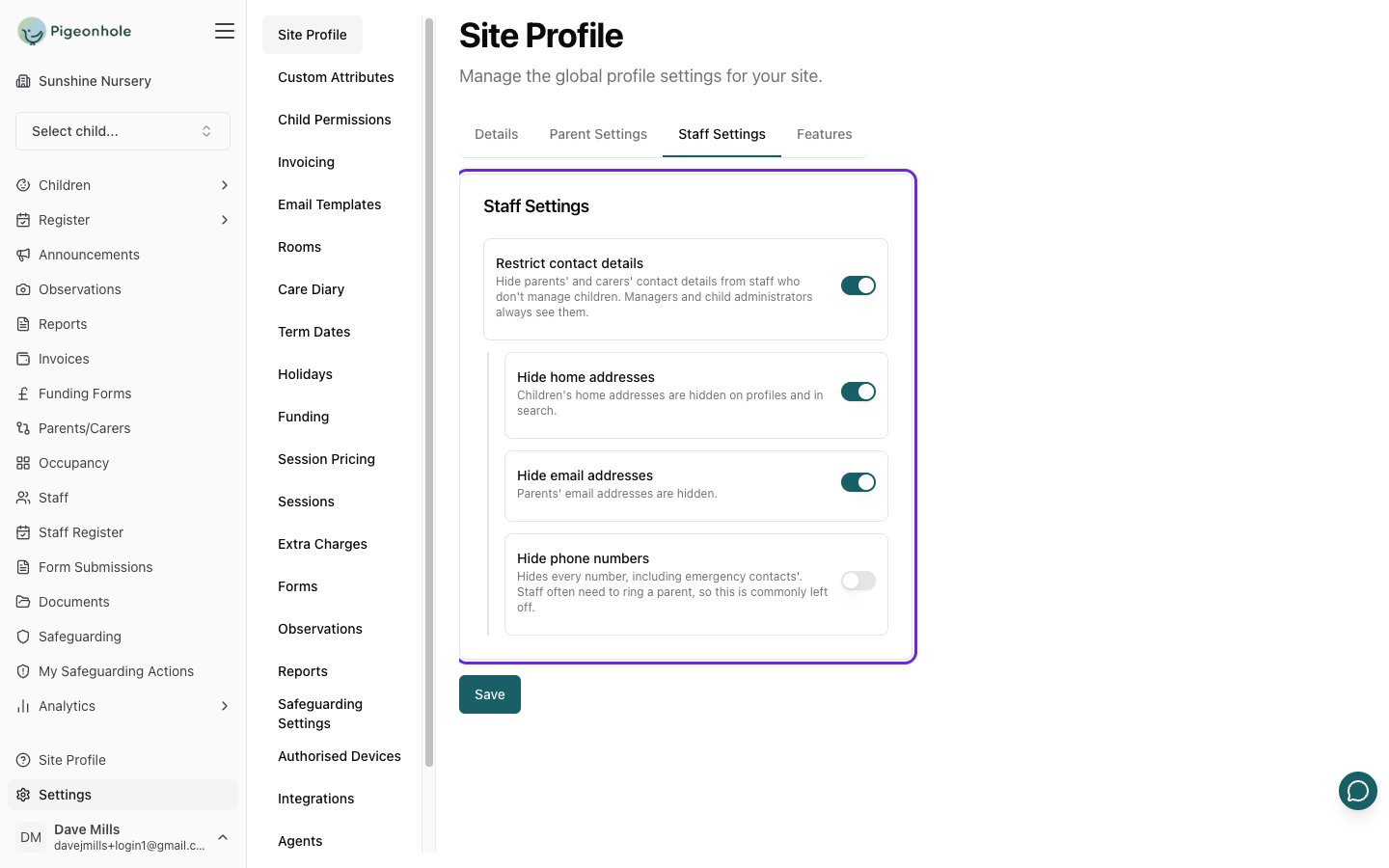
Managers and anyone with the Child Administrator permission always see contact details,
whatever these switches are set to.
What restricted staff see
Hidden details simply don’t appear — a staff member sees the contact card without the email or phone row, and the child’s Address card disappears from their profile and the register. Nothing is marked “hidden” beyond that. What stays visible to everyone:- Parents’ and carers’ names and their relationship to the child
- Emergency and pickup contacts’ names and their relationship, so staff still know who the setting would call
- Everything else on the child’s profile — allergies, health notes, dietary needs, collection password and permissions are all unaffected
Configuring Permissions
To add additional permissions to a staff member:- Open the staff member’s profile by clicking the edit icon in the staff list
- In the Permissions section, check the boxes for the permissions you want to grant
- Click Save to apply the changes
Staff members may need to sign out and sign back in for permission changes to take effect.
Organisation Owner
Organisation Owner is not one of the permission checkboxes. It’s granted separately, from the staff list, and only applies to managers in a multi-site organisation. An Organisation Owner:- Can switch between all sites in your organisation
- Can add new nursery sites to the organisation
- Can grant Organisation Owner to other managers
- Cannot remove Organisation Owner from their own account
- Go to the staff list.
- Click the More Actions (…) button on a manager’s row.
- Select Make Org Owner.
Make Org Owner only appears for staff whose Role is Manager, when your setting belongs to an organisation and you are yourself an Organisation Owner. See Organisations & Multi-Site Management for full details.