
Scheduling a Room Move
There are two places to open the Schedule Room Move dialog:- From the Occupancy Planner (Per Room view): Click Schedule Move on the room card the child is currently in.
- From a child’s Sessions tab: Click Schedule Room Move in the child’s profile (only shown when no move is already pending).
Step 1: Choose the Rooms
The From Room shows the child’s current room. If you opened the dialog from the occupancy planner it is pre-filled; otherwise, select it from the dropdown. In the To Room dropdown, select the destination room. To set a leaving date instead, choose Leaving Setting — see Setting a Leaving Date below.Step 2: Set the Move Date
Pick a future date. On this date Pigeonhole will automatically update the child’s sessions to reflect the new room assignment.Step 3: Select the Children
When opening the dialog from a room card in the occupancy planner, a list of all children currently in that room is shown. All children are selected by default — deselect any who should not be included in this move. Use the search box to find a specific child quickly. When opening from an individual child’s Sessions tab, the child is pre-selected and the list is not shown.Step 4: Confirm
Click Schedule Move. The room move is now pending and will be applied automatically on the move date.A room move can only be created for a future date. If you need to change a child’s room immediately, update their session directly in the child’s profile.
Viewing Pending Room Moves
Room Move Banner (Occupancy Planner)
In the Per Room view of the Occupancy Planner, each room card shows a blue banner listing any pending moves out of that room. Moves are grouped by destination room and date. Click the expand button on a group to see the individual children included in that move.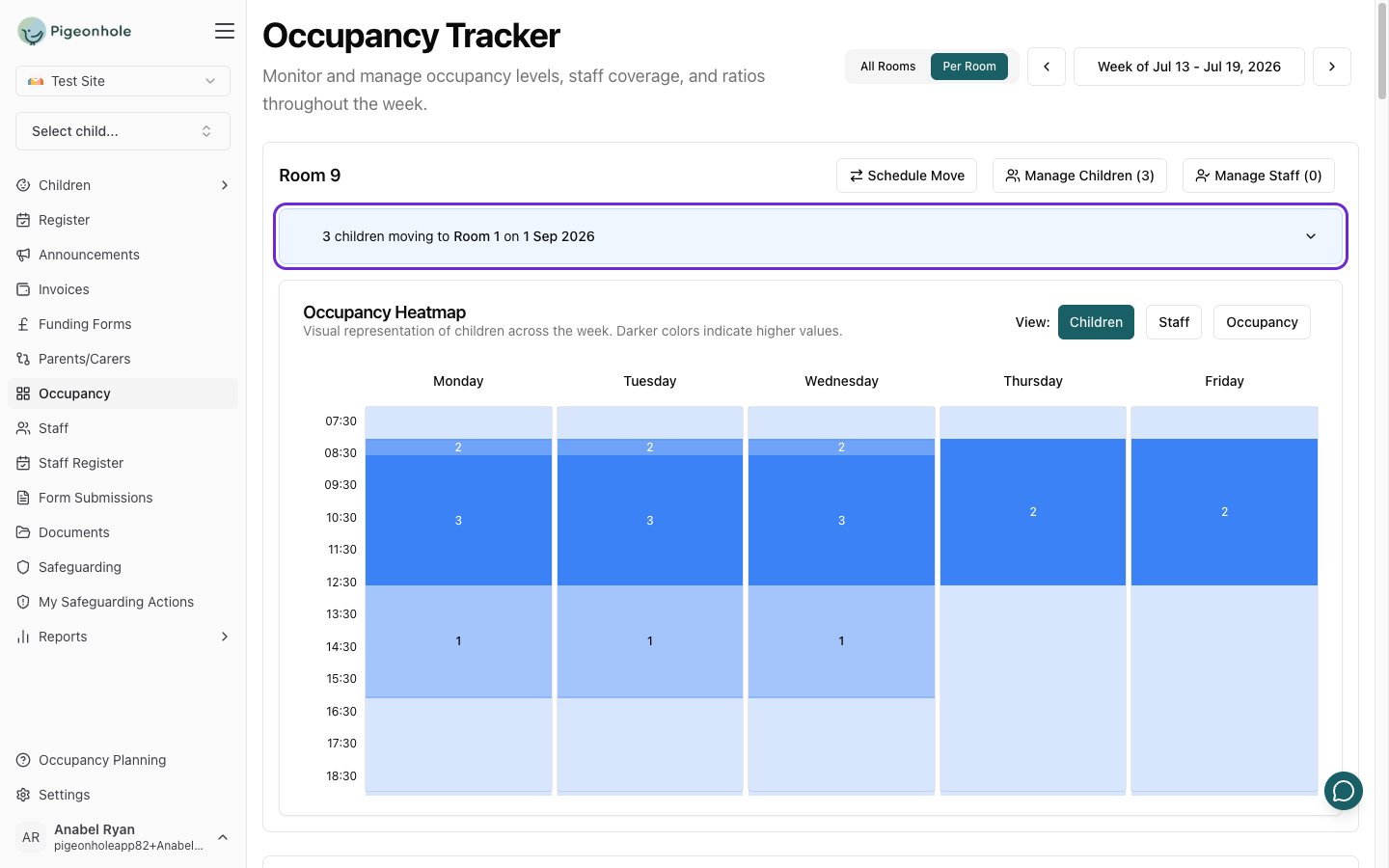
Child’s Sessions Tab
When a child has a pending room move, their Sessions tab shows a notice:Moving from Room A to Room B on 15 Mar 2026This makes it easy to confirm the move is scheduled before making other changes.
Cancelling a Room Move
To cancel a move for a specific child:- From the Room Move Banner: Expand the group and click the ✕ button next to the child’s name. Confirm the prompt.
- From the child’s Sessions tab: Click Remove next to the room move notice and confirm.
Setting a Leaving Date
Use the same dialog to record when a child will leave the nursery.- Open the Schedule Room Move dialog (from the Occupancy Planner or a child’s Sessions tab).
- In To Room, select Leaving Setting.
- The label changes to Leaving Date — pick the child’s last day.
- Click Set Leaving Date.