
Managing Actions
Actions are the responses and interventions you take in relation to safeguarding concerns. This guide explains how to record, track, and manage actions effectively within Pigeonhole.What are Actions?
Actions are records of:- Steps taken to address a concern
- Interventions implemented
- Meetings held
- Referrals made to external agencies
- Follow-up observations
- Support provided
- Investigations conducted
- Communication with parents or agencies
Users with the safeguarding lead or deputy safeguarding lead permissions can create actions. Managers can view but not edit safeguarding actions.
Adding a New Action
Actions can be added by clicking ‘Add Action’ on the record of concern view page.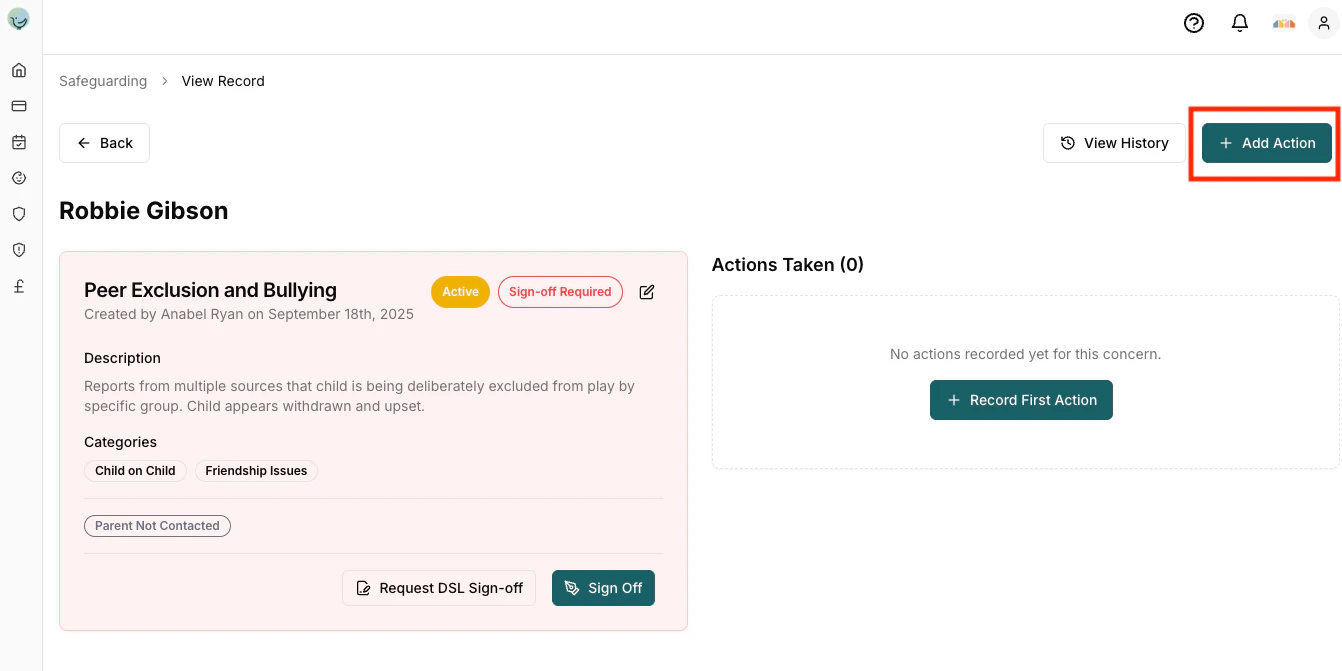
Its important when creating actions to view the safeguarding history to enable you to make informed decisions around a child or staffs welfare.
Complete the Action Form
The action form includes several fields to document what was done.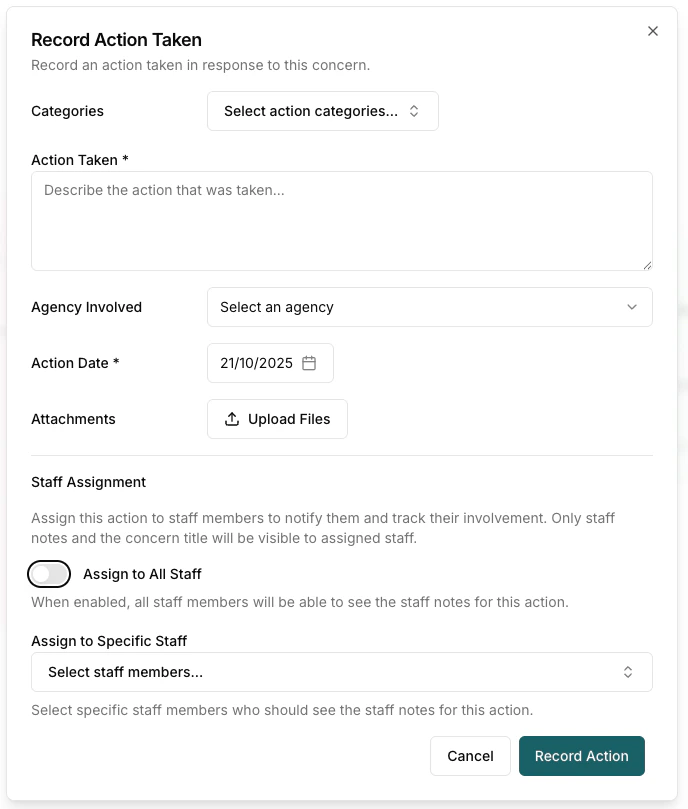
Action Form Fields
Categories (Optional) - Classify the any additional categories that your action might cause the concern to now fall under. Select all that apply. For example, a meeting might also involve a referral. Action Taken (Required) - Detailed description of what was done Guidelines:- Be specific and factual
- Include dates, times, and who was involved
- Describe what happened and what was decided
- Note any agreed follow-up steps
- Record outcomes or results
- Meeting notes or minutes
- Letters from agencies
- Email correspondence
- Reports or assessments
- Photos or images
- Forms or documentation
- Signed agreements
Staff Assignment
Staff Assignment and Staff Notes are only available when the concern’s status is Active. If the concern is Closed or No Action, these fields are disabled and you’ll see a message explaining that staff assignment is only available for Active concerns.
Assignment Options
Option 1: Assign to All Staff- All staff members can see this action
- Everyone will see the staff notes
- All staff receive notification
- Useful for setting-wide awareness
- Only selected staff see this action
- Only they receive notifications
- Only they see staff notes
- More targeted responsibility
Staff will only be able to see the staff notes and the concern title when they have record of concern actions assigned to them.
- Don’t include sensitive details about the concern
- Don’t mention allegations or specific safeguarding issues
- Don’t assume staff have background knowledge
- Keep it professional and focused on their task
Editing Actions
How to Edit
- Open the concern details
- Find the action in the actions list
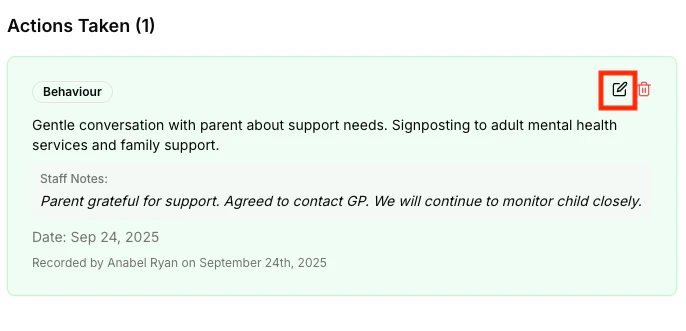
- Click the Edit icon (pencil)
- Modify the fields
- Click Update Action
Deleting Actions
How to Delete
- Open the concern details
- Find the action
- Click the Delete icon (trash)
- Confirm deletion