
Session and Session Pricing
Sessions and pricing work in the following way in pigeonhole.- A session pricing determines the pricing, either by hour, or a flat rate fee for the session
- A session determines the default hours for a child in the nursery, and also the available prices for that session
Open in app: Sessions and Session Pricing.
Session Pricing
The Session Pricing section allows you to define the pricing structure for different sessions offered by your nursery. You can configure names, descriptions, pricing types, and specific price points with start and end dates.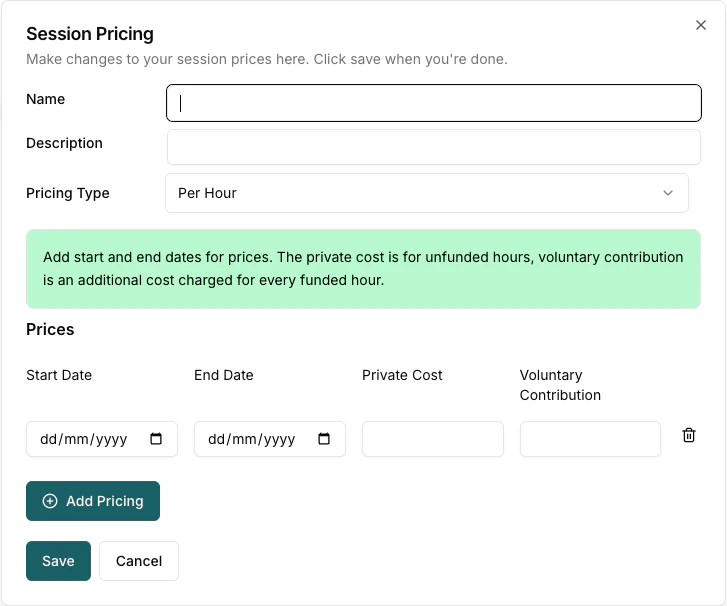
Name
Enter a descriptive name for the session pricing (e.g., “Full Price”, “Fully Funded”, or “Sibling Discount”).Pricing Type
Pigeonhole offers 2 different types of pricing. Per hour pricing allows the same pricing structure to be used for many different sessions, with the price calculated from the amount of hours attended. Flat Rate pricing allows you to apply a fixed fee to a session. The topup cost is charged if there are any funded hours for the session, and the private cost is charged if there are no funded hours.Prices
This section allows you to set specific price points for the session. You can add multiple price entries, for example, to handle price increases over time. Each price row has the following columns:- Start Date: The date from which this price is effective (dd/mm/yyyy).
- End Date (optional): The date until which this price is effective (dd/mm/yyyy). Leave blank if the price has no current end date.
- Private Cost: This is the price for any private hours that are not funded hours. This is the standard rate charged for the session.
- Topup Cost: This is the additional charge that is added for any funded hours. This amount is requested on top of any government funding received for a child’s place. You can set the text used, e.g. ‘voluntary contribution’ for topup costs in any invoices on the invoicing settings page.
Remember, you don’t need to create different prices for funded and non funded hours. Pigeonhole automatically generates the correct invoices depending on the amount of funded hours recorded against a child’s session.
Example Pricing Scenarios
Scenario 1: Standard Hourly Pricing
For nurseries charging an hourly rate (e.g., £8/hour), use Per Hour pricing. The system calculates costs based on session duration.Scenario 2: Flat Rate with No Top-up (Day 3 Style)
Some nurseries offer sessions where a child receives funded hours (e.g., 2.5 hours) and the remaining hours are charged at a flat rate with no additional top-up for the funded portion. To configure this:- Create a Flat Rate session pricing
- Set the Private Cost to your flat rate (e.g., £70)
- Set the Topup Cost to £0
- If the child has funded hours, they receive those at no additional charge
- The remaining unfunded hours are charged at the flat rate
Scenario 3: Late Collections / Extended Hours
For late collections (e.g., staying until 18:00 instead of 17:00), we recommend creating a separate extended session:- Create a new session (e.g., “Full Day Extended 07:00-18:00”)
- Create appropriate session pricing for this extended session
- Assign the extended session to children who regularly stay late
Creating separate sessions for different end times gives you clear reporting and ensures correct invoicing. The funding hours allocated to a session are separate from the session pricing, so extending hours doesn’t automatically change funding - you control the funded hours when setting up the child’s schedule.
Sessions
The Sessions page is where you define the different types of sessions your nursery offers. These are the building blocks for creating schedules and managing attendance. When you add or edit a session, you will be presented with the following fields: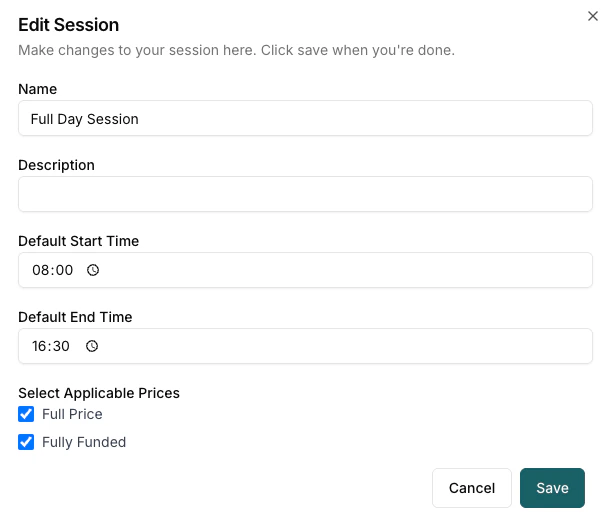
Although you can change session start times and end times when you assign sessions to children, it may be easier to create sessions for all the different start and end time combinations that you provide.
Session Fields
- Name: Enter a clear and descriptive name for the session (e.g., “Full Day Session”, “Morning Session”, “Afternoon Club”). This name will be used throughout the system.
- Description: Provide an optional, more detailed description of the session. This can be useful for internal notes or for providing more context to staff.
- Default Start Time: Set the default time the session begins (e.g., 08:00). This time will be used when adding this session to a child’s schedule, but can often be overridden if needed.
- Default End Time: Set the default time the session ends (e.g., 16:30). Set the default time the session ends (e.g., 16:00). This time will be used when adding this session to a child’s schedule, but can often be overridden if needed
- Select Applicable Prices: This section allows you to associate one or more predefined pricing structures with this session. Selecting a price here means that this session can be billed according to that pricing structure. You must have configured these prices in the Session Pricing section first.