
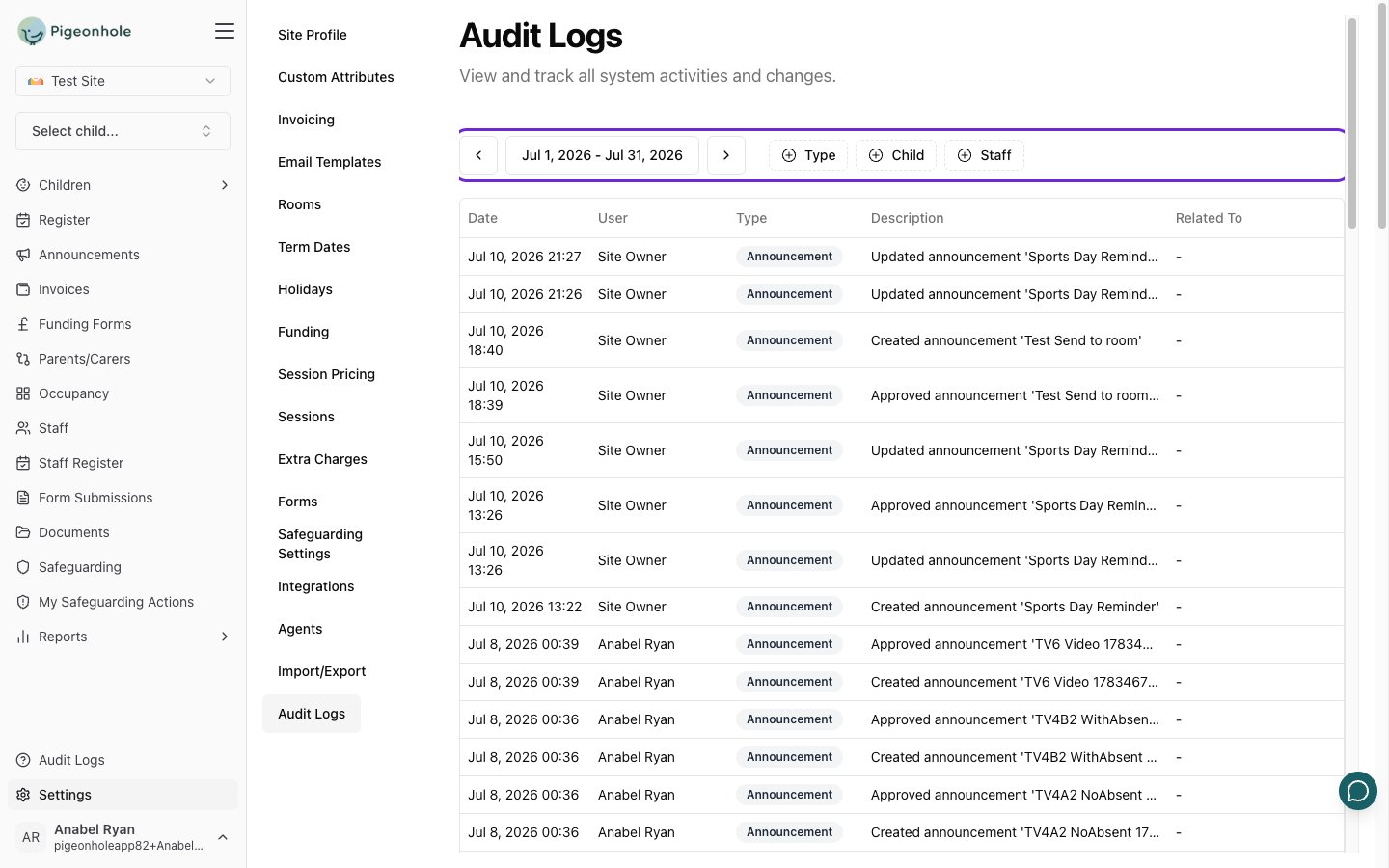
Accessing Audit Logs
To view the audit log:- Navigate to Settings from the sidebar
- Select Audit
- The audit log table will load showing the most recent entries
What Gets Logged
Pigeonhole tracks changes across the following areas:- Child — Creating, updating, or removing child records and their sessions or attendance
- Staff — Creating, updating, or removing staff records, sessions, attendance, and absences
- Parent/Carer — Changes to relative records and child-relative relationships
- Funding — Funding form submissions and approvals
- Financial — Invoice creation, updates, and extra charge changes
- Forms — Custom form creation and form entry submissions
- Settings — Changes to sessions, rooms, holidays, and media uploads
- Safeguarding — Safeguarding-related record changes
- Date and time of the change
- Related entity — The child or staff member the change relates to
- Type of change — What category the change falls into
- Details — A description of what was modified
Filtering Audit Entries
The audit log provides several ways to narrow down results:Date Range
Use the date range selector at the top of the page to choose the period you want to review. By default, recent entries are shown.Type Filter
Filter entries by category (e.g., Child, Staff, Financial, Safeguarding) to focus on a specific area of activity.Child and Staff Filters
Filter the log to show only changes related to a specific child or staff member. You can also click the filter icon next to any name in the Related To column to quickly add them to the active filter.The audit log is read-only. Entries cannot be edited or deleted, ensuring a reliable record of all changes.