
Safeguarding Settings
Safeguarding settings in Pigeonhole let you see your safeguarding team, control who can close concerns, and manage the categories used when recording a concern.Open in app: Settings → Safeguarding.
Accessing Safeguarding Settings
Safeguarding settings are available to Managers under Settings → Safeguarding Settings.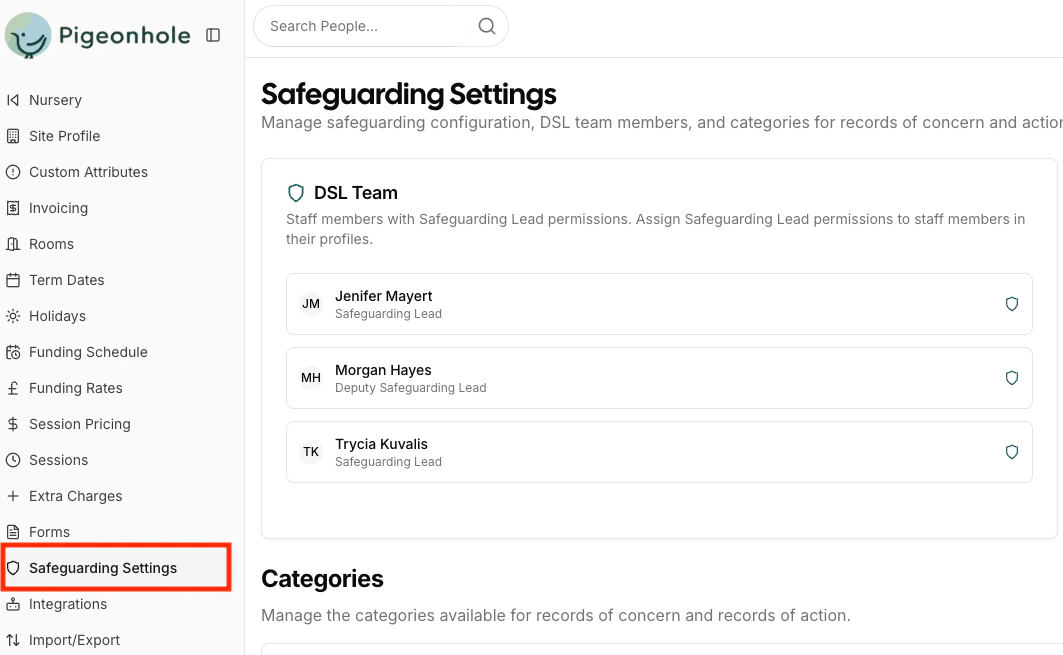
DSL Team
The DSL Team card lists every staff member who currently holds a Designated Safeguarding Lead permission, so you can see your safeguarding team at a glance. Each person is shown with their name and whether they are a Safeguarding Lead (DSL) or Deputy Safeguarding Lead (DDSL). Click a name to open that staff member’s profile.Safeguarding leads are not added on this page. To add or remove a lead, give the staff member the Safeguarding Lead or Deputy Safeguarding Lead permission on their staff profile. They then appear in the DSL Team card automatically.
Sign-off Requirements
This setting controls who is allowed to close a safeguarding concern. In Pigeonhole, closing a concern is the sign-off — see Closing and Sign-off.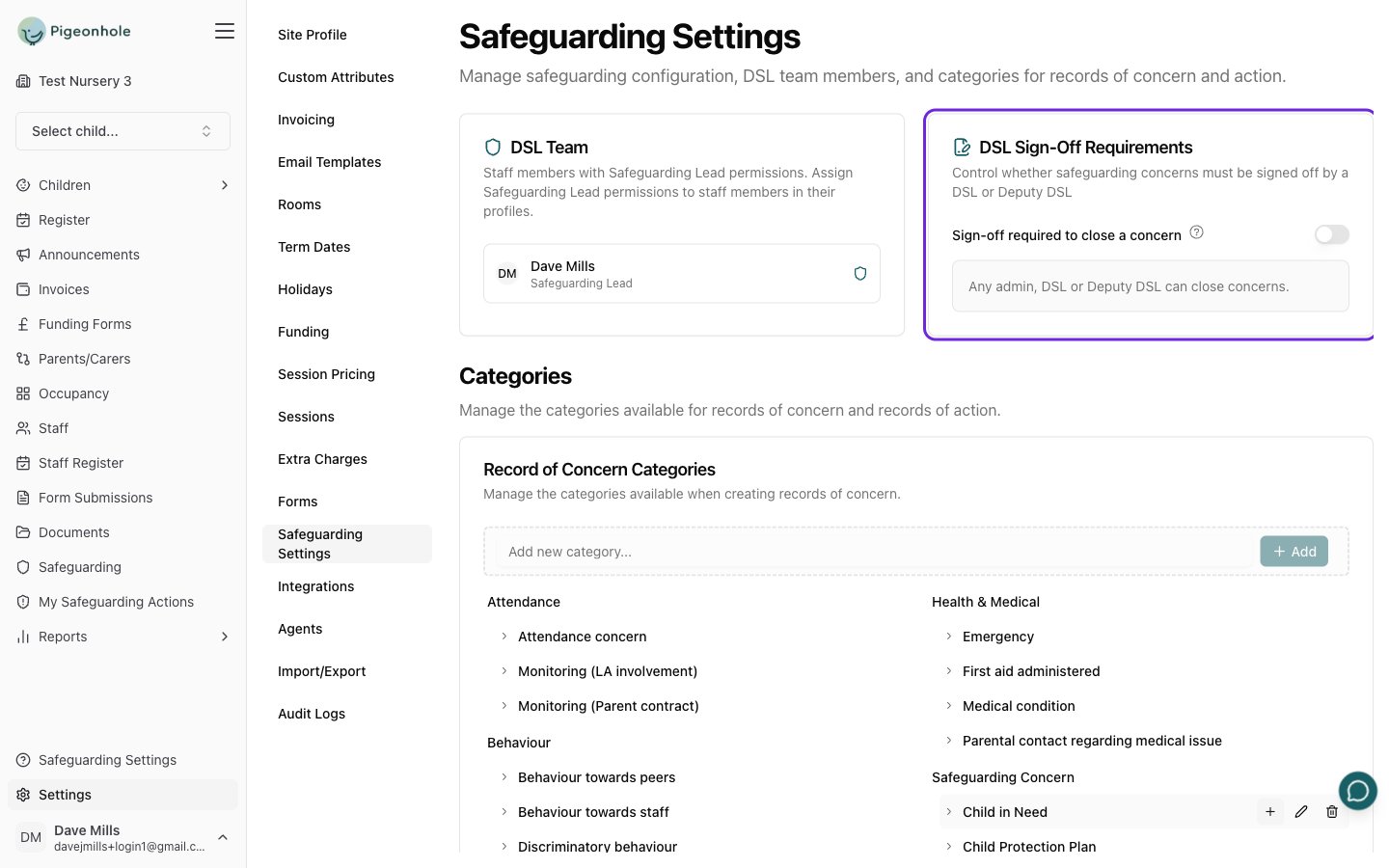
Sign-off required to close a concern
- On — only a Safeguarding Lead or Deputy Safeguarding Lead can close a concern. Managers can still view and manage concerns, but cannot close them.
- Off — Managers can also close concerns, alongside safeguarding leads.
Any safeguarding lead can close any concern, including one they raised themselves. There is no separate approval request and no signature to draw.
Record of Concern Categories
The Record of Concern Categories card lets you manage the categories that are available when creating a record of concern. Categories help you organize and classify concerns, making it easier to track patterns and manage different types of safeguarding issues. This is the only type of category configured on this page — categories apply to records of concern only. There are no separate categories for records of action.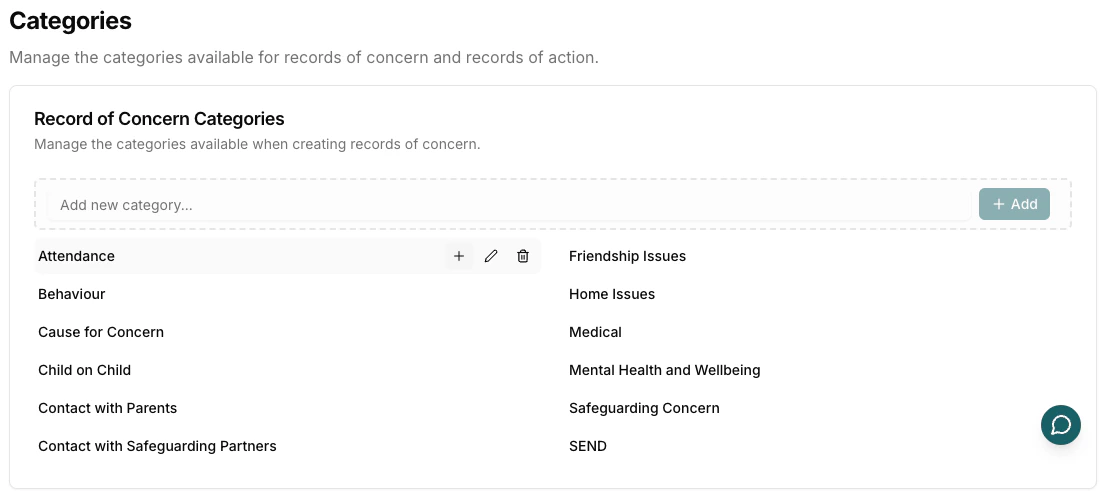
Managing Categories
Category Features
Categories support:- Hierarchical structure (parent categories and subcategories)
- Custom naming
- Add, edit, and delete capabilities
- Nested subcategories for detailed classification
Your Pigeonhole site is configured with a default set of safeguarding categories that you can use.
Adding Categories
- In the “Add new category…” field, enter the category name
- Click Add or press Enter
- The category appears in the list
Adding Subcategories
- Hover over a parent category
- Click the + (Plus) button that appears
- Enter the subcategory name
- Click the checkmark or press Enter
Editing Categories
- Hover over a category
- Click the Edit (pencil) icon
- Modify the name
- Click the checkmark or press Enter to save
Deleting Categories
- Hover over a category
- Click the Delete (trash) icon
- Confirm the deletion