
How to Add Parents and Carers
The Parent/Carer management system allows you to register and manage parents and carers in the nursery management system. This process includes viewing all parents and carers, adding new members, configuring their profiles, and managing their relationships with children.Parent/Carer List Overview
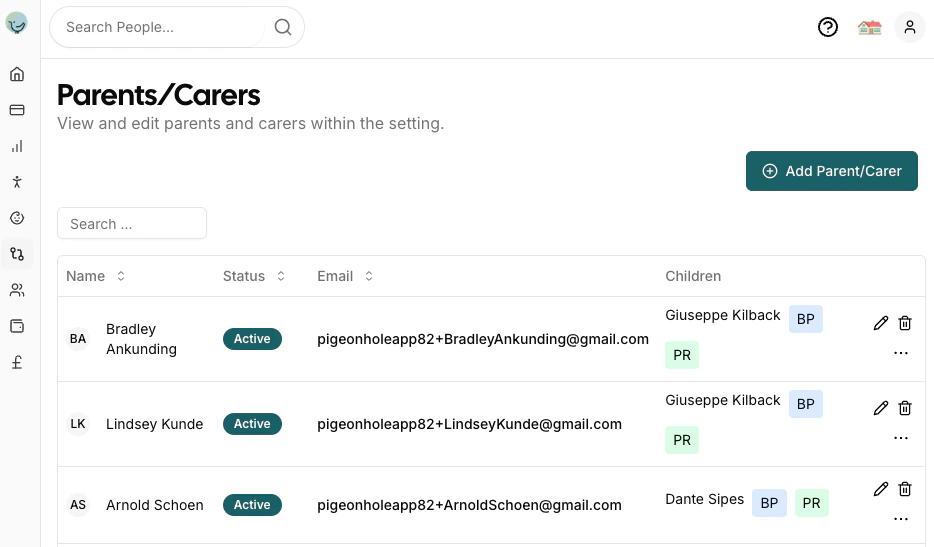
The main Parents & Carers page displays a comprehensive list of all parents and carers in your nursery setting. This view provides quick access to essential information and management tools. The parent/carer list displays the following information in a table format:- Name: Parent/carer’s full name with their profile picture shown in the first column
- Status: Shows either the last login date/time, “Invite Sent” indicator, or a dash if no invite has been sent
- Email: Contact email address
- Children: Shows the children they are associated with, along with special indicators:
- BP: Blue badge indicating they are a Bill Payer for that child
- PR: Green badge indicating they have Parental Responsibility for that child
- Actions: Edit, delete and send invite
Adding New Parents and Carers
To add a new parent or carer, click the Add Parent/Carer button in the top right corner of the parent/carer list.Creating a New Parent/Carer Profile
When you click Add Parent/Carer, you’ll be taken to the parent/carer profile creation form.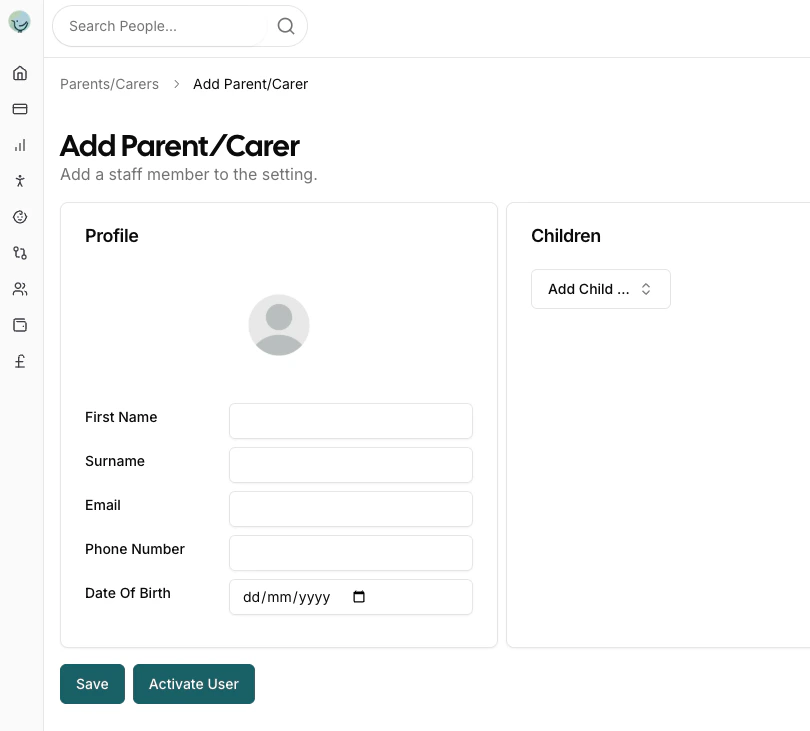
Personal Details
This section collects the parent/carer’s basic information including:- Profile Picture: Upload a photo for easy identification
- First Name: The parent/carer’s first name
- Surname: The parent/carer’s last name
- Email: Contact email address for communications and system access
- Phone Number: Primary contact number
- Date of Birth: Optional field for the parent/carer’s date of birth
Children Relationships
The Children section allows you to establish relationships between the parent/carer and specific children. For each relationship you can configure:- Child Selection: Choose which child this parent/carer is associated with
- Relationship Type: Select the relationship:
- Mother: Biological or adoptive mother
- Father: Biological or adoptive father
- Other: Any other caring relationship (e.g., grandparent, guardian)
- Bill Payer: Toggle to indicate if this person is responsible for paying bills for this child. Bill payers will be sent invoices.
- Parental Responsibility: Toggle to indicate if this person has legal parental responsibility for this child
Important: A parent/carer can have different relationship types, billing responsibilities, and parental responsibility settings for different children.
Managing Parents and Carers from Children View
You can also add and edit parent/carer relationships directly from the Children view:Adding Parents/Carers from Child Profile
- Navigate to a child’s profile in the Admin Portal
- Click on the Parents tab
- Click Add Relative to create a new parent/carer relationship
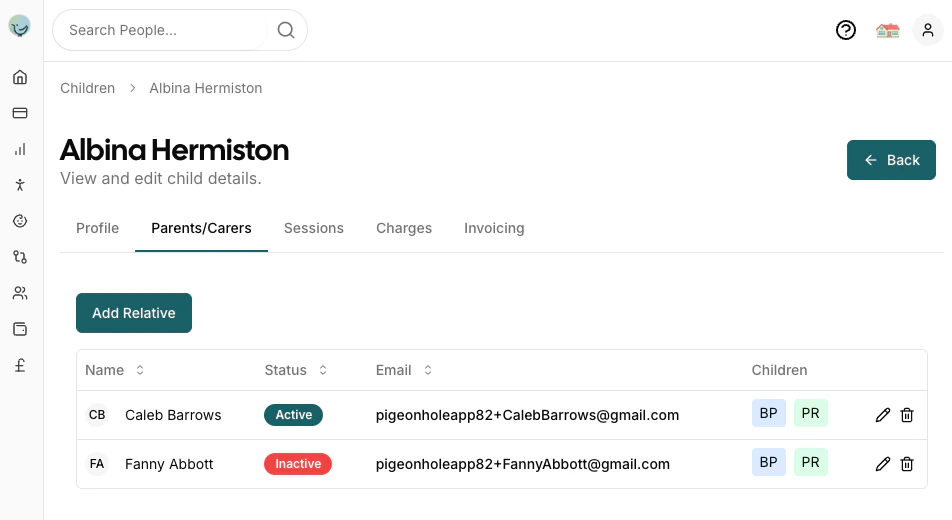
Parent/Carer Relationship Options from Child View
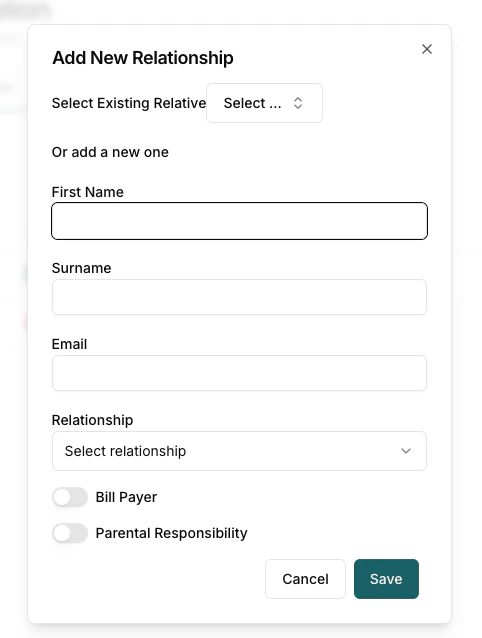
When adding a parent/carer from the child’s profile, you have two options:Option 1: Select Existing Parent/Carer
If the parent/carer already exists in the system:- Use the Select Existing Relative dropdown
- Choose the parent/carer from the list
- Configure the relationship details (relationship type, bill payer, parental responsibility)
- Click Save
Option 2: Create New Parent/Carer
If the parent/carer doesn’t exist in the system:- Leave the Select Existing Relative field empty
- Fill in the new parent/carer details:
- First Name
- Surname
- Configure the relationship details
- Click Save
Parent/Carer Login Status
The parent/carer list shows the current login status for each person:Status Indicators
- Last Login Date: Shows the date and time when the parent/carer last logged in (e.g., “10 Feb 2026 14:30”)
- Invite Sent: A blue mail icon indicates an invitation email has been sent but the parent/carer hasn’t logged in yet
- Dash (-): No invitation has been sent yet
Sending Invitations
To grant a parent/carer access to the parent portal:- Click the More Actions (…) button on the parent/carer row
- Select Send Invite
- The parent/carer will receive an email with a login link
Managing Existing Parents and Carers
From the main parent/carer list, you can:Edit Parent/Carer Details
- Click the edit icon to modify parent/carer details and child relationships
- Update personal information, add/remove children, and change relationship settings
Send Invitation
- Send Invite: Send an invitation email to allow the parent/carer to access the parent portal
Delete Parent/Carer
- Remove a parent/carer completely from the system
- This will also remove all their child relationships
Search and Filter
Use the search functionality to quickly find specific parents and carers by:- Name
- Email address
- Associated children names